

On the Privacy page, you sort out what you owe your website visitors because your LeadWin agent runs on your website. You decide whether detailed visitor analytics is allowed, copy a ready-made paragraph for your privacy policy and find the data processing agreement. Without this agreement there is no code for your website. On your website, you are the controller, and Feedbax processes the data only on your behalf.
At a glance
- You find the page in the LeadWin dashboard under Setup → Privacy. It is for owners and admins. You assign the roles under Team.
- Without consent, LeadWin sets no cookies and stores nothing in your visitors' browsers. Visits are only counted anonymously.
- If you obtain consent yourself, you confirm this with a checkbox. Your code then gets an additional attribute, and you copy it again.
- You copy a ready-made paragraph for your privacy policy with one click.
- You conclude the data processing agreement under Art. 28 GDPR once for your whole account. If you signed up for your LeadWin account on leadwin.ai, that happened with your sign-up. If you came from Feedbax, as a provider or as a buyer, you accept it here, with a checkbox and the Accept button. Only then does the Installation page show the code.
How it works
Your agent always needs some details to answer appropriately. When a visitor opens the chat, LeadWin processes:
- the page of your website on which the chat was opened,
- the website the visitor came from (referrer),
- the country, derived from the IP address.
These details go to the AI service provider together with the chat messages. So that your agent answers in the visitor's language, the text of each message also goes to a language detection service based in the EU, which does not store it. LeadWin does not store the IP address. The details become part of the stored chat history and are deleted with it. No cookies are set for this and no identifiers are stored in the browser.
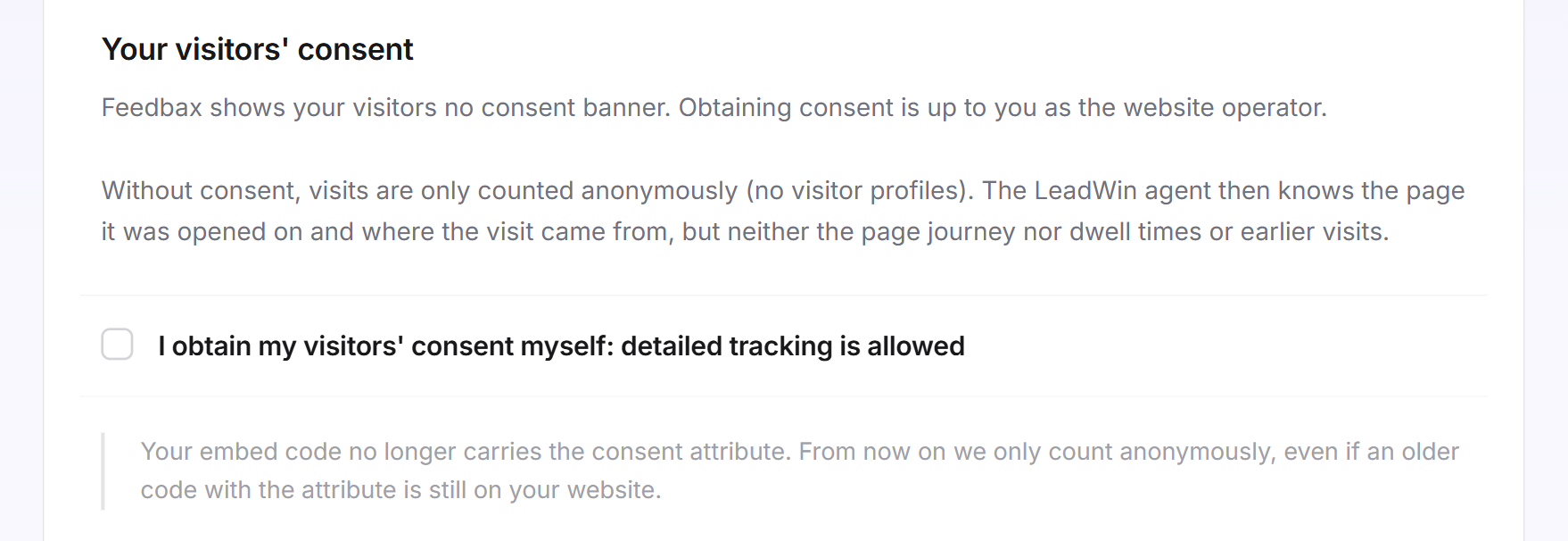
Without consent, LeadWin only counts visits anonymously and creates no visitor profiles. Your agent then knows the page it was opened on and where the visit came from. It does not know the page history, time on page or previous visits.
With consent, LeadWin additionally processes:
- the page history within the visit, time on page and scroll depth,
- device and browser information,
- the source of the visit with campaign parameters,
- an approximate location from the IP address (country, region, city),
- a visitor identifier in the browser, which is valid for around 13 months and recognizes returning visits.
From this, an interest score is calculated for each visit. LeadWin deletes the individual data after 90 days at most. After that, only aggregated statistics without personal reference remain, for up to 2 years. This data is used by Visitor analytics and Live visitors.
Feedbax does not show your visitors a consent banner. As the website operator, you obtain consent with your own consent tool. Separately from this, the contact form and appointment booking always ask for the visitor's consent themselves. You find more on this in How visitors experience your LeadWin agent.
Declare consent
The checkbox confirms that you obtain your visitors' consent yourself. It is never ticked at the start.
- Open Setup → Privacy.
- In the Your visitors' consent card, tick I obtain my visitors' consent myself: detailed tracking is allowed. The setting saves immediately.
- A green line shows the attribute that is now in your code:
data-leadwin-consent="granted". - Open Installation, copy the code again and use it to replace the old one on your website.
Until you have added the new code, Installation shows a yellow notice, the Installation entry carries a yellow dot, and the status in the header does not show Active. The checkbox is the only setting that changes the code.
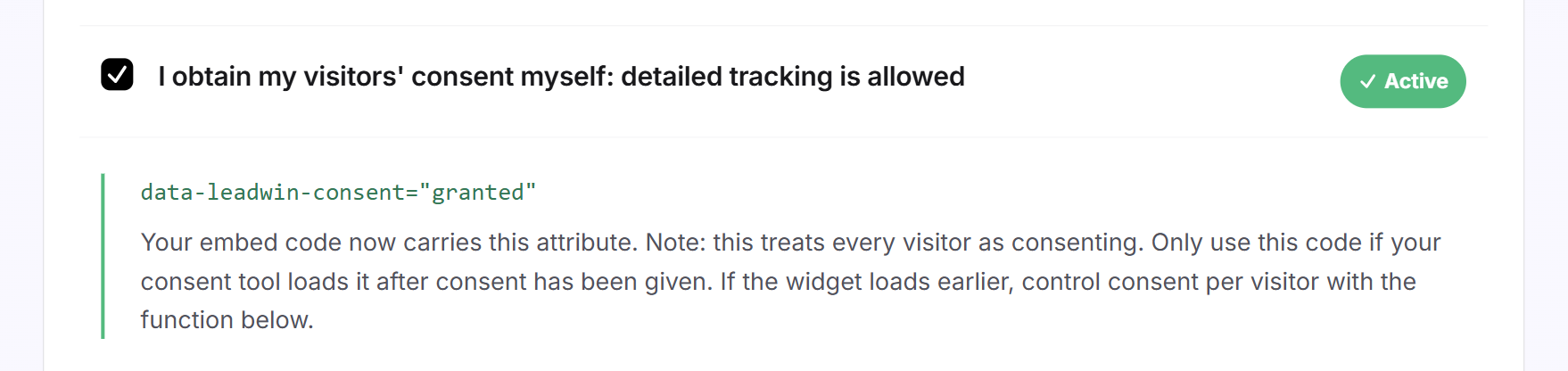
Important: With the attribute, every visitor counts as having consented. Only use this code if your consent tool loads it after consent has been given. If your website loads the code earlier, control consent per visitor as described in the next section.
If you untick the checkbox again, the attribute disappears from the code. From that moment on, LeadWin only counts anonymously, even if an older code with the attribute is still on your website. LeadWin enforces this on the server.
Control consent per visitor
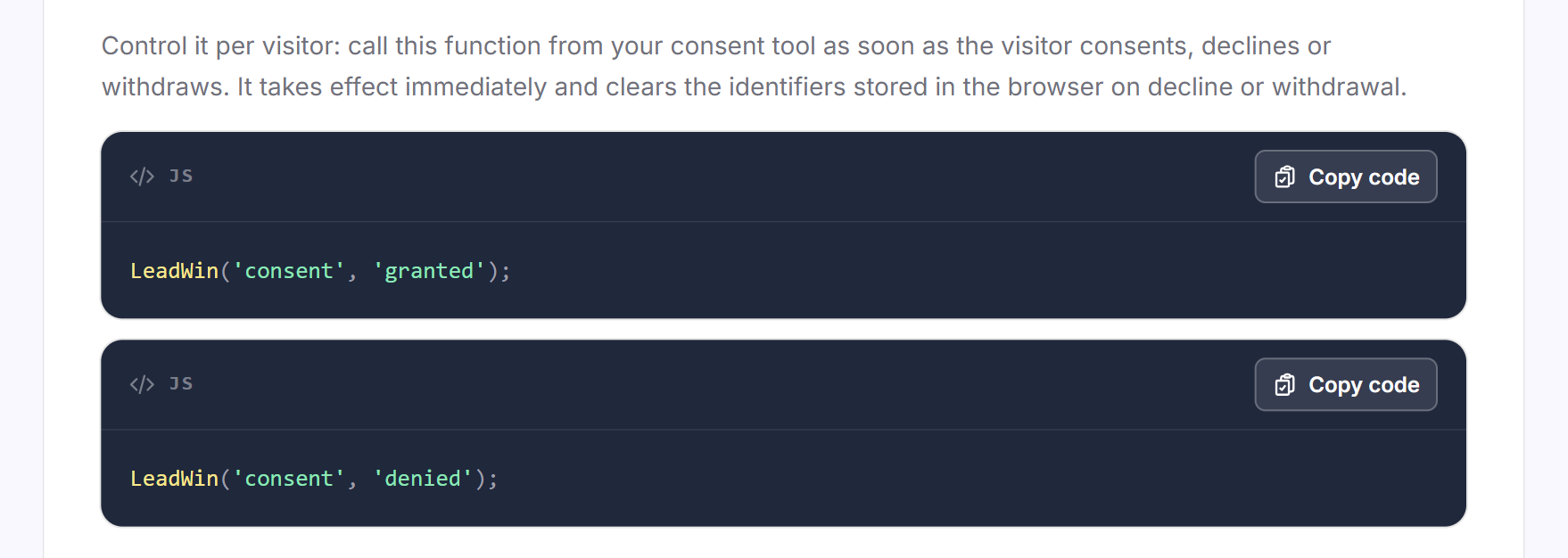
If your website loads the code before the visitor has agreed, you call a function from your consent tool. You do this as soon as the visitor agrees, declines or withdraws consent:
LeadWin('consent', 'granted');
LeadWin('consent', 'denied');
The function takes effect immediately. When consent is declined or withdrawn, it deletes the identifiers stored in the browser. You find both lines in the card with the Copy code button. The function only works if the checkbox above is ticked. Without the checkbox, LeadWin always counts anonymously. Further functions are described in JavaScript API.
Copy the building block for your privacy policy
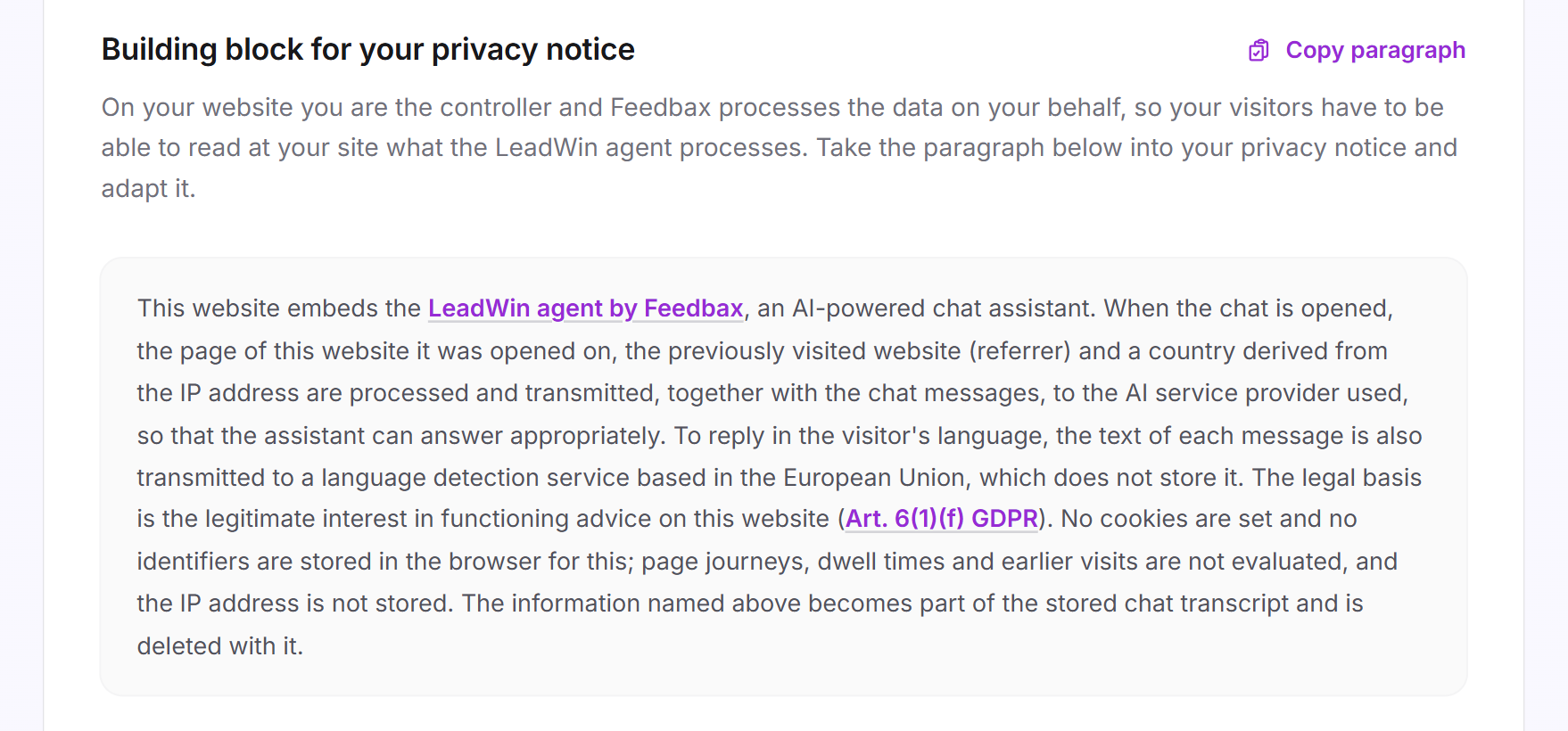
Your visitors must be able to read on your website what your agent processes. There is a ready-made paragraph for this.
- Open Setup → Privacy.
- In the Building block for your privacy notice card, click Copy paragraph. The text is copied with its links and also as plain text. Clicking in the text field also selects the whole text.
- Paste the paragraph into your privacy policy and adapt it, for example to your company name and your style.
The first paragraph is always there. It describes the details every chat needs, with legitimate interest as the legal basis (Art. 6(1)(f) GDPR). The second paragraph only appears while the consent checkbox is ticked. It describes visitor analytics with consent as the legal basis (Art. 6(1)(a) GDPR and Section 25(1) TDDDG), the retention periods and the right to withdraw consent. LeadWin adds the links to LeadWin and the legal texts automatically. The building block appears in the language you use the dashboard in.
If you change the checkbox, the building block changes too. Then copy it again and update your privacy policy.
Conclude the DPA
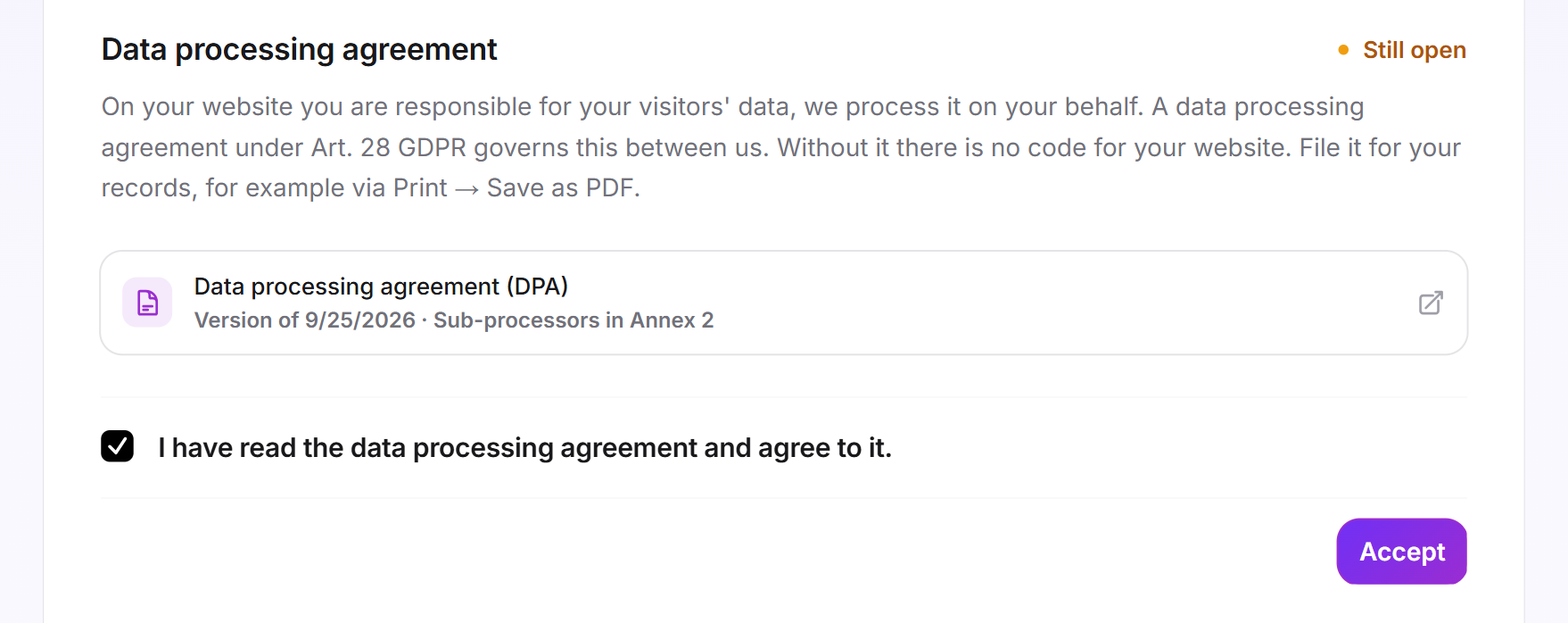
On your website, Feedbax processes your visitors' data on your behalf. A data processing agreement (DPA) under Art. 28 GDPR governs this between you and Feedbax. Without it, Feedbax may not process your visitors' data. That is why the Installation page only hands out the code for your website once the agreement is concluded. Visitors also reach your booking pages and chat links only from then on. How you conclude it depends on your account:
- LeadWin account, signed up on leadwin.ai: You concluded the agreement when you clicked Create account. The sentence under the button names and links it, see Sign-in. There is nothing left to do here, and the Getting started checklist has no Privacy step.
- Feedbax provider or buyer: Your LeadWin account is created without a sign-up and without a notice to agree to when you sign in with Feedbax. Your Feedbax terms cover the account. That is why you accept the agreement here, as described below. In the checklist this is the Privacy step, right before Installation.
- Older LeadWin account: If your sign-up did not yet include the agreement, you accept it here as well, just like on the way from Feedbax. You then see the Privacy step too.
If you concluded the agreement with your sign-up, the Data processing agreement card shows the Done badge, the agreement as its own Data processing agreement (DPA) card with the date of its version and a green line with the day you signed up: You accepted the data processing agreement on [date]. It applies to all agents of your account. There is no checkbox and no Accept button then. You can still open and save the agreement at any time by clicking that card.
If you came from Feedbax or have an older LeadWin account, you accept it like this:
- Open Setup → Privacy. The Data processing agreement card is at the very bottom.
- Click the Data processing agreement (DPA) card with the date of the version. The agreement opens in a new tab. Read it and save it for your records, for example with Print → Save as PDF.
- Tick I have read the data processing agreement and agree to it.
- Click Accept. The button only becomes active once the box is ticked.
The checkbox and the button are then replaced by a green line with the date of your acceptance: You accepted the data processing agreement on [date]. It applies to all agents of your account. The card now carries the Done badge, the Privacy step in the checklist is ticked, and the code appears under Installation as soon as a domain is allowed. If saving fails, you see Your acceptance could not be saved. Please try again.
The agreement applies once to your whole account, whichever way you concluded it. If you create more LeadWin agents, you do not accept it again. You cannot withdraw it in the dashboard, and the date it was concluded stays on record. The date of the current version is on the agreement page. The sub-processors are listed in Annex 2.
What your plan includes
The building block and the data processing agreement are available in every plan, because every chat processes the page, the source and the country. You also see the consent card in every plan. However, you only evaluate the data from a consent with visitor intelligence:
| Plan | Building block and DPA | Visitor intelligence |
|---|---|---|
| Free | yes | no |
| Basic | yes | no |
| Pro and trial | yes | yes |
| Scale | yes | yes |
Feedbax Business comes with the limits of Basic, Premium with those of Pro and Enterprise with those of Scale. You find more on this in LeadWin in your Feedbax plan.
Pro pays off if you want to know who is interested in you: with consent, you see individual visitors with their history and their interest score, live and in retrospect. All differences are in Plans compared.
Frequently asked questions
Do I need a cookie banner for LeadWin?
Without the checkbox, LeadWin sets no cookies and stores nothing in the browser, and visits are only counted anonymously. For detailed visitor analytics, you need consent, which you obtain with your own consent tool.
What exactly does the checkbox change?
It adds the attribute data-leadwin-consent="granted" to your code. Copy the code again afterwards, otherwise the old one keeps running on your website.
My consent tool loads scripts before consent is given. What should I do?
From your consent tool, call LeadWin('consent', 'granted') or LeadWin('consent', 'denied') for each visitor. The checkbox must be ticked for this.
What needs to go into my privacy policy?
Copy the building block for your privacy policy and adapt it. The second paragraph only appears if you have confirmed consent.
Do I need to sign a data processing agreement?
No. If you signed up for your LeadWin account on leadwin.ai, you concluded it when you clicked Create account. If you came from Feedbax, as a provider or as a buyer, you accept it under Setup → Privacy with a checkbox and the Accept button. Either way it applies once to your whole account and to all agents. Open it by clicking the Data processing agreement (DPA) card and save it as a PDF.
My account is not new. Why does Installation no longer show the code?
Your account has not accepted the data processing agreement yet. This applies to providers and buyers who came from Feedbax and to older LeadWin accounts whose sign-up did not yet include the agreement. Accept it once under Setup → Privacy. After that the code is back under Installation. A code that is already on your website keeps running in the meantime.
Why do I not see the consent card?
Either Feedbax has switched off visitor analytics for your agent, or your role is not allowed to see Analytics.
Does LeadWin store my visitors' IP addresses?
Not for the chat. LeadWin only derives the country from it. With consent, an approximate location with region and city is added.