

Under News, you note what applies at your business right now: a current offer, a fully booked week, a maintenance window. Your LeadWin agent mentions it in every conversation where it fits. This way, visitors learn about your offer exactly when they ask about it, and nobody books a week in which you have no time.
At a glance
- You find the page in the LeadWin dashboard under Knowledge → Instructions, on the News tab.
- The text can be up to 2,000 characters long. It applies from the next visitor message.
- The notice does not expire on its own. You remove it as soon as it no longer applies.
- LeadWin can suggest the text from a page of your website or from a PDF of up to 10 MB, 5 times a day.
- News is available in every plan, including Free. Owners and admins can see the page, and you assign roles under Team.
How it works
Your LeadWin agent receives the saved text in every conversation as a current fact. However, it only mentions it when it fits the visitor's question. If someone asks about a website relaunch, it mentions your relaunch discount. If someone asks about your location, it leaves it out.
The text applies from the next message after you save. There is no expiry date: the notice stays until you remove it. If your offer ends on March 31, clear the field on March 31. Otherwise, your LeadWin agent will still mention the offer in April.
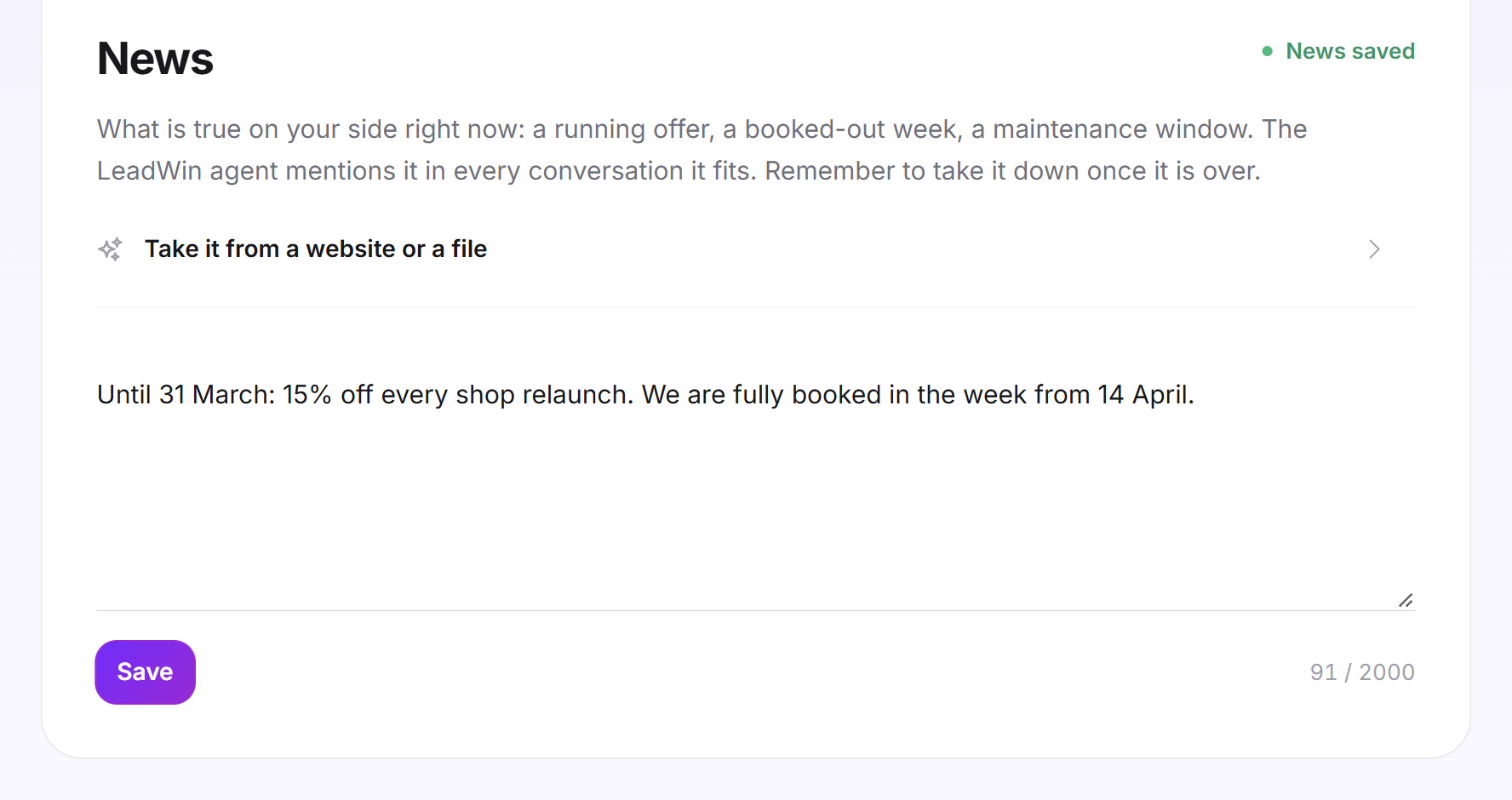
At the top right of the card, the status shows whether something is saved: News saved in green or Still open in yellow. The status depends on the saved text, not on what is currently in the field. You check whether your LeadWin agent uses the notice correctly in the live preview. Test conversations do not count against your conversation quota.
Write a notice
- Open Knowledge → Instructions and switch to the News tab.
- Write the notice in the text field, for example: 20% off every website relaunch until the end of March. We are fully booked in April. The counter shows how many of the 2,000 characters you use.
- Click Save. LeadWin confirms with News saved.
State in the text until when the notice applies. Then your LeadWin agent knows what it is talking about, and you know when to remove it.
If saving fails, LeadWin shows Your change could not be saved. Please try again later. Your text then stays in the field, and your LeadWin agent keeps using the last saved version.
Remove a notice
- Open the News tab.
- Clear the text field completely.
- Click Save. The status changes to Still open, and your LeadWin agent no longer mentions the notice from the next message on.
Take the text from your website or a PDF
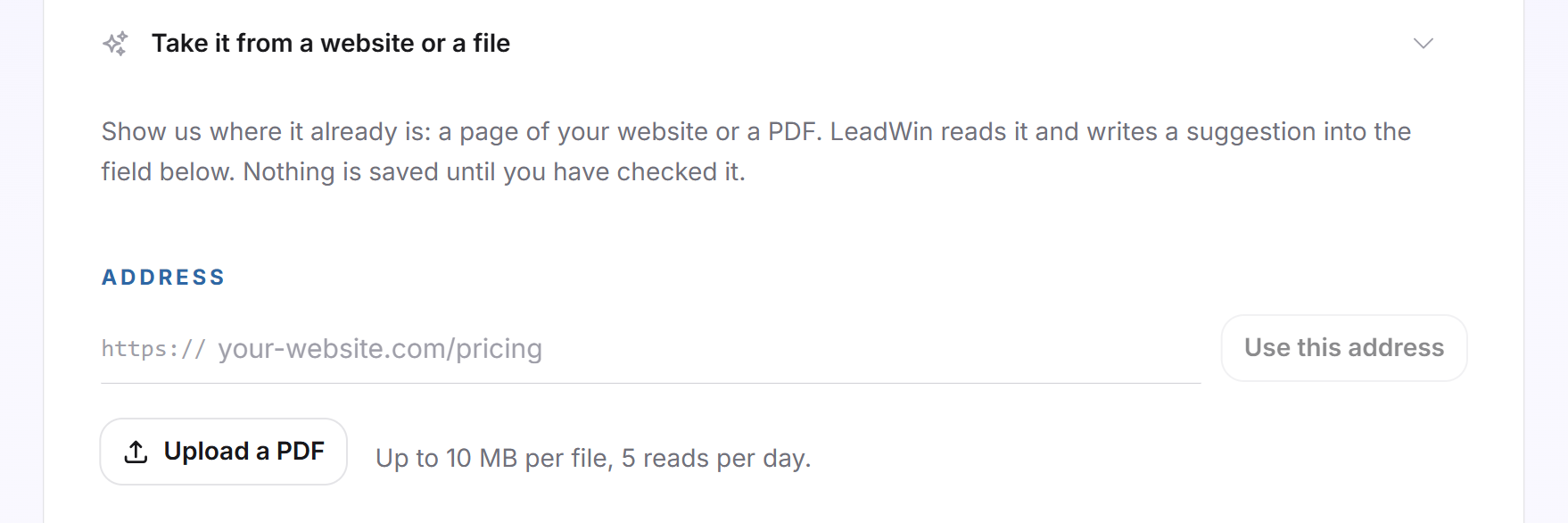
If your offer is already on your website or in a PDF, you do not need to type it out. Above the text field is the expandable section Take it from a website or a file. LeadWin reads the source and writes a suggestion into the field. Nothing is saved until you have checked it.
- Click Take it from a website or a file to expand the section.
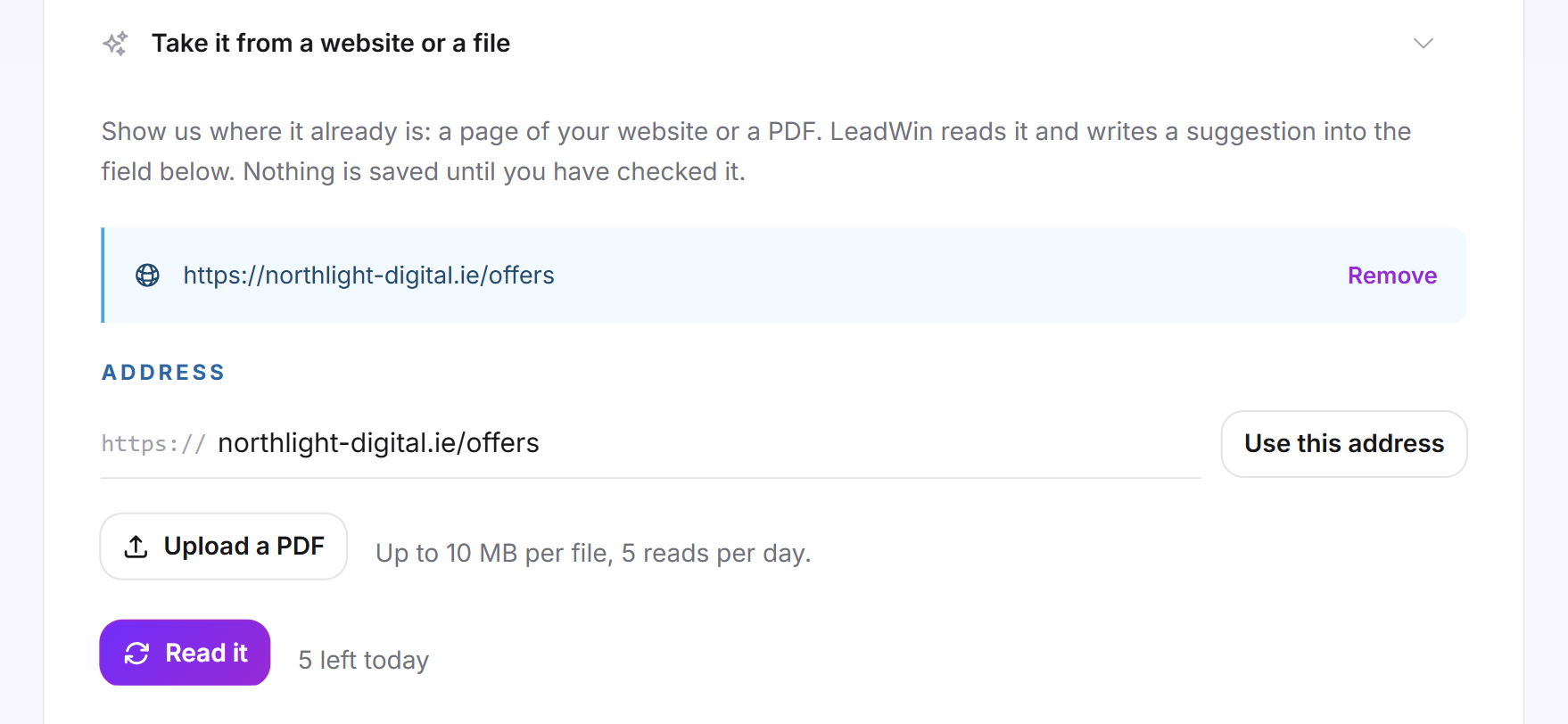
- Enter the page address, for example northlight-digital.ie/offers, and click Use this address. Or click Upload a PDF and select a PDF file.
- The source now appears at the top of the section. Click Read it. Next to it, you see how many reads you have left today.
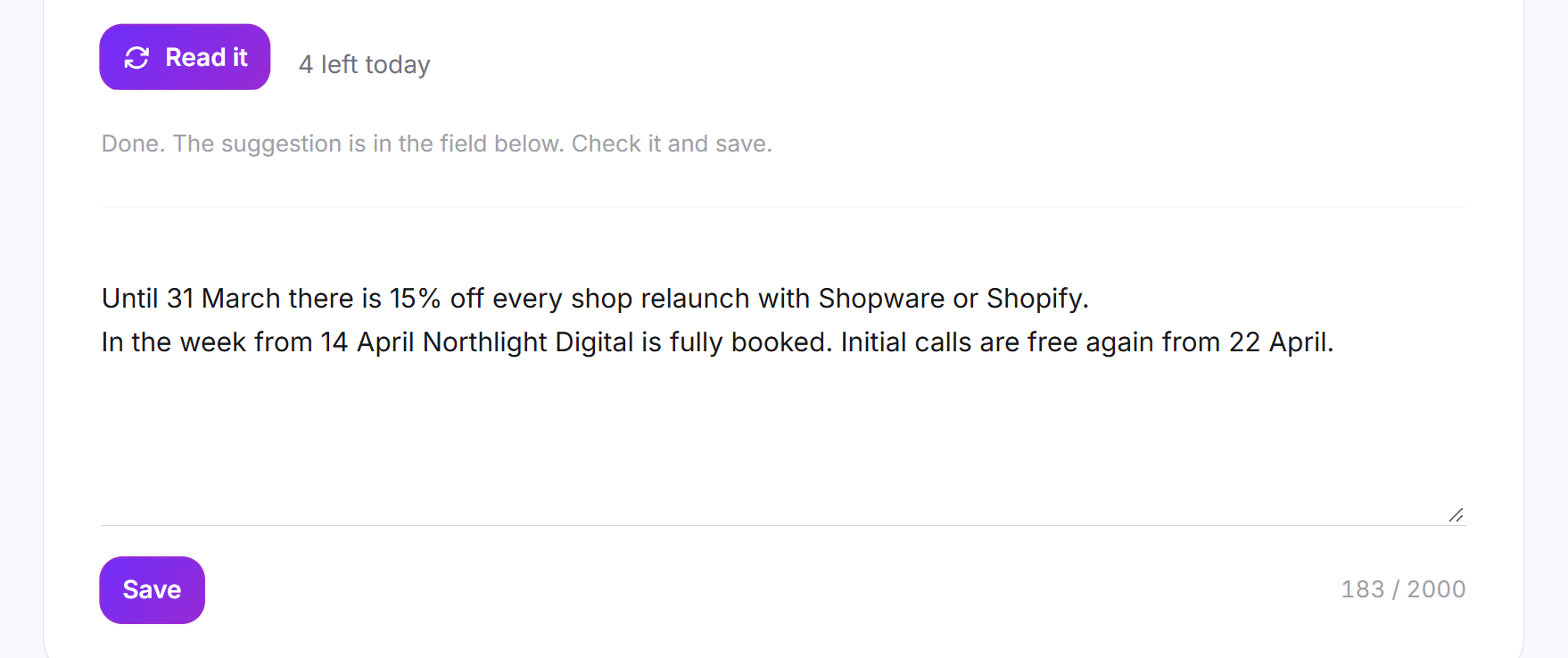
- LeadWin reports Done. The suggestion is in the field below. Check it and save. The suggestion replaces the previous content of the text field. Check it and shorten it.
- Click Save. Only now does the new text apply.
LeadWin remembers the source. If your offer changes on the website, one click on Read it the next day is enough. LeadWin keeps an uploaded PDF for this purpose. With Remove, you delete the saved source together with the file.
How much LeadWin reads
These limits apply when you take text from a source:
- 10 MB is the maximum size of a PDF file or a page.
- 60,000 characters is what LeadWin reads from the source, about 25 pages of text. Anything beyond that is not in the suggestion. If the source is longer, LeadWin reports this instead of Done: We read the first 60,000 characters. Anything after that is not in the suggestion.
- 2,000 characters is the maximum length of the suggestion, as much as the text field holds.
- 5 reads per day and source. The day ends at midnight Coordinated Universal Time (UTC), which is 1 a.m. in Germany, or 2 a.m. during summer time.
- No text recognition: A scanned PDF contains its text only as an image. LeadWin finds no text in it. In that case, upload a PDF with real text or write the notice yourself.
If reading does not work, the reason appears in red below the button: the address could not be reached, the file was too large, the source contained no text, or today's reads are used up. LeadWin writes the suggestion in your agent's default language.
Tip: News is meant for short, time-limited notices. Permanent documentation such as a service brochure is better uploaded under Documents, and your prices belong under Cost structure. Anything that always applies, such as tone and focus, belongs in the instructions.
What it looks like in the chat
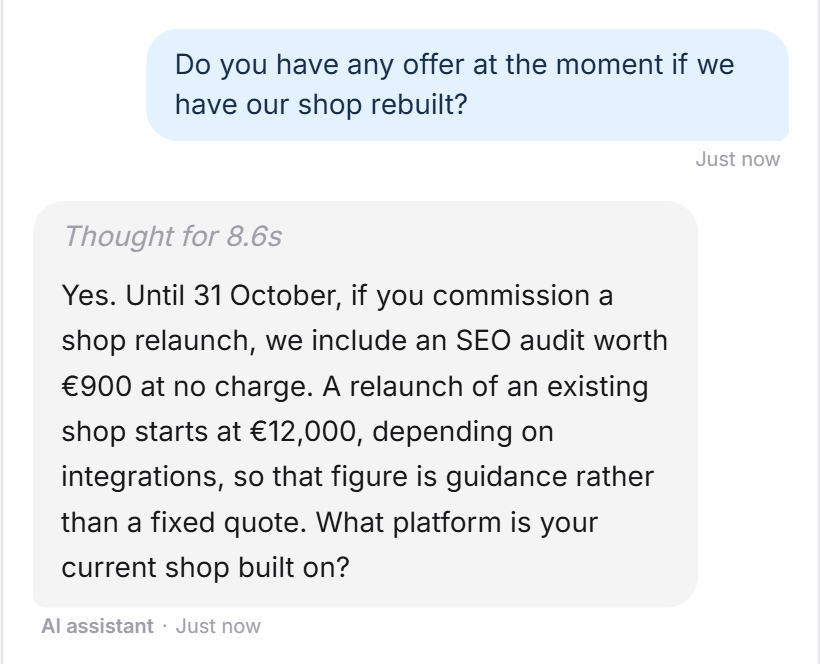
A visitor asks about an offer. Your LeadWin agent names the autumn offer from “News” with its end date and then asks about the project.
What your plan includes
News works the same in every plan:
| Plan | Length of the notice | Take from website or PDF |
|---|---|---|
| Free, Basic, Pro, Scale and trial | 2,000 characters | 5 reads per day, PDF up to 10 MB |
The same applies with Feedbax Business, Premium and Enterprise. You find more on this in LeadWin in your Feedbax plan. What a higher plan adds is shown in Plans compared. If you have several LeadWin agents, each one has its own notice and its own source.
Frequently asked questions
Does my LeadWin agent mention my offer in every conversation?
No. It knows the offer in every conversation, but only mentions it when it fits the visitor's question.
Does the notice expire automatically?
No. Clear the field and save as soon as the notice no longer applies.
How long can the notice be?
Up to 2,000 characters. The counter below the field shows how many you use.
Is the suggestion saved automatically?
No. It only fills the text field. It applies to your LeadWin agent only after you click Save.
Why does LeadWin find no text in my PDF?
The PDF is probably a scan, with the text only as an image. Upload a PDF with real text or write the notice yourself.
How often can I read a source?
5 times a day. After that, you can continue the next day.
Is the PDF stored?
Yes, until you delete the source with Remove. This lets you read it again later with one click. However, your LeadWin agent only answers from the saved text, never from the file. A PDF it should answer from permanently belongs under Documents.