

Under Knowledge base, you set up the help center your LeadWin agent answers from and that visitors can search themselves. You write the articles directly in LeadWin and publish them as help center pages of your own, or you connect your existing Intercom Help Center. This way, your LeadWin agent also answers detailed questions about your product with your own, reviewed texts.
At a glance
- You find the page in the LeadWin dashboard under Knowledge → Knowledge base.
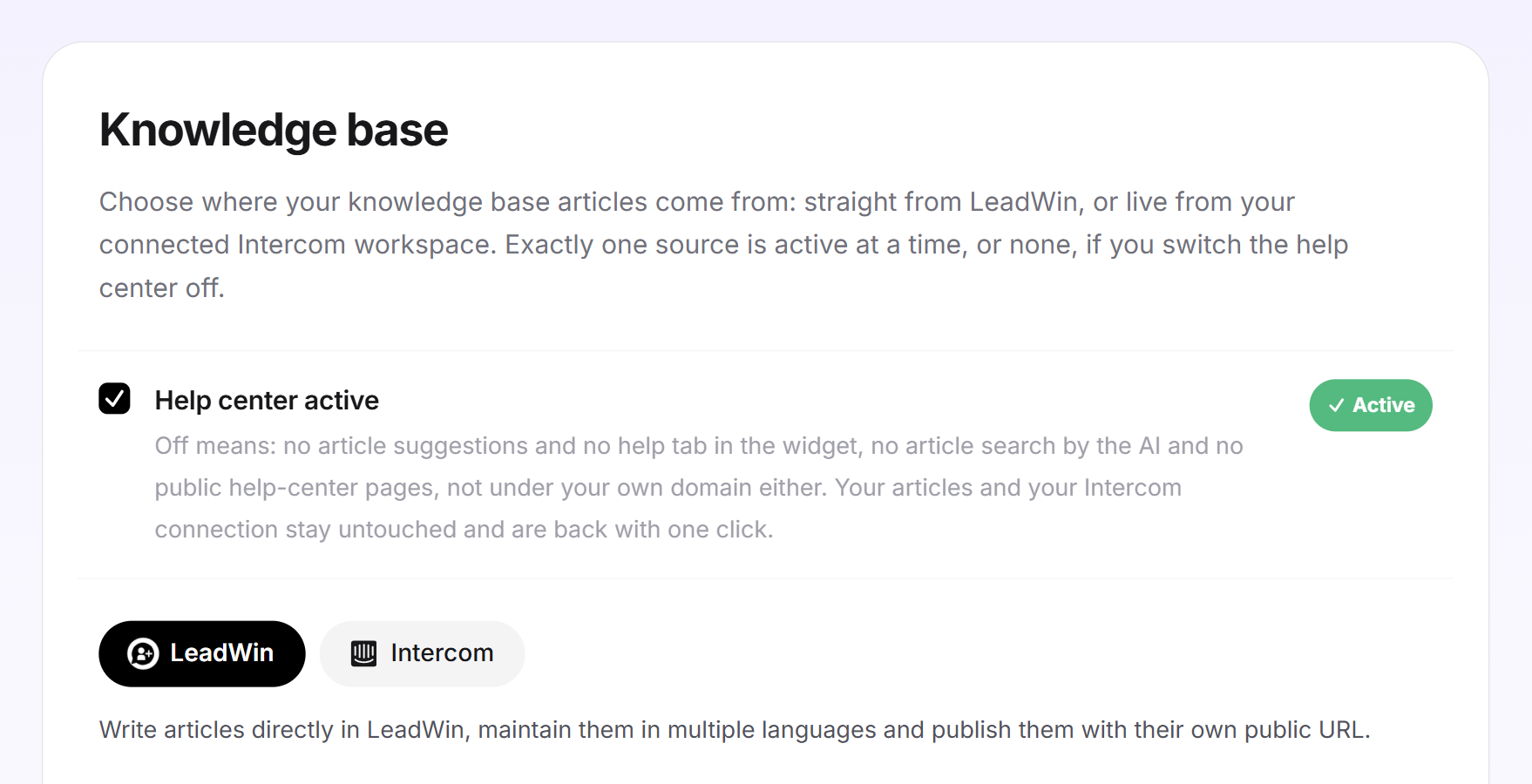
- Exactly one source is always active: LeadWin or Intercom. Or none, if you switch the help center off.
- The knowledge base is available with Pro, Scale and in the trial. Free and Basic do not include it.
- Your LeadWin agent knows the titles of up to 250 articles and reads up to 3 articles at once, up to 15,000 characters of each.
- Owners and admins can see the page. You decide who has which role under Team.
How it works
When the help center is active, your LeadWin agent uses the articles in four places:
- In its answers: It searches for matching articles, answers from them in its own words and links the article.
- In the chat's help tab: Visitors search your articles there themselves.
- As suggestions at the start of a conversation: Articles can appear as starters on the Welcome screen.
- As public help center pages: only with the LeadWin source. Every published article has its own address.
If you switch off Help center active, all of this goes away, including under your own address. Your articles and your Intercom connection are kept and are back with one click. You check whether your LeadWin agent finds an article in the live preview.
How much your LeadWin agent reads
- 250 titles: Your LeadWin agent sees the table of contents of your help center with up to 250 article titles and uses it to choose which articles to read. If it finds no matching title, it searches the text.
- 3 articles is what it reads per lookup.
- 15,000 characters is what it reads of each article, about 6 pages of text. The editor allows up to 60,000 characters, but your agent does not know anything beyond that point.
- 8 images per article can go into its answer when a screenshot shows exactly the step asked about.
What this means for you: the title decides whether your LeadWin agent opens an article. Write titles that answer the question, for example Download an invoice as PDF instead of Invoices. Long guides are better split into several articles so that nothing gets lost after the first 15,000 characters.
Choose the source
- Open Knowledge → Knowledge base.
- Make sure Help center active is checked.
- Click the LeadWin tile to write articles directly in LeadWin, maintain them in several languages and publish them under their own address. Or click Intercom to load the articles live from your Intercom Help Center. Nothing is copied.
- The management view of the selected source appears below.
New agents start with the LeadWin source. Older agents keep the source that is set for them. If your plan does not include a knowledge base, the card carries the label Upgrade. Clicking LeadWin then opens the LeadWin pricing page, or the Feedbax pricing page if you have a Feedbax plan, instead of switching the source.
Create categories
With the LeadWin source, the management view has four tabs: Your articles, Footer links, Address and Intercom import. The page always opens on the Your articles tab. There you create categories and subcategories, just as you know them from Intercom.
- Click Add category, enter a name and click Save.
- With Edit, you change the name (up to 200 characters) and a Description (optional) (up to 500 characters), each language on its own tab.
- With Add subcategory, you create a level below.
- With Image, you give a main category an image: JPG, PNG or WebP up to 4 MB.
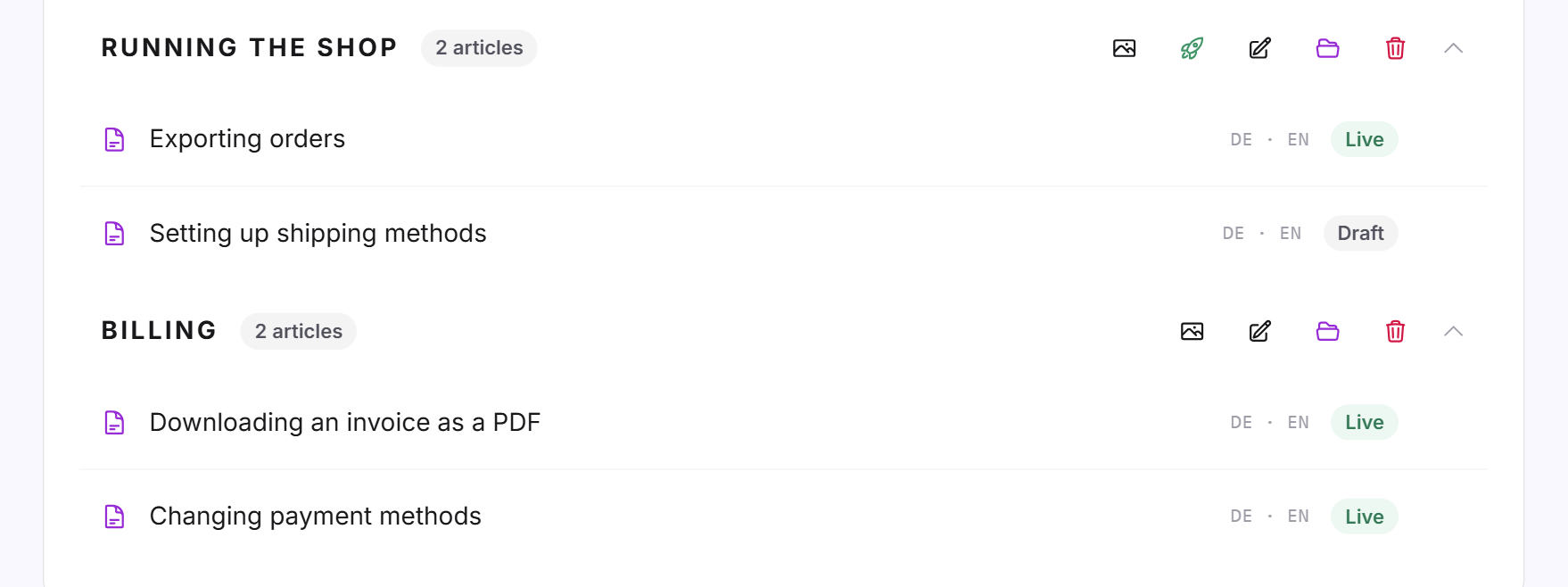
Each category shows how many articles it and its subcategories contain. If you delete a category, its articles are kept and then appear under Uncategorized. Its subcategories move up one level.
Write and publish an article
- On the Your articles tab, enter a title, choose a category and click Create article. The article opens directly in the editor.
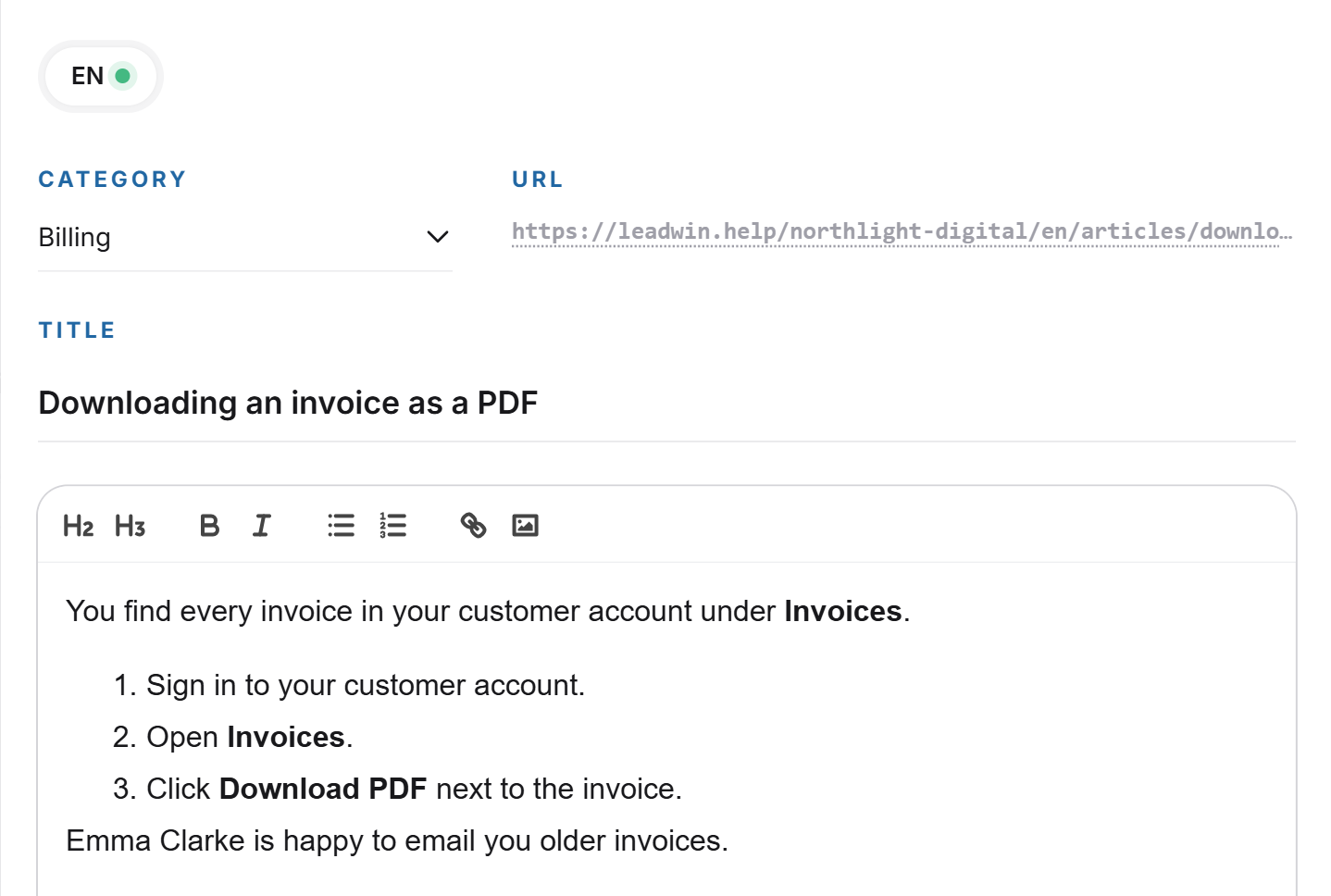
- Choose the language at the top and write the title (up to 300 characters) and the text (up to 60,000 characters).
- You insert images with the image icon or paste a screenshot directly into the text: PNG, JPG, WebP or GIF up to 5 MB. Under Image description, describe what it shows.
- Click Save. The article is now a Draft that neither visitors nor your LeadWin agent can see.
- Click Publish. The article is now Live and has a public address.
You can only publish once the article has a title and text in at least one language. With Revert to draft, you take an article offline again. With the rocket icon Publish all articles, you publish all drafts of a category and its subcategories at once after a confirmation. Drafts without content stay as they are.
You do not have to translate yourself. LeadWin automatically translates every published article into all languages your agent speaks. You set which ones under Language. LeadWin never overwrites a language you wrote yourself. It does not translate drafts. You delete an article with the trash icon in its row. After a confirmation, it is permanently deleted in all languages.
Tip: Individual questions and answers you want to word yourself are well placed in the knowledge base. Longer documentation such as a brochure is better uploaded under Documents.
Maintain footer links
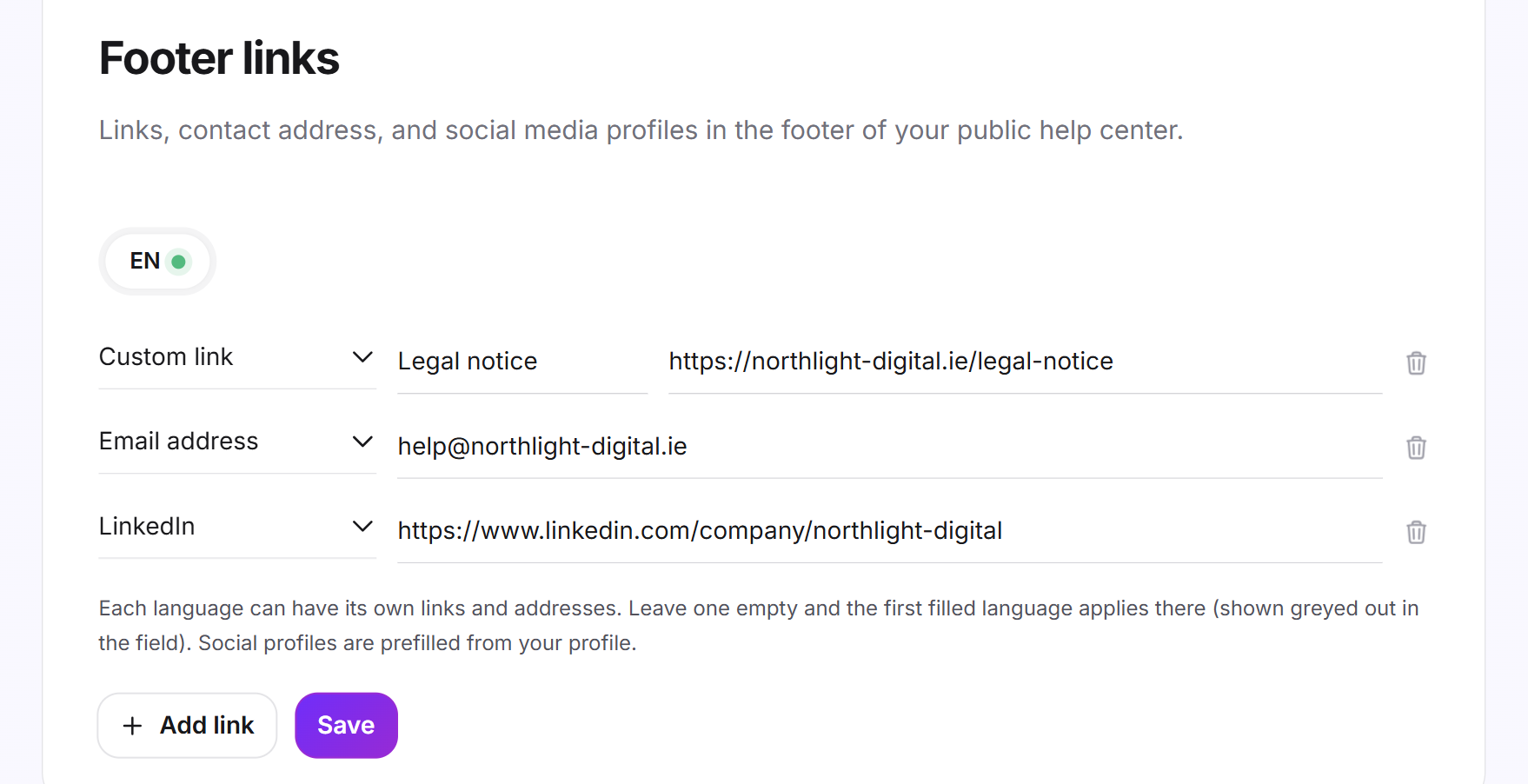
On the Footer links tab, you set what appears at the bottom of your public help center pages: links of your own, an email address and your profiles on LinkedIn, Instagram, TikTok, YouTube, X and Facebook.
- Choose the language at the top.
- Click Add link, choose the type and enter the target. A link of your own also gets a label.
- Click Save.
You can create up to 10 links. If you leave a language empty, the first filled-in language applies there, shown in gray in the field. On your first visit, your social media profiles from your company profile or Feedbax profile are prefilled. They only apply once you save.
The address of your help center
At first, your help center runs under the LeadWin address leadwin.help with the public name of your agent, which you set on the Agent page. On the Address tab, you can serve it under a subdomain of your own instead, for example help.northlight-digital.ie. How this works is explained in your own address for your help center. The Help center button on the Your articles tab opens your public help center in a new tab.
Your own favicon
The favicon is the small image in the browser tab of your help center. Without your own favicon, the tab shows the LeadWin logo. The Favicon field sits in Knowledge → Knowledge base below the source selection once LeadWin is the source.
- Click Upload favicon.
- Choose an image as PNG, JPG or WebP with at most 256 KB. Ideally it is square, for example 64 × 64 pixels.
The favicon applies right away, there is nothing to save. With Replace favicon you upload a new one, with Remove the LeadWin logo returns. If you use Intercom, the favicon comes from your Intercom Help Center.
Import Intercom articles
If you want to switch from Intercom to LeadWin, you take over your articles on the Intercom import tab. Categories and subcategories are kept, all languages come along, and images are copied too.
- Choose the Intercom region your workspace is in: Europe, USA or Australia.
- Paste your access token and click Connect with Intercom. The token is only used to read your articles.
- Click Start import. A bar shows how many articles have already been imported.
- At the end, you see how many articles were imported, skipped or left unchanged.
Importing again updates existing articles instead of duplicating them. The import requires a plan with a knowledge base, so Pro, Scale or the trial. Without such a plan, the Intercom import card carries the label Upgrade. The Connect with Intercom and Start import buttons then show a lock and open the pricing page instead of importing.
Connect Intercom live
If you want to stay with Intercom, choose the Intercom source. Your LeadWin agent then searches the published articles of your Intercom Help Center live.
- Create an access token in your Intercom Developer Hub. Read permission for articles is enough.
- Under Intercom region, choose your workspace's region. You find it in your Intercom settings.
- Paste the token and click Connect with Intercom.
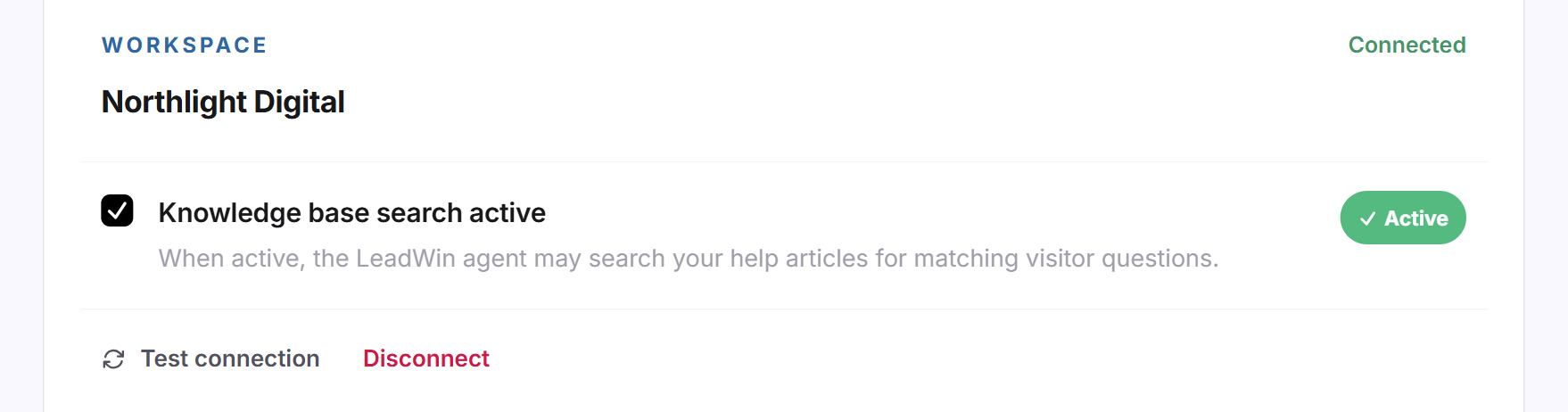
- Make sure Knowledge base search active is checked. Only then does your LeadWin agent search the articles.
With Test connection, you check at any time whether the connection works. Under Help center articles, you see the published articles, sorted by collection. With Disconnect, you permanently delete the stored access. You can connect your workspace again at any time afterward.
If Intercom refuses access, the token was usually not copied completely, or the region is wrong. A token is only valid in the region your workspace is in. In the Getting started checklist, an active Intercom search also counts for the Website knowledge step.
What it looks like in the chat
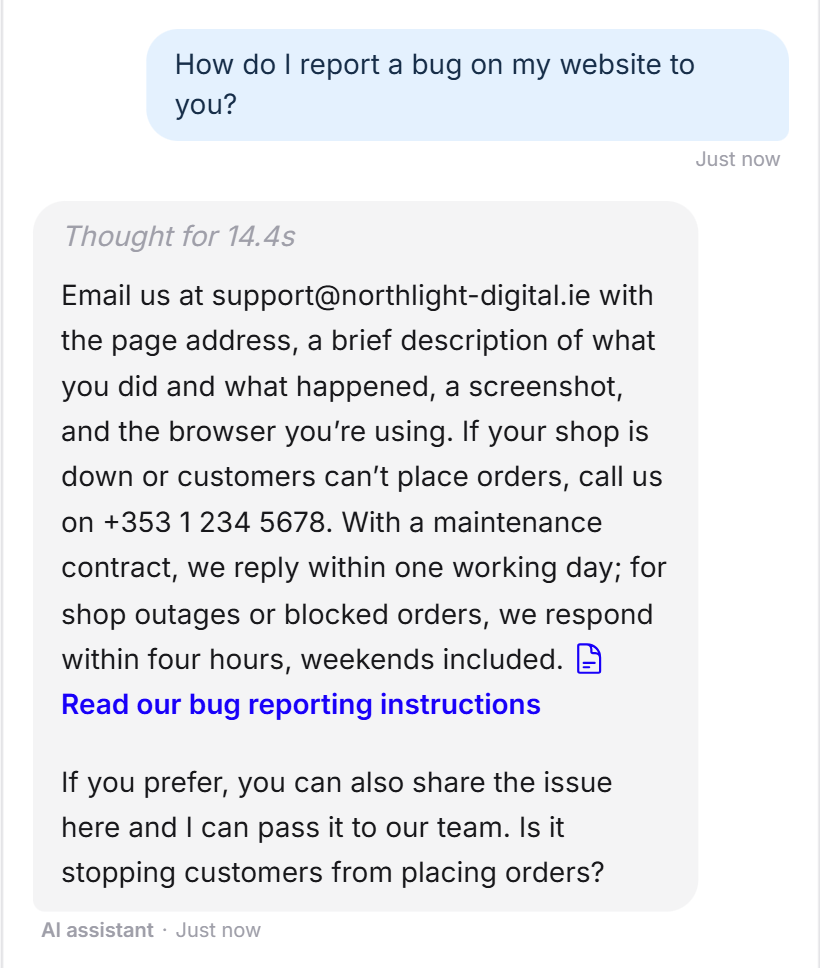
A visitor asks how to report a bug. Your LeadWin agent answers from your help article and links it. One click opens the article right in the chat.
What your plan includes
| Plan | Knowledge base with LeadWin | Own address | Intercom |
|---|---|---|---|
| Free | no | no | no |
| Basic | no | no | no |
| Pro and trial | yes | yes | yes |
| Scale | yes | yes | yes |
Feedbax Business comes with the limits of Basic, Premium with those of Pro and Enterprise with those of Scale. You find more on this in LeadWin in your Feedbax plan. Pro pays off if your customers have recurring questions about your product or service: your LeadWin agent then answers them from your reviewed articles, and you get a public, multilingual help center at the same time. How to switch is explained in Manage, change and cancel your plan, and all limits in Plans compared.
If your plan or the trial ends, your articles stay stored and you can keep editing them. As long as your plan does not include the knowledge base, however, the public pages are no longer reachable, your LeadWin agent does not use the articles, and automatic translation pauses. The card then shows a yellow notice with the Unlock button. The Intercom search ends as well. If you have several LeadWin agents, each one has its own help center. With Share knowledge, a second agent can also read the knowledge base of the first one.
Frequently asked questions
LeadWin or Intercom: what is the difference?
With LeadWin, you write the articles here and publish them as help center pages of your own. With Intercom, your LeadWin agent reads the articles live from your Intercom Help Center, and nothing is copied.
Which plan do I need?
Pro or Scale, or you are in the trial. Free and Basic do not include a knowledge base.
What happens if I switch the help center off?
The help tab, article suggestions, your agent's article search and the public pages disappear. Articles and the Intercom connection are kept.
Why can nobody see my article?
It is still a draft, or no language has both a title and text. Add both and click Publish.
Do I have to translate my articles?
No. LeadWin automatically translates published articles into your agent's languages. It never overwrites your own translations.
My LeadWin agent does not find an article. Why?
It chooses articles by their title. Word the title the way customers ask. If the answer only comes after the first 15,000 characters, split the article.
Can I switch from Intercom to LeadWin?
Yes. The Intercom import tab takes over all articles with their categories and languages. Importing again updates them.
Intercom refuses access. What should I do?
Check that the token was copied completely, and try the other regions: Europe, USA, Australia.