

Under Team, you decide who stands behind your LeadWin agent: who signs in to the dashboard, who takes over conversations and who learns by email what happens on your website. The AI introduces suitable people to visitors as contacts, with photo and short bio. This builds trust and brings every question to the right person.
At a glance
- You find the page in the LeadWin dashboard under Setup → Team. Owners and admins can see it.
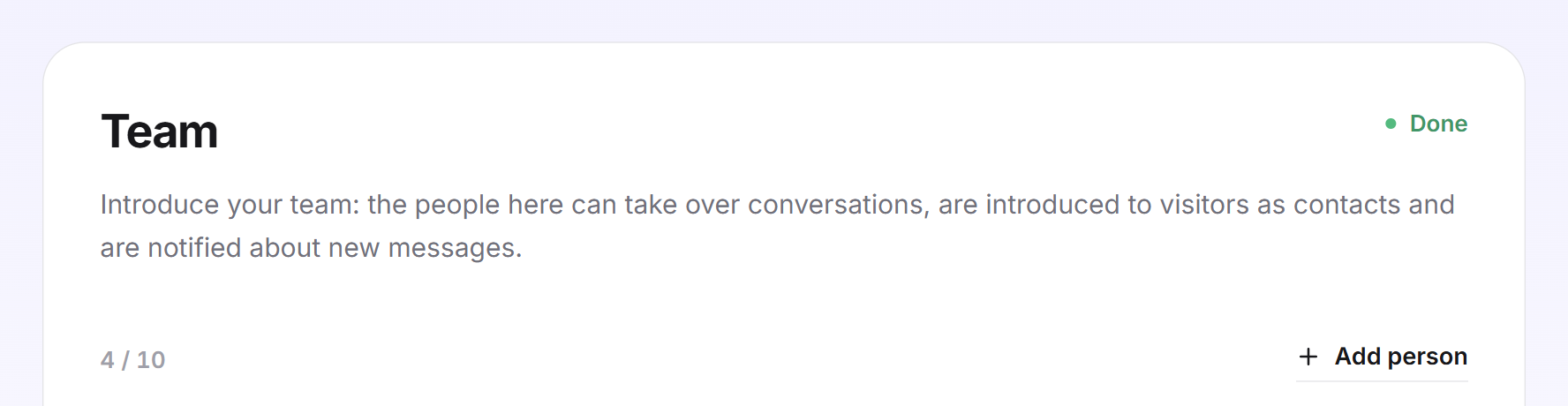
- Your plan determines the seats per LeadWin agent, including yourself: 1 (Free), 3 (Basic), 10 (Pro and trial) or 25 (Scale). You find an overview of all limits in Plans compared.
- There are four roles: Owner, Admin, Agent and Viewer.
- Invited people sign in without a password. The link in the invitation is valid for 14 days.
- Visitors see name, position, short bio, photo and profiles. They never see the email address or phone number.
How it works
The team belongs to one LeadWin agent. If you have several LeadWin agents, each one has its own team, and each person signs in to exactly one agent. When you create another agent, the team is never copied.
The AI knows your team in the order of the list. Whoever is at the top is suggested first. If a question matches the keywords you enter for a person under Expertise, the AI introduces this person in the chat as a person card with name, position, short bio and photo. From there, visitors open the person's profile with their social media profiles. What this looks like for visitors is shown in How visitors experience your LeadWin agent. Every change to the team applies from the next answer. LeadWin translates position and short bio into the other languages in the background, starting from the language of your dashboard.
People who join as an agent take over conversations in the inbox and receive handovers. They also get the emails about new messages, inquiries and appointments. The email goes first to the person responsible for the conversation. If there is none, it goes to all active people who join as an agent and have emails turned on. If nobody in the team meets these conditions, it goes to your account's notification address. The details are in Email notifications.
The Team step in the setup checklist is done as soon as one active person has a name, email, position, short bio and expertise. It is followed by the installation. For providers and buyers who came from Feedbax and for older LeadWin accounts, the Privacy step with the data processing agreement comes in between. LeadWin creates your own row automatically the first time you visit the page. As a Feedbax provider, it shows the name from your Feedbax profile, otherwise the company name of your LeadWin account. Your row is always at the top, carries the role Owner and cannot be deactivated. The note Created automatically from your login and cannot be deactivated. says so.
The roles
The whole team reads all conversations of the LeadWin agent. The role decides who may work on them and what else someone sees:
| Role | Read conversations | Take over conversations, inquiries and appointments | Analytics | Settings and team |
|---|---|---|---|---|
| Owner | yes | yes | yes | yes |
| Admin | yes | yes | yes | yes |
| Agent | yes | yes | no | no |
| Viewer | yes | no | yes | no |
- Admin configures the LeadWin agent and its knowledge, manages the team and sees all conversations and Analytics. Admins can also release a conversation that someone else has taken over.
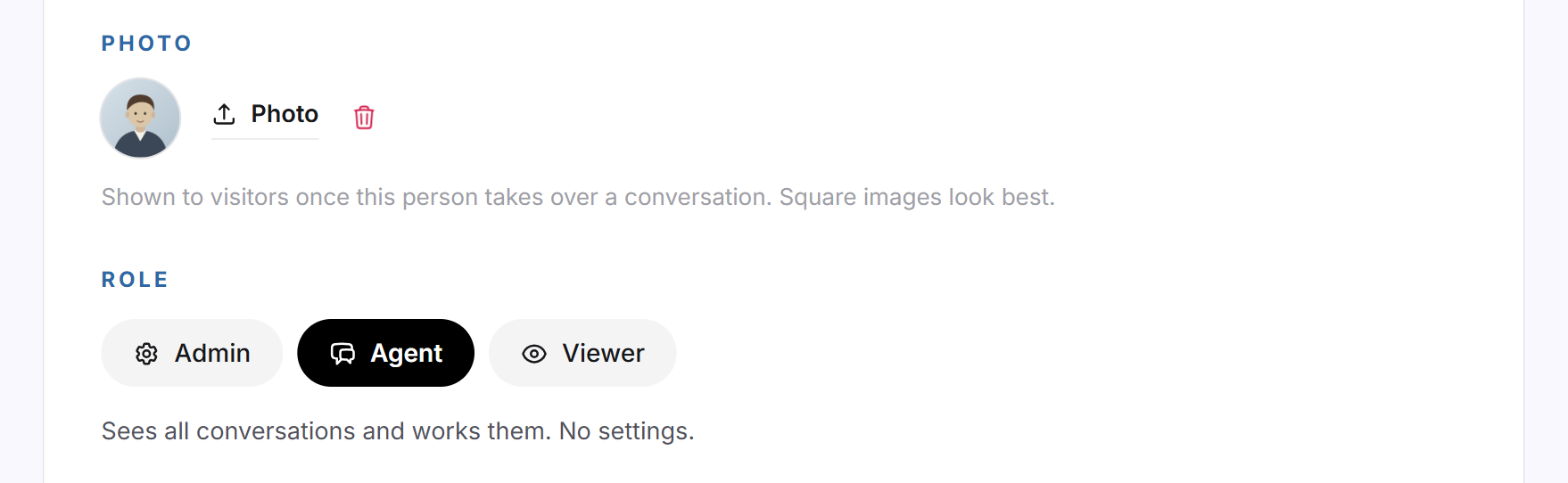
- Agent works on conversations, inquiries and appointments. An agent does not see settings or Analytics. This is the default role for new people. Its tile describes it as Sees all conversations and works them. No settings.
- Viewer reads along in conversations and reports without changing anything, for example for management or external consultants. This role also cannot change the email checkbox in the inbox, the alerts about promising visitors or the unblocking of blocked visitors. These controls are locked for it.
- Owner is you, as the owner of the account. Only you see the Account page and the Agent page, switch between agents and create new ones. An admin cannot do this either.
Add a person
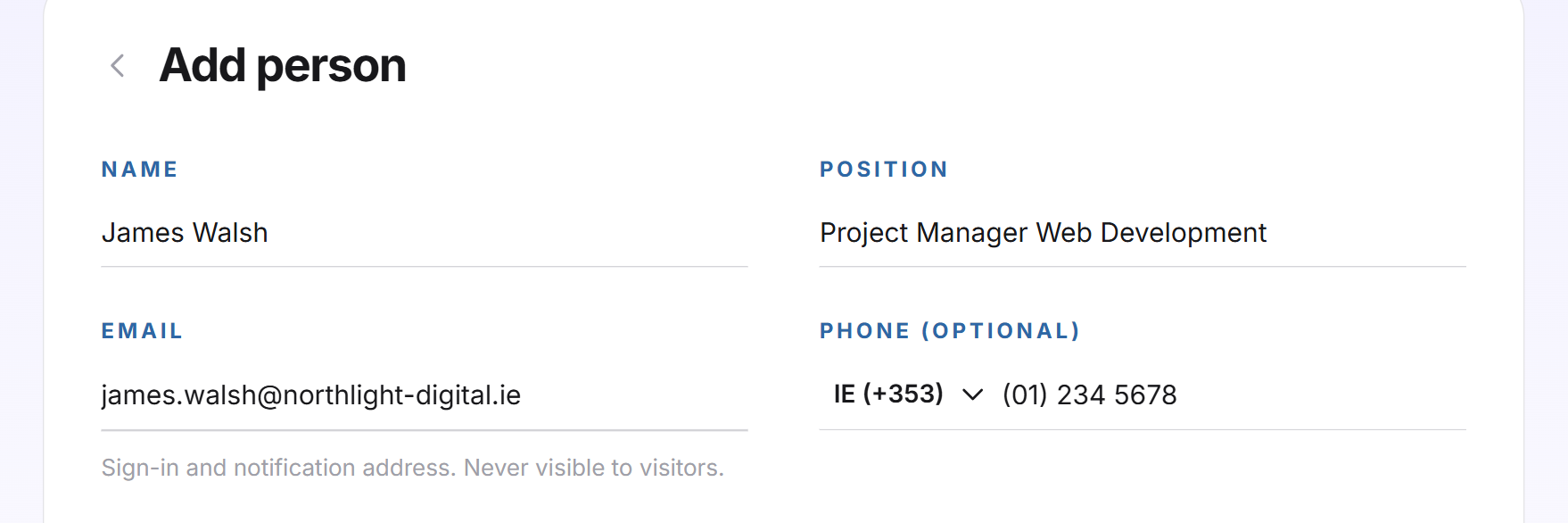
- Open Setup → Team and click Add person. The list makes way for the Add person form.
- Enter Name and Position, up to 200 characters each. The name is required.
- Enter the Email. The person signs in with this address and receives notifications at it. Each address may appear only once in the team. Add Phone (optional) if needed.
- Write a Short bio of up to 2,000 characters and enter keywords under Expertise, up to 500 characters, for example SEO, web design, online shops.
- Under Profiles, add LinkedIn, Xing, Instagram, Facebook, X, YouTube, TikTok and Website if needed. Each address starts with http:// or https:// and has up to 300 characters.
- Under Photo, upload an image: JPG, PNG or WebP up to 5 MB. Square images work best.
- Choose the Role: Admin, Agent or Viewer.
- Set the switches (next section) and click Save. The message Person saved. confirms it.
Saving does not send an invitation yet. You send it from the list afterwards.
Set expert, agent and notifications
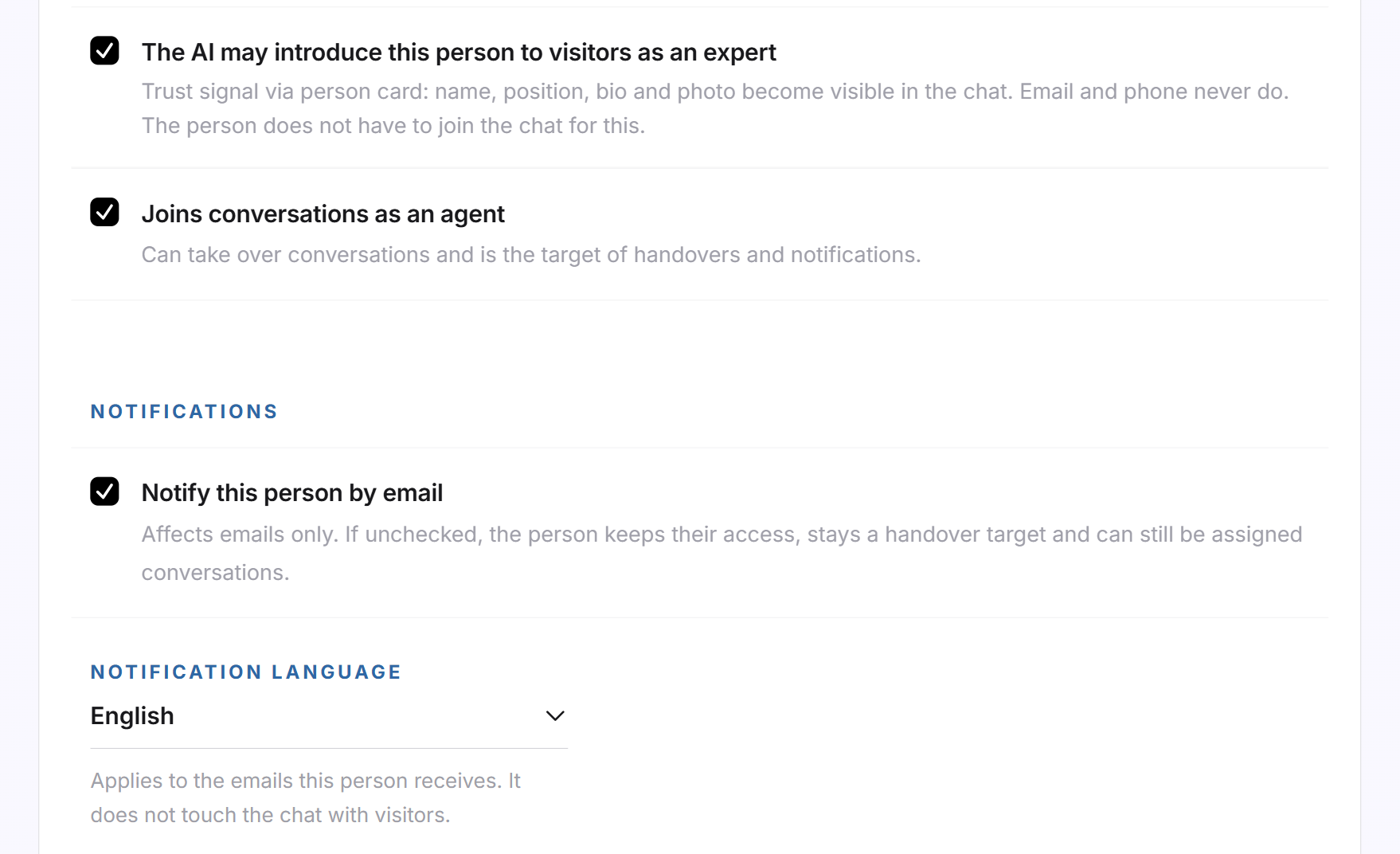
Two switches decide what a person does for your LeadWin agent. Both are turned on for new people:
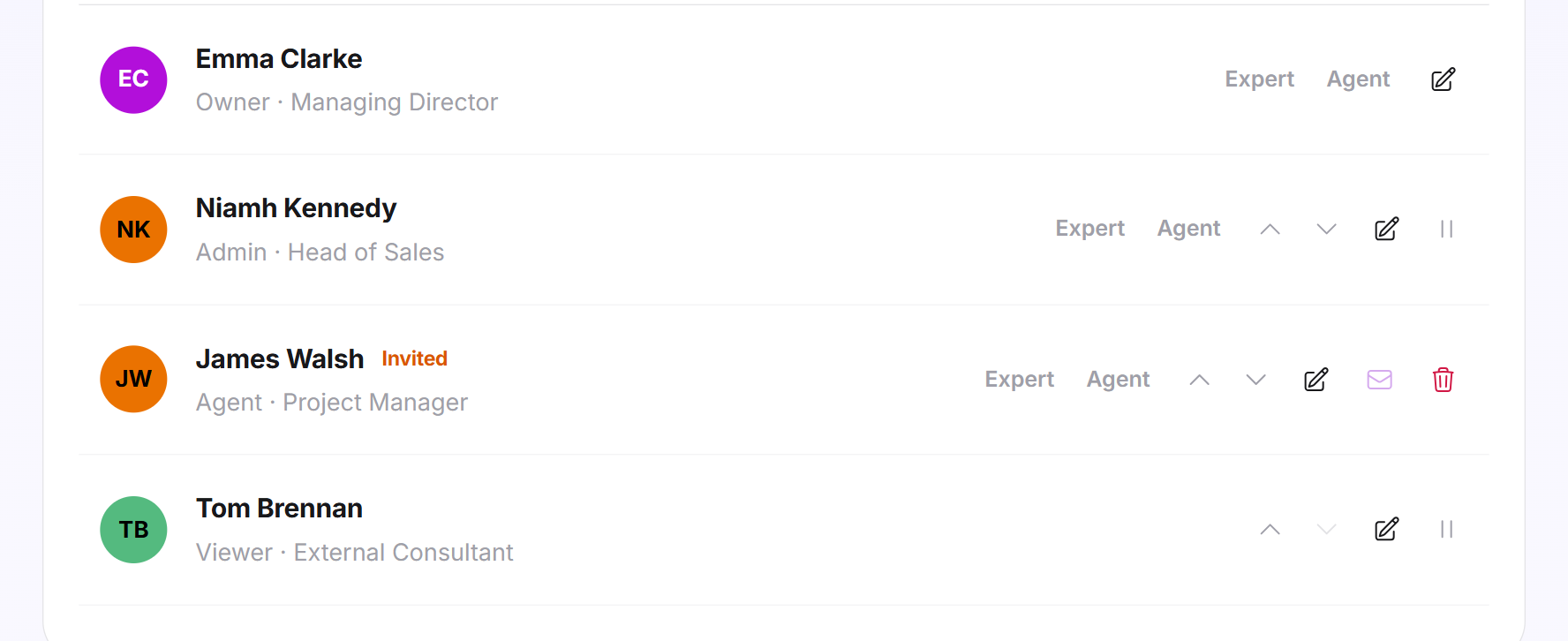
- The AI may introduce this person to visitors as an expert: Name, position, short bio and photo become visible in the chat as a person card. The person does not have to join the chat for this. The list then shows Expert. Only such people can be chosen in appointment booking as the contact person for an appointment.
- Joins conversations as an agent: The person can take over conversations and is a target for handovers and notifications. The list then shows Agent. With the Viewer role, this switch is off and locked.
Below that, you control the emails to this person:
- Notify this person by email only affects emails. Without the tick, the person keeps their access, remains a target for handovers and can still have conversations assigned.
- Notification language sets whether the emails arrive in Deutsch, English, Nederlands or Français. The default is the language of your account. The language of the chat with visitors does not change.
Invite a person
- In the person's row, click the envelope icon Invite. The message Invite sent. confirms it.
- The person receives an email with the Sign in now button and uses it to sign in without a password. The link is valid for 14 days and can be used several times during that period.
- Until the first sign-in, the person shows Invited.
If the email did not arrive or the link has expired, click Resend invite. This works at the earliest 15 minutes after the last email was sent. An expired link shows the Link invalid page. How sign-in works for you and your team is explained in Sign-in.
A team member's sign-in lasts 30 days. Team members only see the LeadWin agent they were invited to.
Change the order
With the Move up and Move down arrows, you move a person in the list. Whoever is at the top is the AI's first suggestion to visitors. The order also decides who keeps their access when there are too few seats. Your own row is always at the very top.
Deactivate or delete a person
- Not signed in yet: Click the trash icon Delete. The person disappears from the list.
- Already signed in: Click Deactivate. The access ends, the seat becomes free, and the person's data is kept. The list shows Deactivated. With Reactivate, you give the access back.
You can only edit your own row. The owner's role and access stay fixed.
What it looks like in the chat
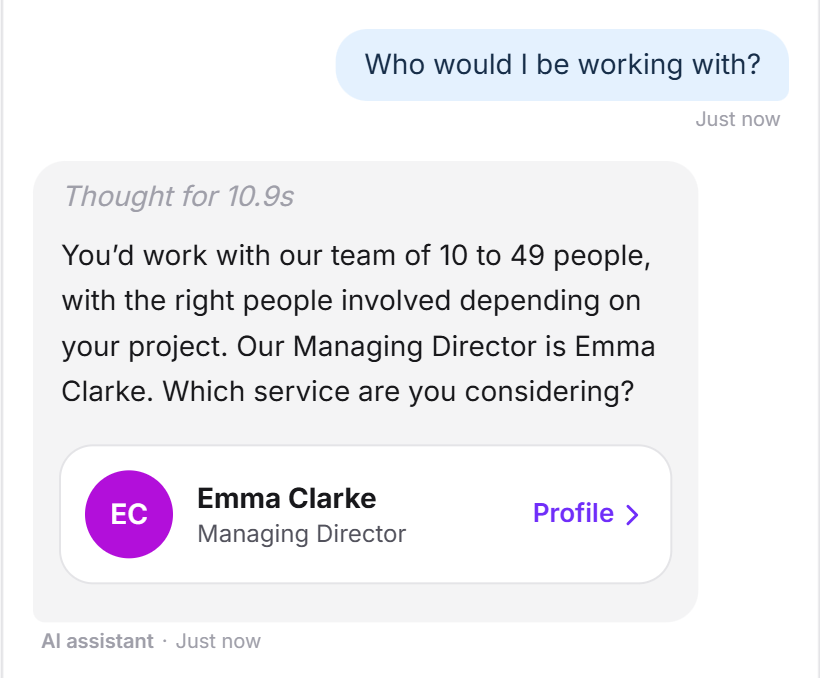
A visitor asks who they would be working with. Your LeadWin agent introduces the right person as a card and offers their appointment.
What your plan includes
Your plan determines how many people each LeadWin agent can have. You count as well:
| Plan | Seats per LeadWin agent |
|---|---|
| Free | 1 |
| Basic | 3 |
| Pro and trial | 10 |
| Scale | 25 |
Feedbax Business comes with the limits of Basic, Premium with those of Pro and Enterprise with those of Scale. You find more on this in LeadWin in your Feedbax plan.
The counter at the top of the card shows the seats in use, for example 4 of 10 seats taken. Invited people already take a seat, deactivated people do not. When all seats are taken, Add person shows a lock, and clicking it leads to the pricing page. How to change your plan is explained in Manage, change and cancel your plan. A higher plan pays off as soon as more than a few people take over conversations: with Pro, up to 10 people per LeadWin agent work in the inbox, and the AI can introduce the right expert to every visitor.
If you switch to a plan with fewer seats, nobody is deleted. Anyone who no longer fits into the seats shows No seat in your plan, loses their access and no longer receives emails. The seats go to you first, then in the order of the list. As soon as your plan covers these people again, they get their access back immediately, without a new invitation.
Frequently asked questions
I added a person, but they did not get an email.
Saving does not invite anyone. In the list, click the envelope icon Invite.
The invitation link has expired. What now?
A link is valid for 14 days. Click Resend invite. This works at the earliest 15 minutes after the last email was sent.
What is the difference between expert and agent?
The AI introduces an expert to visitors with a person card. An agent takes over conversations and receives handovers. One person can be both.
Does a person with the Agent role see all conversations?
Yes. The whole team reads all conversations of the LeadWin agent. The role only decides who may work on them.
A colleague shows No seat in your plan. What does that mean?
Your plan has fewer seats than there are active people in the team. Switch to a larger plan, deactivate someone or move your colleague up in the list.
Do visitors see phone numbers or email addresses?
No, never. Visitors see name, position, short bio, photo and the profiles you enter.
Why can my colleague not see the Agent page, even though she is an admin?
The Agent and Account pages, switching between agents and creating new agents are reserved for the owner of the account.
Is this team the same as the team in my Feedbax profile?
No. You maintain the team in LeadWin only here. It is separate from the Feedbax profile.