

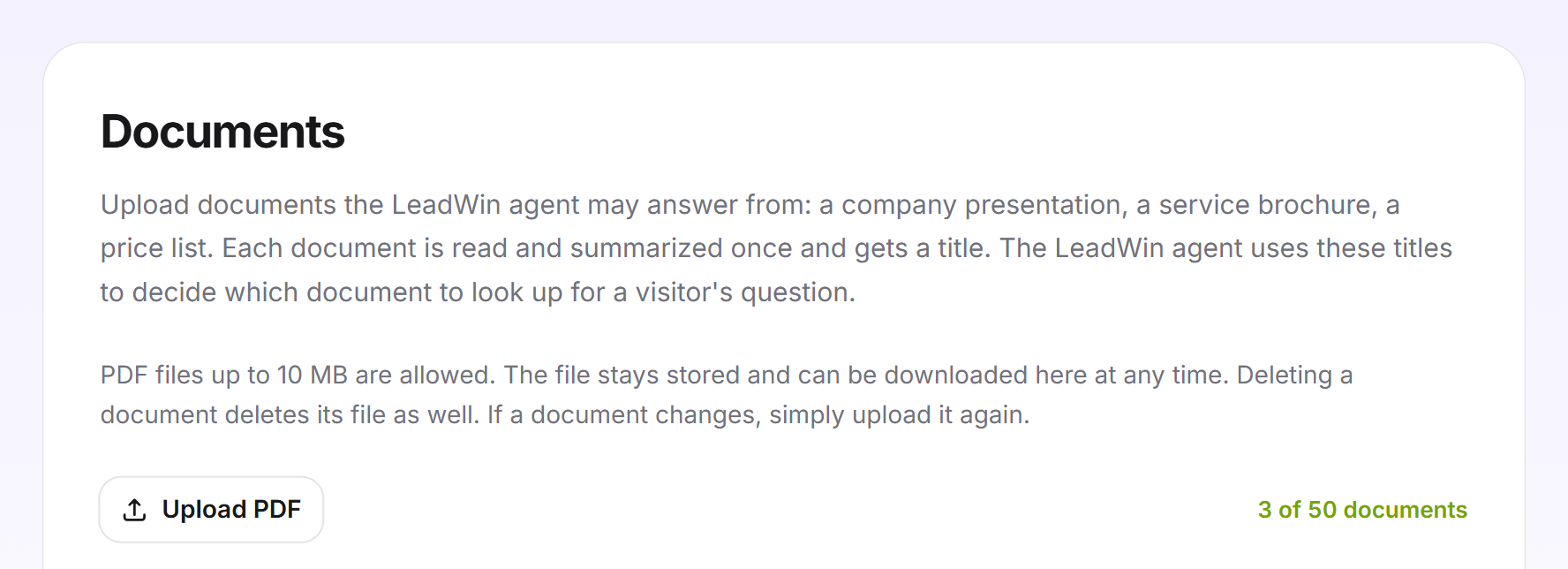
On the Documents page, you upload PDFs your LeadWin agent may answer from. These can be a company presentation, a service brochure or a price list. This lets your LeadWin agent answer questions whose answers are not on your website.
At a glance
- You find the page in the LeadWin dashboard under Knowledge → Documents.
- PDF files up to 10 MB are allowed, one file per upload.
- Every plan includes documents. The number per LeadWin agent ranges from 1 (Free) to 50 (Scale). You find an overview of all limits in Plans compared.
- LeadWin reads up to 60,000 characters per document, which is about 25 pages of text. From this, it creates a summary of up to 8,000 characters.
- Your LeadWin agent answers from this summary. Visitors never see the PDF file itself.
- Owners and admins can see the page. You decide who has which role under Team.
How it works
LeadWin reads each document exactly once. First, it extracts the text. Scanned pages without text are read automatically with text recognition. The AI then writes a title and a summary and counts the pages.
At first, your LeadWin agent knows the title of each document and a topic line. The AI writes the topic line from the summary, for example “Website prices; 30% deposit; funding through the Grow Digital Voucher”. It also names small topics the title does not reveal. When a visitor’s question matches the title or the topics, your LeadWin agent looks up the summary and answers from it. Each lookup covers up to 3 documents.
The topic line is written about a minute after a document is ready, and again after every change to the summary. You do not see it in the dashboard. A meaningful title still helps: it is the first thing your LeadWin agent recognises a document by.
A new document is available to your LeadWin agent as soon as its status is Ready. You do not need to publish anything again. The fastest way to check the answer is the live preview: ask a question there that only the document can answer. Test conversations do not count against your conversation quota.
How much text LeadWin reads
Two limits apply to every document:
- 60,000 characters is what the AI reads from the file, about 25 pages of plain text. Anything beyond that is not included in the summary.
- 8,000 characters is the maximum length of the summary, about 3 pages. This also applies if you write it yourself.
Your LeadWin agent therefore does not know every sentence of the PDF, only what is in the summary. For a short price list, that is practically everything. For a presentation with 60 slides, only the key points remain. After uploading, check that the summary contains the details visitors will ask about: prices, services, deadlines, contact persons. If something is missing, add it yourself.
Whether LeadWin cut a document short is shown in its expanded row. It then says We read the first 60,000 characters. Anything after that is not in the summary. Once you have edited the summary yourself, the notice disappears, because your version then applies.
Upload a document
- Open Knowledge → Documents.
- Click Upload PDF and select a PDF file.
- The document appears in the list with the status Processing. The page updates automatically in the meantime.
- As soon as the status changes to Ready, the row expands automatically. Check the title and the summary.
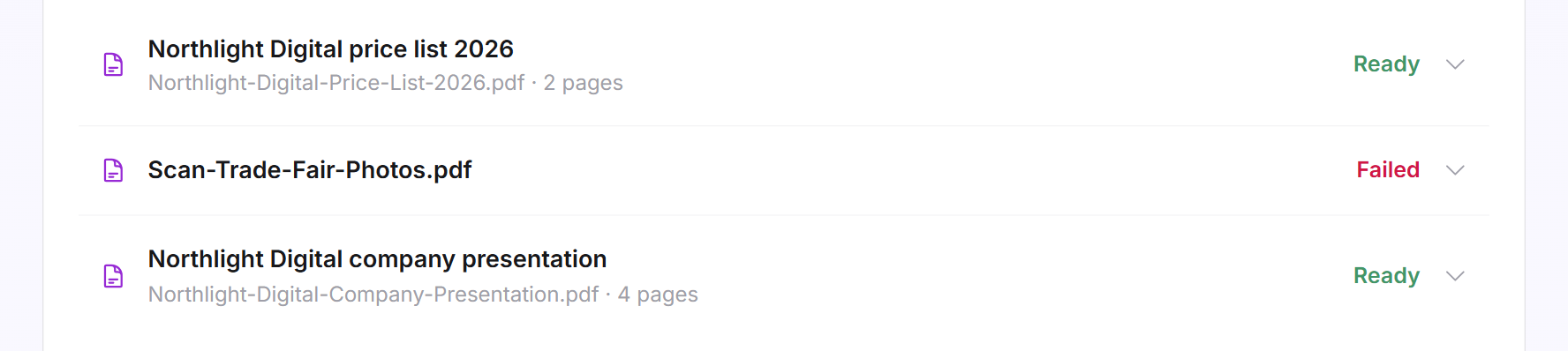
Each row shows the title, below it the file name and the page count, and the status on the right.
Tip: Upload several short documents with a clear scope rather than one large collective PDF. Each one then gets its own precise title and its own summary of up to 8,000 characters. Less content is lost, and your LeadWin agent finds the right document faster. Individual questions and answers you want to word yourself are better maintained in the knowledge base.
Check the title and summary
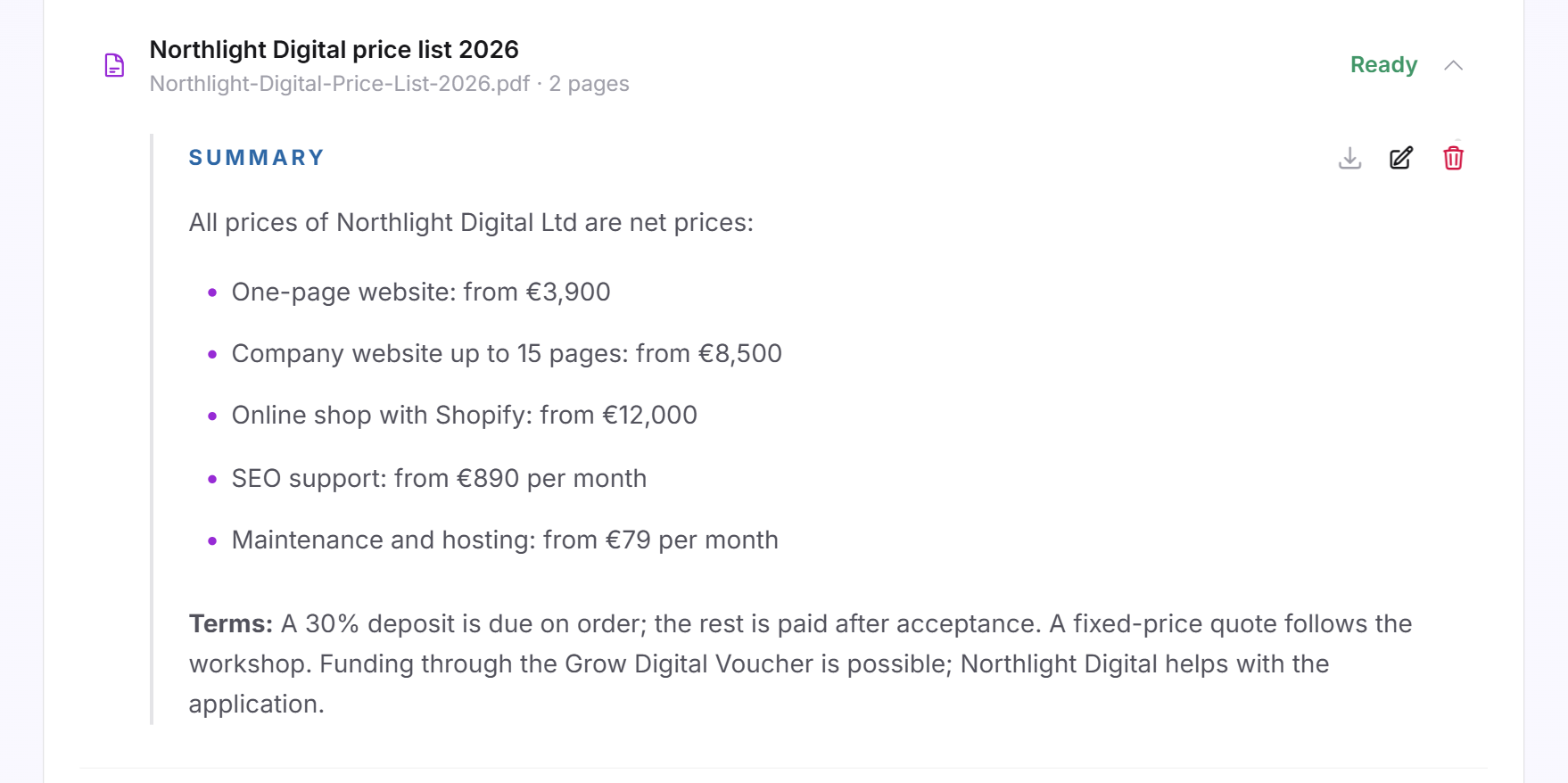
Click a row to expand it. You see the Summary your LeadWin agent answers from. Three icons appear to the right of it:
- Download file downloads the original PDF. The file stays stored until you delete the document.
- Edit opens the summary for editing.
- Delete removes the document and the file, after asking you first.
Edit the summary
The AI summarizes the document as well as it can. If something is missing, or if the summary contains something your LeadWin agent should not say, you change the summary yourself.
- Expand the document and click Edit.
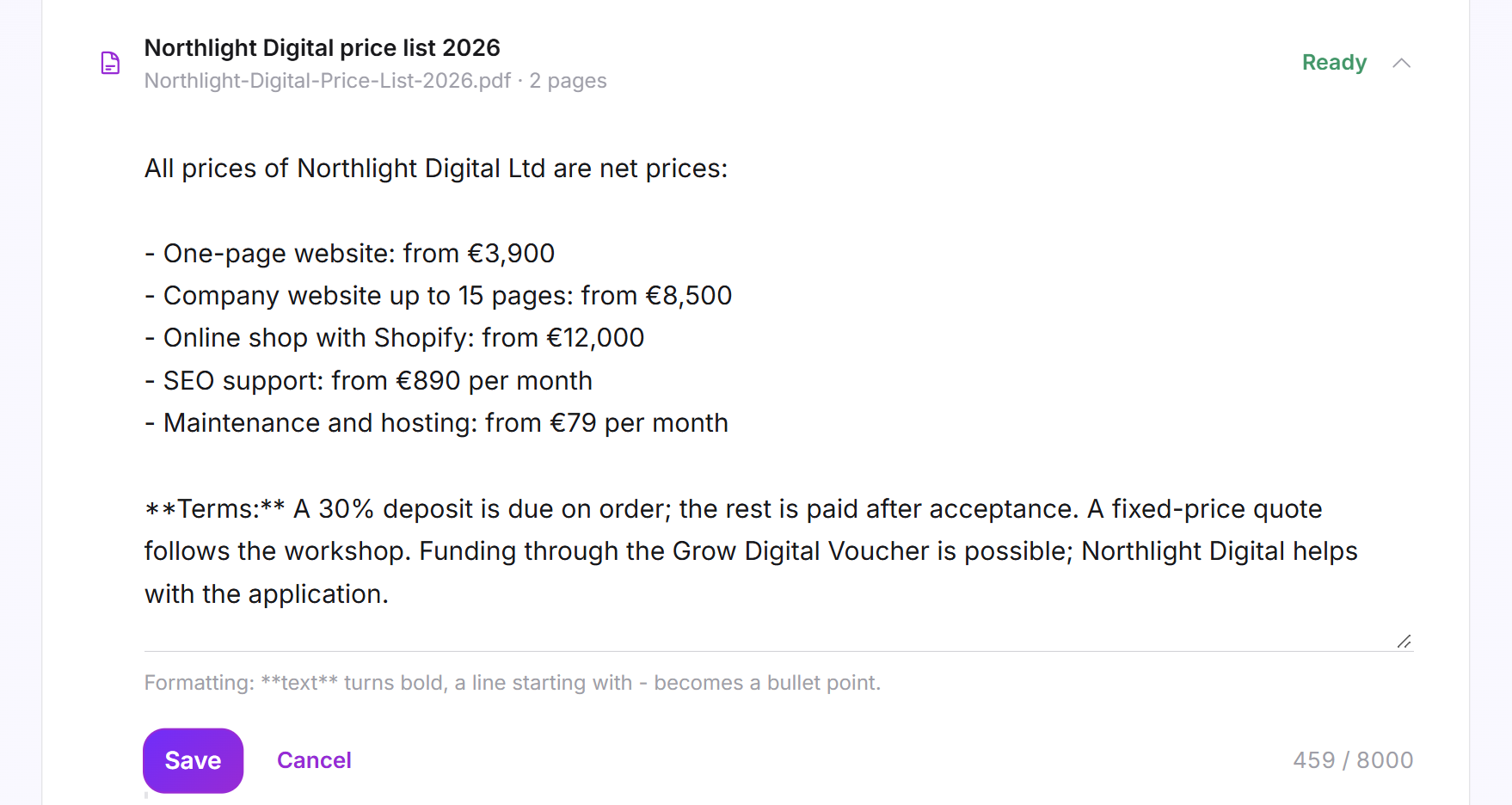
- Change the text. You can use Markdown, for example headings and lists. Up to 8,000 characters are allowed, and the counter shows how many you have used.
- Click Save.
The document then carries the label Manually edited. From now on, your LeadWin agent uses your version.
When a document fails
If a document shows Failed, expand it. The reason is shown there. There are two cases:
- No readable text: The file is usually password-protected, or it contains only images that text recognition cannot read either. Remove the protection and upload the file again. Or click Write your own summary and enter the content by hand.
- Summary not created: The text was readable, but the summary failed. Click Process again later.

Update a document
An uploaded document never changes on its own. If you have a new version, for example a new price list, upload the new PDF and delete the old one. This way, your LeadWin agent never answers from two contradictory versions.
Delete a document
- Expand the document and click the Delete icon.
- LeadWin asks first. The dialog names the document's title and warns: The document and its file are deleted, and your LeadWin agent no longer knows it. This cannot be undone.
- Click Delete. With Cancel, the document stays.
The document, its summary and the file are then gone for good, and a slot in your plan becomes free. If you need the document again, upload the PDF again. LeadWin then reads it anew and writes a new summary.
What it looks like in the chat
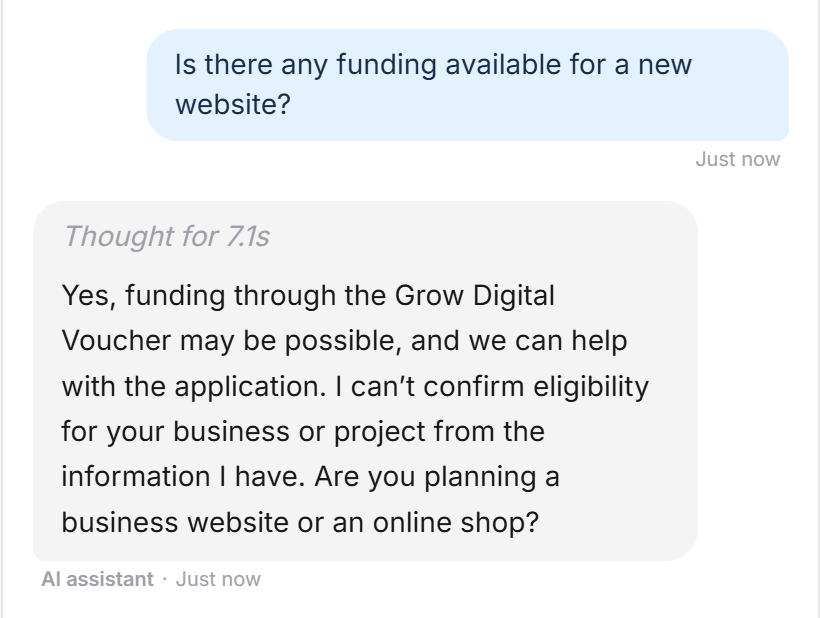
A visitor asks about funding. Only the price list mentions it, and the document's topic line names it. That is how your LeadWin agent finds the right document and answers from it.
What your plan includes
Documents are available in every plan. Your plan determines how many documents each LeadWin agent can have:
| Plan | Documents per LeadWin agent |
|---|---|
| Free | 1 |
| Basic | 10 |
| Pro and trial | 20 |
| Scale | 50 |
Feedbax Business comes with the limits of Basic, Premium with those of Pro and Enterprise with those of Scale. You find more on this in LeadWin in your Feedbax plan.
The counter at the top of the page shows how many documents you already use, for example 2 of 20 documents. Once you reach the limit, the Upload PDF button disappears and Upgrade appears next to the counter. Clicking it opens the LeadWin pricing page, or the Feedbax pricing page if you have a Feedbax plan. Scale and Feedbax Enterprise have no bigger plan, so only the counter is shown there. How to change your plan is explained in Manage, change and cancel your plan. A higher plan pays off if you offer many services with their own documentation: with Pro, your LeadWin agent can answer from twice as many documents as with Basic. If you switch to a smaller plan, all documents are kept. You just cannot upload new ones until you are below the limit again.
If you have several LeadWin agents, the limit applies to each agent separately. With Share knowledge on the Agent page, a second agent can also read the documents of the first one without uploading them again.
Frequently asked questions
Which files can I upload?
Only PDF files, each up to 10 MB. Save Word or PowerPoint files as PDF first.
Does LeadWin also read very long PDFs?
LeadWin reads the first 60,000 characters, about 25 pages of text. It does not read the rest. Split long documentation into several documents, for example one per service. A notice in the document's expanded row shows whether it was cut short.
My LeadWin agent does not know a detail from the PDF. Why?
It answers only from the summary, not from the whole PDF. If the detail is not in the summary, or if it came after the first 60,000 characters, your LeadWin agent does not know it. Add it to the summary.
My PDF is a scan. Does that work?
Yes. LeadWin reads pages without text using text recognition. If text recognition finds nothing either, you write the summary yourself.
Does my LeadWin agent send the PDF to visitors?
No. It answers from the summary. Only you can download the file in the LeadWin dashboard.
I have revised my brochure. What do I need to do?
Upload the new version and delete the old one. Documents are not read again automatically.
Can I correct what my LeadWin agent knows from a document?
Yes. Edit the summary. Your LeadWin agent then uses only your version.
Is the file deleted when I delete the document?
Yes. Once you confirm, the document, the summary and the file are gone for good.
How is this different from the PDF upload on the News or Cost structure tab?
On the News and Cost structure tabs, LeadWin reads a PDF only to write you a suggestion for the text field. The file stays stored there as the source, so you can read it again later. Your LeadWin agent, however, answers only from the saved text, and LeadWin does not read scanned pages there. On the Documents page, every file gets its own summary that your LeadWin agent answers from, and scans are read too.