

In the Inbox, you see every conversation that visitors to your website have with your LeadWin agent, live and exactly as the visitor saw it. You read along, take over a conversation when you want to answer yourself, and then hand it back to the AI. No visitor goes without an answer, and you only step in where it pays off.
At a glance
- The Inbox is the first area on the left in the LeadWin dashboard. Once your LeadWin agent is installed on your website, the dashboard opens right here.
- The Inbox is included in every plan. Every conversation counts against your conversation quota: a visitor's first message counts as one conversation, and after 24 hours of inactivity the next one counts again.
- When you take over a conversation, the AI stays silent. After 24 hours without activity from your team, it goes back to the AI automatically.
- A reply can be up to 4,000 characters long and carry up to 3 attachments of 10 MB each.
- The whole team reads all conversations. Who may reply, assign, close and block depends on the role you set under Team.
How it works
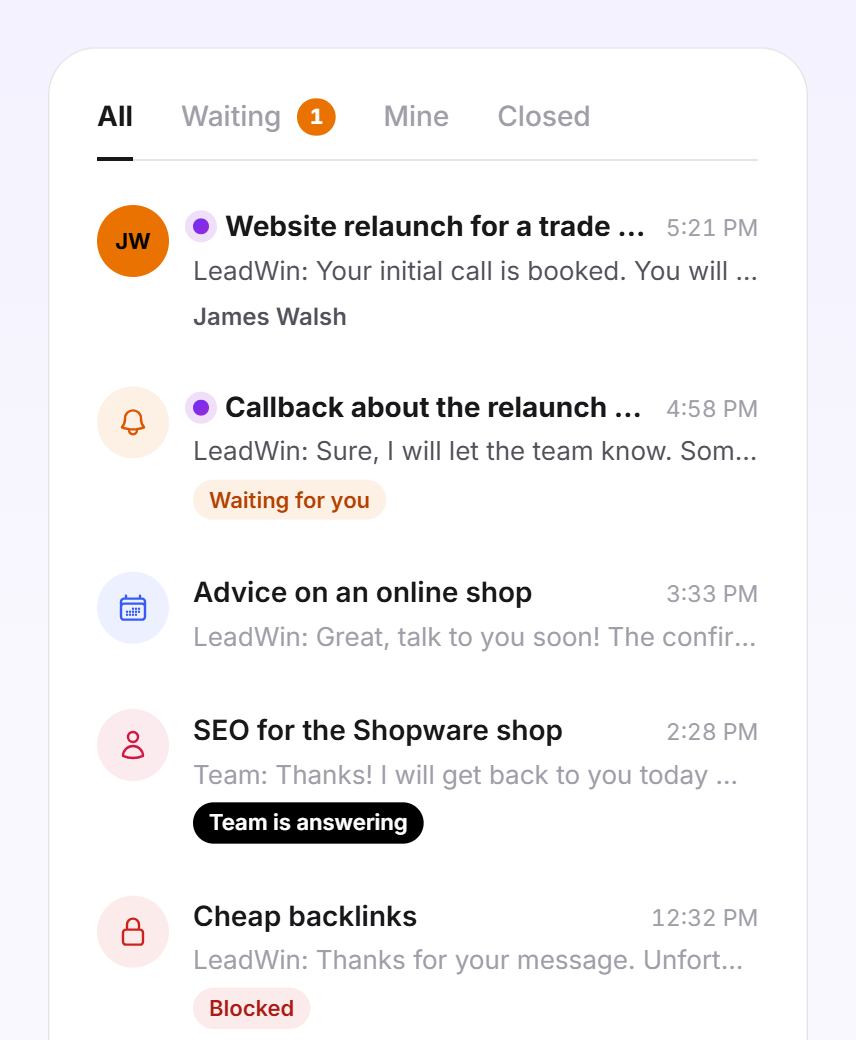
From a window width of 1,280 pixels, the conversation list is on the left and the history of the selected conversation on the right. In a narrower window, you see the list first. A click opens the conversation, and the Back arrow takes you back to the list. New visitor messages, requests for a human and changes made by your colleagues appear on their own, without reloading the page.
Each row in the list shows a circle on the left. If LeadWin knows the contact, it shows their initials or their company logo. Otherwise, an icon shows the state: a red lock for blocked, an orange bell for waiting, a purple calendar for a booked appointment, a person when a human is replying or the conversation is assigned, and blue sparkles when the AI is replying. Next to it are the conversation title, the time or date and the last message. AI replies start with LeadWin:, replies from your team with Team:. A blue dot and a bold title mean unread visitor messages.
The number on the Inbox in the left sidebar counts unread conversations and visitors waiting for a human. When you open a conversation, it counts as read: the blue dot disappears, the number goes down, and any email notification for this conversation that has not been sent yet is dropped. Reading does not clear the Waiting status. Only a takeover does.
The history on the right shows the conversation with the same building blocks as the visitor's chat, including formatting, links and attachments. Replies from your team carry the person's name and photo and a read mark as soon as the visitor has seen them. When the visitor is typing, you see three dots. If the visitor has sent an inquiry or booked an appointment through the chat, click their name to open their contact with all inquiries, appointments and conversations.
When a conversation counts
Your quota does not count every message, but every conversation:
- A visitor's first message counts as one conversation.
- If the same visitor writes again only after 24 hours or more, this message counts as a new conversation, even if it appears in the same row in the Inbox.
- A visitor can write up to 50 messages in one conversation. After that, the chat asks them to try again later.
- Test conversations in the live preview do not appear in the Inbox and never count.
Where another conversation has started, the history shows the note New conversation after more than 24 hours of inactivity. The new start usually falls on a new day. Then the note sits right in the day divider, for example Yesterday · New conversation after more than 24 hours of inactivity. Otherwise it appears as a line of its own.
Use the views
As soon as there is a first conversation, four tabs appear above the list:
- All shows all open conversations, the one with the latest activity first.
- Waiting shows conversations in which the visitor has asked for a human and nobody has taken over yet. The orange number shows how many there are.
- Mine shows conversations assigned to you or taken over by you.
- Closed is the archive of conversations your team has closed as done.
The list loads 25 conversations at a time. With Load More, you get the next 25.
Take over and hand back a conversation
At the top of the open conversation, you see who is currently replying: AI is answering, You are answering or Team is answering when a colleague has taken over.

- Open the conversation and click Take over conversation. From now on, the AI no longer replies, and the visitor sees you as the person they are talking to.
- Write your reply in the Your reply to the visitor… field and send it with the Enter key or with Submit. Shift and Enter creates a new line.
- When you are done, click Hand back to AI. The AI then knows your replies and continues the conversation seamlessly.
If you forget to hand it back, the AI takes over again on its own after 24 hours without activity from your team. Only one person can take over a conversation at a time. Everyone else sees Taken over by and the name. Owners and admins also see Hand back to AI and can release a conversation held by someone else, for example when that person is not available. They can then take it over themselves.
If you take over a conversation that is not assigned to anyone yet, you automatically become responsible for it. This responsibility remains when you hand it back to the AI. A takeover does not change an existing assignment.
When a visitor wants to talk to a human
If a visitor asks in the chat to talk to someone from your team, your LeadWin agent tells them that someone will reply in the chat and keeps helping in the meantime. In the Inbox, the conversation then carries the label Waiting for you, and an orange notice appears above the history. If you have the conversation open, a message says A visitor wants to talk to your team. Take over the conversation, and the notice disappears.

If nobody has taken over after 2 hours, your LeadWin agent tells the visitor openly that nobody from the team is available right now and keeps helping. Your team gets a reminder by email. This promise and both emails only exist as long as the Email notification for new visitor messages checkbox at the top right of the Inbox is ticked. If it is off, your LeadWin agent does not promise a callback, but offers the visitor to leave an inquiry.
Reply with attachments
As long as you have taken over a conversation, you can send files along, for example a quote as a PDF.
- In the reply field, click Attach file and select a file.
- The file appears as a small card above the field. With Remove attachment, you take it out again.
- Add a text if you like and send the message. A message may also consist of files only.
Each message can carry up to 3 files of 10 MB each at most. Allowed are PDF, Word, Excel, PowerPoint, CSV, TXT, RTF and the image formats PNG, JPG, GIF and WebP.

If the visitor has already left the chat and has left an email address before, they also get your reply by email. The email goes out 2 minutes after your reply, once per absence. If the visitor comes back before that or writes themselves, it is not sent.
Assign a conversation
An assignment sets who takes care of a conversation. The AI keeps replying.
- Open the conversation and click Responsible at the top.
- Select a person from the list. With Nobody, you remove the assignment, and the conversation belongs to everyone again.
You can choose anyone with the Owner, Admin or Agent role who has the Joins conversations as an agent switch turned on under Team and whose seat is covered by your plan. The responsible person gets the emails for this conversation, provided they receive emails. The field only appears once there is at least one such person.
Close and reopen conversations
- Hover over a conversation in the list, or open it.
- Click the check mark Close conversation. The conversation moves to the Closed tab.
- To bring it back, open it under Closed and click Re-open.
Closing only keeps things tidy for your team. The visitor does not notice anything. If they write again, the conversation reappears in the open views on its own. Closed conversations count neither as unread nor as waiting.
Block and unblock a visitor
If someone sends spam or insults your team, you block them.
- In the list or in the conversation header, click the red lock Block.
- In the Block visitor? dialog, confirm with Block.
The chat ends immediately. If LeadWin was able to recognize the sender, new chats from the same visitor are blocked too. The visitor then reads that the provider has ended the chat and is asked to contact your company directly.
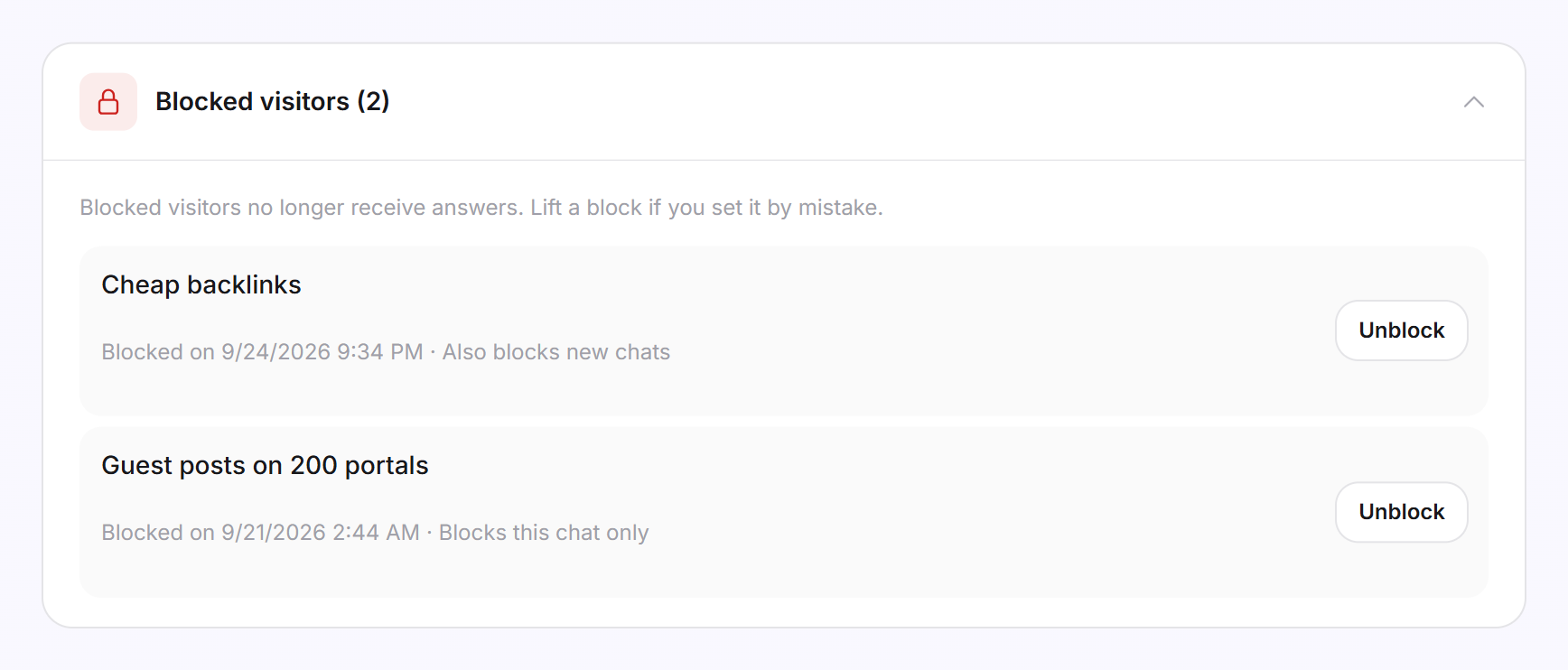
As soon as there is a block, the Blocked visitors section appears below the Inbox with the number of blocks. Expand it. Each row names the conversation, the date and whether the block covers only this chat (Blocks this chat only) or new ones too (Also blocks new chats). With Unblock, you lift a block without a confirmation prompt.
Who can do what
| Role | What it can do in the Inbox |
|---|---|
| Owner and Admin | Everything: read, take over, reply, assign, close, block, unblock, set the email checkbox. Plus hand a colleague's conversation back to the AI. |
| Agent | Read all conversations, take over, reply, assign, close and block, set the email checkbox. |
| Viewer | Read along only. No takeover, no reply, no closing, blocking or unblocking, no assignment. The role sees the email checkbox and the Unblock button, but both are greyed out for it. |
To take over and reply, a person also needs the Joins conversations as an agent switch. Closing is allowed even with this switch off.
What your plan includes
The Inbox with all its features is included in every plan. Your plan determines how many conversations your LeadWin agent can hold per month and how many people can work in the team:
| Plan | Conversations per LeadWin agent and month | Team seats, owner included |
|---|---|---|
| Free | 10 | 1 |
| Trial | 30 | 10 |
| Basic | 50 | 3 |
| Pro | 100 | 10 |
| Scale | 250 | 25 |
Feedbax Business comes with the limits of Basic, Premium with those of Pro and Enterprise with those of Scale. You find more on this in LeadWin in your Feedbax plan. All limits side by side are in Plans compared.
A higher plan pays off if many visitors talk to your LeadWin agent or several people work in the Inbox: Pro doubles the conversations compared with Basic and has room for 10 people. How to switch is explained in Manage, change and cancel your plan. If you have several LeadWin agents, each one has its own Inbox and its own quota. The button in an email about a conversation always opens the Inbox of the agent that held the conversation, even if you last had a different agent open. With Pro, you also see under Live visitors who is on your website right now and can start a chat yourself. It then opens here in the Inbox.
Frequently asked questions
Does the AI stop replying when I assign a conversation to a colleague?
No. The assignment only sets who is responsible and gets the emails. The AI keeps replying until someone clicks Take over conversation.
What happens if I forget to hand a conversation back?
After 24 hours without activity from your team, the AI replies again.
A colleague has taken over and is not available. What can I do?
Owners and admins click Hand back to AI, even if someone else holds the conversation. They can then take it over themselves.
Does the visitor see that I closed a conversation?
No. Closing only files the conversation under Closed. If the visitor writes again, it is open again on its own.
Why is a conversation still under Waiting although I have read it?
Waiting means the visitor wants to talk to a human. Only a takeover answers that, reading does not.
What exactly does blocking do?
The chat ends immediately. If LeadWin was able to recognize the sender, new chats from this visitor are blocked too. Under Blocked visitors, you can lift the block again at any time.
When does one chat count as two conversations?
When the visitor writes again 24 hours or more after their last message. A new conversation of your quota then begins, even in the same row.
Why do I not get an email when a visitor wants to talk to a human?
Either the Email notification for new visitor messages checkbox in the Inbox is off, or you have turned off your own emails under Team, or the conversation is assigned to someone else.