

The Agent page is about your LeadWin agent itself, not about what it says. You decide which name it appears under in public addresses, share knowledge with your other agents and delete it when you no longer need it. This keeps your links readable, and you only have to maintain your knowledge once.
At a glance
- You find the page in the LeadWin dashboard under Setup → Agent. Only you, as the owner of the account, can see it. People in your team cannot see it, not even admins.
- Public name and Delete agent are available in every plan. Agent name and Share knowledge appear when your account can have or already has several LeadWin agents.
- The public name has 3 to 64 characters and appears in the addresses of your help center and your booking pages. If you change it, links you have already shared stop working.
- Deleting is permanent. There is no trash and no backup.
How it works
Your LeadWin agent has two names with different jobs:
- Agent name: It is only for you. You recognize the agent by it in the Switch agent menu and use it to confirm a deletion. Visitors never see it. Your first agent is named after the company in your account.
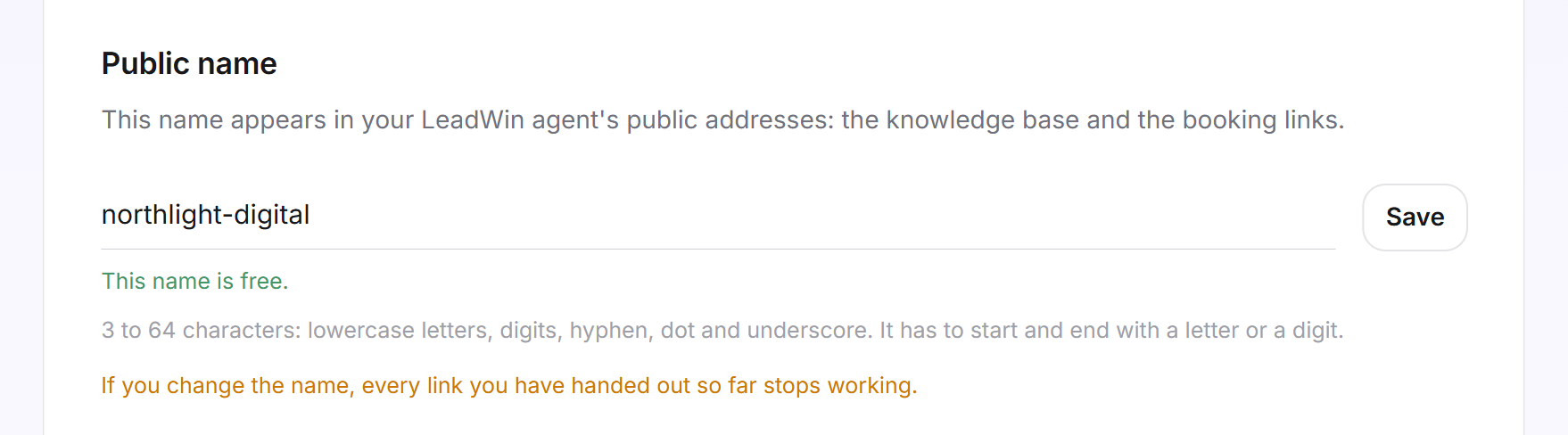
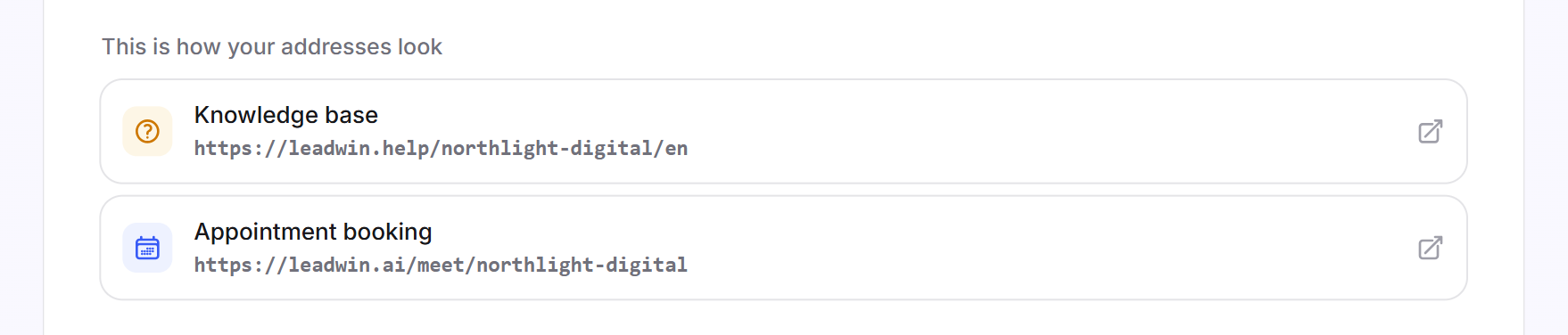
- Public name: It appears in the public addresses of your LeadWin agent, for example leadwin.help/northlight-digital/ for the knowledge base and leadwin.ai/meet/northlight-digital for appointment booking.
When the agent is created, LeadWin builds the public name from the agent name: in lowercase, with German umlauts spelled out and other characters turned into hyphens. If the name is taken, LeadWin adds a number, for example northlight-digital-2. Existing Feedbax providers have taken over their username from the Feedbax directory. Each public name exists only once across all LeadWin agents. There is no redirect from the old name to the new one.
When knowledge is shared, both sides have a say. Agent A only reads a knowledge area of agent B if B shares it, A uses the other agents' knowledge and A has selected that area for B. LeadWin never shares the profile, reviews or instructions. They remain each agent's own.
Change the agent name
- Open Setup → Agent.
- Under Agent name, enter the new name, up to 80 characters. Choose a name that lets you tell your agents apart, for example the brand or the website.
- Click Save. The message Name saved. confirms it.
Change the public name
- Under Public name, type the new name. It may have 3 to 64 characters: lowercase letters, digits, hyphens, dots and underscores. It must start and end with a letter or a digit. LeadWin converts capital letters itself.
- Shortly after you stop typing, LeadWin checks the name. Below it, you see This name is free. or the reason why it does not work, for example Somebody already has this name. Try another one.
- Under This is how your addresses look, check the two new addresses for the knowledge base and appointment booking.
- Click Save. The message Public name saved. confirms it.
If your agent already had a public name, the page warns you: If you change the name, every link you have handed out so far stops working. This applies to booking links in your signature as well as to links to articles in your help center. The addresses in the preview only become clickable once the name is saved and the help center or LeadWin booking is active.
Tip: Set the public name before you send out booking links or link to articles in your help center. After that, it is best to leave it as it is.
Share knowledge with other agents
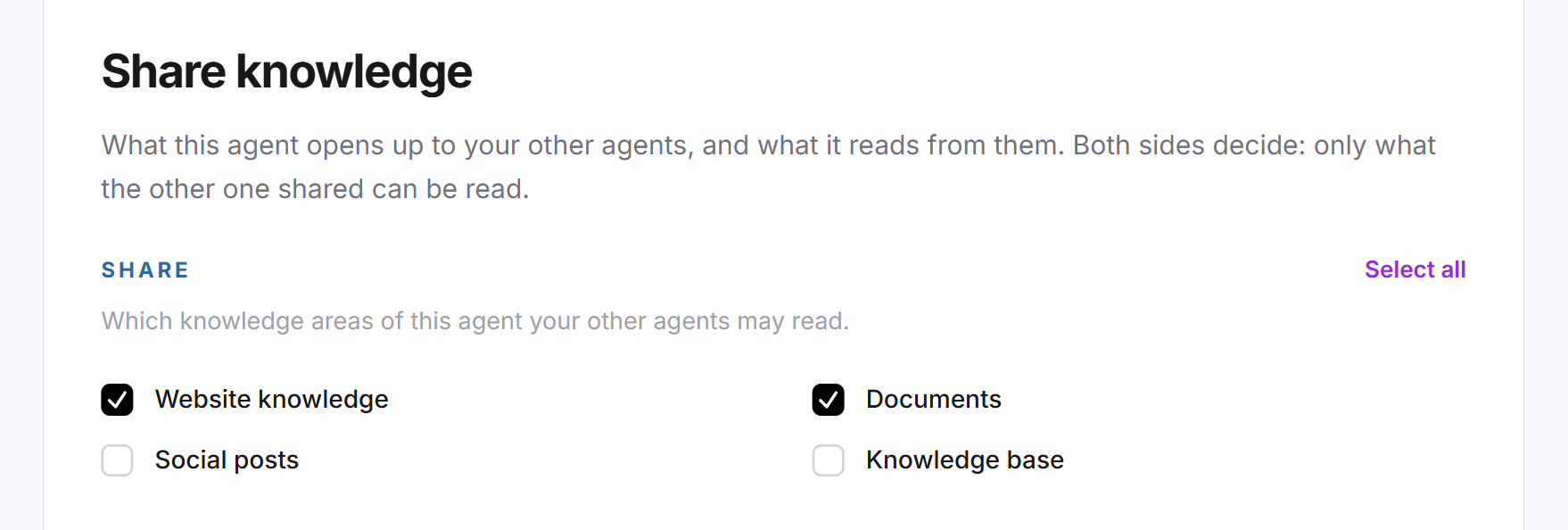
If you have several LeadWin agents, for example one per brand, each of them does not have to learn everything itself. One agent can read what another one shares. This helps when visitors to one website are also interested in what the other one offers. Four areas can be shared: Website knowledge from your website, Documents, Social posts from Social media and the Knowledge base. At first, no agent shares anything.
- Open the agent that should share its knowledge, and there Setup → Agent.
- In the Share knowledge card, under Share, tick the areas other agents may read, or click Select all. Click Save. The message Knowledge sharing saved. confirms it.
- Use Switch agent to go to the agent that should read along, and open Setup → Agent there as well.
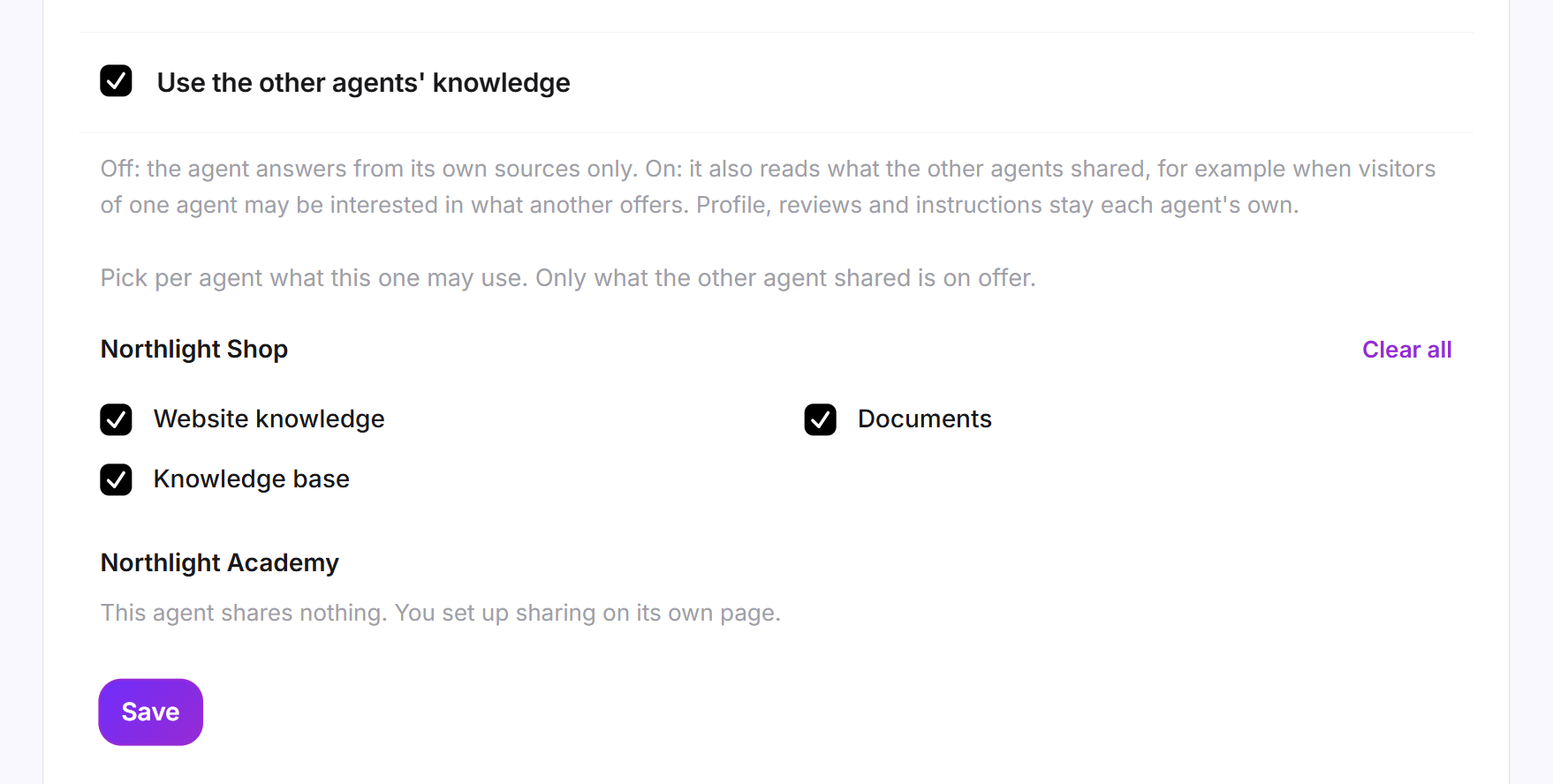
- Tick Use the other agents' knowledge.
- For each other agent, the areas it shares are already ticked below. Untick everything this agent should not use. If an agent shares nothing, this is shown next to its name.
- Click Save.
The change applies immediately to the next answers. If you used Select all for an agent, your agent also reads areas the other one only shares later.
Pause the agent instead of deleting it
If your LeadWin agent should only stop answering on your website, do not delete it. Remove the embed code from your website instead. How the code is embedded is explained in Installation. Conversations, leads and settings are then kept, and you can add the code again later.
Delete the agent
- At the bottom of the page, click Delete agent. A dialog with your agent's name opens.
- Under This is what goes:, read what will be lost. The list shows every number, even a zero. If you bought conversations for this agent that are not used yet, it shows their number too.
- Type the agent name into the field. Upper and lower case and extra spaces do not matter.
- Click Delete for good.
Together with the agent, everything stored under it disappears:
- all conversations with visitors, all leads with their contact details and all booked appointments,
- all articles in the help center and your team's access to this agent,
- an own address for your help center, which no longer responds afterwards,
- all settings, instructions and colors, the profile and the price list,
- conversations you bought for this agent with a top-up pack and have not used yet.
If you have booked an extra agent, it remains paid after the deletion. The dialog tells you so in a note of its own: Booked extra agents stay booked and are still billed, even when you delete this agent. You can cancel them in the agent menu. You cancel it in the Switch agent menu.
After the deletion, the dashboard reloads and opens your next agent. If the deleted agent was your first one, the oldest remaining agent becomes the main agent. If you delete your only agent, the dialog shows an extra warning. After that, nobody answers on your website any more, and you start from scratch with a new agent. Your account remains. You delete the account itself on the Account page.
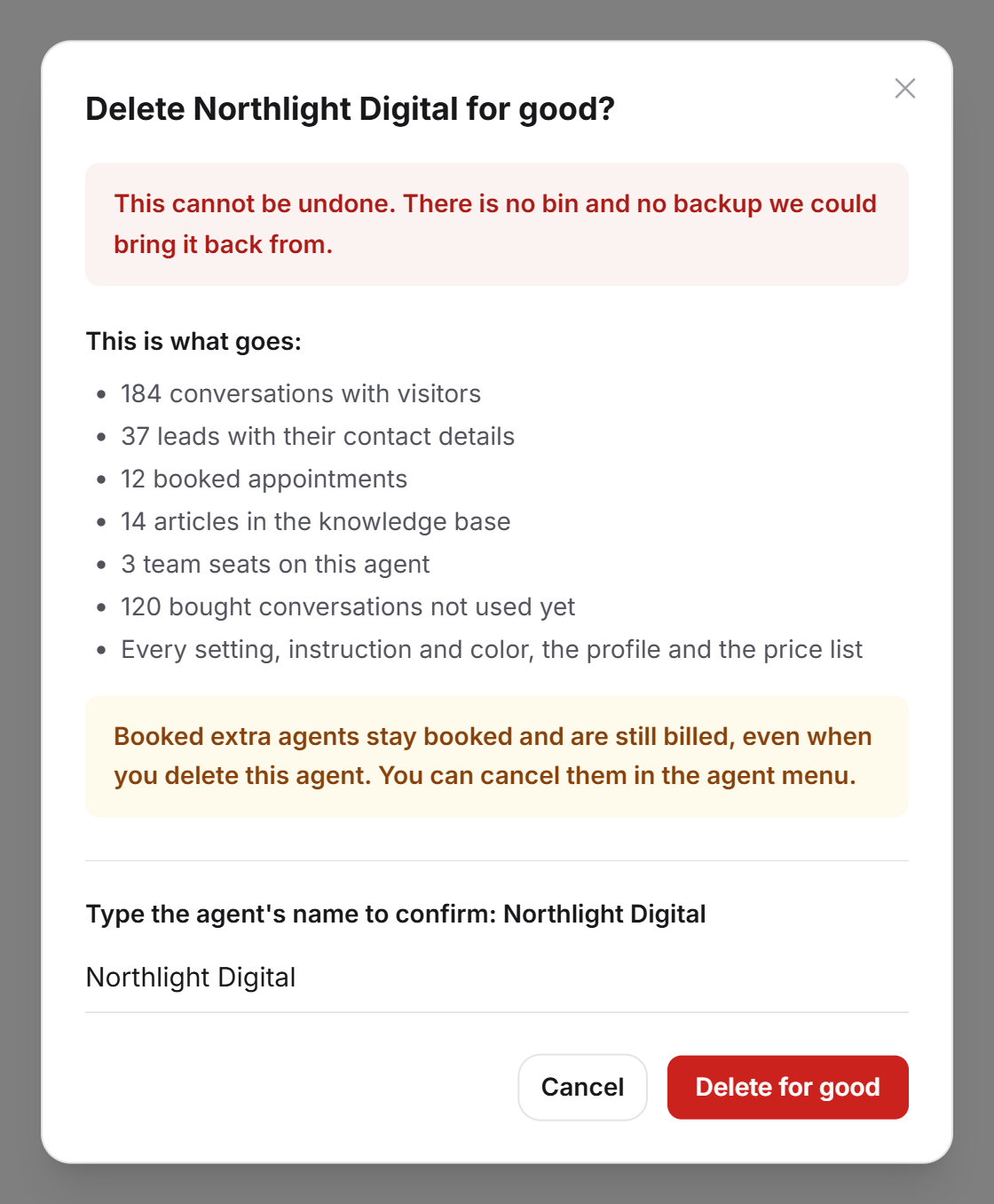
Important: A deleted agent cannot be restored, not even by our support. There is no trash and no backup.
What your plan includes
Which cards you see on the page depends on how many agents your plan allows:
| Plan | Public name and deletion | Agent name and knowledge sharing |
|---|---|---|
| Free, Basic and trial | yes | no (1 agent) |
| Pro | yes | yes (2 agents) |
| Scale | yes | yes (3 agents, up to 5 with extra agents) |
Feedbax Business comes with the limits of Basic, Premium with those of Pro and Enterprise with those of Scale. You find more on this in LeadWin in your Feedbax plan. If your account already has several agents, for example after switching to a smaller plan, you still see both cards. You find an overview of all limits in Plans compared. A plan with several agents pays off if you run several brands or websites: each one gets its own LeadWin agent, and with knowledge sharing you maintain shared knowledge only once.
Frequently asked questions
Where do I rename my agent?
Under Setup → Agent in the Agent name field. The field appears when your account can have several agents. Visitors never see this name.
What is the public name?
The part of your public addresses that identifies your LeadWin agent, as in leadwin.help/northlight-digital/. If you change it, links you have already shared stop working.
How do I stop my agent without losing data?
Remove the embed code from your website. Conversations, leads and settings are kept. Deleting, on the other hand, removes everything for good.
Can I restore a deleted agent?
No. There is no trash and no backup.
Can I delete my first agent?
Yes. The oldest remaining agent then becomes the main agent. If it was your only agent, you create a new one afterwards.
Does deleting an agent cancel my extra agent?
No. A booked extra agent remains paid until you cancel it in the Switch agent menu.
Do my agents also share the profile and instructions?
No. Only website knowledge, documents, social posts and the knowledge base are shared. The profile, reviews and instructions remain each agent's own.
Why can my colleague not see the Agent page?
The page is reserved for the owner of the account. Team members cannot see it, not even with the Admin role.
Why can I not rename or delete a closed agent?
As long as an agent is closed, its Agent page also shows only the This agent is closed card. Swap it for an open agent there, and you can reach the page again.