

Under Inquiries, you find every inquiry a visitor leaves through your LeadWin agent: name, email address, the phone number if they choose to give it, and their message, together with the chat that led to the inquiry. You also find clarification requests here, meaning questions about services that are not in your data. You never lose a prospect, and you already know what it is about when you make the first call.
At a glance
- You find the page in the LeadWin dashboard under Leads → Inquiries.
- Inquiries are included in every plan. They do not use up any conversation from your conversation quota.
- A visitor can leave at most 3 inquiries per chat. The message of an inquiry can have up to 4,000 characters.
- For every new inquiry, your team immediately gets an email.
- Owners, admins and agents can see the page. You decide who has which role under Team.
How it works
An inquiry comes about in two ways. Either the visitor fills in the contact form in the chat, or your LeadWin agent takes down the details during the conversation when the visitor wants to be contacted. In both cases, the visitor has to agree to the processing of their data. Name, email address and message are required, the phone number is optional. The email address has to be valid. How the form looks to the visitor is described in How visitors experience your LeadWin agent.
These limits apply to the individual details: name up to 200 characters, email address up to 320 characters, phone number up to 50 characters, message up to 4,000 characters. At most 3 inquiries are possible per chat. This protects you from spam without slowing down real prospects.
If the same visitor sends another inquiry in the same chat with the same email address, LeadWin does not create a second one. The new text is added to the existing inquiry as an addition, a missing phone number is filled in, and the inquiry counts as New again. Your team gets a second email with the complete inquiry. If the visitor only repeats word for word what is already there, nothing happens. Even with additions, the message stays at 4,000 characters at most.
Every new inquiry counts in the Visitor analytics in the Inquiries tile, appears under Activity as New inquiry and creates an entry under Contacts. Inquiries you test in the live preview are validated, but never saved, emailed or counted.
Read the list
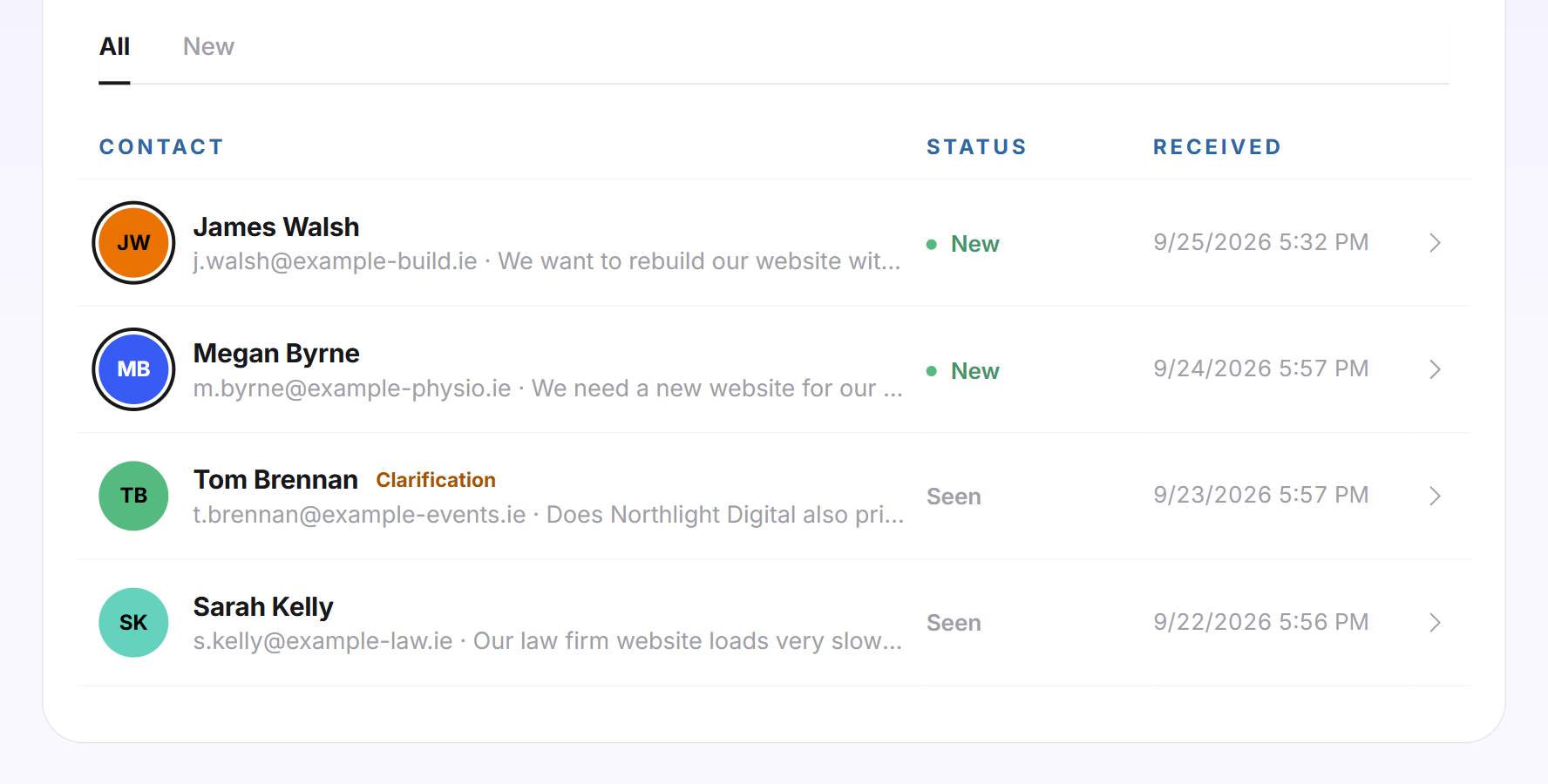
- Open Leads → Inquiries. The top right shows how many inquiries there are in total.
- Select the All or New tab. New shows the inquiries that were still unseen when you opened the page.
- Read the columns Contact, Status and Received. Below the name are the email address and the first line of the message.
The newest inquiry is at the top. All inquiries load at once, without search and without pages. New inquiries carry a green dot with New and a dark ring around the initials, seen ones a grey Seen. A click on the name opens the contact with all inquiries, appointments and conversations of this person. A click on the rest of the row opens the inquiry itself.
As soon as you open the page, all inquiries count as seen, and the green number on Inquiries in the navigation disappears. The New labels stay until you leave the page. On your next visit, the New tab is empty until a new inquiry arrives. It then shows Nothing new right now. You have seen every inquiry.
Open an inquiry
- Click a row in the list. The inquiry replaces the list.
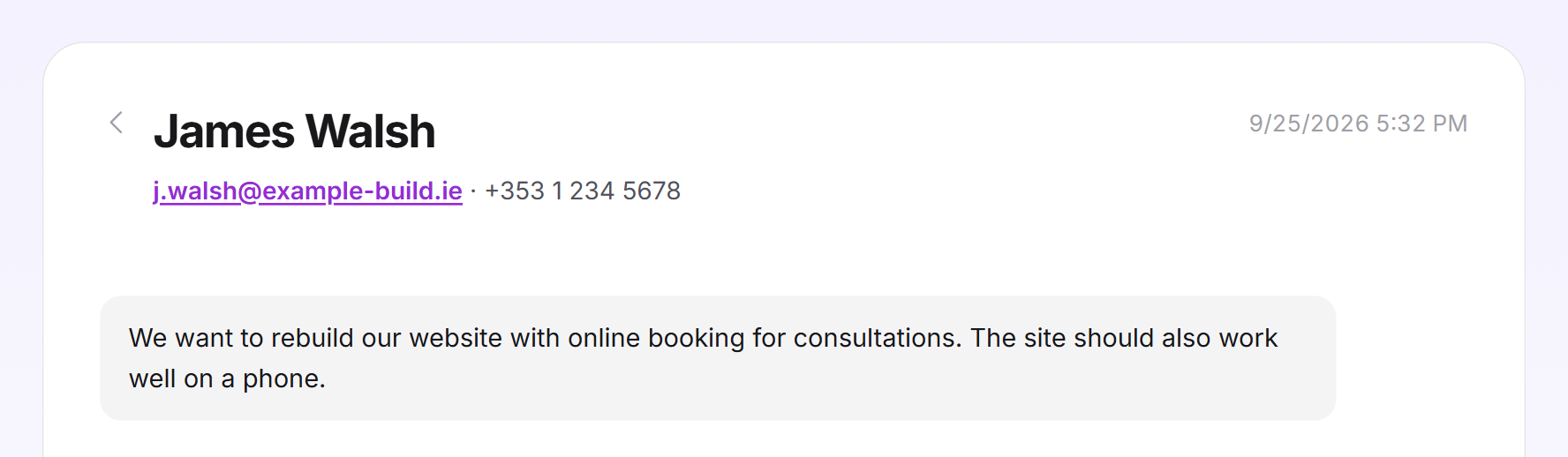
- At the top are the name, the email address as a link, the phone number if given, and the date received on the right. Below it is the visitor's message with all additions.
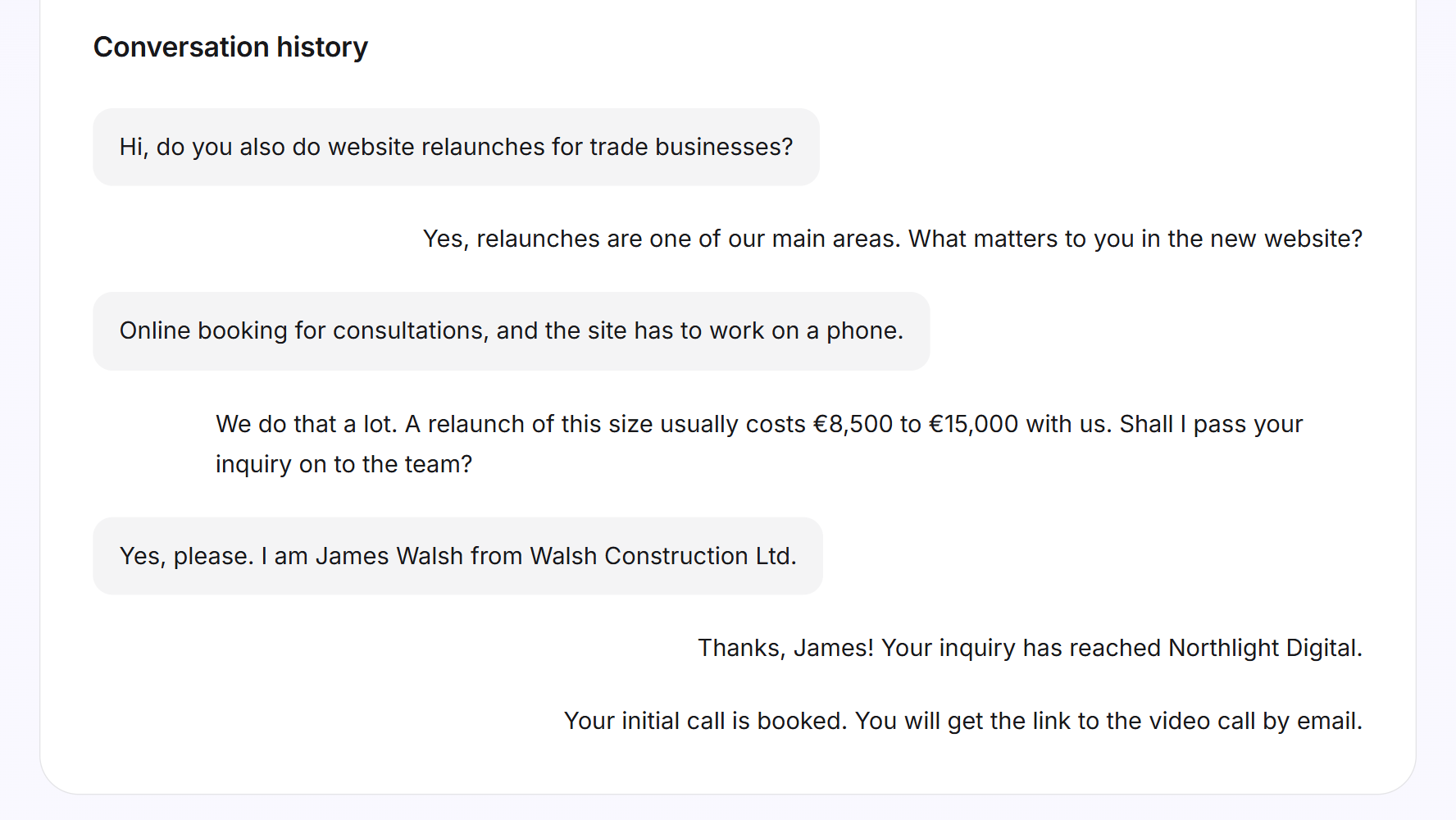
- Under Conversation history, you read the chat the inquiry came from. If there is none, it says There is no conversation history for this inquiry.
- The Back arrow takes you back to the list.
Reply to an inquiry
The inquiry itself has no reply field. You reply in one of two ways:
- By email: Click the email address. Your email program opens with the visitor as recipient.
- In the chat: Click the name to open the contact. In the activity timeline, click Open chat next to the chat. The conversation opens in the Inbox, where you take it over and reply. If the visitor is no longer in the chat, they also get your reply by email.
Clarification requests
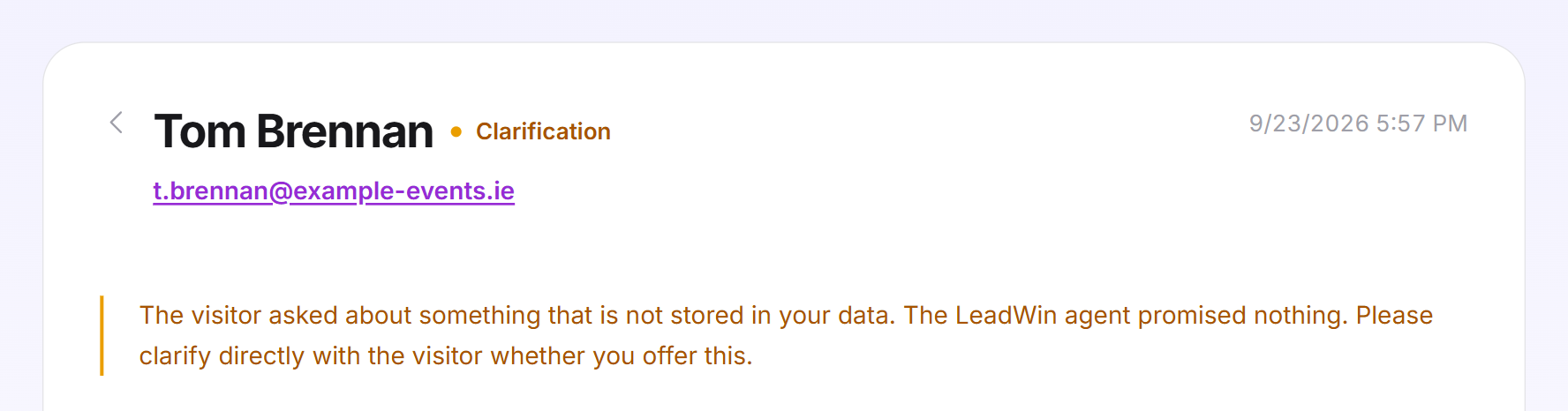
If a visitor asks about a service that does not appear in your data, your LeadWin agent makes no promises. It passes the question on to you as a clarification request, marked Clarification. In the list, this word appears in orange below the name. In the open inquiry, a yellow notice appears: the visitor asked about something that is not stored in your data, and you clarify directly with them whether you offer it.
If the same visitor then leaves a real inquiry in the same chat, the clarification request becomes a normal inquiry. It never happens the other way round.
Tip: If you offer the requested service, add it to your company profile or your instructions. Your LeadWin agent then answers the question itself next time, and a clarification request becomes a real inquiry right away.
The email for an inquiry
For every new inquiry, an email goes to your team immediately. It includes name, email address, phone and message. There are three versions, each with its own subject: New inquiry via your LeadWin agent, Addition to an inquiry via your LeadWin agent and Clarification request via your LeadWin agent. The View inquiry button opens the Inquiries page of the LeadWin agent that took the inquiry. This also applies if you have several LeadWin agents and last had a different one open.
The email goes to the person responsible for the conversation. If there is nobody, it goes to everyone in the team who takes over conversations and receives emails, otherwise to your account address. There is no switch just for inquiry emails. The checkbox for new visitor messages in the Inbox does not turn them off either.
What it looks like in the chat
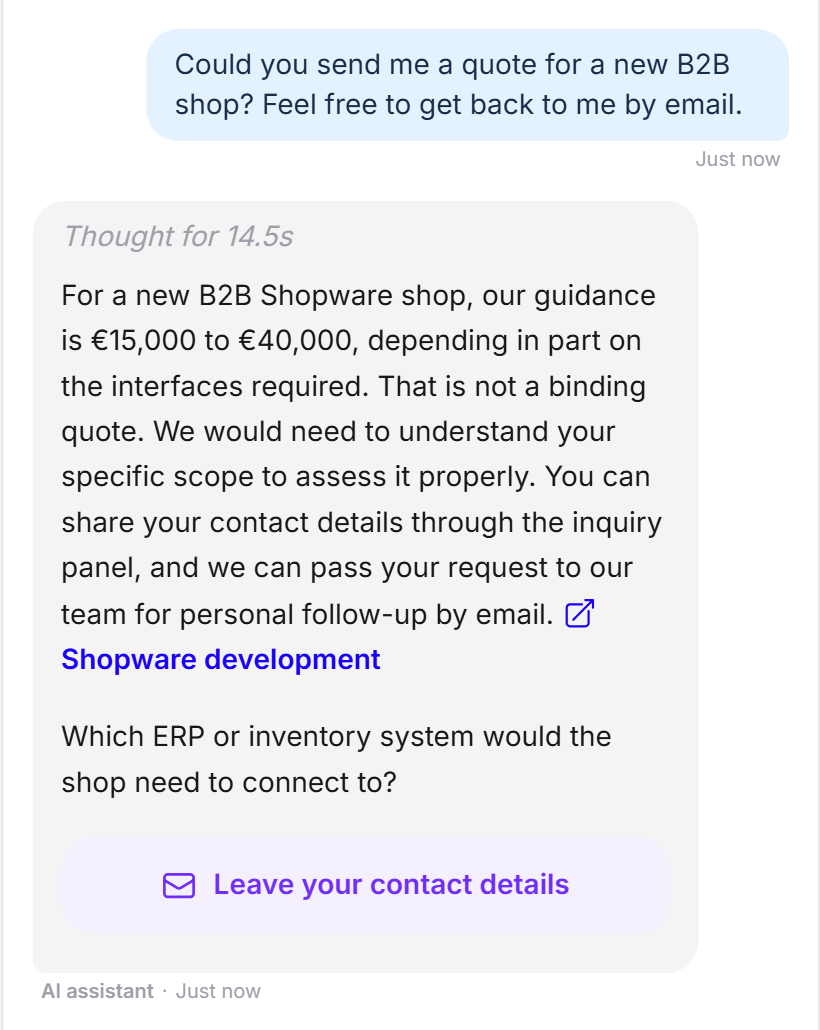
A visitor asks for a quote by email. Your LeadWin agent names a price range as a guide and puts the inquiry button below it. The visitor leaves their contact details with one click or types them into the chat.
What your plan includes
Inquiries are included in every plan, with no monthly limit and no effect on your quota. The only limit applies per chat: a visitor can send at most 3 inquiries in one conversation. This protects you from spam. Your plan determines how many conversations your LeadWin agent can hold, and inquiries come out of these conversations:
| Plan | Conversations per LeadWin agent and month |
|---|---|
| Free | 10 |
| Trial | 30 |
| Basic | 50 |
| Pro | 100 |
| Scale | 250 |
Feedbax Business comes with the limits of Basic, Premium with those of Pro and Enterprise with those of Scale. You find more on this in LeadWin in your Feedbax plan, and all limits in Plans compared. With Pro, Scale and during the trial, you also see in the contact which pages of your website a prospect read before and after the conversation, provided they consented to visitor analytics. This tells you before you call back which service really interests them.
Frequently asked questions
What is a clarification request?
A visitor asked about something that is not in your data. Your LeadWin agent made no promises and passed the question on to you. Clarify with the visitor whether you offer it, and if so, add it to your knowledge.
Why did I get a second email about the same inquiry?
The visitor added something in the same chat. LeadWin adds the addition to the existing inquiry and sends you the complete inquiry again.
How many inquiries can a visitor send?
At most 3 per chat.
Do inquiries use up conversations?
No. Only visitor messages in the chat count toward your quota, not the inquiries.
How do I reply to an inquiry?
Click the email address in the inquiry. Or open the contact and use Open chat to reply in the chat.
Why is the New tab empty although I have barely looked at the inquiries?
Opening the page marks all inquiries as seen. On your next visit, New only shows inquiries that have arrived since then.
I tested the form in the live preview. Why is there no inquiry?
Inquiries from the live preview are never saved or emailed. Test the form on your website if you want to see the whole flow.
Can I delete an inquiry?
No. The page only displays inquiries. It has no button for deleting or editing.