

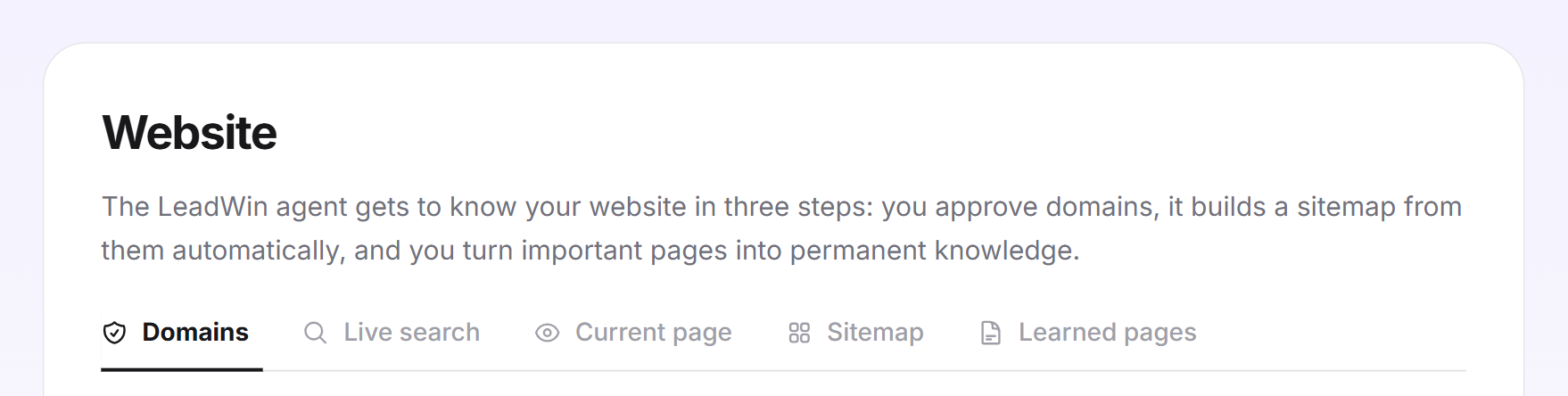
On the Website page, your LeadWin agent gets to know your website. You approve your domains, and it builds a sitemap from them, searches it live when needed and keeps important pages permanently in mind. This way, it answers with your own texts, from the service page to the FAQ.
At a glance
- You find the page in the LeadWin dashboard under Knowledge → Website. It has five tabs: Domains, Live search, Current page, Sitemap and Deepened pages.
- The approved domains are also the list of websites your LeadWin agent may run on.
- LeadWin summarizes deepened pages once, with up to 8,000 characters per page. Their number ranges from 3 (Free) to 250 (Scale).
- Live search and sitemap are available from Basic on and in the trial. You find an overview of all limits in Plans compared.
- Owners and admins can see the page. You decide who has which role under Team.
How it works
Your LeadWin agent gets to know your website in three steps:
- Approve domains: You state which domains belong to you. Approving a domain does not read any content yet.
- Sitemap: For your website and every approved domain, LeadWin builds an overview of your pages from the sitemap.xml file. During a live search, your LeadWin agent reads matching pages directly from it.
- Deepened pages: LeadWin permanently summarizes important pages such as services, prices or FAQ. This knowledge is always available, even without live search.
When answering, your LeadWin agent proceeds like this: at first, it only knows the address of each deepened page and a topic line of up to 180 characters. When a question matches, it looks up the summaries, up to 3 pages and 12,000 characters at once. If that does not cover the question, it can search your website live and read up to 3 matching pages. In addition, it can read the page the visitor is chatting on right now. It does not mention these lookups to the visitor.
Every change applies from the next visitor message. You check whether the answers fit in the live preview. In the Getting started checklist, the Website knowledge step is done as soon as at least one deepened page has the status Ready.
How much LeadWin reads and how often
- Deepened page: LeadWin reads up to 30,000 characters of the page and writes a summary of at most 8,000 characters from it. Your LeadWin agent knows only this summary. LeadWin never reads a deepened page again on its own, only when you click Refresh.
- Sitemap: up to 2,000 addresses per domain, up to 150 entries in the overview. LeadWin rebuilds it every 7 days as long as live search is switched on.
- Live search: up to 3 pages per search. A search may take at most 20 seconds.
- Current page: the page's headings and one paragraph below each, read directly from the visitor's browser. LeadWin stores none of it.
- Refreshes: How often you can refresh by hand per day depends on your plan. The quota applies per agent and is shared between refreshing pages, reprocessing failed pages and refreshing sitemaps. It renews at midnight German time. Adding or deepening pages does not use any of it. Once the quota is used up, the Refresh icon turns grey. Its tooltip then states your daily quota, in Free and Basic together with Pro's, for example Refreshing is possible 10× per day. With LeadWin Pro, 25×.
What this means for you: if your website changes, the summary of a deepened page stays on the old state until you refresh it. After a relaunch, click Refresh on your most important pages. A long page with more than 30,000 characters is better split up, or you add to the summary yourself.
Approve domains
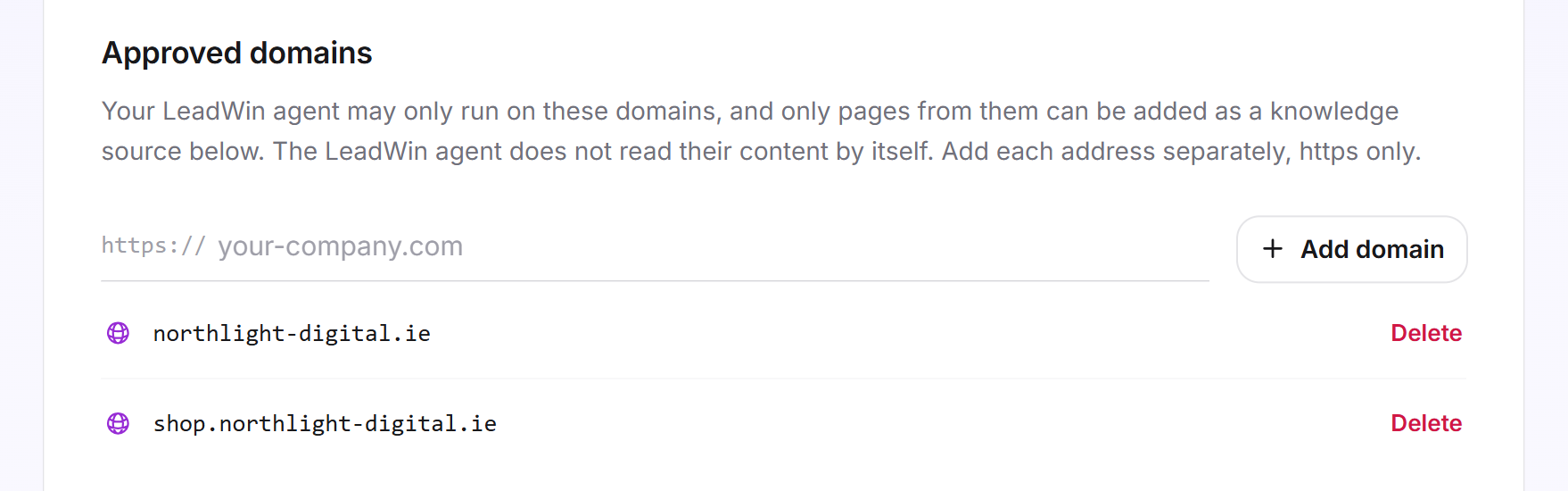
- Open Knowledge → Website, Domains tab.
- Under Approved domains, enter an address, for example northlight-digital.ie. The https:// is already in front of it.
- Click Add domain. You enter each address separately, https only.
Your LeadWin agent may only run on these domains, and you can only deepen pages from them. You find the code for your website under Installation. You remove a domain with Delete. Its deepened pages then fail because they are no longer on an approved domain. If your plan does not allow another domain, a message below the field tells you how many it allows.
Several pages under one path
Normally, every page of your website has its own address. Some websites, however, distinguish pages only by an addition after the question mark, such as northlight-digital.ie/leistungen?bereich=seo and northlight-digital.ie/leistungen?bereich=shop. Without a rule, LeadWin treats both as the same page.
- On the Domains tab, scroll to the Several pages under one path card.
- Enter the name before the equals sign, in the example bereich. If you paste the whole addition, LeadWin shortens it itself.
- Click Add rule or press Enter.
Each of these pages then counts as a page of its own: it gets its own speech bubble, and your LeadWin agent knows which one the visitor is on. LeadWin continues to ignore everything else in the address, such as campaign IDs, filters or page numbers. You can enter up to 5 names of up to 40 characters each. If your website has perfectly normal addresses, leave the card empty.
Switch on live search
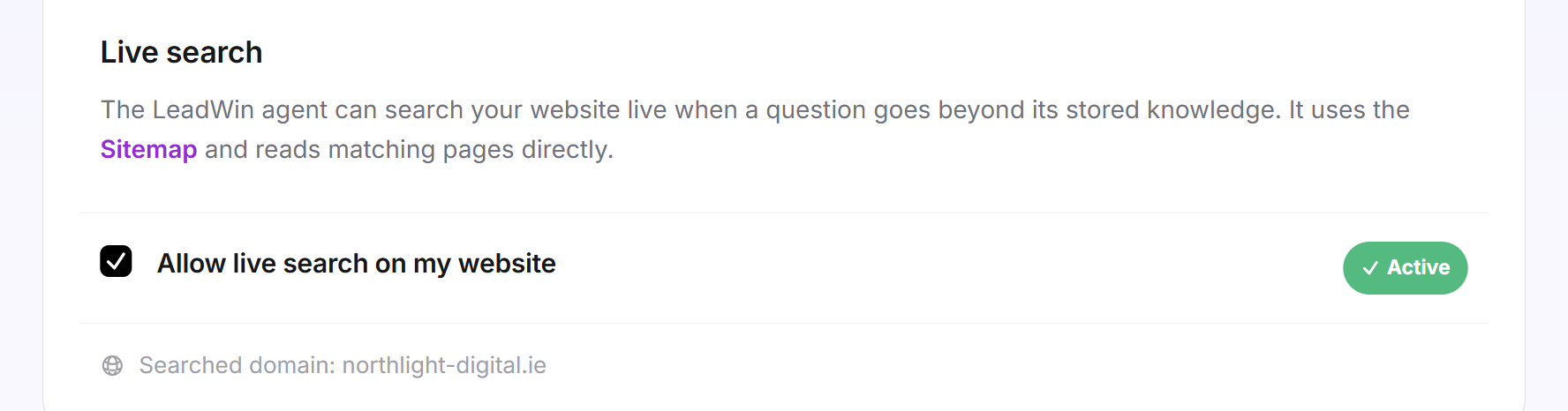
- Open the Live search tab.
- Check Allow live search on my website. For new agents, it is already checked.
- Below it, you see which domain is searched: the website from your company profile, otherwise your first approved domain.
If no website is stored, a yellow box points this out, and the box cannot be checked. In Free, the label Upgrade appears there, and clicking the checkbox opens the pricing page.
Read the visitor's current page
The Current page tab has the switch Read the visitor's current page. When it is on, your LeadWin agent can read the page on which a visitor is chatting with it right now. If someone on your online marketing page asks what exactly is included, your agent knows which page is meant. It only reads when needed, and nothing of it is stored. The switch is available in every plan and is on from the start.
Check the sitemap
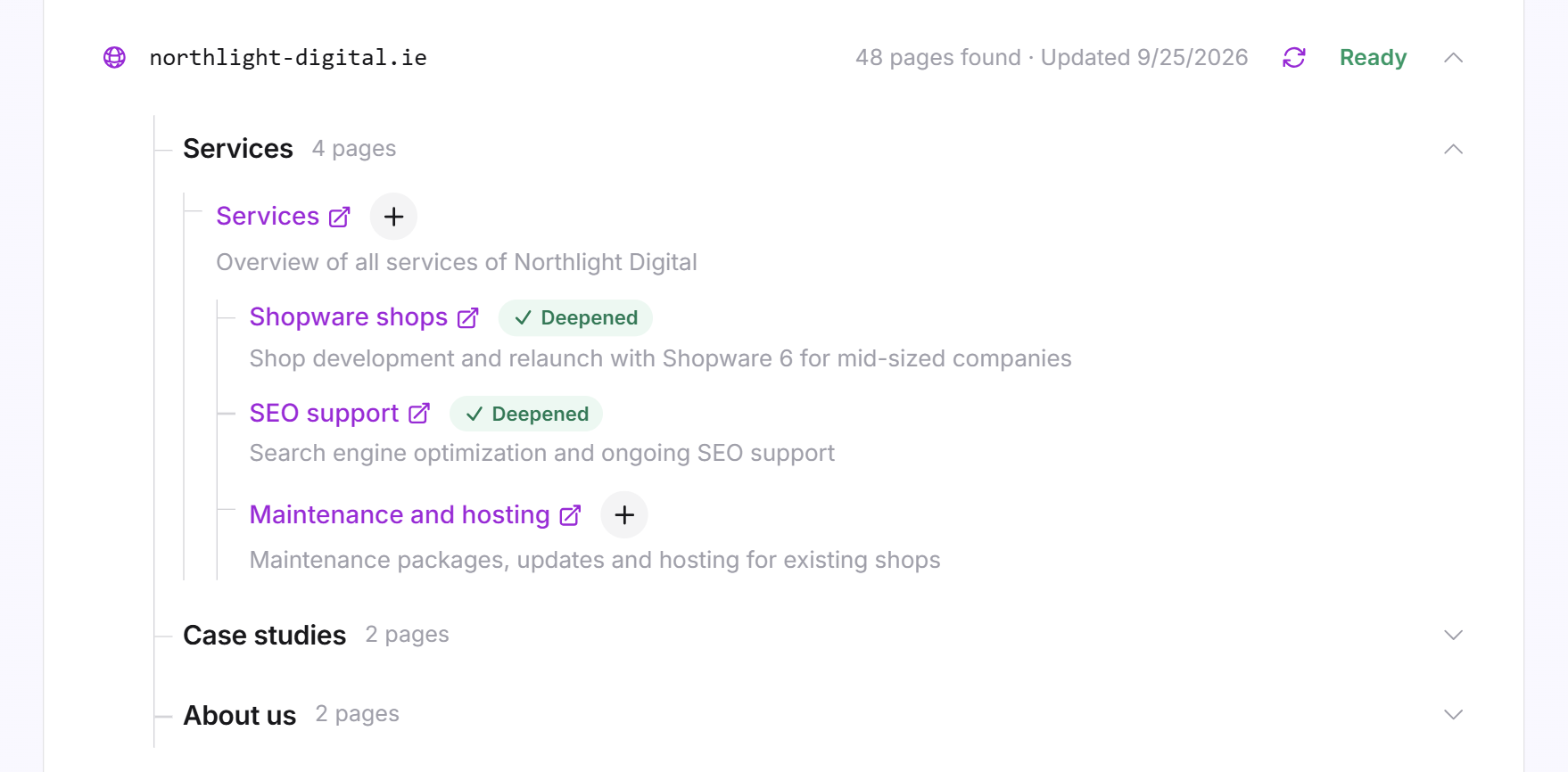
The Sitemap tab has one row per domain: the number of pages found, the date and the status Processing, Ready, No sitemap or Failed.
- Click a row or Show sitemap. The pages appear sorted into groups.
- For an important page, click Deepen. It then appears under Deepened pages and carries the label Deepened here.
- To rebuild a sitemap right away, click the Refresh icon. This uses one refresh from your daily quota. While it is being built, you stop it with Cancel.
If the domain has no sitemap.xml file, the row shows No sitemap in grey. This is not an error, just a note: without the file, LeadWin cannot build a sitemap. Create it on your website (your content management system usually does this), or add important pages directly under Deepened pages. If a sitemap fails for another reason, it shows Failed in red with the reason below the row. If the file is just temporarily unreachable, try again later. As long as live search is on, LeadWin also retries failed sitemaps regularly on its own.
Deepen a page
- Open the Deepened pages tab. The counter shows how many pages you already use, for example 12 of 150 pages.
- Enter the page address, for example northlight-digital.ie/leistungen, and click Add page. The page must be on an approved domain.
- The row shows Processing. As soon as it changes to Ready, it expands automatically.
- Check the Summary. Your LeadWin agent answers from it.
To the right of the summary are three icons: Refresh reads the page again, Edit opens the summary for editing, Delete removes the page.
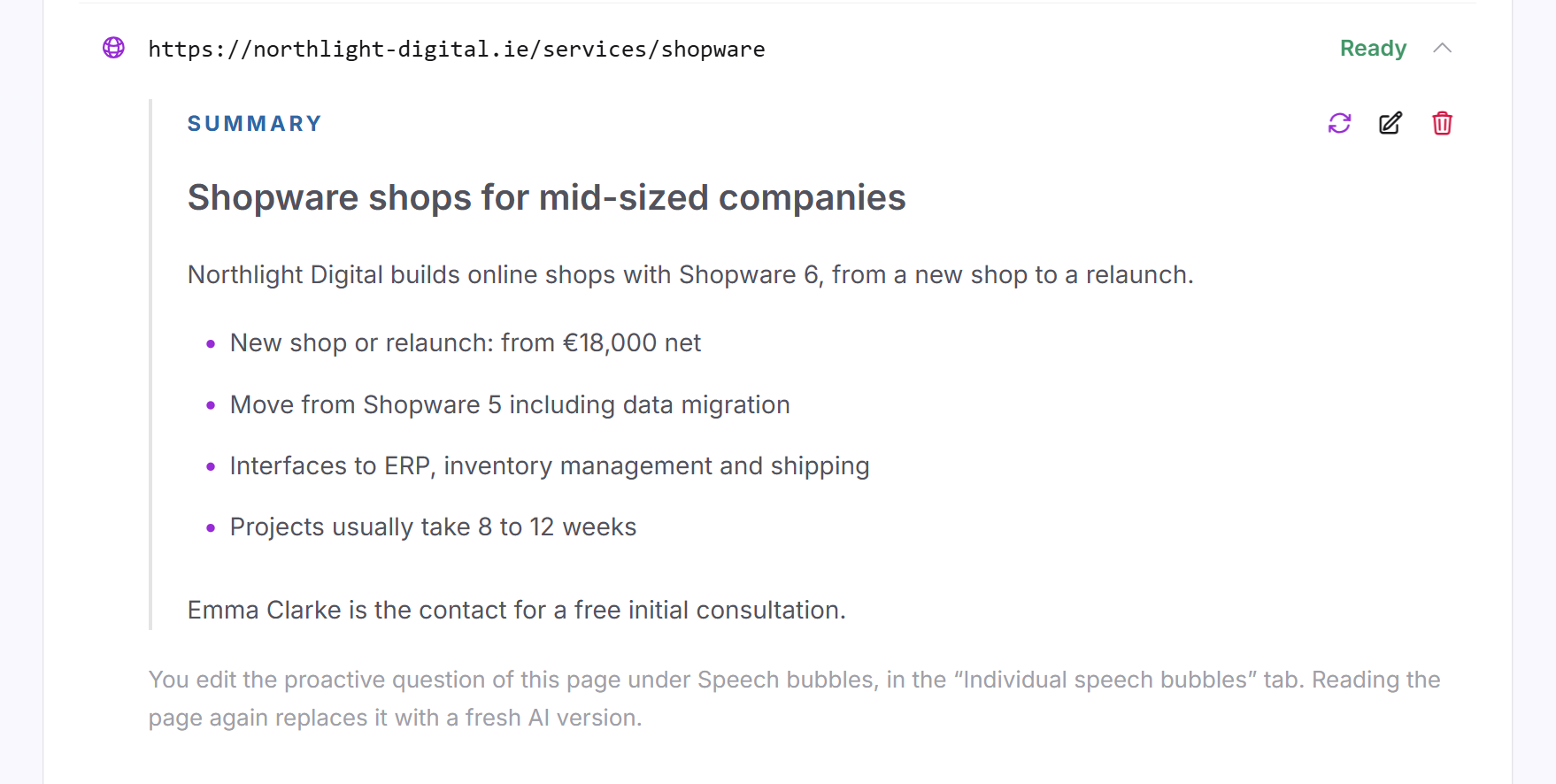
For every deepened page, your LeadWin agent also writes a question of its own that appears as a speech bubble on exactly this page. You edit it under Speech bubbles on the Individual speech bubbles tab.
Edit the summary
- Expand the page and click Edit.
- Change the text. You can use Markdown, for example headings and lists. Up to 8,000 characters are allowed, and the counter shows how many you have used.
- Click Save. The page then carries the label Manually edited.
If you click Refresh on an edited page, LeadWin asks Re-scan this page?. If you confirm, a new AI version replaces your summary and your question for the speech bubble. Your changes are then lost.
Important: If you have added to a summary by hand, copy your additions before refreshing. This way, you can paste them back in afterward.
When a page fails
If a page shows Failed, expand it. The reason is shown there:
- The page could not be loaded: Check the address and click Refresh later.
- The summary could not be created: Try again later, or click Write your own summary.
- The domain is no longer approved: Approve the domain again or delete the page.
Each new attempt uses one refresh from your daily quota.
What it looks like in the chat
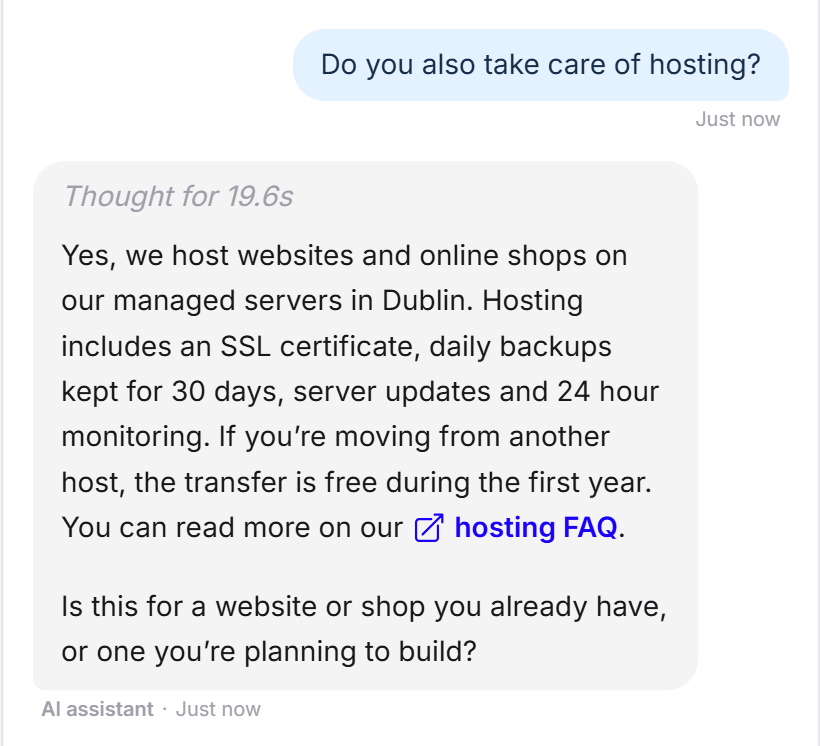
A visitor asks about hosting. Your LeadWin agent answers from a deepened page of your website and links it.
What your plan includes
| Plan | Approved domains | Deepened pages | Refreshes per day | Live search and sitemap |
|---|---|---|---|---|
| Free | 1 | 3 | 3 | no |
| Basic | 1 | 50 | 10 | yes |
| Pro and trial | 5 | 150 | 25 | yes |
| Scale | 10 | 250 | 50 | yes |
The limits apply per LeadWin agent. Feedbax Business comes with the limits of Basic, Premium with those of Pro and Enterprise with those of Scale. You find more on this in LeadWin in your Feedbax plan.
With Basic, you describe one website thoroughly: 50 deepened pages and live search for everything else. Pro pays off if you have several websites or want to anchor more pages permanently: 5 domains and 150 pages. Once you reach a limit, the input field for new pages disappears and Upgrade appears next to the counter. Clicking it opens the LeadWin pricing page, or the Feedbax pricing page if you have a Feedbax plan. How to change your plan is explained in Manage, change and cancel your plan. If you switch to a smaller plan, all domains and pages are kept. You just cannot add new ones until you are below the limit again.
If you have several LeadWin agents, a second agent can also read the website knowledge of the first one. You set this up under Share knowledge on the Agent page.
Frequently asked questions
Does my LeadWin agent read my whole website as soon as I approve a domain?
No. Approval only allows it to run there and pages from there to be deepened. It learns the content through the sitemap, live search and deepened pages.
What is the difference between live search and deepened pages?
Live search reads matching pages only at the moment of the question and needs a sitemap.xml. Deepened pages are summarized once and always available. You should therefore deepen your most important pages.
Why does my sitemap say that no sitemap.xml was found?
Your domain does not have this file. Create it, or add important pages directly under Deepened pages.
Are deepened pages updated when my website changes?
No. Click Refresh on the page. The sitemap, on the other hand, is rebuilt by LeadWin every 7 days as long as live search is on.
How many deepened pages can I have?
3 in Free, 50 in Basic, 150 in Pro and the trial, 250 in Scale, each per agent.
I have edited a summary. What happens when I refresh?
LeadWin asks first. If you confirm, a new AI version replaces your summary and the page's question.
Why did a page fail after I deleted a domain?
Deepened pages must be on an approved domain. Approve the domain again or delete the page.
My pages differ only by ?bereich=… in the address. What do I need to do?
Enter bereich under Several pages under one path. Each of these pages then gets its own speech bubble.