

LeadWin sends you and your team an email as soon as something needs your attention: a visitor has written, wants to talk to a human, has left an inquiry or has booked an appointment. This way, you do not miss any prospect, even when nobody is looking at the LeadWin dashboard. This article shows every email, who gets it, when it arrives and where you turn it off.
At a glance
- You turn emails about new messages and requests for a human on and off in the Inbox, at the top right.
- For each person, you set under Setup → Team whether they get emails and in which language.
- Emails about inquiries and appointments have no switch of their own. They always go out.
- For an unread conversation, an email arrives at most every 6 hours, at the earliest 2 minutes after the message.
- In the first 14 days after your first LeadWin agent, you get up to five setup tips. You can unsubscribe from them with one click.

How it works
All emails about conversations, inquiries and appointments go to the same people. LeadWin looks for them in this order:
- The person who is Responsible for the conversation, if they may take over conversations, receive emails and their seat is covered by the plan.
- Otherwise, all active people in the Team with the Joins conversations as an agent switch and the Notify this person by email checkbox whose seat is covered by the plan.
- If there is nobody, the notification address of your account. For a LeadWin account, that is your sign-in address. As a Feedbax provider, it is the leads address of your Feedbax profile.
This way, every email arrives, even if everyone in the team has turned off their emails. Every email carries the LeadWin logo and a link to the dashboard. If the email is about a conversation, an inquiry, an appointment or a promising visitor, the button opens exactly the LeadWin agent it is about, and the matching page there. This also applies if you have several LeadWin agents and last had a different one open. People from your team sign in there with their own sign-in link. Emails to the account address sign you in directly where possible. Each person gets the emails in the language set for them under Team, otherwise in the language of your account.
All emails at a glance
| Occasion | When | To whom | Turn off |
|---|---|---|---|
| New visitor message | 2 minutes after the message, at most every 6 hours per conversation | Team in the order above | Checkbox in the Inbox |
| Visitor wants to talk to a human | immediately, once per conversation | Team in the order above | Checkbox in the Inbox |
| Reminder: nobody has taken over | 2 hours after the request, once | Team in the order above | Checkbox in the Inbox |
| New inquiry, addition, clarification request | immediately | Team in the order above | no switch |
| New appointment | immediately, with ICS file | Team in the order above | no switch |
| Promising visitor (from Pro) | immediately, at most once per visitor in 24 hours | only the account's notification address | Analytics → Notifications |
| Setup tips | in the first 14 days after your first agent, each tip once | only the account owner | Unsubscribe link in the email |
Test conversations in the live preview trigger none of these emails.
New message from a visitor
When a visitor writes, LeadWin waits 2 minutes. If nobody from your team has opened the conversation in the dashboard during this time, the email goes out. Under Latest message, it shows the visitor's newest message, shortened to 300 characters. The Open conversation button takes you straight into the conversation.
For a conversation nobody has opened yet, there is at most one email. If the visitor keeps writing, the next email follows after 6 hours at the earliest. If someone opens the conversation, the next new message is announced again after 2 minutes.
A visitor wants to talk to a human
If a visitor asks to talk to someone from your team, the email A visitor wants to talk to you arrives immediately. Your LeadWin agent has told the visitor that someone will reply in the chat and keeps helping in the meantime. With Take over the conversation, you jump into the conversation.
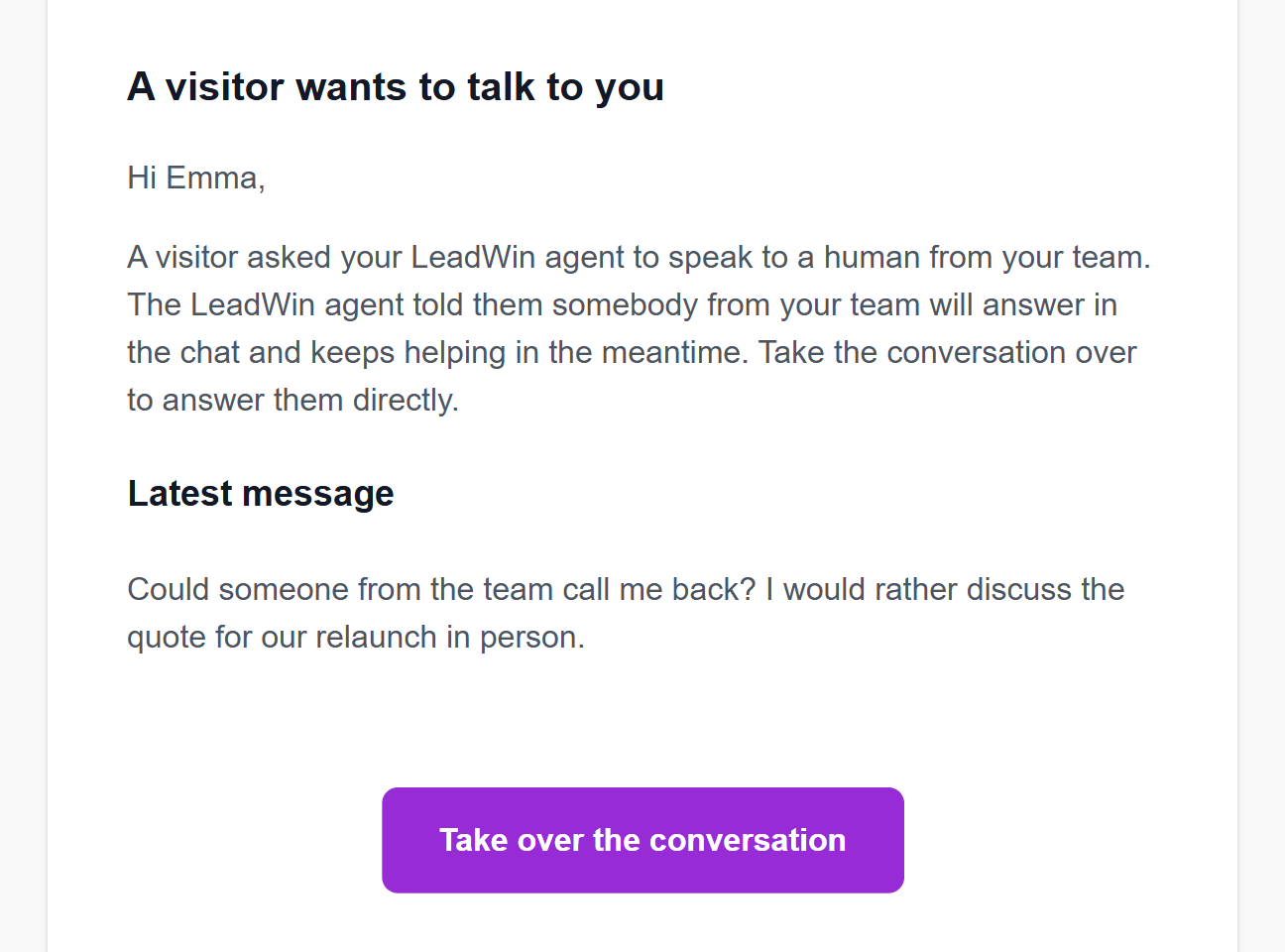
If nobody has taken over after 2 hours, the reminder Nobody has talked to the visitor yet arrives with the Take the conversation over now button. At the same time, your LeadWin agent tells the visitor openly that nobody from the team is available right now and keeps helping.
Both emails only exist as long as the Email notification for new visitor messages checkbox in the Inbox is ticked. If it is off, your LeadWin agent does not promise a human in the chat. Instead, it offers the visitor to leave an inquiry.
New inquiry and new appointment
When a visitor leaves an inquiry, an email with name, email address, phone and message arrives immediately. If the visitor adds to their inquiry in the same chat, a second email with the complete inquiry arrives. There is a separate version for a clarification request. The View inquiry button takes you to the Inquiries page.
When a visitor books an appointment through LeadWin appointment booking, the email New appointment booked arrives immediately with date, time, contact details, note and location, meaning video call with link or by phone. The appointment is attached as a calendar file (ICS). The Go to your appointments button opens the Appointments page. At the same time, the visitor gets their own confirmation with an ICS file. For bookings through Calendly, Calendly sends the emails.
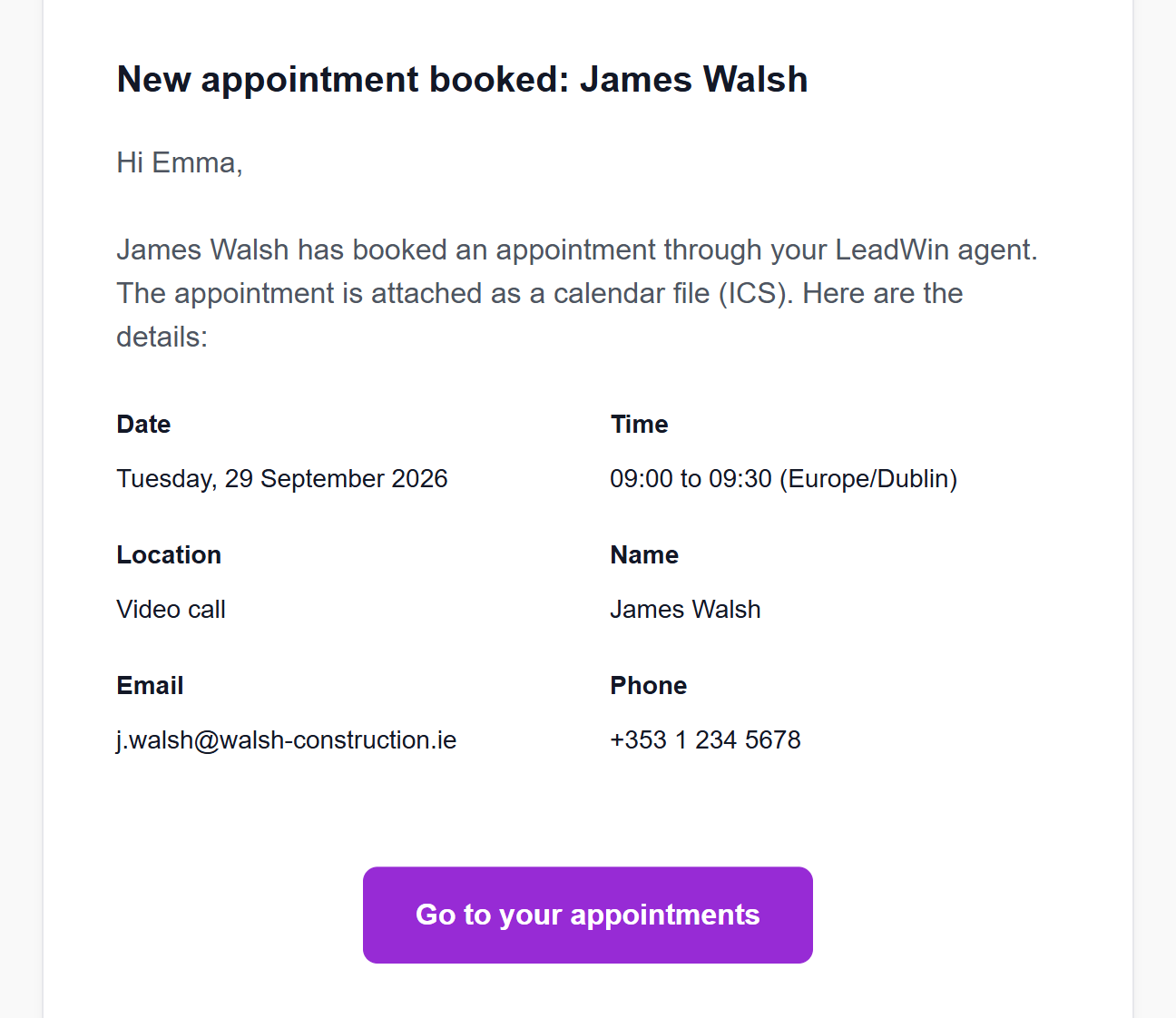
These two emails have no switch, and the checkbox in the Inbox does not affect them. A person in the team who does not want emails unticks Notify this person by email under Team.
Alert about a promising visitor
With Pro, Scale and during the trial, LeadWin gets in touch as soon as a visitor shows clear interest on your website, even if they have not written anything yet. The email only goes to your account's notification address, never to people in the team. The Open analytics button opens the Analytics → Visitor analytics page of the agent that spotted the visitor. When the email arrives and how you turn it off is explained in Notifications about promising visitors.
When you reply to a visitor
If you have taken over a conversation and the visitor is no longer in the chat, they get your reply by email, provided they left their address in an inquiry beforehand. The email goes out 2 minutes after your reply, once per absence. If the visitor comes back before that or writes themselves, it is not sent. There is no switch for this.
Setup tips in the first 14 days
To help your LeadWin agent go live quickly, LeadWin sends you, as the account owner, up to five tips by email, each at most once. Each tip names exactly one step, usually from the Getting started checklist, and its button takes you straight to that place in your LeadWin agent. Below it, the tip links to the guide in the help center. Most tips also show the step with a picture from this help center.
- Your next step to more leads arrives 24 hours after you create your first LeadWin agent. The email says how many of the four steps to launch you have already finished and names the first open one, for example Instructions. The button opens exactly that step.
- Almost there: unlock the code for your website arrives after 48 hours if the Installation page still shows no code. The email names what is missing: an allowed domain under Knowledge → Website, your acceptance of the data processing agreement under Setup → Privacy, or both. The button is called Allow domain or Go to the data processing agreement. If you signed up on leadwin.ai, you already concluded the agreement then.
- Your visitors are still waiting for your LeadWin agent arrives after 4 days if none of your agents has been seen on a website yet. The email explains how the code gets onto your website in about 5 minutes and that it does not slow your site down. The button is called Copy code.
- Your LeadWin agent is live arrives as soon as LeadWin has detected one of your agents on a website for the first time. The email names the website and suggests asking three typical customer questions in the live preview. The Try LeadWin button opens the dashboard.
- Your next step with LeadWin arrives 7 days after you create your first LeadWin agent. The email suggests exactly one improvement that fits the state of your LeadWin agent. Which one it can be is described below the picture.
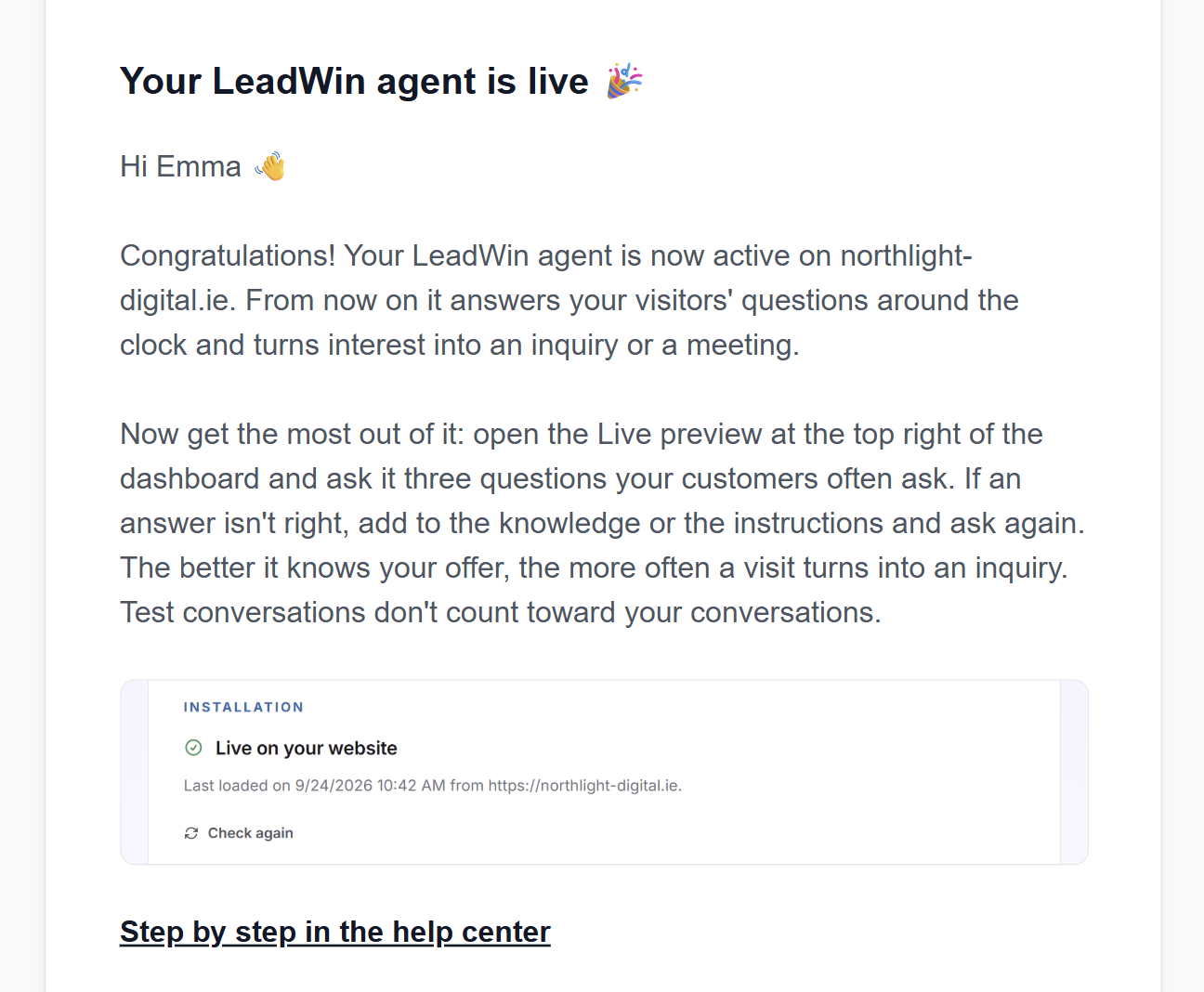
On day 7, the email suggests one of these improvements, depending on the state:
- Not live yet: the setup step that is still open. The button opens exactly that step. If only the installation is left, no email arrives, because the day 4 email already covered it.
- Live, but no conversation yet: turn on the speech bubbles and check the greeting, so visitors notice your LeadWin agent. The button is Turn on speech bubbles.
- The first conversations are in: read them in the Inbox and add the knowledge that is missing. The button is Read conversations.
- Everything set up except appointment booking: appointment booking, if your plan includes it. The button is Set up appointment booking.
The tips follow the state of your agent, not the calendar. If you have already finished a step, no email about it arrives. Once your agent is live, only the live email and the day 7 email are left. The tips start with your first LeadWin agent, not with the account: without an agent, you get none. They end 14 days later. If you install the code after that, no live email arrives. If you have several agents, the tips are about your first one. The day 7 email is about the agent that went live first. There are at least 24 hours between two such emails, including the emails of the trial. LeadWin checks this every hour, so an email can arrive up to an hour later. The tips only go to the owner, never to people in the team. For a LeadWin account, they go to the address you sign in with. As a Feedbax provider, they go to the admin address of your Feedbax profile, even if you have changed your LeadWin sign-in address.
Unsubscribe from the tips
- Open one of these emails and click Unsubscribe at the bottom.
- A page with the question Stop the LeadWin setup tips? opens. You do not need to sign in for this.
- Click Unsubscribe. The page now shows Unsubscribed.
- With To the LeadWin dashboard, you get back to the dashboard.
Only the click on Unsubscribe unsubscribes you. That way no virus scanner that opens links in emails in advance can unsubscribe you. If your email app shows its own unsubscribe button next to the email, for example Gmail or Apple Mail, it unsubscribes you directly.
Unsubscribing applies to your whole account and all agents. You keep getting emails about your account, your plan, your trial, your inquiries and your appointments. The link in the email is valid for 12 months. If the page shows Link invalid, use the link from a newer email. You cannot subscribe again in the dashboard. To do so, write to support.
Turn off emails
For emails about new messages and requests for a human, for the whole LeadWin agent:
- Open the Inbox.
- At the top right, untick Email notification for new visitor messages. The change applies immediately.
For all emails to a particular person:
- Open Setup → Team and click the person.
- Under Notifications, untick Notify this person by email. Under Notification language, you choose the language of their emails.
- Click Save.
The person keeps their access, remains a target for handovers and can still be assigned. Owners, admins and agents set the checkbox in the Inbox. People with the Viewer role cannot change it.
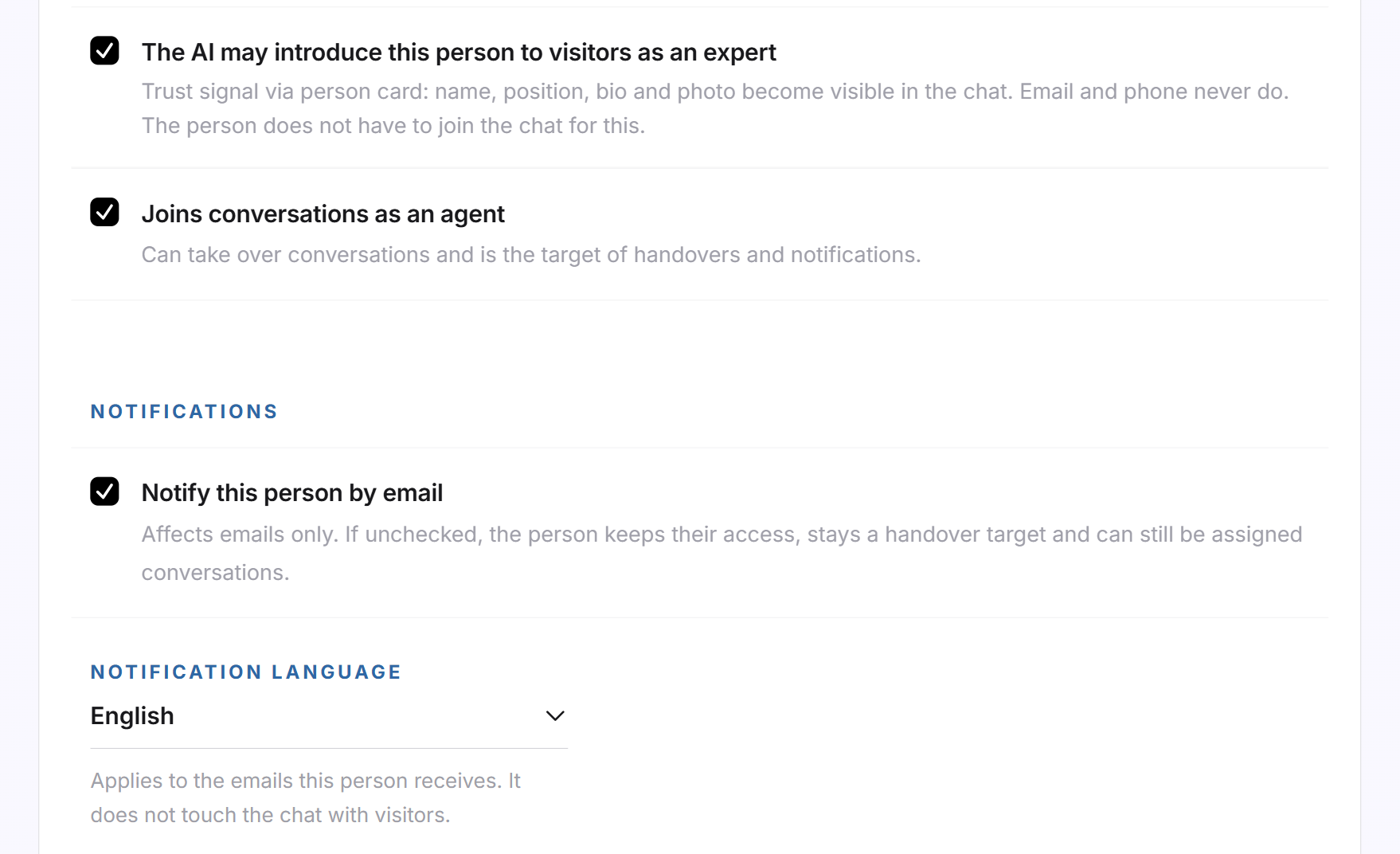
Important: If you turn off the checkbox in the Inbox, your LeadWin agent no longer promises visitors a human in the chat. If you only want fewer emails, untick the checkbox for individual people under Team instead.
Other emails from LeadWin
Some emails concern your account and your plan. They have no switch and are described in their own articles: the link for signing in, the two trial emails, the email about a failed payment when you manage your plan, and the email sent when your LeadWin agent has automatically topped up conversations.
What your plan includes
| Plan | Messages, inquiries | Appointments | Promising visitors | People in the team |
|---|---|---|---|---|
| Free | yes | no | no | 1 |
| Trial | yes | yes | yes | 10 |
| Basic | yes | yes | no | 3 |
| Pro | yes | yes | yes | 10 |
| Scale | yes | yes | yes | 25 |
Appointment emails require appointment booking, which is available from Basic. The number of people in the team includes the owner. Feedbax Business comes with the limits of Basic, Premium with those of Pro and Enterprise with those of Scale. You find more on this in LeadWin in your Feedbax plan, and all limits in Plans compared. Pro pays off if you do not want to wait for the first message: the email about promising visitors reports prospects while they are still reading your website.
Frequently asked questions
Why do I only get one email although the visitor wrote several messages?
An unread conversation triggers one email. The next one only follows after 6 hours if you have not opened the conversation by then.
Why did a message not trigger any email?
Someone opened the conversation within 2 minutes, or the checkbox in the Inbox is off, or you are not among the recipients because someone else is responsible or your emails are turned off under Team.
Who gets the emails if I have a team?
The responsible person. Otherwise everyone who takes over conversations and receives emails. If there is nobody, your account's notification address.
Can I turn off emails about inquiries and appointments?
Not with a switch of their own. Individual people untick their checkbox under Team. If nobody in the team receives emails, they go to your account address.
In which language do the emails arrive?
In the language of your account. For each person in the team, you choose a language of their own under Team.
What happens if nobody replies to a visitor who wanted to talk to a human?
After 2 hours, a reminder arrives. Your LeadWin agent then tells the visitor openly that nobody is available right now and keeps helping.
I installed the code on day 20 and did not get a live email. Why?
The setup tips end 14 days after you create your first LeadWin agent.
I have an account but have not received a tip yet. Why?
The tips only start with your first LeadWin agent. The first tip arrives 24 hours later, and only while your agent is not live yet.
Why did no email arrive on day 7?
If only the installation is left for your LeadWin agent, none arrives, because the day 4 email already covered it. If you go live within the 14 days, it arrives later, at the earliest 24 hours after the live email.
Do people from my team get the setup tips?
No. The tips only go to the account owner.