

This article shows your LeadWin agent the way a visitor to your website experiences it: from the chat button in the corner through the conversation to the inquiry or the booked appointment. This way, you know what your customers see, which limits apply to them and which messages they may come across.
At a glance
- The launcher only appears once your page has finished loading. The chat itself loads on the first click.
- The chat has the tabs Home, Messages, New question and Contact, and depending on your settings also Appointment and Help.
- A visitor can write up to 50 messages per conversation, send up to 3 inquiries per chat and attach up to 3 files of 10 MB each per message.
- The contact form and appointment booking always require the visitor's consent.
- Visitors can also book appointments without your website, through your public booking page on leadwin.ai.
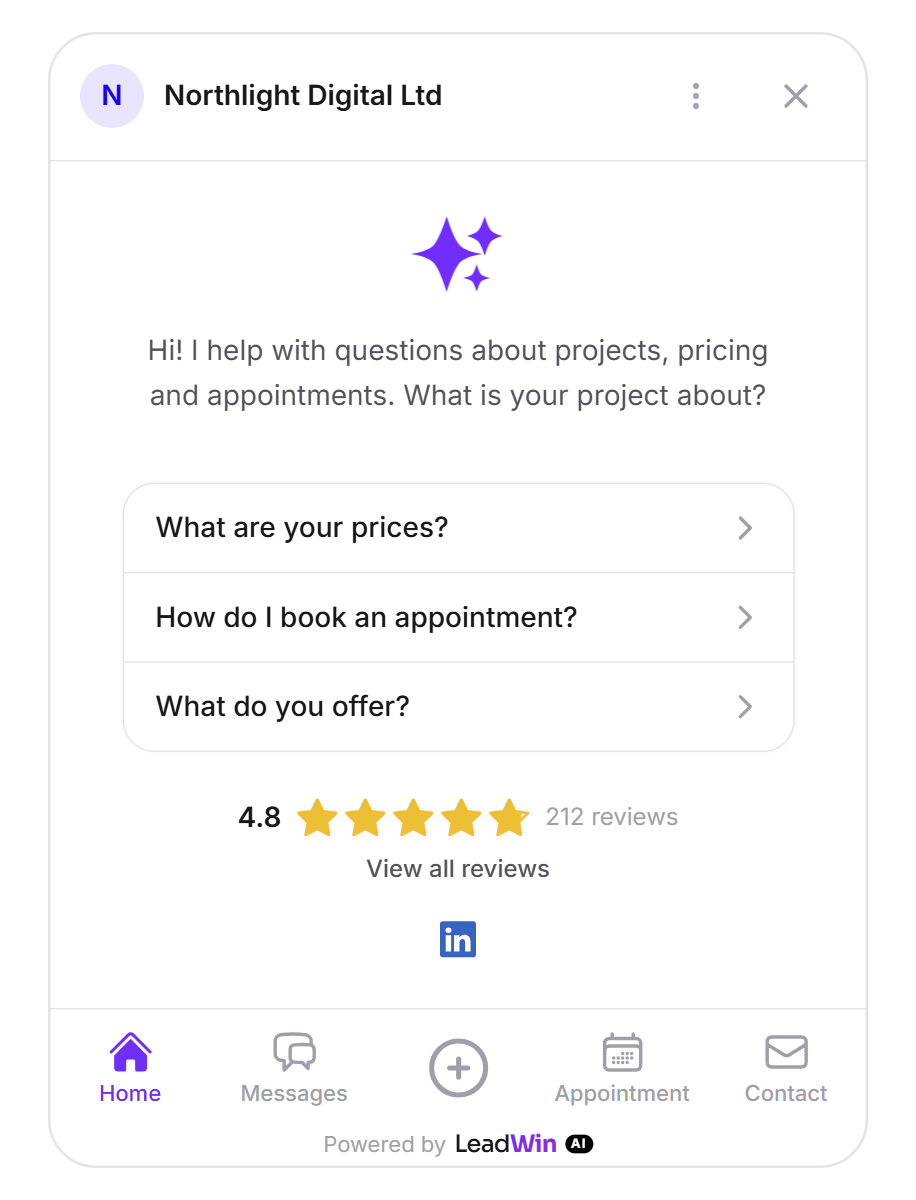
How it works
The code on your website loads nothing before your page has fully loaded. It then fetches colors, position and speech bubbles and waits at most 1.5 seconds for them. If our server does not respond in time, the launcher appears anyway, in its default look. The chat itself only loads when a visitor clicks the launcher. How to add the code is explained in Installation.
The launcher is a round button 48 pixels in diameter in your accent color, at the bottom right or bottom left. Without a custom color, it is purple. It shows sparkles or your own icon. When the chat is open, it turns into a down arrow that closes the chat. You set its look and position under Appearance. Speech bubbles can appear above the launcher and trust signals next to it. Below a speech bubble, the visitor can choose Hide messages like this. From Pro upwards, your campaigns appear there too. If you switched on Hide on mobile devices for the speech bubbles, visitors on screens up to 640 pixels wide see no speech bubbles. Campaigns still appear there.
On a computer, the chat opens as a window in the corner. If the browser window is narrower than 640 pixels, the chat fills the whole screen. Help articles open in a wider reading size.
Every newly loaded page of your website opens the chat on the Welcome screen with the greeting and conversation starters. An earlier conversation stays available under Messages. If a visitor clicks a speech bubble for a page, a new conversation always begins.
The chat addresses visitors the way you set it under Instructions: Informal (friendly) is the default, and there are also Casual informal (du) and Formal (professional). The greeting, forms, messages and the AI's answers all switch together. Towards visitors, your agent introduces itself as your company's AI assistant.
The chat: header, tabs and menu
The chat header shows your logo and your company name. Clicking them opens About us. On the right are Menu and Close. In a conversation, an arrow on the left leads back to the list of messages.
At the bottom is the tab bar. It collapses during an ongoing conversation. The tabs in their order:
- Home: the Welcome screen.
- Messages: earlier conversations. A dot with the note New reply shows that your team replied while the chat was closed.
- New question: the plus in the middle. If appointment booking does not have its own tab, it opens a small menu with your event types and the question to the AI.
- Appointment: only if appointment booking is on and the help center is off. Otherwise, booking sits behind the plus and in the menu.
- Contact: the contact form.
- Help: only with an active help center.
The Menu contains your event types or your Calendly link, Leave your contact details, Help center, Messages and, if connected, your social media channels. If a visitor has hidden speech bubbles or trust cards, it also shows Hidden items. That is where they bring them back. On plans with LeadWin branding, the bottom of the chat shows Powered by LeadWin.
The conversation
The AI writes its answers live. Follow-up questions can appear below an answer. Reviews, reference projects, posts and people appear as cards, and a click opens the details. Cards such as Send a message, Free appointment or Book lead straight to the form or to booking.
With Attach file, a visitor sends up to 3 files per message, each up to 10 MB. PDFs, Office documents, text and images are allowed.
If someone from your team takes over in the inbox, the visitor sees a line with the name of the person who joined the conversation. The input field then shows Write a message. If your team hands the conversation back, the AI helps again. A takeover ends on its own after 24 hours without activity from your team.
If a visitor asks for a human, the answer depends on your setting in the inbox. If notifications are on, the AI promises that someone from the team will answer in the chat and keeps helping until then. If nobody takes over for 2 hours, the AI honestly tells the visitor that nobody is available right now. If notifications are off, the AI offers the contact form.
If your team replies after the visitor has left, and the visitor left their email address in an inquiry, they receive an email. A link in it reopens exactly this conversation. If the reply came while the chat was closed, the Messages tab shows the New reply note the next time the chat opens.
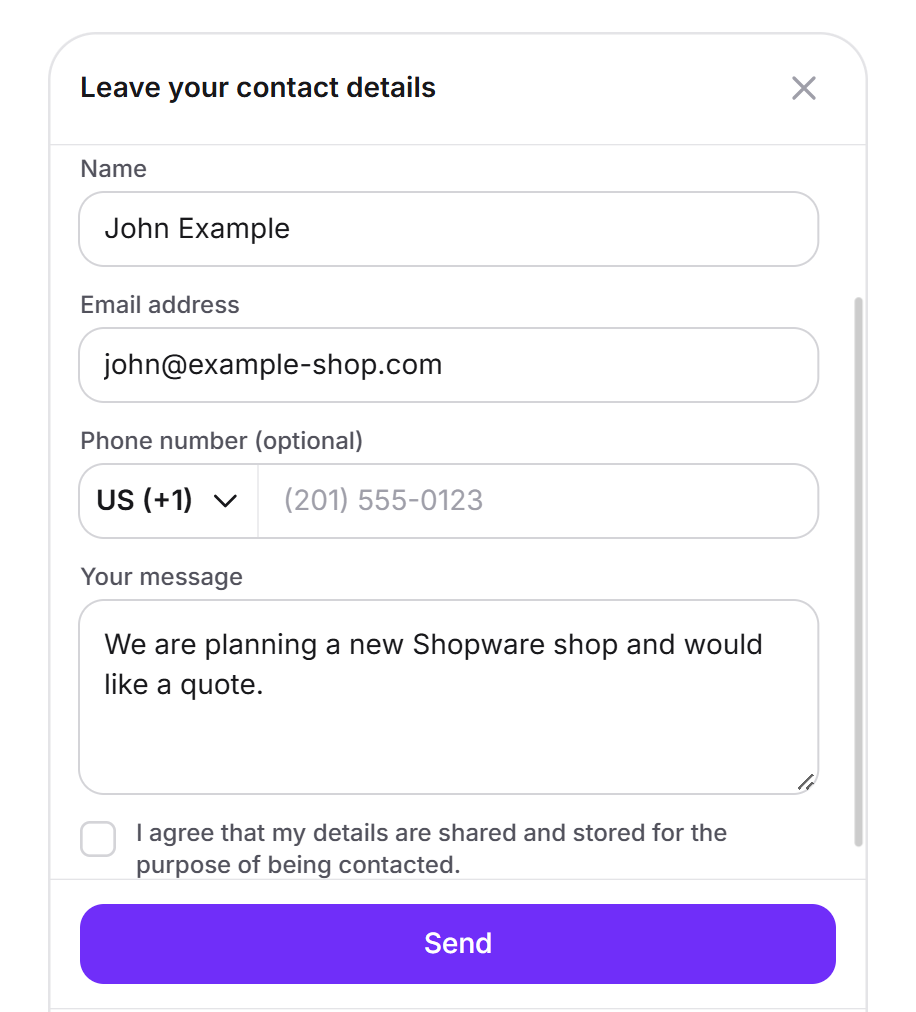
How a visitor leaves their contact details
- The visitor taps Contact or chooses Leave your contact details in the menu. The AI can also open the form itself and prefill the message.
- They fill in Name, Email address and Your message. They can leave Phone number (optional) empty.
- They tick the box consenting to their details being shared and stored for the purpose of being contacted. Without the tick, the form cannot be sent.
- They click Send and see Request sent!
The inquiry lands with you under Inquiries, and you receive an email. The form tells the visitor that their details go only to you. A visitor can send up to 3 inquiries per chat, form and AI counted together. After that, a notice says they have reached the maximum number. If they reload the page, name, email address, phone number and message are kept, but the tick is not.
How a visitor books an appointment
- The visitor opens Book an appointment through the tab, the plus, the menu or a card in the conversation.
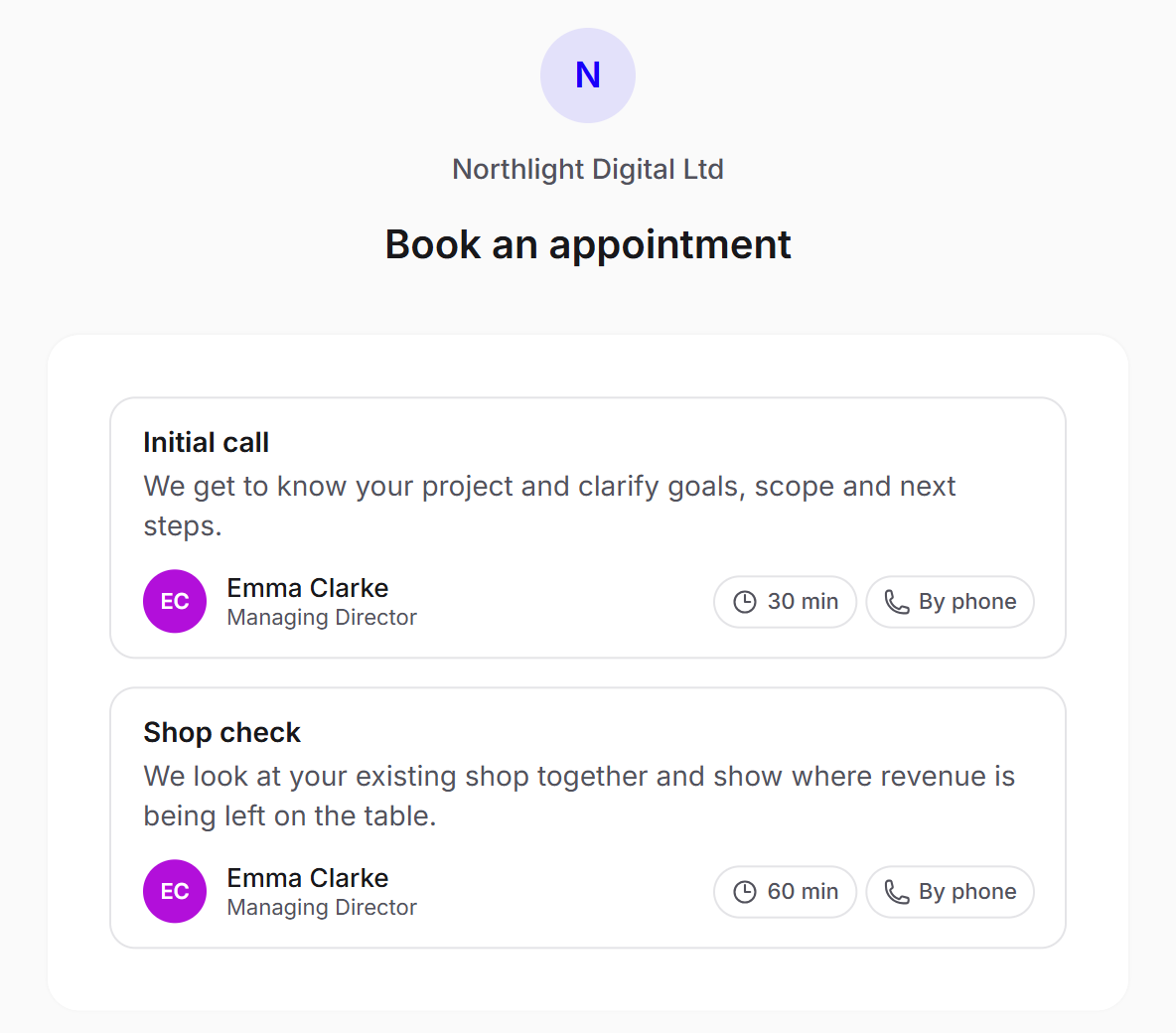
- They choose an event type. Each one shows name, description, duration, the kind of meeting (By phone or Video call) and the Contact person.
- They choose a day in the calendar and a time under Available times, then click Next.
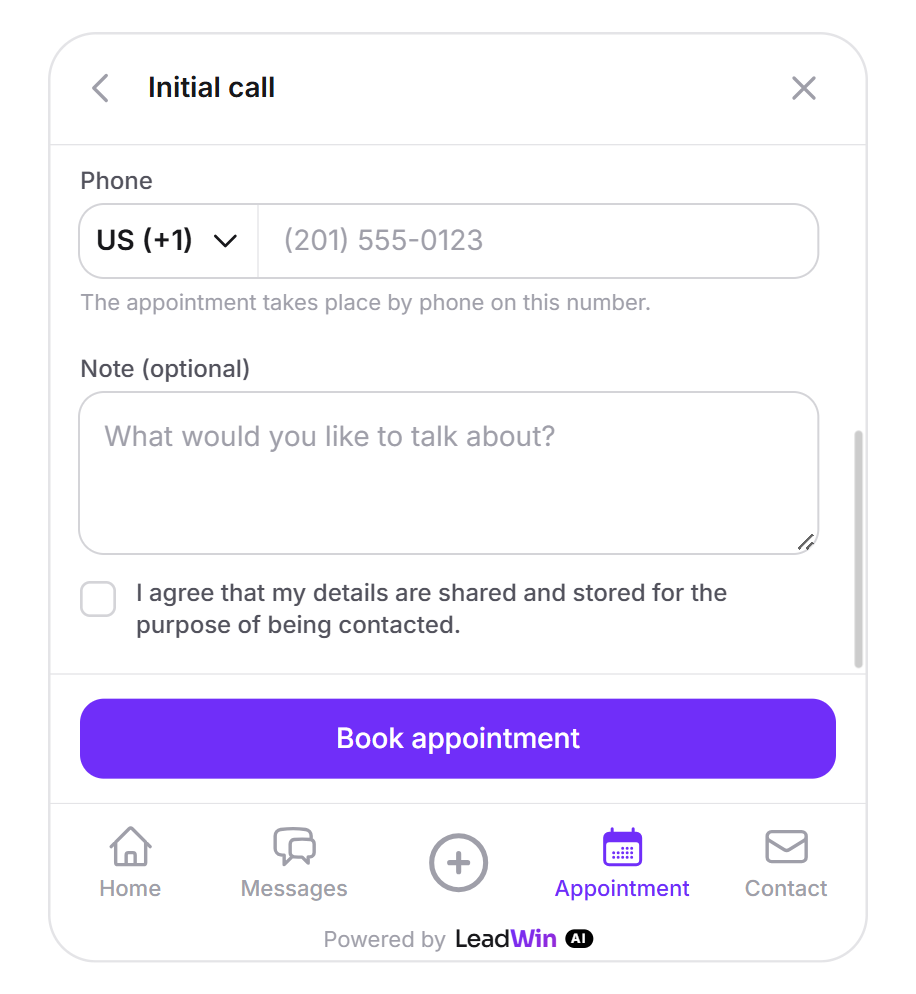
- Under Your details, they enter name, email address and Phone. The phone number is required here. They can leave Note (optional) empty. As with the contact form, consent is required.
- They click Book appointment and see Appointment booked. The confirmation with all the details goes to them by email.
Whether an appointment takes place by phone or by video is not the visitor's choice. You set it per event type. If your agent has no calendar with write access, a video appointment is shown and booked as a phone appointment. That is why the phone number is always required. All times are shown in German time (Europe/Berlin). If someone takes the slot at the same moment, the chat asks the visitor to choose another one. If you use Calendly, Calendly appears in the chat, with the Open in a new tab link. You set this up under Appointment booking.
The public booking page
Every agent with appointment booking has its own booking page, for example leadwin.ai/meet/northlight-digital. It shows all event types under the heading Book an appointment with, followed by your company name. For a single event type, you add its handle, for example leadwin.ai/meet/northlight-digital/intro-call. The other languages add their segment, for example leadwin.ai/de/meet/northlight-digital.
The page works without the chat, without installed code and without an approved domain. You can share it in emails, signatures or on social media. It speaks the language your agent answers in and follows your color scheme. You change the handle in the address on the Agent page.
About us and help center
About us shows the logo, name, stars with the number of reviews, your description and key facts such as Location, Founding year, Company size, Languages, Hourly rate and Minimum budget. Below that come Industry expertise, Our team and an FAQ. Clicking a person shows About and More contacts. The details come from your profile. Feedbax providers with trust signals switched on also show the View profile on Feedbax link there.
With an active help center, the visitor searches your articles under Help, browses collections and reads articles right in the chat. Open in the help center opens the article on the public page of your help center. Your agent is embedded there as well, so readers who cannot find something can ask. The articles come from your knowledge base or from Intercom.
Limits and messages visitors may see
In some cases, the AI does not answer and the chat shows a fixed message instead. With formal address, the messages appear in the formal form.
| Situation | What the visitor sees |
|---|---|
| 50 messages from the visitor in one conversation | You have reached the message limit for this session. Please try again later. Reloading does not reset the count, a new question does. |
| more than 200 messages per hour from the same IP address | a note asking them to wait a moment and try again later |
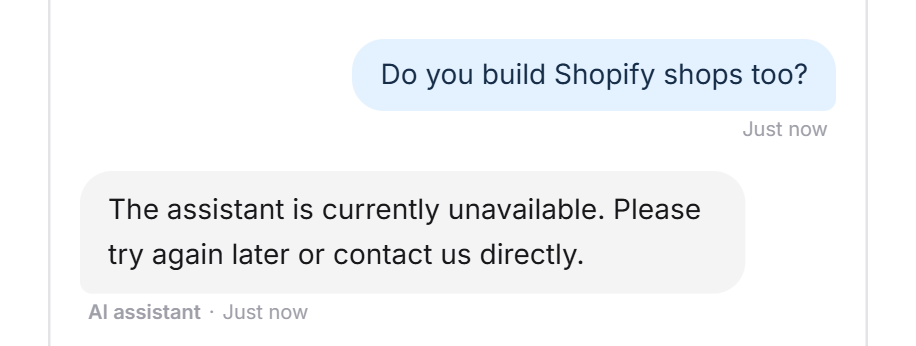
| Your conversation quota is used up | The assistant is currently unavailable. Please try again later or contact us directly. |
| You blocked the visitor in the inbox | The provider has ended this chat. Please contact the company directly if you have questions. |
| Agent switched off, deleted or closed by the plan | LeadWin unavailable instead of the chat |
| The domain is not among your approved domains | Not authorized instead of the chat |
| We are rolling out an update | An update is being rolled out … If it takes longer, Reload appears. |
If your conversation quota is used up, the chat only turns away new conversations. A conversation in which the visitor has written in the last 24 hours continues. The contact form, appointment booking, About us and Help always work, because they do not use up conversations.
During an update, the chat reconnects on its own. At the same time, the code on your website checks every 2.5 seconds whether the server responds again, for up to about 10 minutes, and then reloads the chat.
What your plan includes
The chat, the contact form, About us and the messages are available in every plan. Some parts of the chat depend on the plan:
| What visitors see | Free | Basic | Pro and trial | Scale |
|---|---|---|---|---|
| Appointment booking in the chat and booking page | no | yes | yes | yes |
| Speech bubbles and trust signals | no | yes | yes | yes |
| Conversation starters and follow-up questions | no | yes | yes | yes |
| Help tab with help center | no | no | yes | yes |
| Campaigns and custom launcher icon | no | no | yes | yes |
| Powered by LeadWin note | yes | yes | no | no |
Feedbax Business comes with the limits of Basic, Premium with those of Pro and Enterprise with those of Scale. You find more on this in LeadWin in your Feedbax plan.
A higher plan pays off, because visitors find more ways to reach you: from Basic, they book an appointment directly and see your reviews right at the launcher. From Pro, they find answers in the help center, see your campaigns, and the chat carries only your brand. All limits are in Plans compared.
Frequently asked questions
Does the chat slow down my website?
No. It only loads once your page has finished loading, and the chat itself only on the first click.
What do visitors see when my conversations are used up?
New visitors see the message that the assistant is currently unavailable. Ongoing conversations continue, and the contact form and appointment booking keep working.
Can a visitor write endlessly?
No. A conversation allows 50 messages from the visitor. After that, they can start a new conversation with a new question.
Why does a visitor have to tick a box in the contact form?
With it, they consent to their details being shared and stored for the purpose of being contacted. Without consent, no inquiry is sent.
Can visitors choose between phone and video?
No. You set the kind per event type. Without a connected calendar with write access, a video appointment becomes a phone appointment.
In which time zone do visitors see the appointments?
In German time (Europe/Berlin), including visitors from other time zones.
Why is there no Help tab?
Your help center is off, or your plan does not include it. The help center is available from Pro.
Visitors see Not authorized. What is missing?
The domain of this website is not among your approved domains. Note that an address with www and one without www are two different domains. Add it under Knowledge → Website.