

At first, your help center runs under the LeadWin address leadwin.help. On the Address tab, you serve it under a subdomain of your own instead, for example help.northlight-digital.ie. This way, your customers see your brand in the address bar, and links to your help articles lead to your own domain.
At a glance
- You find the setting in the LeadWin dashboard under Knowledge → Knowledge base, on the Address tab. The tab exists with the LeadWin source.
- Only a subdomain with at least three parts is possible, such as help.northlight-digital.ie. The domain itself, northlight-digital.ie, does not work.
- For this, you create DNS records with your domain provider. LeadWin checks every 5 minutes whether they are visible and issues the SSL certificate itself.
- An address of your own is available with Pro, Scale and in the trial.
- Owners and admins can see the page. You decide who has which role under Team.
How it works
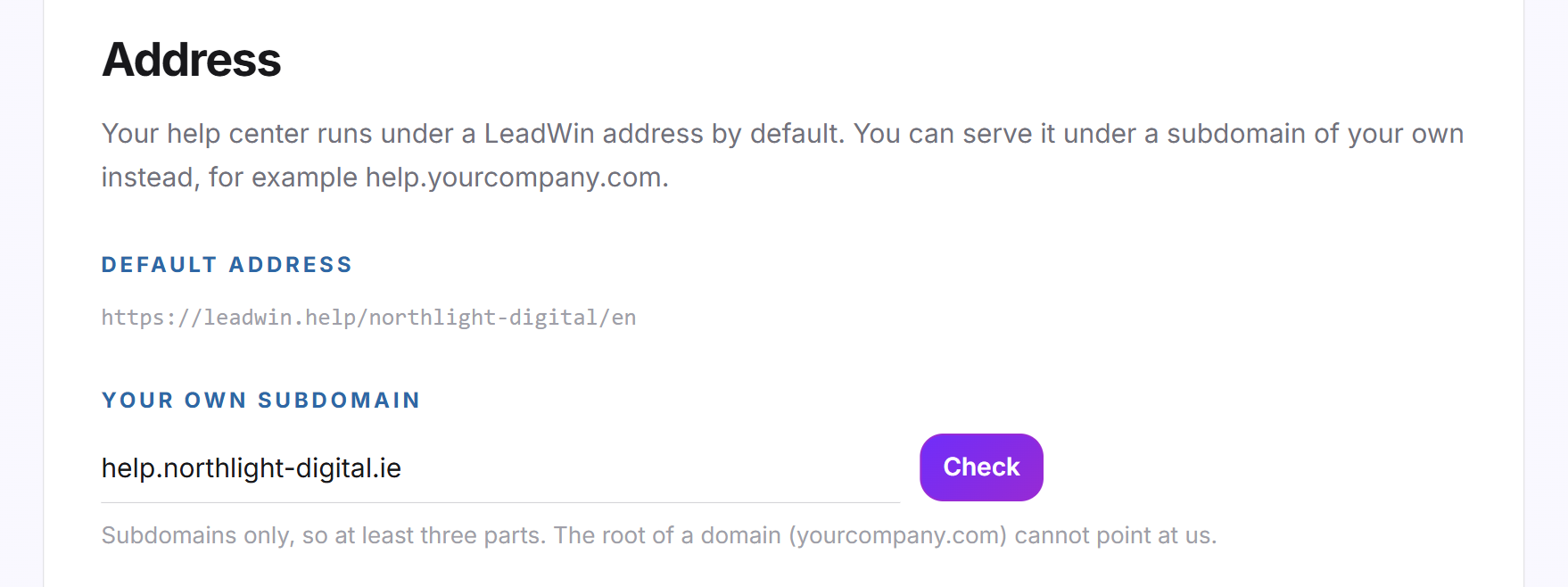
At the top of the tab is the Default address of your help center. It contains your agent's public name and the language, for example leadwin.help/northlight-digital/en. There is a separate version for every language your agent speaks. You set which ones under Language. You set the public name on the Agent page.
When you enter a subdomain of your own, LeadWin registers it and shows you the DNS records you need to create. As soon as the records are visible on the internet, LeadWin issues an SSL certificate and activates the address. This usually takes a few minutes, sometimes several hours. After that:
- Your articles are available under https://help.northlight-digital.ie/en/articles/ followed by the article's short name.
- The default address stays valid and redirects to your own address. Old links therefore keep working.
- From then on, your LeadWin agent links articles with your own address.
Enter a subdomain of your own
- Open Knowledge → Knowledge base and choose the LeadWin source if you have not done so yet.
- Switch to the Address tab.
- Under Your own subdomain, enter the address without https:// and without a path, for example help.northlight-digital.ie.
- Click Check. The top right now shows Waiting for DNS, and the DNS records appear below.
If the address is invalid, for example because it has only two parts or contains https://, a red message appears above the field. If another help center already uses the address, LeadWin reports This address is already in use for another help center.
Create the DNS records
Each record appears in its own box with type, name and value. Next to name and value there is a Copy button that puts the text on your clipboard. Currently, there are two records of type CNAME:
- Routing to LeadWin: The name is your subdomain. This record makes sure requests to your address reach the help center.
- Proof for the SSL certificate: The name starts with _acme-challenge. This record allows LeadWin to issue the certificate for your address and renew it on its own later.
- Sign in with the provider that hosts your domain and open the DNS management.
- Create each record from the card: type, name and value exactly as shown there.
- Save the records with your provider.
- Wait a few minutes and click Refresh in LeadWin. The status changes to Being verified and finally to Active.
You do not need to keep the page open. LeadWin keeps checking every 5 minutes on its own. Always take the records from the card, not from an old note: LeadWin reads them fresh every time you open it.
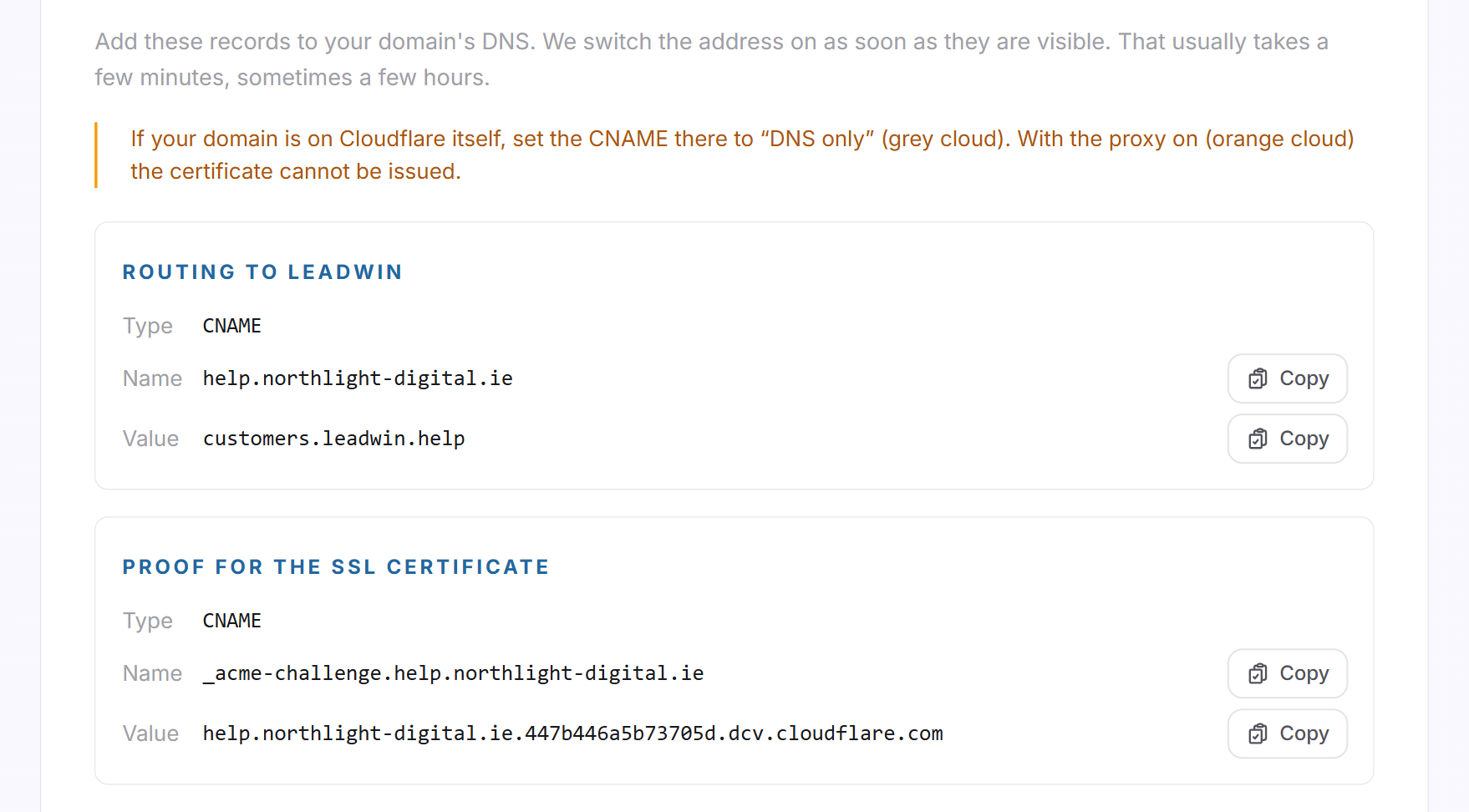
Important: If your domain is on Cloudflare, set the CNAME record there to DNS only, shown by the gray cloud. With the proxy active, shown by the orange cloud, the certificate cannot be issued, and the address never becomes active.
The status of the address
- Waiting for DNS: LeadWin cannot see the records yet. Check them with your domain provider.
- Being verified: The records were found, and the certificate is being issued.
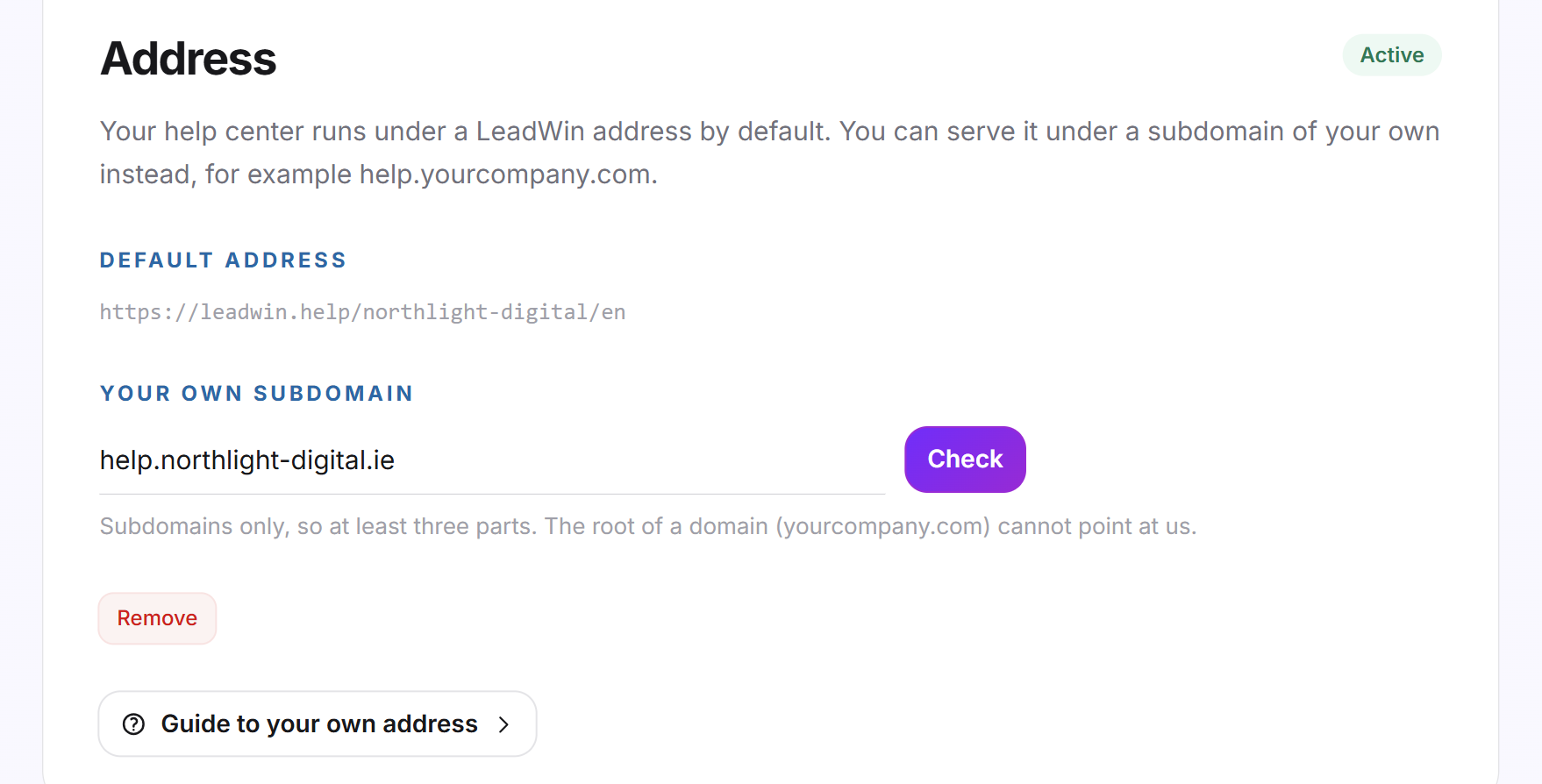
- Active: Your help center is reachable under your own address. The DNS records and the Refresh button disappear from the card, and Remove remains.
- Failed: The address did not become active within 14 days after you entered it.
If the address shows Failed, correct the DNS records, remove the address and enter it again. The 14 days then start over. If LeadWin could not register the address just now, nothing changes. In that case, try again in a few minutes.
Change or remove the address
If you enter a different subdomain and click Check, it replaces the previous one. The old address then no longer responds, and the new one goes through the steps from the beginning.
- On the Address tab, click Remove.
- Confirm the question Remove address? with Remove.
Your help center is then only reachable under the LeadWin address again. Links to your own address stop working. You can then delete the DNS records with your domain provider. If you change your agent's public name, the default address changes with it, and links to the old default address no longer work.
What your plan includes
| Plan | Public help center | Own subdomain |
|---|---|---|
| Free and Basic | no | no |
| Pro and trial | yes | yes, 1 per agent |
| Scale | yes | yes, 1 per agent |
Feedbax Business comes with the limits of Basic, Premium with those of Pro and Enterprise with those of Scale. You find more on this in LeadWin in your Feedbax plan. Without a suitable plan, the tab carries the label Upgrade, and the field and button are locked. Clicking Upgrade opens the LeadWin pricing page, or the Feedbax pricing page if you have a Feedbax plan. You compare the limits of all plans in Plans compared, and how to switch is explained in Manage, change and cancel your plan.
If your plan or the trial ends, your own address no longer responds. The registration of the subdomain, however, remains until you remove it. If you book Pro or Scale again, your help center is reachable there again. If you have several LeadWin agents, each one has its own help center and therefore its own address.
Frequently asked questions
Can I use my main domain?
No. The root of a domain cannot point to the help center. Use a subdomain such as help.northlight-digital.ie.
How long does it take for the address to become active?
Usually a few minutes, sometimes several hours. It depends on how quickly your domain provider publishes the records.
My domain is on Cloudflare, and nothing happens. What should I do?
Set the CNAME record to DNS only, the gray cloud. With the proxy active, the certificate cannot be issued.
Do I have to take care of the SSL certificate?
No. LeadWin issues and renews it on its own, as long as the record for the certificate stays in place.
Do my old links still work?
Yes. The default address redirects to your own address as long as it is active.
The address shows Failed. What now?
It did not become active within 14 days. Correct the DNS records, remove the address and enter it again.
What happens to the address when my plan ends?
It no longer responds but stays registered. With a plan from Pro on, your help center is reachable there again.