

On the Installation page, you get the code that brings your LeadWin agent to your website. The page also shows you whether the code is really running on an approved domain. The code does not slow down your website.
At a glance
- You find the page in the LeadWin dashboard under Setup → Installation. It is for owners and admins.
- You only see the code once the data processing agreement is concluded and at least one domain is approved. If you signed up for your LeadWin account on leadwin.ai, the agreement is already concluded.
- The code goes before the closing </body> tag of every page on which your agent should appear.
- The status turns green once the current code has been loaded from an approved domain in the last 30 days.
- How many domains you can approve depends on your plan: 1 with Free and Basic, 5 with Pro and during the trial, 10 with Scale.
How it works
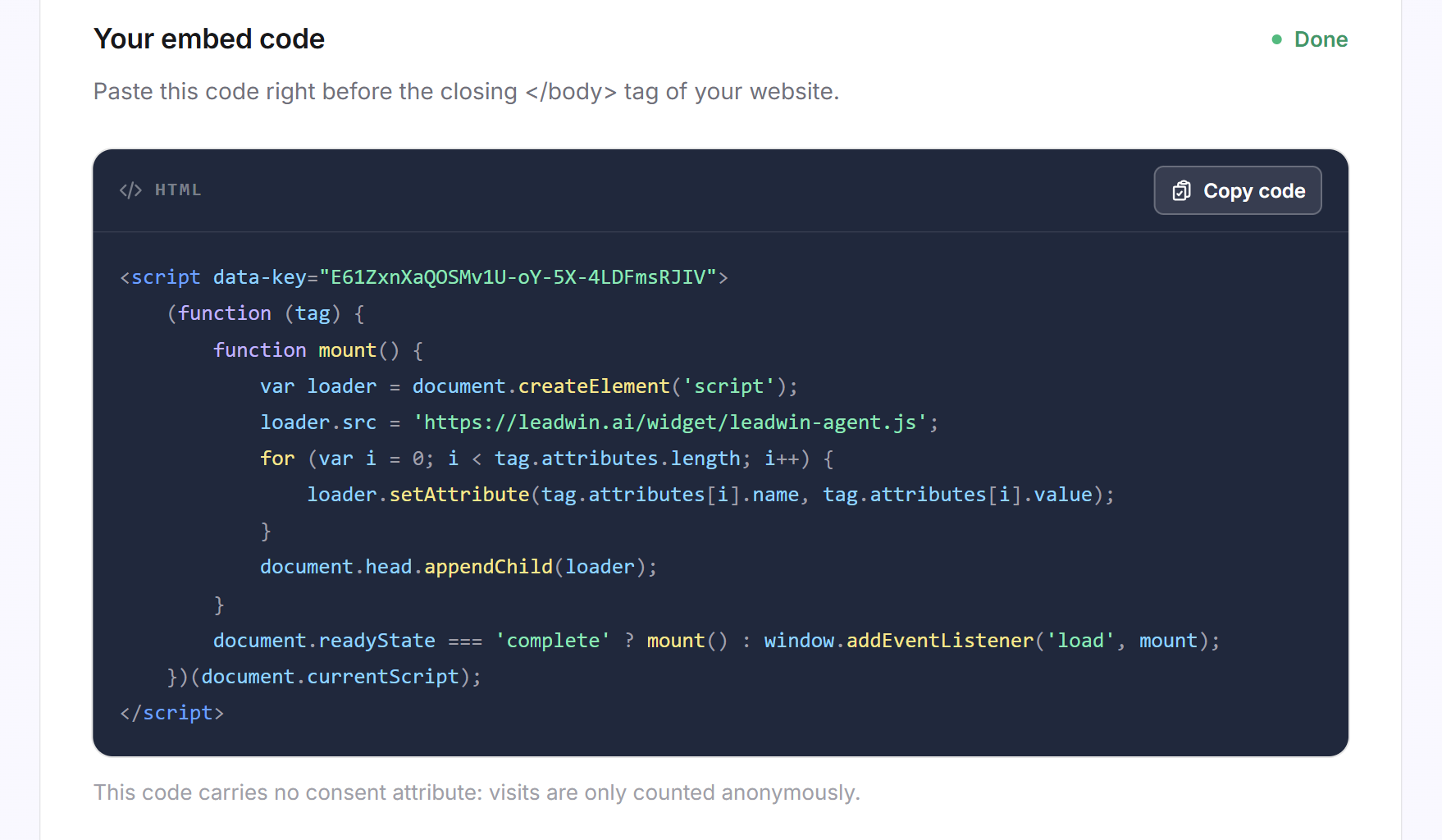
The code is a small script with your agent's key. It waits until your page has fully loaded and only then loads the actual LeadWin code from leadwin.ai. Each agent has its own code. If you have several LeadWin agents, you add to each website the code of the agent that should answer there.
Every time a page of your website loads the agent, the code reports the domain to LeadWin. LeadWin stores this at most every 15 minutes per domain, and a new domain immediately. The status is based on this:
- Your agent counts as installed if it was loaded from an approved domain in the last 30 days.
- Views in the live preview do not count, only real page views.
- The Installation step in the Getting started checklist and the status in the header also require the current code. Copying alone is not enough.
As long as your agent does not count as installed and you have the page open, it checks again every 8 seconds, for about 6 minutes. After that, you click Check again.
Every time you copy the code, LeadWin records the time, and Feedbax receives an internal notification with the account, the agent and the IP address.
Accept the DPA first
If you signed up for your LeadWin account on leadwin.ai, you concluded the data processing agreement (DPA) when you clicked Create account. You then never see the notice below and can skip this section. It concerns providers and buyers who come from Feedbax, whose LeadWin account is created without a sign-up, and older LeadWin accounts whose sign-up did not yet include the agreement.
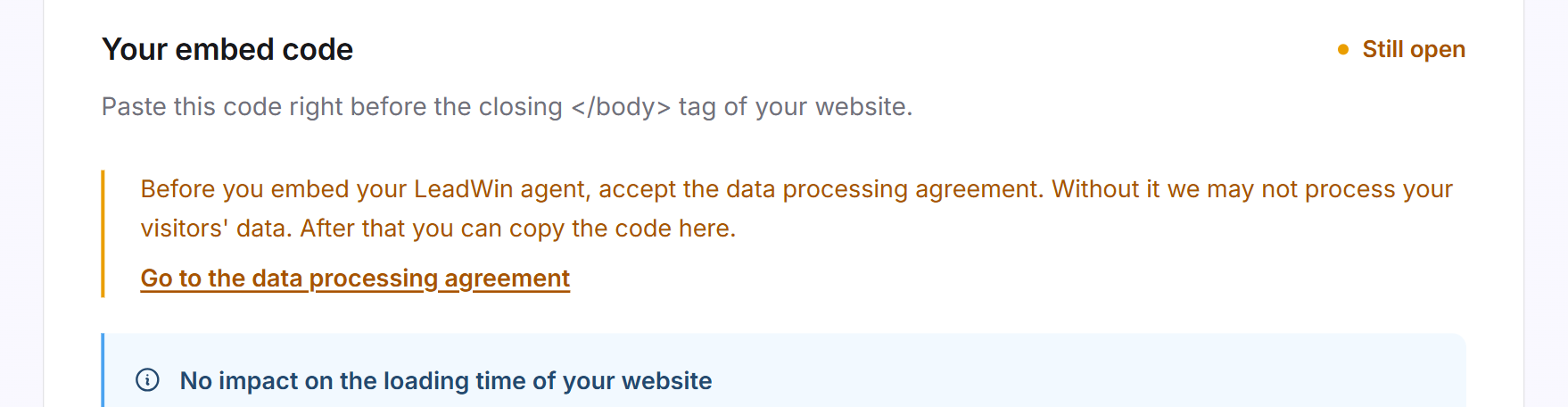
As long as your account has not accepted the DPA, the Your embed code card shows a yellow notice instead of the code: Before you embed your LeadWin agent, accept the data processing agreement. Without it we may not process your visitors' data. After that you can copy the code here. This notice comes before all others. In the Getting started checklist, this is the Privacy step, right before Installation.
- In the notice, click Go to the data processing agreement. The Setup → Privacy page opens, and the Data processing agreement card is at the very bottom.
- Open the agreement by clicking the Data processing agreement (DPA) card and read it.
- Tick I have read the data processing agreement and agree to it. and click Accept.
- Open Setup → Installation again. If a domain is already approved, the code is now shown there. Otherwise the domain notice follows.
The acceptance applies once to your whole account and therefore to all agents. A code that is already on your website keeps running, even while the acceptance is missing. More about the agreement is in Privacy.
Approve the domain first
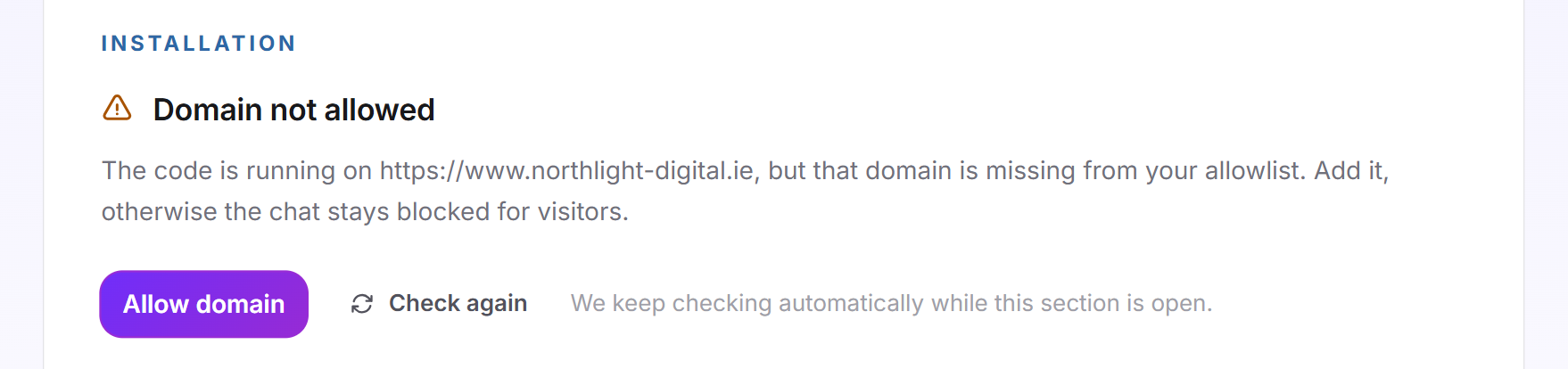
Your agent only loads on domains you have approved. Without an approved domain, the page shows a yellow notice with the Allow domain link instead of the code.
- Click Allow domain. The Knowledge → Website page opens on the Domains tab.
- Under Approved domains, enter your website's address, for example northlight-digital.ie. Only https is allowed.
- Click Add domain. Enter each address separately, including the www variant if your website can be reached under it.
- Open Setup → Installation again. The code is now shown there.
Add the code
- In the Your embed code card, click Copy code.
- Paste the code before the closing </body> tag of every page. Many website builders and CMSs have a field for footer code for this. A tag manager works too.
- Publish the change on your website.
- Open a page of your website. Keep the Installation page open in the dashboard while you do.
- After a few seconds, the status changes to Live on your website. Otherwise, click Check again.
Below the code, it says whether it contains the consent attribute. Without the attribute, LeadWin only counts visits anonymously. Whether and when you need the attribute is explained in the article on the Privacy page.

The installation status
The Installation card has four states:
| Status | Meaning | What you do |
|---|---|---|
| Not installed yet | LeadWin has not seen the code on your website yet. | Add the code and open a page of your website. |
| Live on your website | The code is running. The card shows the date, time and domain of the last load. | Nothing. |
| Domain not allowed | The code runs on a domain that is not on your list. Visitors there cannot chat. | Click Allow domain and add the domain. |
| No loads for a while | There has been no load from an approved domain for more than 30 days. | Check whether the code is still on your website. |
Domain not allowed often appears when your website can be reached with and without www, or when you use a test environment with a different address. Visitors there see the Not authorized notice in the chat. What visitors see in such cases is described in How visitors experience your LeadWin agent.
When the code is outdated
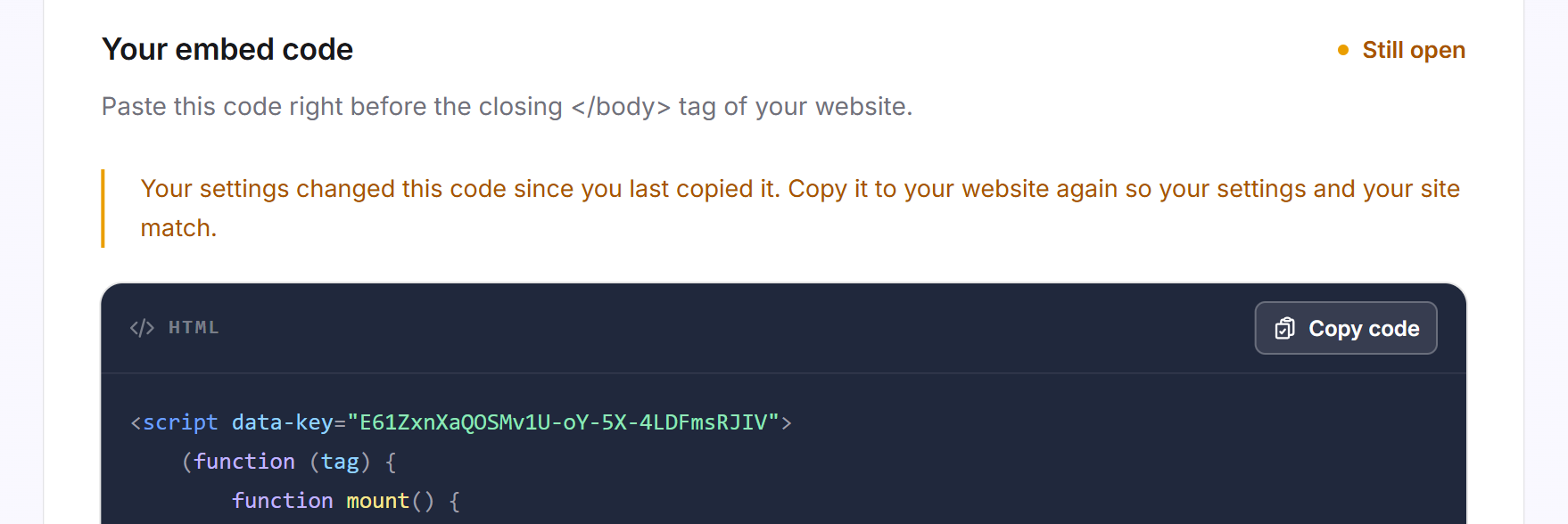
Only one setting changes the code: the consent checkbox under Privacy. If you change it after copying the code, the code on your website no longer matches your setting. You then see:
- above the code, the yellow notice Your settings changed this code since you last copied it.
- a yellow dot on the Installation entry with the tooltip Copy the embed code again, plus a dot on the Setup area,
- in the header, the status Not on your website yet instead of Active on your website.
Click Copy code and replace the old code on your website. The notice disappears when you copy. If copying fails, it stays.
No impact on loading time
The code is built so that your website never waits for it. This also applies to PageSpeed and the Core Web Vitals:
- Your agent only loads once your page has fully loaded. Before that, it downloads nothing and inserts nothing.
- Loading time, Largest Contentful Paint and layout shifts (CLS) remain unaffected. The agent sits on top of the page and does not move any content.
- At first, only the small chat button appears. The chat itself only loads when a visitor clicks it.
- If our server is ever slow or unreachable, your website still loads normally. Only the chat button is missing then.
Pause the LeadWin agent
If you want to hide your agent for a while, remove the code from your website. Conversations, inquiries and settings are kept. When you add the code again, everything is as before. This is the better way than deleting, because a deleted agent is gone with all its data. Deleting is done on the Agent page.
Tip: You can also control your agent from your website, for example open the chat with your own button. How this works is explained in JavaScript API.
What your plan includes
Installation is available in every plan. Your plan determines on how many domains each agent may run:
| Plan | Approved domains per LeadWin agent |
|---|---|
| Free | 1 |
| Basic | 1 |
| Pro and trial | 5 |
| Scale | 10 |
Feedbax Business comes with the limits of Basic, Premium with those of Pro and Enterprise with those of Scale. You find more on this in LeadWin in your Feedbax plan.
A higher plan pays off if your website runs under several addresses, for example with and without www, or if you have several websites. With Pro, an agent can run on 5 domains. If you switch to a smaller plan, approved domains stay saved. You just cannot add more until you are below the limit again. All limits are in Plans compared.
Frequently asked questions
Where do I paste the code?
Before the closing </body> tag of every page, for example through your CMS's footer field or a tag manager.
Why do I not see any code?
There are two reasons. Your account has not accepted the data processing agreement yet: click Go to the data processing agreement and accept it under Privacy. This only concerns providers and buyers who came from Feedbax and older LeadWin accounts. With a sign-up on leadwin.ai the agreement is already concluded. Or no domain is approved yet: click Allow domain and enter your website.
The code is installed, but the status stays red.
Open a page of your website while the Installation page is open. The status then turns green after a few seconds. Otherwise, click Check again.
The status says Domain not allowed. Why?
The code runs on a domain that is not on your list, often the variant with or without www or a test environment. Approve it with Allow domain.
Why does it say No loads for a while?
For 30 days, no page from an approved domain has loaded the agent. Check whether the code is still on your website.
Does the code slow down my website?
No. It only loads after your page, does not move any content, and the chat itself only loads on the first click.
Why should I copy the code again?
You changed the consent checkbox under Privacy. Until you add the new code, the old one keeps running on your website.
On how many websites can I use my agent?
On 1 domain with Free and Basic, on 5 with Pro and on 10 with Scale.