

With several LeadWin agents, each website or brand gets its own agent, with its own knowledge, its own team and its own conversation quota. You switch between them in the header and create new ones, optionally with the settings of an existing agent. With LeadWin Scale, you add up to 2 more agents whenever you need them.
At a glance
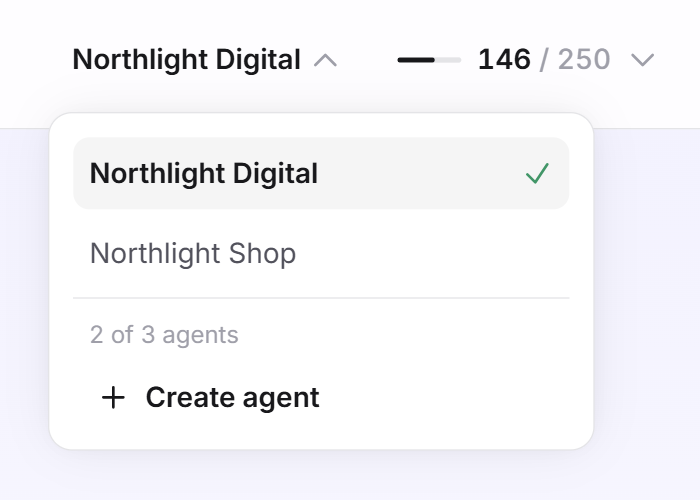
- You find the Switch agent menu at the top right of the header, and in the side menu on small screens. It shows the name of the agent you are currently editing.
- Your plan determines the number of agents per account: 1 with Free, Basic and in the trial, 2 with Pro, 3 with Scale. An account has at most 5 agents. You find an overview of all limits in Plans compared.
- Every other limit of the plan applies per agent. Each agent therefore has the full conversation quota, all seats and all documents of its plan.
- You can add up to 2 agents beyond those 3 only with LeadWin Scale. You see the price in the menu before booking and on the pricing page.
- Only you, as the owner of the account, can switch between agents and create them. People in your team always work with exactly one agent.
How it works
Each LeadWin agent stands on its own. It has its own conversation quota and its own top-up packs, its own team, its own knowledge, its own domains and its own embed code. You add the code to the website the agent is responsible for, as described in Installation.
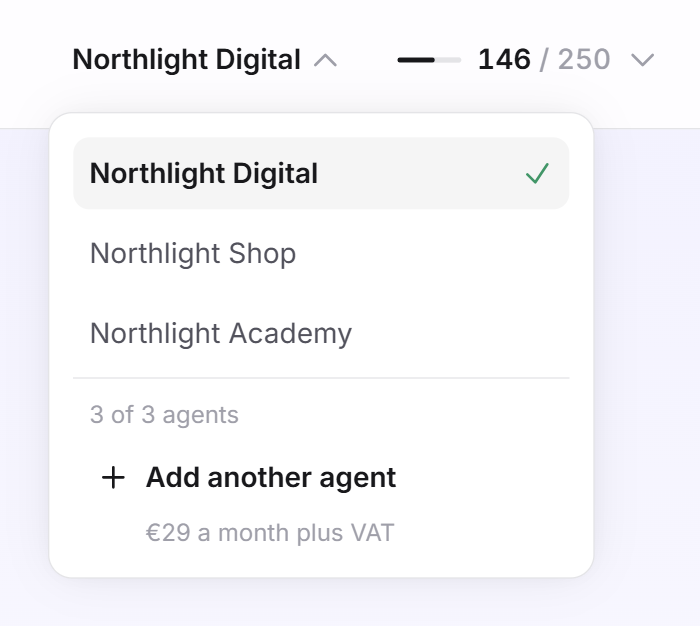
The Switch agent menu lists your agents: first the main agent, then the others by age. A tick marks the agent you currently have open. The counter is at the bottom, for example 2 of 3 agents. Booked extra agents are included. Below it, depending on the situation, you see Create agent, the offer for an extra agent or a sentence saying which plan allows more agents. If your account already has 5 agents, it says An account can run at most 5 agents.
If your account has several agents, the agent's public name appears in the dashboard address, for example leadwin.ai/dashboard/northlight-digital. You set the public name on the Agent page. The dashboard remembers which agent you last had open and opens it again next time.
The buttons in the notification emails always open the agent the email is about, and there the matching page right away: a new inquiry opens the inquiries, a booking the appointments, a promising visitor the analytics and a new message the conversation. This also applies if you last had a different agent open. You find out which emails there are in Email notifications.
Switch between agents
- At the top right, click the name of the current agent. The Switch agent menu opens.
- Click the agent you want to edit.
- The dashboard reloads and opens the same page you were just on, now for the other agent.
Create a new agent
- Open Switch agent and click Create agent. The button only appears while your plan has room for another agent.
- In the Create a new LeadWin agent dialog, enter a Name, up to 80 characters. The public name is also derived from it.
- If needed, enter the Website. It becomes the first domain on which this agent may answer. You add more domains later under Knowledge → Website.
- Under Copy settings from, choose an existing agent, or leave Start empty selected.
- If you chose an agent, What gets copied expands. All parts are ticked. Untick everything the new agent should not copy.
- Click Create agent. The dialog stays open while the settings are being copied.
The dashboard then opens the new agent. Because it is not on your website yet, it starts with the setup checklist. The data processing agreement applies to all agents of your account, see Privacy. If you signed up for your account on leadwin.ai, the new agent has no Privacy step either. If you came from Feedbax, as a provider or buyer, the step is already done if you have accepted the agreement.
What is copied when you create an agent
You can copy eight parts individually:
- Appearance: colors, color scheme, logos, launcher icon and gradient.
- Answering behaviour: form of address, languages, your own instructions, News, follow-up questions, live search on the website, reading the page the visitor is on, and automatic page messages.
- Conversation start: greeting, conversation starter suggestions, speech bubbles and campaigns.
- Trust signals: which proof the launcher and chat show, and where.
- Appointments: whether the agent books appointments, the booking service used for appointment booking and the event types.
- Knowledge base: source and switches, links, categories and articles.
- Profile: company, industry, locations and texts.
- Pricing: the price list.
Website knowledge, sitemaps, documents, social media sources, the team, the calendar and Intercom connections, conversations, leads, usage and the allowed domains are never copied. The dialog reminds you of this. You set up these parts for the new agent yourself. If it should only read along with the old agent's knowledge, use Share knowledge on the Agent page.
If copying fails, LeadWin does not create an agent. In that case, create it without copying and transfer the settings afterwards. If a second browser window has already taken the last free slot, the dialog shows Your plan does not cover another agent.
Add more agents on Scale
With LeadWin Scale, you have 3 agents. If you need more, you add up to 2 extra agents. That makes at most 5 agents per account. This works as long as your Scale plan is running and paid, not in the trial and not while a payment is outstanding.
- Open Switch agent. When all agents are in use and you have fewer than 5, it shows Add another agent with the monthly price below it. With yearly payment, the yearly price is shown too, and with a German billing address the suffix plus VAT.
- Click it. The Add another LeadWin agent dialog shows the price again.
- Click Add and pay.
- The dialog for creating an agent opens right away. Create the new agent as described above.
Each extra agent has all the limits of Scale. It runs in the same billing cycle as your plan, monthly or yearly. We charge the share up to the end of the current period right away to the card on file. If the payment fails, nothing is booked. In that case, check your payment method under Manage subscription and try again.
Cancel an extra agent
- Open Switch agent and click Cancel an extra agent at the bottom. The brackets show how many you have booked.
- Read the note in the Cancel an extra agent dialog.
- Click Cancel agent.
You then pay for one agent less. We credit you the rest of the current period. If more agents are running afterwards than your plan covers, we close the one created last. Nothing is deleted.
Two things are worth knowing. If you delete an agent, the extra agent still stays booked until you cancel it here. And as long as extra agents are booked, the customer portal only offers cancellation, not a change of plan or billing cycle. Cancel the extra agents first. You find more on this in Manage, change and cancel your plan.
When your plan covers fewer agents
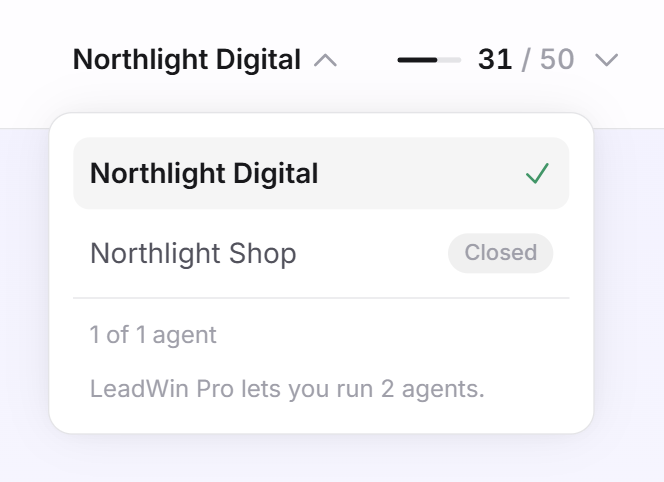
If you switch to a plan with fewer agents, or if a plan with several agents ends, LeadWin does not delete any agent. The surplus agents are closed. The main agent stays open first, then the oldest ones. LeadWin checks this whenever your plan changes and every time you open the dashboard.
- A closed agent does not answer any visitor. Its settings, knowledge, conversations and leads are all kept.
- In the Switch agent menu, it carries the label Closed.
- If you open it, every page except Account only shows the This agent is closed card. It states how many agents your plan covers. Upgrade plan takes you to the pricing page, or to the Feedbax pricing page with a Feedbax plan.
- The same card has a button for every open agent, for example Open this agent and close “Northlight Digital” instead. With it you swap which agent is open without changing your plan. The message Swapped. confirms it. Your choice stays in place, even when LeadWin checks the agents again later.
- The Agent page also shows only this card then. If you want to rename or delete a closed agent, swap it for an open one first.
- If you switch back to a plan with enough agents, LeadWin reopens the closed agents by itself.
- When you create a new agent, you can also copy the settings from a closed agent.
If an agent carries the label Deactivated, Feedbax has switched it off. In that case, contact our support.
Important: Do not delete an agent to make room. A closed agent keeps everything. A deleted agent loses all conversations and leads for good.
What your plan includes
Your plan determines how many LeadWin agents your account can have:
| Plan | LeadWin agents per account | Extra agents available |
|---|---|---|
| Free | 1 | no |
| Basic | 1 | no |
| Trial | 1 | no |
| Pro | 2 | no |
| Scale | 3, up to 5 with extra agents | yes, up to 2 |
Feedbax Business comes with the limits of Basic, Premium with those of Pro and Enterprise with those of Scale. Extra agents are not available with Feedbax Enterprise, where the limit stays at 3. You find more on this in LeadWin in your Feedbax plan.
When your plan has no more room, the menu names the plan with more agents, for example LeadWin Pro lets you run 2 agents. or LeadWin Scale lets you run 3 agents, up to 5 with extra agents. With Feedbax Business, the menu names Feedbax Premium, and with Premium it names Feedbax Enterprise. The upgrade links then lead to the Feedbax pricing page. The trial runs with one agent, even though it otherwise includes all Pro features. You find more on this in Trial. A plan with several agents pays off as soon as you run more than one website or brand: each one gets a LeadWin agent that only knows its own offer, and each agent has the full conversation quota of its plan.
Frequently asked questions
How many agents can I have?
1 with Free, Basic and in the trial, 2 with Pro, 3 with Scale. With LeadWin Scale, you can add up to 2 extra agents. No account has more than 5 agents.
Does each agent have its own conversation quota?
Yes. Every limit of the plan applies per agent, including the number of conversations per month.
Can I copy the settings of my first agent?
Yes. Choose it under Copy settings from when you create the new agent, and untick everything that should not come along. Website knowledge, documents, team, calendar and conversations are never copied.
How much does an extra agent cost?
You see the price under Add another agent and in the dialog before you confirm, and also on the pricing page. We charge the share up to the end of the current period right away.
Can I book extra agents with Pro or Feedbax Enterprise?
No. Extra agents are only available with LeadWin Scale.
What happens to my second agent if I switch from Pro to Basic?
It is closed. It no longer answers anyone, but all settings, conversations and leads are kept. With a plan for 2 agents, it is open again right away. If you would rather keep this one open, swap it for your first agent on the This agent is closed card.
Why can I not change my plan in the customer portal?
As long as extra agents are booked, the portal only offers cancellation. Cancel the extra agents in the Switch agent menu, and changing becomes possible again.
Why can my colleague not switch between agents?
Each person in the team is invited to exactly one agent. If she should also work on a second agent, add her to that agent's team and invite her.
Which agent does the link in a notification email open?
Always the agent the email is about, even if you last had a different one open. The button leads straight to the matching page, for example the inquiries or the appointments.