

In the LeadWin dashboard, you set up your LeadWin agent and work with what it brings you: conversations, inquiries, appointments and numbers. This article shows you how the dashboard is structured, what the status in the header means and where you find your account, your plan and help.
At a glance
- The dashboard is at leadwin.ai/dashboard. German is at leadwin.ai/de/dashboard, French at /fr/tableau-de-bord and Dutch at /nl/dashboard.
- On the left, there are seven areas: Inbox, Knowledge, Appearance, Leads, Live visitors, Analytics and Setup. Which ones you see depends on your role.
- The header shows your agent's status, the Switch agent menu, your usage, help and the live preview.
- The account menu at the bottom left leads to your account, your plan, your profile, support and signing out.
- Every page has its own address, which you can bookmark or send to colleagues.
How it works
If you open the dashboard without a specific page, you land on the Getting started checklist as long as your agent is not running on your website. It counts as running if it was loaded from an approved domain in the last 30 days. After that, the dashboard opens the inbox. Roles without access to the settings always land in the inbox.
Every page has its own address with the addition ?section=, for example leadwin.ai/dashboard?section=team for the Team page. If someone opens an address for a page their role is not allowed to see, they land in the inbox. A link to a single conversation always opens the inbox with that conversation.
If you have several LeadWin agents, the handle of the selected agent appears in the address, for example leadwin.ai/dashboard/northlight-digital. The dashboard remembers which agent you opened last. The buttons in the notification emails, such as View inquiry, on the other hand always open the agent and the page the email is about. You find more on this in Multiple LeadWin agents.
The areas on the left
On wide screens, the bar with the areas is fixed to the left edge. Next to it, a second column lists the pages of the selected area. On narrow screens, you open both through the menu at the top left.
| Area | Pages | Visible to |
|---|---|---|
| Inbox | Conversations with visitors | all roles |
| Knowledge | Instructions (with News and Cost structure), Feedbax profile or Company, Website, Documents, Social media, Knowledge base | Owner, Admin |
| Appearance | Appearance, Language, Speech bubbles, Trust signals, Welcome screen, Follow-up questions, Campaigns, API | Owner, Admin |
| Leads | Appointments, Inquiries, Contacts | Owner, Admin, Agent |
| Live visitors | who is on your website right now | Owner, Admin, Viewer |
| Analytics | Visitor analytics, Activity, Notifications | Owner, Admin, Viewer |
| Setup | Getting started, Appointment booking, Team, Privacy, Installation, Agent | Owner, Admin |
You assign the roles under Team. The Account page is not in the bar but in the account menu. It is only for the owner of the account, never for team members.
A yellow dot on the Installation entry and on the Setup area means: the code on your website is outdated. The tooltip says Copy the embed code again. How to fix this is explained in Installation.
The header
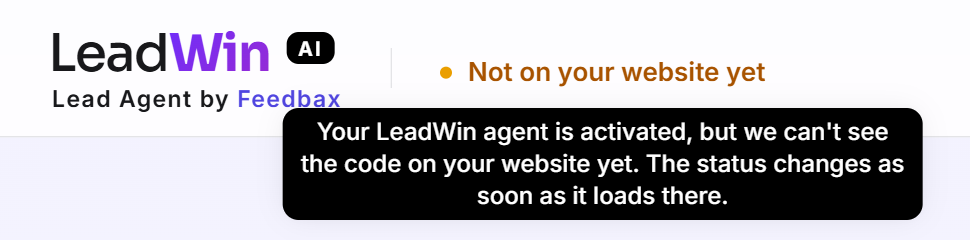
On the left is the title LeadWin AI agent for your website with your agent's status. The status has four states:
| Status | Meaning |
|---|---|
| Not set up yet | Your account does not have a LeadWin agent yet. How to create one is explained in Create your LeadWin agent. |
| Not on your website yet | The agent is enabled, but its current code was not loaded on any approved domain in the last 30 days. |
| Active on your website | The agent is switched on, was loaded from an approved domain in the last 30 days, and the current code runs there. |
| Deactivated | Feedbax has deactivated the agent. It does not answer. Contact support if you want it reactivated. |
On the right of the header, you find:
- Switch agent with the name of the selected agent. Here you switch between your agents and create more if your plan includes them.
- Usage with the status of your conversations this month. At the top, the menu names your plan, for example Your plan: LeadWin Pro or Your plan: Feedbax Premium. During the trial this line is missing, because the trial note in the menu already names it. Below it, the menu shows your limits and how much of them is used. You find more on this in Usage.
- Help for this page as a question mark. It opens the matching help article in the LeadWin support chat.
- Live preview opens your agent to the right of the dashboard, so you can test changes right away. The button is missing as long as your agent is deactivated. You find more on this in Live preview.
On narrow screens, the Switch agent menu, Usage and Help move into the menu at the top left. The live preview then only shows an eye icon. If you are signed in as a team member, the header also shows Signed in as with your name and role, and Sign out next to it.

The cards at the bottom left
Below the navigation, there are cards that only appear when needed, in this order:
- Your last payment failed: Your agent keeps running for now. With Update payment method, you add a working payment method, and the outstanding amount is then collected automatically. You find more on this in Manage, change and cancel your plan.
- Your quota is running low appears when only 20% of your conversations for this month are left. Monthly quota used up appears when none are left. Your agent then no longer answers new conversations until you buy more conversations, change your plan or the next conversation month begins. It keeps answering ongoing conversations.
- Try all Pro features free for 7 days appears on the Free plan as long as you have not used the trial. The Try free for 7 days button asks for confirmation before the trial starts. You find more on this in Trial.
- Getting started shows the next open setup step.
- You're trying Pro appears during the trial. Expanded, the card explains what happens after the trial and offers Compare plans.
- Help for this page is always the last row.
On narrow screens, these cards sit below the content of the page.
Locked features and the Upgrade badge
Features your plan does not include stay visible. They carry the purple Upgrade badge with a lock. If you have only reached a limit, such as the number of your documents, the badge appears as well. Clicking it opens the pricing page. With a Feedbax plan, you land on the Feedbax pricing page. A saved setting stays saved, even while the feature is locked. After an upgrade, it takes effect again. All limits are in Plans compared.
The account menu
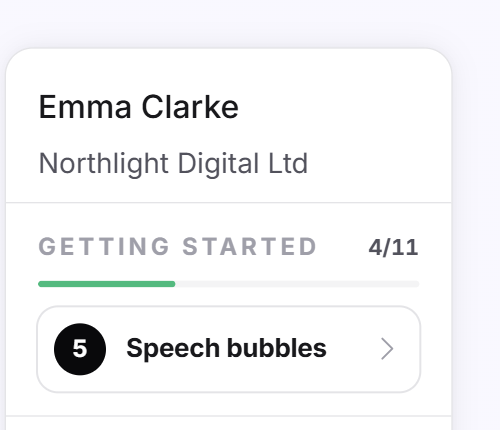
You open the account menu through the circle with your initials at the bottom left of the bar. On narrow screens, it is at the bottom of the menu. As long as your account has no agent, it is in the header. The top of the menu shows who the account belongs to: name and company for Feedbax providers, the company name for LeadWin accounts. Below that, you find:
- Getting started as a block with progress, for example 4/10, and the title of the next open step as the checklist shows it. Clicking it opens that step. The block and the entry disappear as soon as all steps are done.
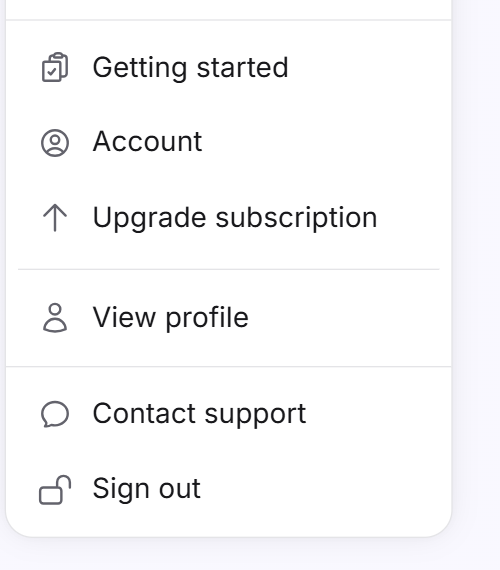
- Account opens your account details, your sign-in address and the option to delete your account. For the owner only. You find more on this in Your account.
- Manage subscription opens the Stripe customer portal if you have a LeadWin plan. Without a plan, it says Upgrade subscription, and clicking it opens the LeadWin pricing page, or the Feedbax pricing page if you have a Feedbax plan. Only owners and admins see either of them.
- View profile shows the profile your agent answers from. For Feedbax providers, this is the Feedbax profile. If your agent has its own profile, the live preview opens with the profile as visitors see it in the chat.
- Contact support opens the chat with our support. An open live preview closes, because both sit in the same corner.
- Sign out ends your session. You find more on this in Sign-in.
Next to the account menu is the switch with the sun and moon. You use it to switch between the light and dark design.
Tip: Send a colleague a direct link to a page instead of describing the way there. To do so, copy the address from your browser. It contains the page as ?section=.
Frequently asked questions
Why does my dashboard open with Getting started and not with the inbox?
Your agent was not loaded on any approved domain in the last 30 days. As soon as it runs on your website, the dashboard opens the inbox.
I added the code. Why does it still say Not on your website yet?
The status only turns green once a page of your website has loaded the current code from an approved domain. If you changed the consent setting under Privacy afterwards, copy the code again.
Why can I not see some areas?
Your role determines what you see. Agents handle conversations and leads, and Viewer sees the inbox, Live visitors and Analytics. Owners and admins see Knowledge, Appearance and Setup.
Where do I find help for a page?
Through Help for this page in the header or at the bottom left. The article opens in the support chat.
Where do I manage or cancel my plan?
In the account menu under Manage subscription. This opens the Stripe customer portal.
Why has Getting started disappeared from my account menu?
You have completed all steps. You can still reach the page through the Setup area.
Why can I not find the Account page?
It is in the account menu, not in the bar. Team members do not see it, because it belongs to the owner only.