

Under Instructions, you tell your LeadWin agent in your own words how it should speak and what it should emphasize: tone, focus and facts it would otherwise lack. Below that, you set whether it addresses your website visitors informally or formally. This way, every answer sounds like your business and not like some generic chatbot.
At a glance
- You find the page in the LeadWin dashboard under Knowledge → Instructions. It is the first entry in the Knowledge area and opens when you enter the area for the first time.
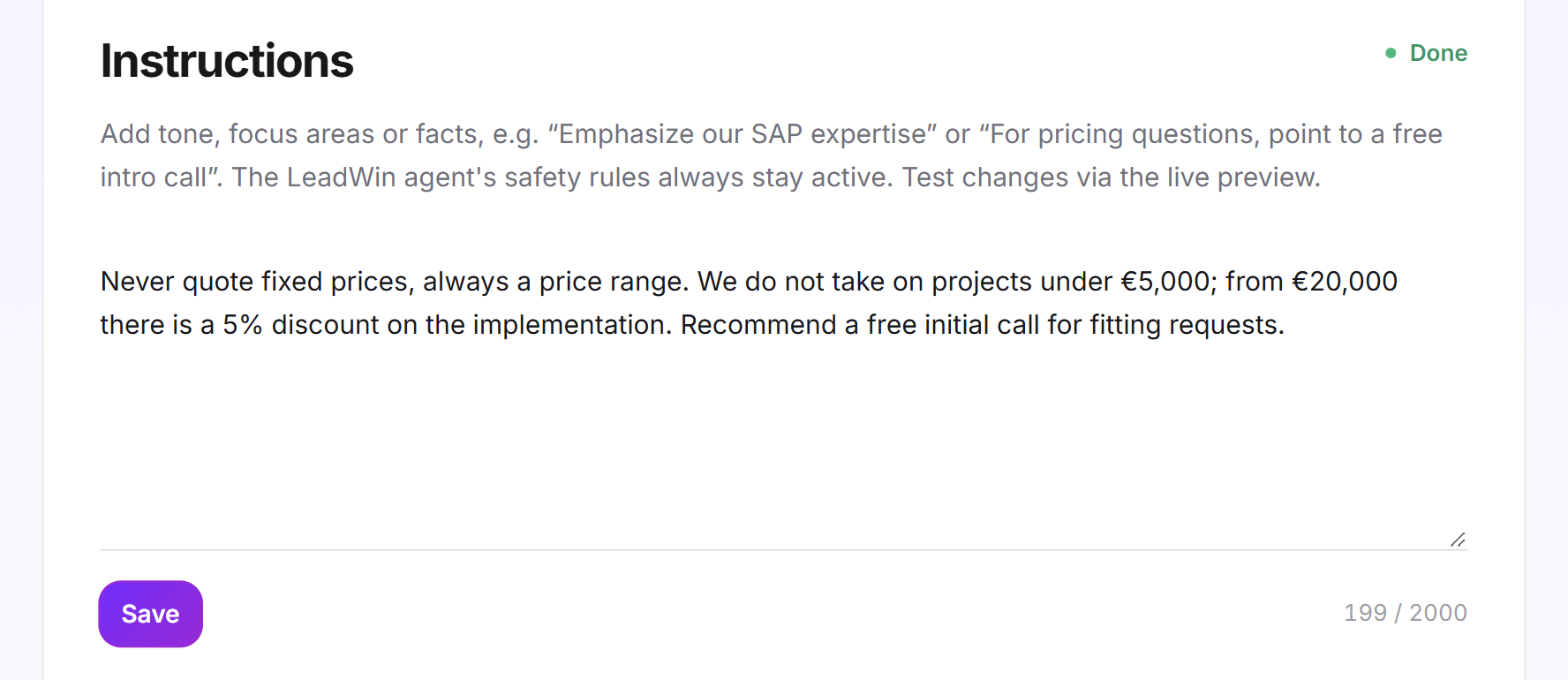
- Your instructions can be up to 2,000 characters long, plain text without formatting.
- You choose the form of address between Informal (friendly) and Formal (professional). The default is Informal (friendly). The German dashboard offers a third tile, Casual informal (du).
- Both are available in every plan, including Free, and both apply from the next visitor message.
- Owners and admins can see the page. You decide who has which role under Team.
How it works
Your LeadWin agent receives your instructions in every conversation with a visitor, in addition to its basic knowledge. They take effect from the next message after you save. You do not need to publish anything again.
Two things your instructions cannot override:
- The safety rules of the LeadWin agent always stay active, no matter what your instructions say.
- The form of address is controlled only through the Tone of address card. If you write in the instructions that it should be formal, the card's setting still applies.
The instructions belong to one agent. If you have several LeadWin agents, you write separate instructions and choose a separate form of address for each one. An agent does not share its instructions with other agents, not even through Share knowledge. LeadWin support in the dashboard also reads your instructions, so it can help you precisely with questions about your agent.
The three tabs
There are three tabs at the top of the page. Each has its own address, and the Help for this page link always leads to the matching article:
- Instructions: tone, focus, facts and the form of address. This article covers this tab.
- News: a time-limited notice, such as a current offer or a fully booked week. You find more in News.
- Cost structure: your prices and terms for questions about costs and budget. You find more in Cost structure.

Write instructions
- Open Knowledge → Instructions.
- Write your instructions in the text field. The counter at the bottom right shows how many of the 2,000 characters you use.
- Click Save. The message Instructions saved. confirms it. If saving fails, you see Your change could not be saved. Please try again later. If you leave the page before saving, the text is lost. There is no automatic saving.
- Check the result in the live preview: ask a question there where your instruction should apply.
When you save, LeadWin removes HTML tags and spaces at the beginning and end. The field then shows exactly the text your LeadWin agent receives. Saving an empty field deletes your instructions.
Good instructions are short and specific, for example:
- Emphasize our experience with online shops for mid-sized businesses.
- For pricing questions, point to a free intro call.
- Answer briefly and factually, without jargon.
Tip: Use the instructions for what always applies. Details about your business belong in your company profile, prices in Cost structure and time-limited notices in News. This keeps the 2,000 characters free for tone and focus.
Why the step is still open
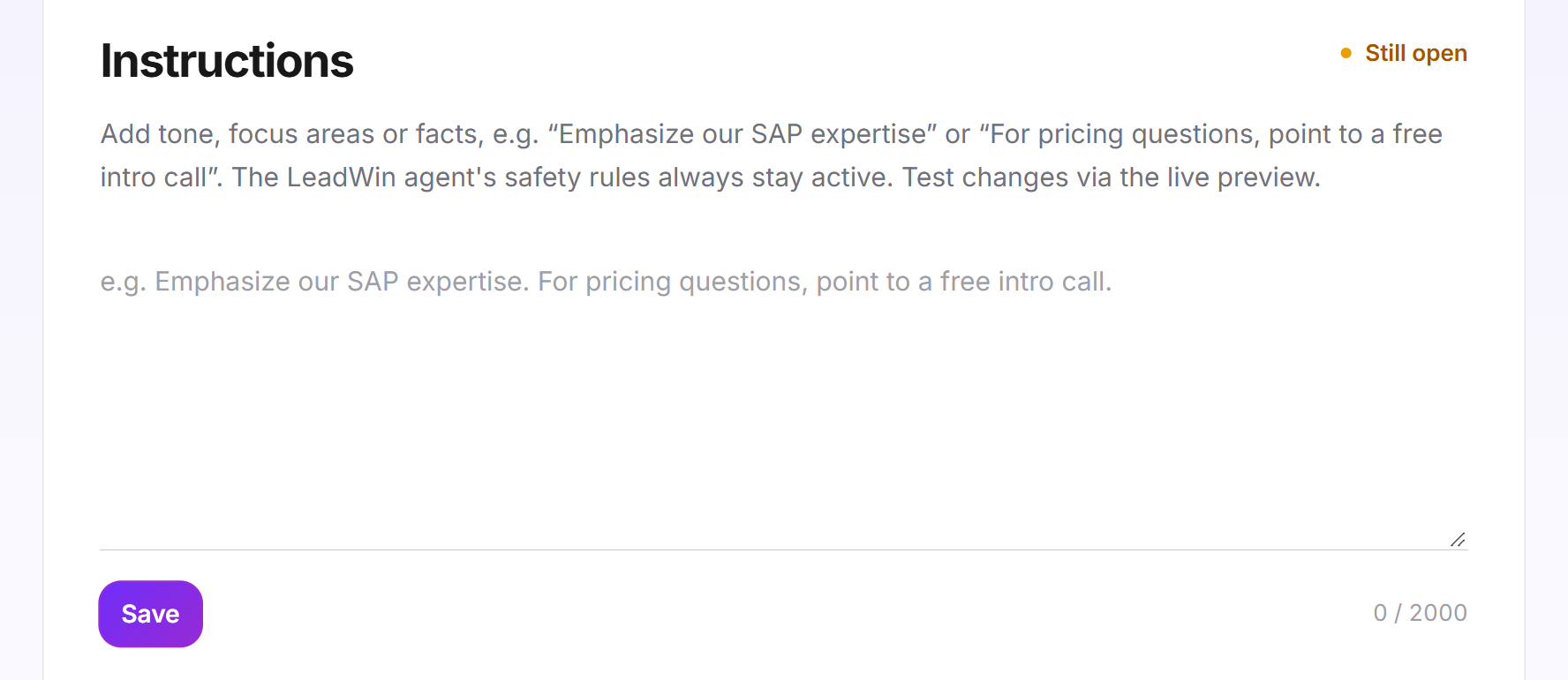
At the top right of the card, you see Done or Still open. This status belongs to the Getting started checklist. The Instructions step is only done when both of these are true:
- Your instructions are saved. The status depends on the saved text, not on what is currently in the field.
- At least one domain is approved, under Knowledge → Website on the Domains tab. How this works is explained in Website.
Choose the form of address
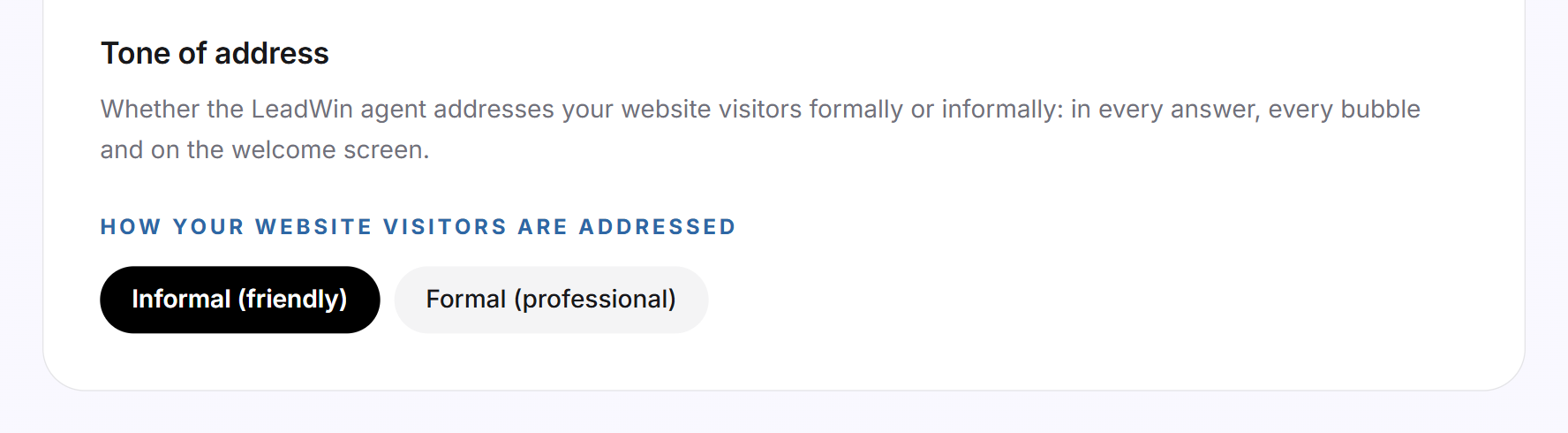
The Tone of address card sets whether your LeadWin agent addresses your website visitors informally or formally. This applies in every answer, in every speech bubble, on the Welcome screen and in the follow-up questions.
- Under Knowledge → Instructions, scroll to the Tone of address card.
- Under How your website visitors are addressed, click the tile you want. Your choice applies immediately. There is no save button here. The message Tone of address saved. confirms it. If it fails, you see the same error message as when saving the instructions.
In an English dashboard, you see two tiles. The German dashboard shows three:
- Casual informal (du): only in the German dashboard. Visitors are addressed informally, with the German du and dein in lowercase. Casual, like among friends.
- Informal (friendly): visitors are addressed informally. Personal, yet respectful. This is the default.
- Formal (professional): visitors are addressed formally. Courteous and professional.
The setting matters in the languages that distinguish informal and formal address: in French tu or vous, in Dutch je or u, in German du or Sie. English makes no difference. The difference between the casual and the friendly informal form only shows in German: the casual form writes du in lowercase, the friendly form capitalizes it. Which languages your agent speaks, you set under Language.
What it looks like in the chat
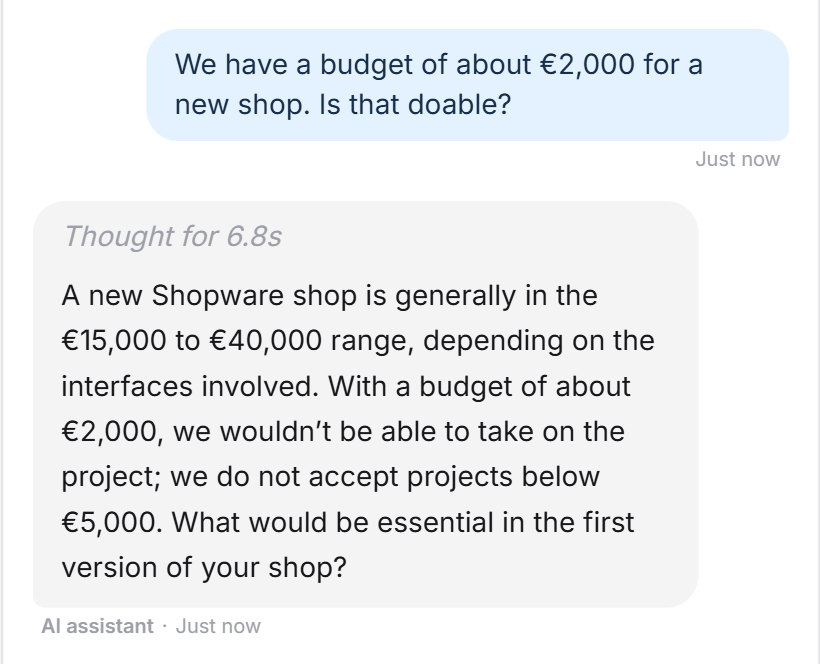
An example with the instruction “No projects under €5,000”: a visitor mentions a budget of €2,000. Your LeadWin agent says openly that this does not fit and names the limit. Then it asks about the project.
What your plan includes
Instructions and the form of address are available in every plan without limits: Free, Basic, Pro, Scale and the trial all have the same 2,000 characters and the same forms of address. This also applies to Feedbax Business, Premium and Enterprise, which include Basic, Pro and Scale. You find more on this in LeadWin in your Feedbax plan. What a higher plan adds is shown in Plans compared.
Frequently asked questions
I saved, but the step still shows Still open. Why?
The step also needs at least one approved domain under Knowledge → Website on the Domains tab.
How long can my instructions be?
Up to 2,000 characters. The counter below the field shows how many you already use.
Can I change the safety rules or the form of address with the instructions?
No. The safety rules always stay active, and the form of address always follows the setting in the Tone of address card.
When do my changes take effect?
From the next visitor message. Test them in the live preview.
Can I use formatting or HTML?
No. LeadWin removes HTML tags when you save. Write plain text.
Why does the German dashboard show three tiles?
German has two informal spellings. With Casual informal (du), your LeadWin agent writes du and dein in lowercase, with Informal (friendly) it capitalizes them. This only shows in German.
Does the setting apply to all my agents?
No. LeadWin stores instructions and the form of address per agent. Switch to the other agent in the Switch agent menu at the top and set them there.