

The Getting started page guides you through everything that makes your LeadWin agent useful, in the order in which the steps build on each other. Each step checks itself off as soon as the setting behind it is really in place. Once all are done, the page shows you how to get the most out of your agent.
At a glance
- You find the page in the LeadWin dashboard under Setup → Getting started. As long as your agent is not running on your website, the dashboard opens this page directly.
- The list has 9 to 11 steps. How many depends on your account and your plan. A LeadWin account you signed up for on leadwin.ai has 10 steps, 9 on the Free plan.
- You do not check anything off by hand. Each step checks the actual setting and opens again if you undo it.
- The Getting started card at the bottom left and the account menu show you the next open step on every other page.
- Owners and admins can see the page. You decide who has which role under Team.
How it works
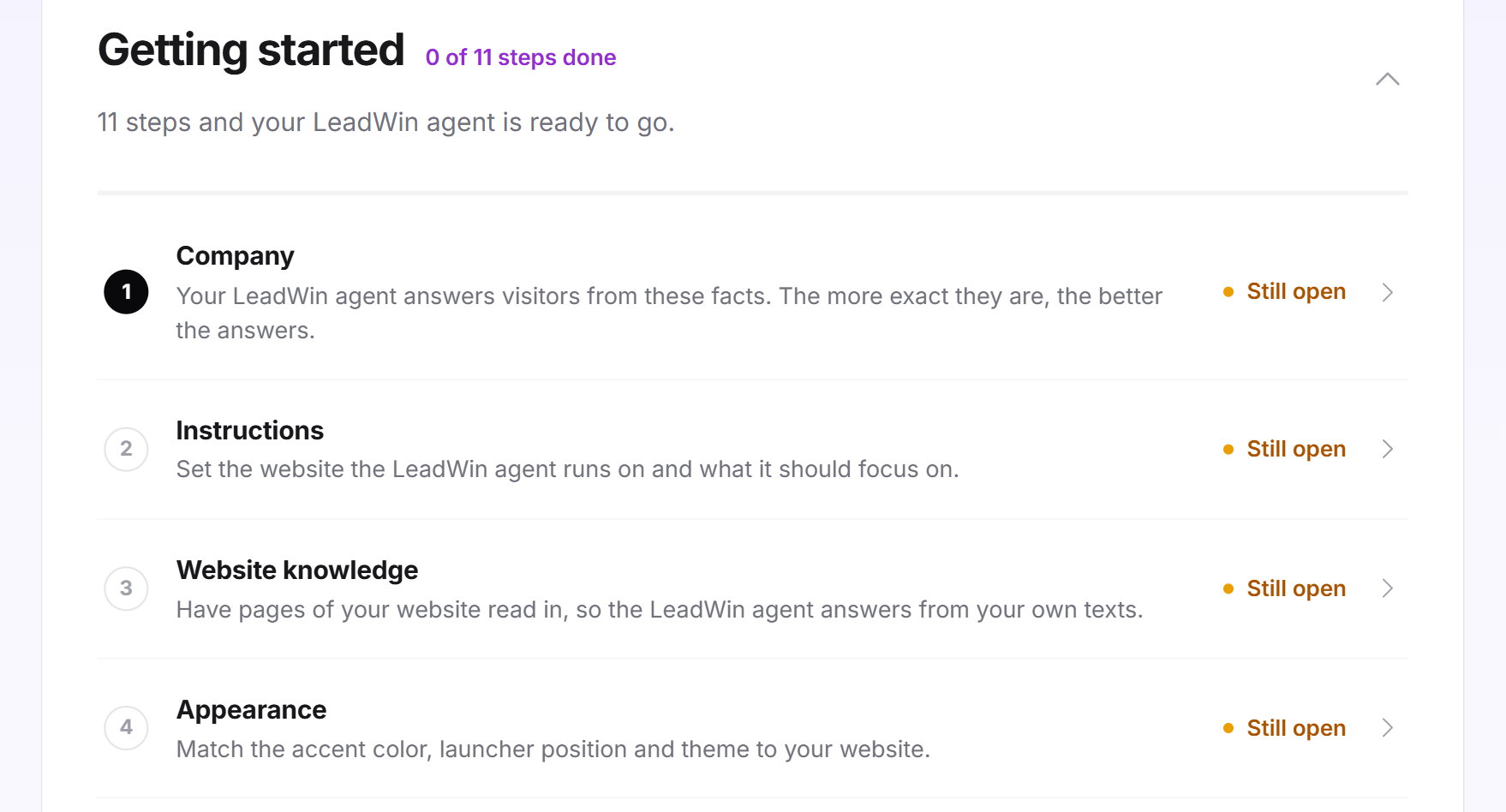
Next to the title is your progress, for example 4 of 10 steps done. As long as nothing is done, the indicator is blue, after that green. A thin bar below it shows the same status. The line below the title changes with your progress:
- At the start, it states the number of your steps, for example 10 steps and your LeadWin agent is ready to go.
- If you have started but the agent is not on your website yet, it says The open steps get more out of your LeadWin agent.
- If your agent is already running on your website, it says Your LeadWin agent is live. The open steps get even more out of it.
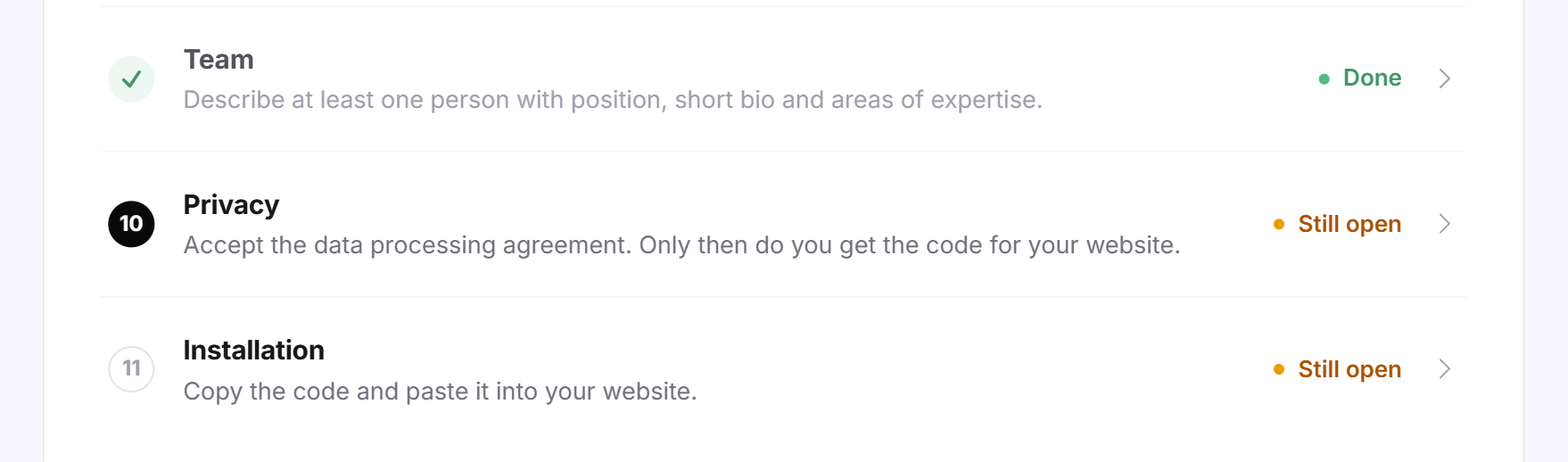
Each row shows the number, the title, a short hint and, on the right, the status: Done in green or Still open in yellow. The first open step has a black number. It is the next one you should tackle. Clicking a row opens the matching page.
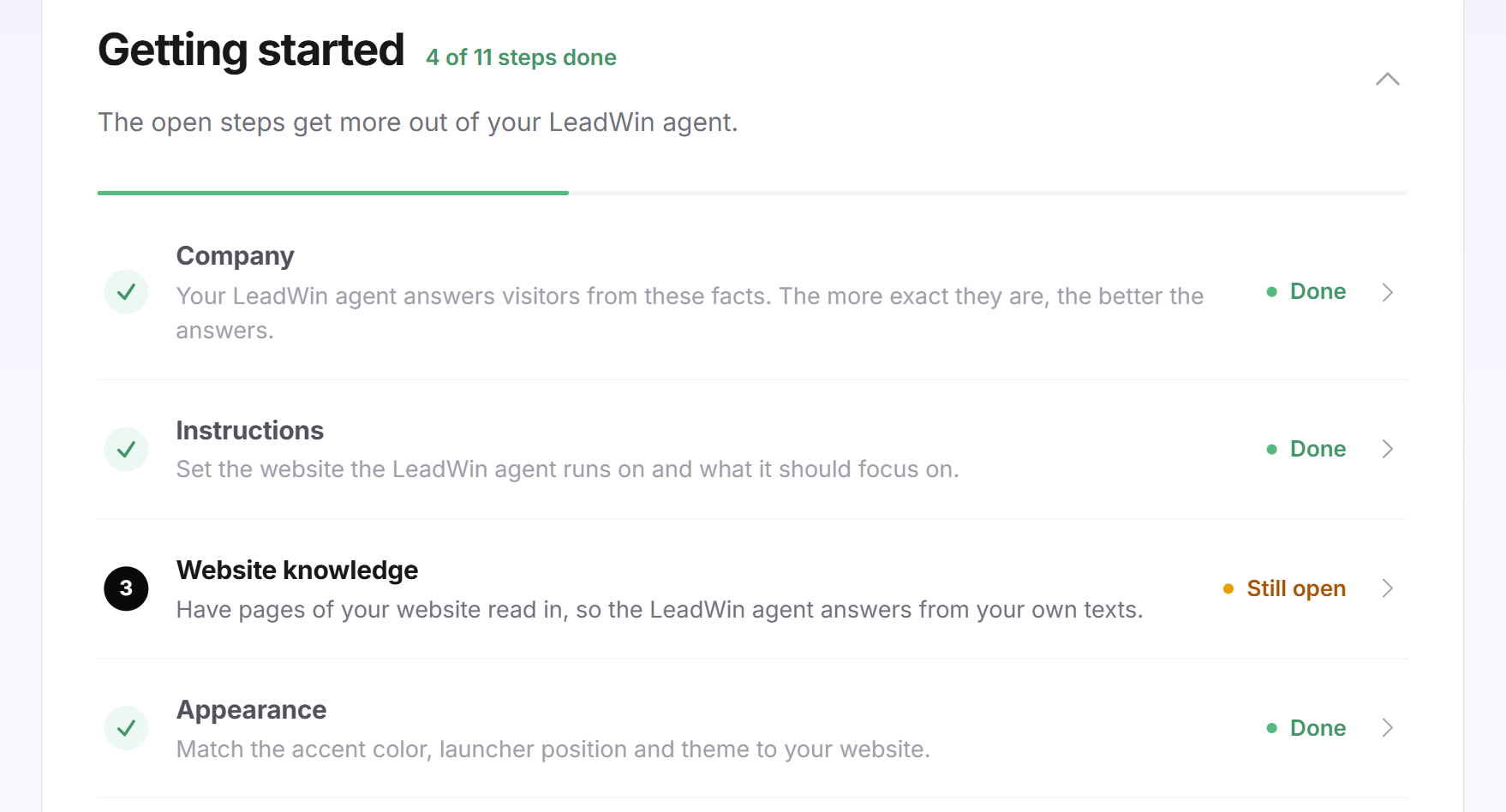
The list does not store any checkmarks. Each step reads the setting it stands for. After every save on any page, LeadWin checks all steps again. If you undo a setting, the step goes back to Still open. If LeadWin cannot read a detail at the moment, the step counts as open, never as done.
The checklist, the card at the bottom left, the account menu and the LeadWin support agent all read the same plan. They therefore always show you the same status. Your agent's language and the cost structure are deliberately not steps: the language works out of the box, and you maintain the cost structure as a tab of the instructions.
Clicking the title row collapses the list. This applies only to your current visit. The next time you open it, it is expanded again. When you open this page, the live preview closes, because there is nothing to test here.
All steps and when they are done
The order is fixed. If a step does not apply to your account, the others move up and there is no gap in the numbering.
| Step | Opens | Done when |
|---|---|---|
| Company (only without a Feedbax profile) | Knowledge → Company | name, website, industry and a description in your agent's main language are filled in |
| Instructions | Knowledge → Instructions | at least one domain is approved under Knowledge → Website and your own instructions are saved |
| Website knowledge | Knowledge → Website | at least one in-depth page has the status Ready or an Intercom knowledge base is active |
| Appearance | Appearance → Appearance | a custom accent color is set, the Dark or API color scheme is selected or the launcher is on the left |
| Speech bubbles | Appearance → Speech bubbles | the speech bubbles are switched on |
| Trust signals | Appearance → Trust signals | the trust signals at the launcher are switched on |
| Welcome screen | Appearance → Welcome screen | a custom greeting or custom conversation starters are saved, the selection of starters differs from the default or the starters are switched off |
| Appointment booking (not on the Free plan) | Setup → Appointment booking | Calendly is active, or LeadWin appointment booking is switched on and has at least one active event type with free times |
| Team | Setup → Team | at least one person who is not deactivated has a name, email address, position, short bio and areas of expertise |
| Privacy (only if you accept the agreement in the dashboard) | Setup → Privacy | you have accepted the data processing agreement, once for your whole account |
| Installation | Setup → Installation | the current code was loaded from an approved domain in the last 30 days |
Three steps fail to check themselves off more often than you would expect:
- Instructions needs two things: your text and an approved domain. You enter the domain under Knowledge → Website.
- Appearance only checks itself off if something differs from the default. Just looking at it is not enough.
- Installation needs a real page view on your website. Copying the code alone is not enough, and a view in the live preview does not count either. If you changed the consent setting under Privacy after copying, you need to copy the code again.
Not every account has the Privacy step. If you signed up for your LeadWin account on leadwin.ai, you concluded the data processing agreement when you clicked Create account. For you the step does not exist, and Installation follows right after Team. Only accounts that accept the agreement in the dashboard see the step: providers and buyers who come from Feedbax, whose LeadWin account is created without a sign-up, and older LeadWin accounts whose sign-up did not yet include the agreement. If such an account has already accepted, the step shows as done.
Where the step exists, it is the only one that applies to your whole account rather than to a single agent. On the Privacy page, you tick I have read the data processing agreement and agree to it. on the Data processing agreement card and click Accept. The step is then done for every agent of your account and does not open again. It comes right before Installation, because the installation shows no code until you have accepted.
Complete a step
- Open Setup → Getting started.
- Click the row with the black number. The matching page opens.
- Set up the setting and save.
- The step changes to Done, and the card at the bottom left shows the next one.
The Getting started card at the bottom left
On every other page of the dashboard, the Getting started card with progress and bar sits at the bottom left. Collapsed, it shows the first open step under Next step. Clicking it opens that step. Clicking the title row expands the card: you then see all steps, the open ones at the top and the completed ones crossed out below. Every row is clickable.
Owners and admins see the card as long as at least one step is open. It is missing on the Getting started page itself. On narrow screens, it sits below the content of the page.
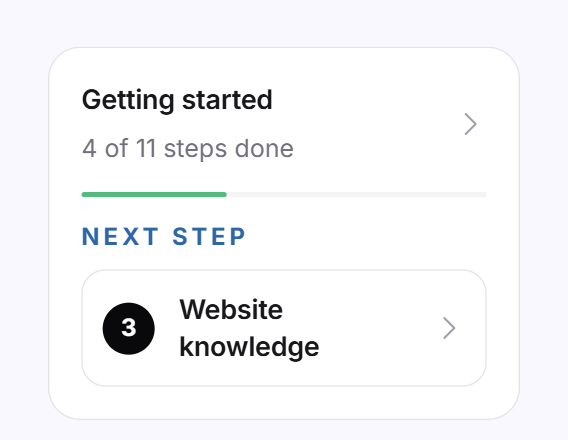
The account menu also shows a Getting started block at the top with the status and the next step, plus a Getting started entry. Both disappear as soon as all steps are done. You can then still reach the page through the Setup area. You find more on the account menu in LeadWin dashboard.
All done: the next levers
Once all steps are done, the page shows All steps are complete. Below it, under What's next?, there are three cards:
- Campaigns: You announce in the chat what is going on right now, such as news, teasers and offers. You find more on this in Campaigns.
- Knowledge: The more material your agent knows, the more precisely it answers. The card opens your profile in the Knowledge area.
- Analytics: You see what your agent delivers and where visitors drop off. You find more on this in Visitor analytics.

What your plan includes
The number of steps depends on three things: whether your agent answers from a Feedbax profile, whether you concluded the data processing agreement with your sign-up and whether your plan includes appointment booking.
| Your account | Trial, Basic, Pro, Scale | Free |
|---|---|---|
| LeadWin account, signed up on leadwin.ai | 10 steps | 9 steps |
| Older LeadWin account that accepts the agreement in the dashboard | 11 steps | 10 steps |
| Feedbax buyer, via Sign in with Feedbax | 11 steps | 10 steps |
| Feedbax provider, agent answers from the Feedbax profile | 10 steps | 9 steps |
| Feedbax provider, agent with its own profile | 11 steps | 10 steps |
The Company step does not apply if your agent answers from the Feedbax profile. The Privacy step does not apply if you concluded the data processing agreement with your sign-up. The Appointment booking step does not apply on the Free plan, because it does not include appointment booking. Feedbax Business comes with the limits of Basic, Premium with those of Pro and Enterprise with those of Scale. You find more on this in LeadWin in your Feedbax plan.
A plan with appointment booking pays off, because visitors then book a meeting with you right in the chat instead of just leaving a message. It is available from Basic upwards. All differences are in Plans compared.
Frequently asked questions
I opened the page. Why is the step still Still open?
A step only checks itself off once the setting behind it is really in place. The table above shows what each step needs.
Why is the Appointment booking or Privacy step missing for me?
Appointment booking is missing on the Free plan, because it does not include appointment booking. The step appears as soon as your plan includes it. Privacy is missing if you already concluded the data processing agreement with your sign-up. The date of that is shown under Setup → Privacy.
Why does my list have 11 steps and a colleague's 10?
Two steps depend on the account. The first step, Company, only exists if the agent does not answer from a Feedbax profile. There you enter the details it answers from. The Privacy step only exists if the account accepts the data processing agreement in the dashboard. A list with 11 steps has both.
The Team step does not check itself off. What is missing?
An active person needs all five details: name, email address, position, short bio and areas of expertise.
My code is installed, but Installation is still open.
Open a page of your website. The code must load from an approved domain and be the current one. If you changed the consent setting under Privacy, copy the code again.
Can I hide the checklist?
You can collapse it for your current visit. It disappears from the account menu and the card at the bottom left as soon as all steps are done.
Why is a completed step open again?
You changed the setting behind it, for example switched off the speech bubbles or removed the last domain. Set it up again, and the step checks itself off once more.
My agent is already running. Why is the Privacy step open?
You came from Feedbax, as a provider or as a buyer, or your LeadWin account dates from before the sign-up included the data processing agreement. Such accounts accept it once, explicitly, with a tick, even if their agent has been running for a while. Your installed code keeps working. Only the Installation page shows the code again after you have accepted.