

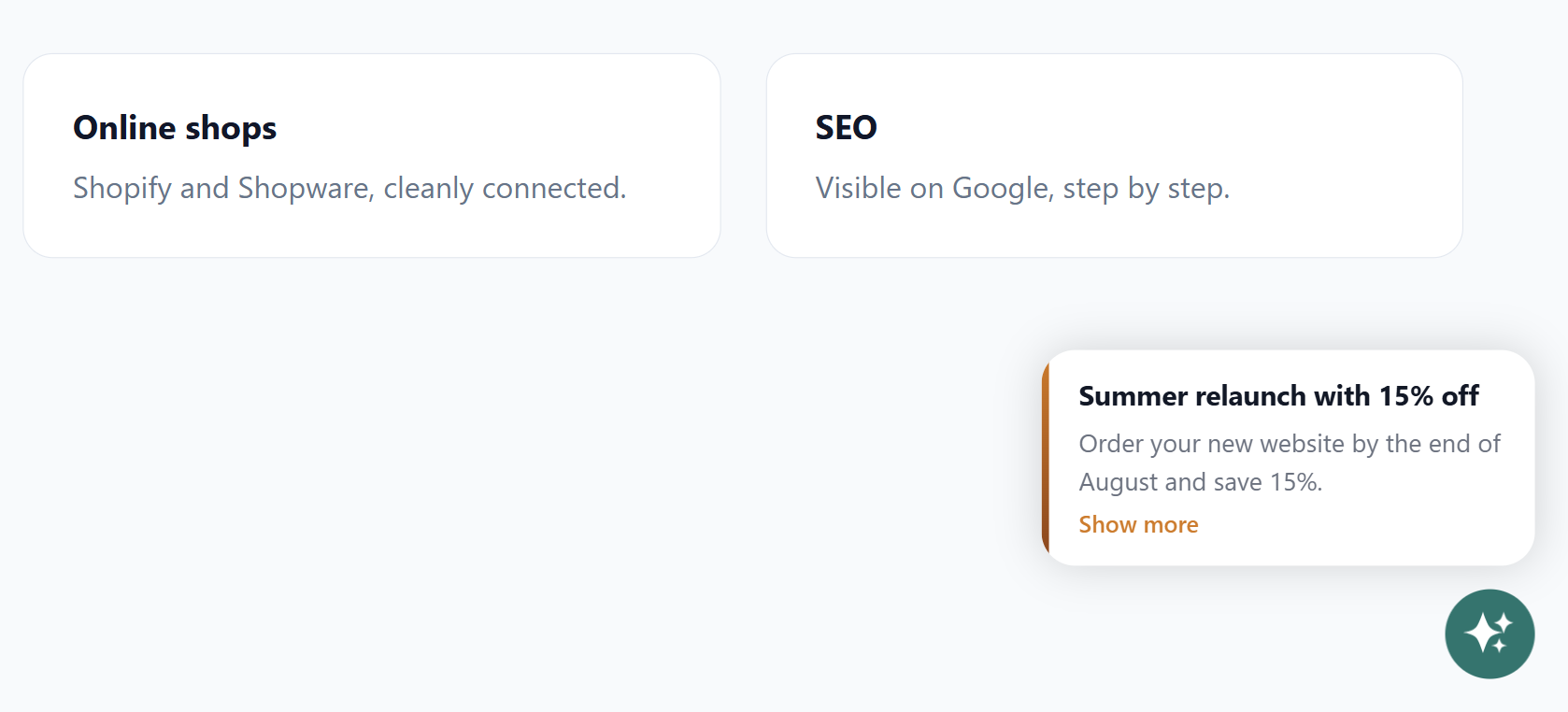
With Campaigns, you show news, announcements and offers directly on your website: as a card at the launcher or as a dialog over the page. Each campaign has its own period, its own pages and an action, for example booking an appointment. This way you reach visitors exactly when they are looking around your website.
At a glance
- You find the page in the LeadWin dashboard under Appearance → Campaigns.
- Campaigns are available from Pro and during the trial, not in Free and Basic. You find an overview of all limits in Plans compared.
- Each LeadWin agent has up to 20 campaigns, active and paused ones together.
- A campaign has a headline of up to 60 characters, a text of up to 300 characters and a button of up to 40 characters. LeadWin translates everything automatically.
- Owners and admins can see the page. You decide who has which role under Team.
How it works
A campaign appears on your website when four things apply: the Enable campaigns main switch is on, your plan includes campaigns, the campaign is not paused, and its period is running. A campaign with a later start appears on its own at the start time and disappears again when it ends. This applies to every active campaign, so to all of the up to 20 campaigns of a LeadWin agent.
On the page, each campaign waits for its own delay before it appears. The card at the launcher shares the corner with the speech bubble. When a campaign is due, it takes priority. The page rules of the speech bubbles and the Hide on mobile devices setting do not apply to campaigns. That setting only hides the speech bubbles. A campaign card that is already showing also stays when the window gets narrow or someone turns their phone. Campaigns have their own pages and also appear on phones. If a visitor has chosen Hide messages like this on a speech bubble, they no longer see campaign cards either.
Visitors read your texts word for word. LeadWin translates headline, text, button, question, badge and highlights in the background into every language you have switched on under Language. Until then, the list shows Translation pending. Your LeadWin agent learns nothing from campaigns for its answers. If it should know an offer and be able to explain it, also enter it on the News tab under Knowledge → Instructions.
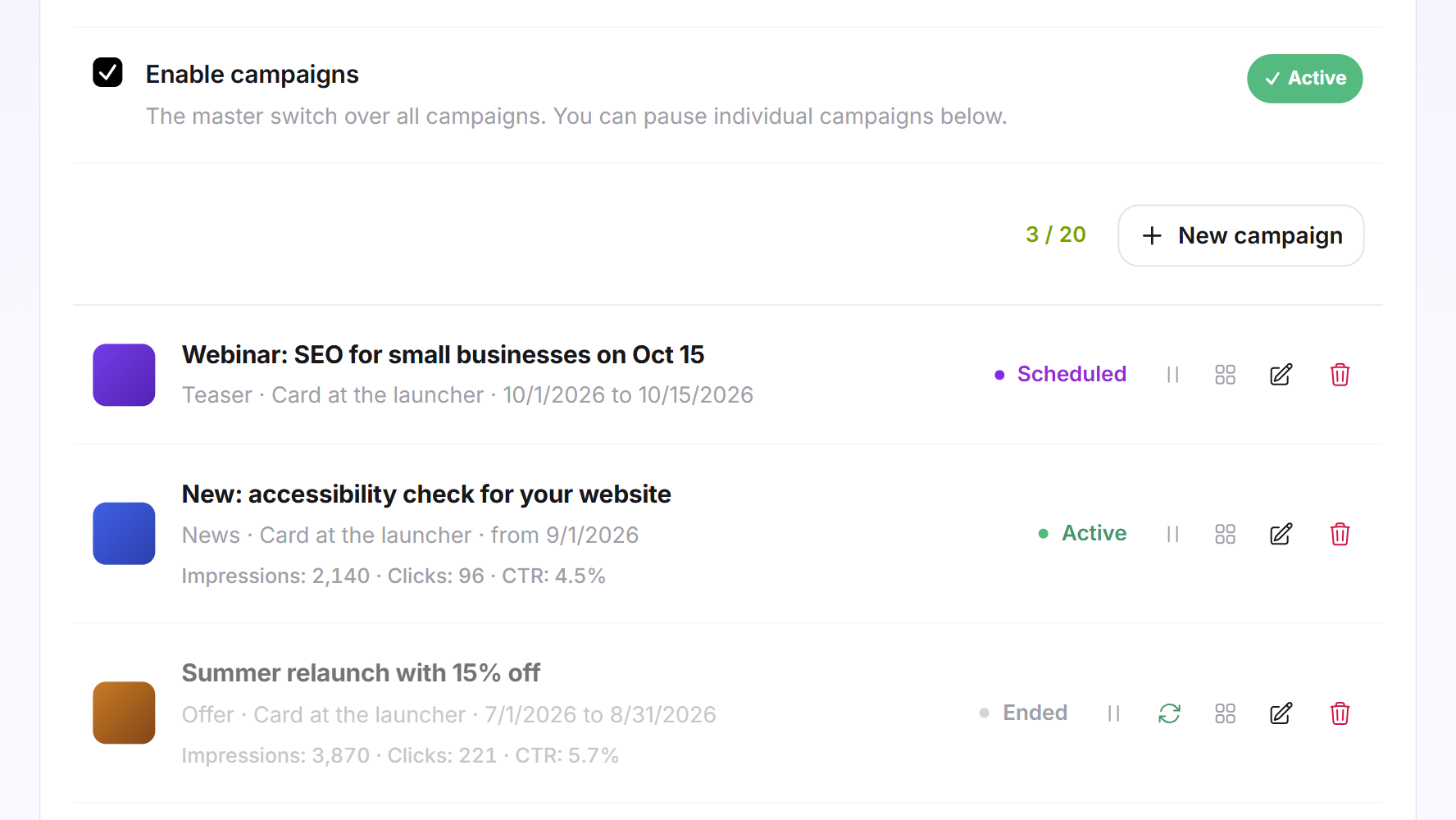
LeadWin always saves a campaign as a whole. Visitors therefore never see a half-saved version. For each campaign, LeadWin counts Impressions and Clicks since the start and shows the CTR derived from them.
Switch on campaigns
- Open Appearance → Campaigns.
- Tick Enable campaigns. The main switch is saved immediately and applies to all campaigns.
- Click New campaign.
Next to the button, LeadWin keeps count, for example 3 / 20. At 20 campaigns, you can only create a new one after you delete an old one.
Create a campaign
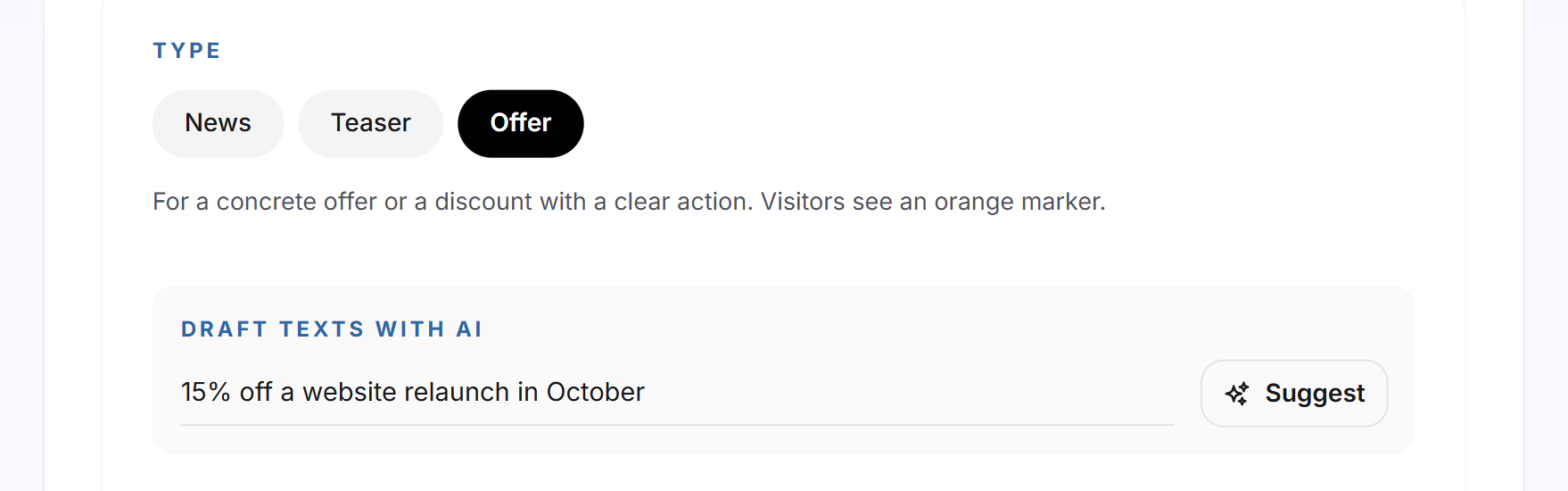
- Choose the Type: News for news with a blue marker, Teaser for something upcoming with a violet marker or Offer for a specific offer with an orange marker.
- If you like, describe under Draft texts with AI what it is about and click Suggest. LeadWin fills in headline, text and button.
- Write or check the Headline (required, up to 60 characters) and the Text (optional, up to 300 characters).
- Choose the Display: Card at the launcher or Dialog over the page. For the dialog, you also choose the Size: Compact, Standard or Large.
- Choose the Design: Classic, Accent, Minimal or, for the dialog only, Spotlight.
- If you like, tick Custom colors for this campaign and enter Accent and Gradient end in the #RRGGBB format. Without custom colors, the campaign uses the color of its type.
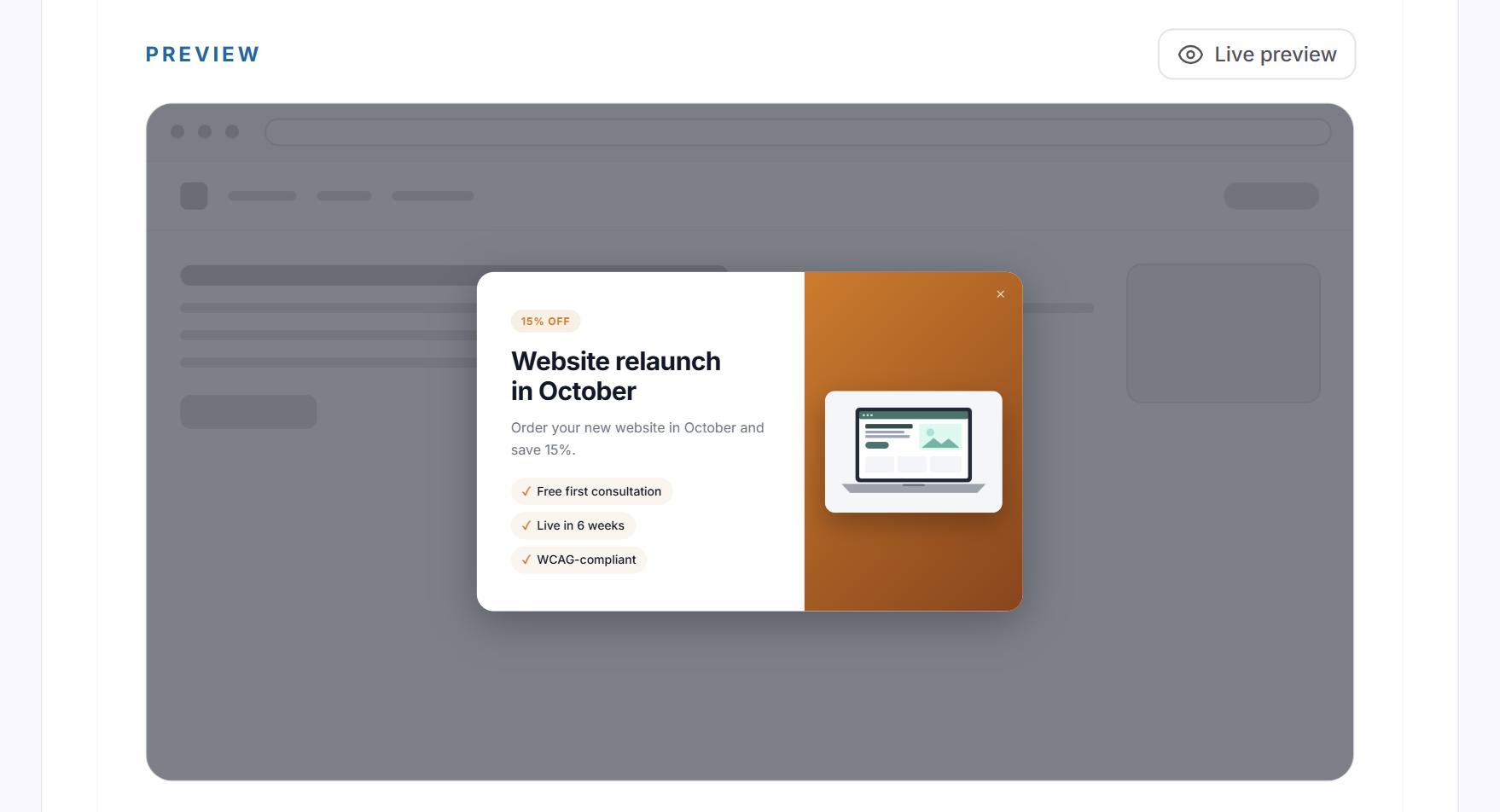
- Check the result in the Preview. Live preview lays the draft over the dashboard at full size, the way visitors see it. You close it with the X, with Esc or with a click beside it. Then click Save.
The card at the launcher is subtle and does not interrupt the visit. It suits news and ongoing promotions. The dialog sits in the middle of the page and interrupts the visit. That is why each visitor sees it at most once.
The Spotlight design shows two columns with badge, highlights and an image on a gradient. It comes with three additional fields:
- Badge with up to 30 characters, for example a discount.
- Highlights with up to 6 lines of 40 characters each. With Add highlight you add a new line.
- Image: upload a JPG, PNG or WebP up to 5 MB with Upload image. Or enter the full https address of an existing image under Image URL.
If you switch a Spotlight dialog to Card at the launcher, the design jumps back to Classic.
Set timing, frequency and pages
- Frequency (card only): Once per visitor (default) remembers on the device that the visitor has seen the campaign. Once per visit shows it again on every new visit. For the dialog, the frequency cannot be set, and it appears to each visitor at most once.
- Delay: this many seconds a visitor is on the page before the campaign appears. 5 to 300 seconds are allowed, the default is 12.
- Schedule: enter date and time at From and Until. Both fields are optional, and empty means no start or no end. The buttons 1 week to 4 weeks and Until the end of the month set the end, counted from your start or from now. The end must be after the start.
- Pages: by default Show on all pages is ticked. Without the tick, you enter paths under Only on these pages, for example /services/seo, and click Add page. If you paste a full address, LeadWin only takes the path. The path must match exactly, and subpages do not count. Up to 20 paths with up to 400 characters each are possible.
Add an action
Under Call to action, you decide what the campaign's button does:
- None: the campaign has no button. This is the default.
- Open the chat: opens the chat with your LeadWin agent.
- Open the inquiry form: opens the contact form in the chat. The details end up in your inquiries.
- Open the booking screen: opens appointment booking in the chat.
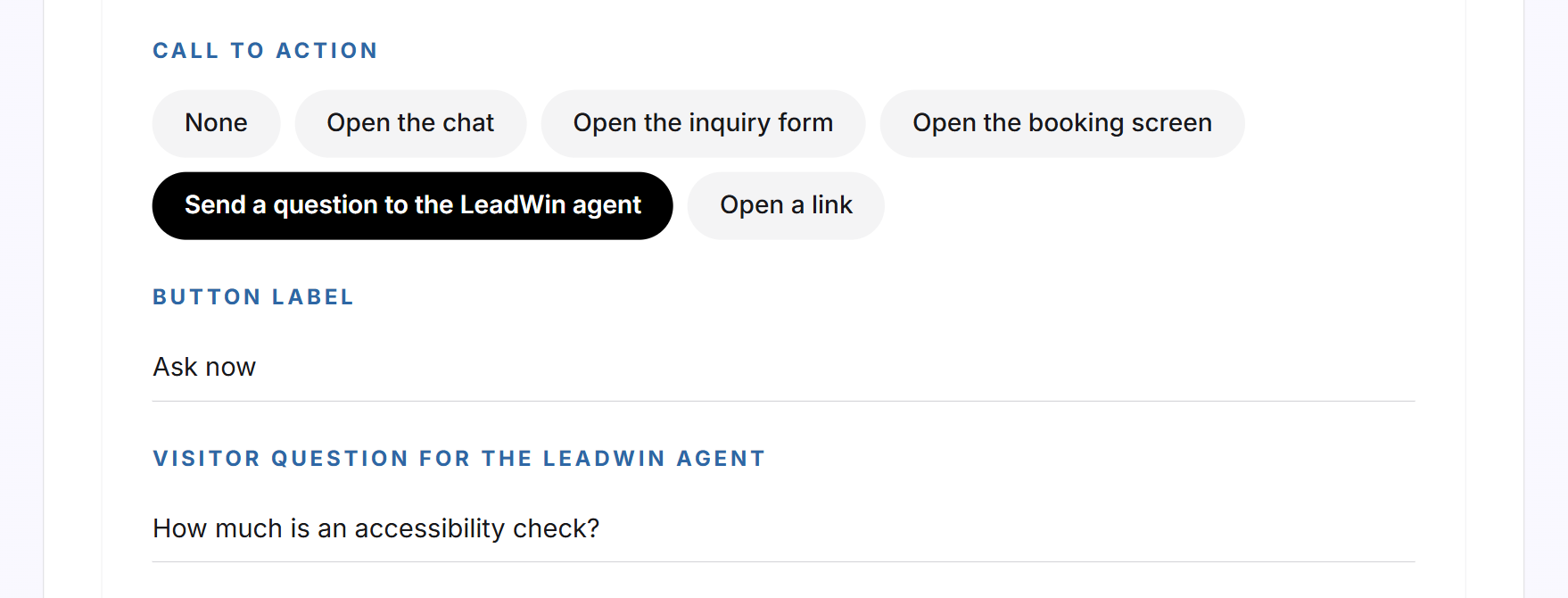
- Send a question to the LeadWin agent: opens the chat and asks the question you enter under Visitor question for the LeadWin agent (required, up to 200 characters). Your LeadWin agent answers right away.
- Open a link: opens the address from Link URL (https) in a new tab. It must be complete and start with https.
Except for None, you enter a Button label of up to 40 characters. If your LeadWin agent does not offer the form or appointment booking, the button opens the chat. Every conversation that starts through a campaign counts against your conversation quota like any other. LeadWin records which campaign it came from.
Manage campaigns
Each row of the list shows the headline, type, display and period, the figures and the status: Active, Scheduled (the start is in the future), Ended (the end has passed) or Paused. The actions are on the right:
- Pause and Resume: the first icon stops a campaign or lets it continue. This is saved immediately.
- Extend: only for ended campaigns. Opens the editor with an empty end. Set a new end or leave it open, and save.
- Duplicate: opens a new campaign with the same content, but without a period. With Save, you create it.
- Edit: opens the editor in place.
- Delete: asks for confirmation first. A deleted campaign cannot be restored.
What your plan includes
| Plan | Campaigns per LeadWin agent |
|---|---|
| Free | none |
| Basic | none |
| Pro and trial | up to 20 |
| Scale | up to 20 |
Feedbax Business comes with the limits of Basic, Premium with those of Pro and Enterprise with those of Scale. You find more on this in LeadWin in your Feedbax plan.
In Free and Basic, the card carries the Upgrade label. Every change then takes you to the pricing page. How to change your plan is explained in Manage, change and cancel your plan. With Pro, you promote offers, webinars and new services exactly where your visitors are reading, and lead them into a conversation or to an appointment with one click. You can try this out during the 7-day trial. If a plan ends, your campaigns stay saved but no longer appear until a suitable plan applies again.
Frequently asked questions
Which plan do I need for campaigns?
Pro or Scale. Campaigns are also included during the trial.
Card or dialog, what is the difference?
The card sits above the launcher and does not interrupt. The dialog sits in the middle of the page and appears to each visitor at most once.
How often does a visitor see my campaign?
For the card, once per visitor or once per visit, depending on the frequency. For the dialog, once per visitor.
How do I show a campaign only on certain pages?
Untick Show on all pages and enter the paths, for example /services/seo. The path must match exactly.
My campaign has ended. How do I restart it?
Click Extend in its row, set a new end or leave it open, and save.
How many campaigns can I create?
Up to 20 per LeadWin agent, active and paused ones together.
Can the button open my appointment booking?
Yes, with the Open the booking screen action, if appointment booking is set up. Otherwise the chat opens.
Do I need to translate my campaign?
No. LeadWin translates it automatically into every language you have switched on under Language.
Does my LeadWin agent know the offer from my campaign?
No. Campaigns only display texts. For your LeadWin agent to provide information about it, enter the offer on the News tab under Knowledge → Instructions.