

Under Contacts, you find every person who has left their contact details through your LeadWin agent, with an inquiry or an appointment booking. A click opens the contact with everything this person has done: inquiries, appointments, chats and, with Pro, also their visits to your website. Before every callback, you see at a glance who is calling and what interests them.
At a glance
- You find the page in the LeadWin dashboard under Leads → Contacts.
- There is exactly one contact per email address. All inquiries, appointments and chats of this address are grouped in it.
- The list is included in every plan. You see a contact's website visits with Pro, Scale and during the trial, if the visitor consented to visitor analytics.
- The timeline shows the last 50 website visits from the last 90 days.
- Owners, admins and agents can see the page. You decide who has which role under Team.
How it works
LeadWin creates a contact on its own as soon as a visitor leaves an inquiry or books an appointment through LeadWin appointment booking. The email address connects everything. Upper and lower case do not matter. LeadWin takes the name from the newest entry, so a corrected typo wins. The phone number comes from the inquiries.
Visitors who only chat without leaving an email address do not become contacts. You find their conversations in the Inbox. Bookings through Calendly carry no email address. They only appear in a contact if they belong to the same chat as an inquiry or booking of this person.
LeadWin finds a contact's website visits through their chat. This only works if the visitor consented to visitor analytics during the visit. Without this consent, LeadWin records no individual visits, and the timeline shows none. How to set up consent is explained under Privacy. LeadWin shows at most the 50 newest visits. LeadWin deletes individual visit data after 90 days, so older visits disappear from the timeline.
The page is read-only. You cannot edit, delete or export contacts here.
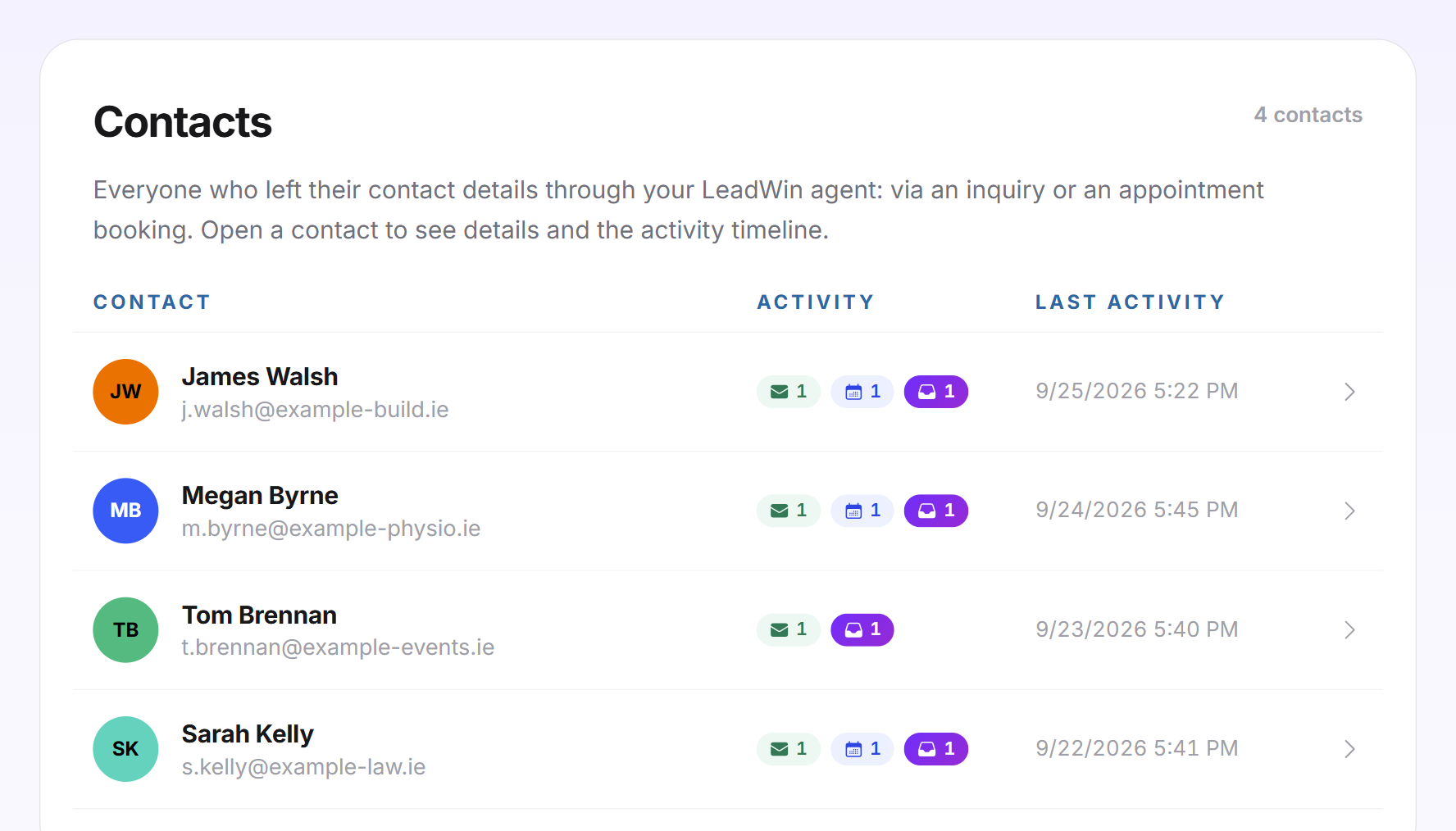
Read the list
The list has three columns:
- Contact: initials, name and email address. The color of the initials is the same for this person everywhere in the dashboard.
- Activity: small icons with a number, only for what actually happened. The green envelope stands for Inquiries, the purple calendar for Appointments, the blue inbox for Conversations. When you hover over them, the name appears.
- Last activity: date and time of the latest entry.
The top right shows the number of all contacts. The contact with the most recent activity is at the top. All contacts load at once, without search and without pages. The page has no number of its own in the navigation. New contacts show up through the numbers on Appointments and Inquiries.
Open a contact
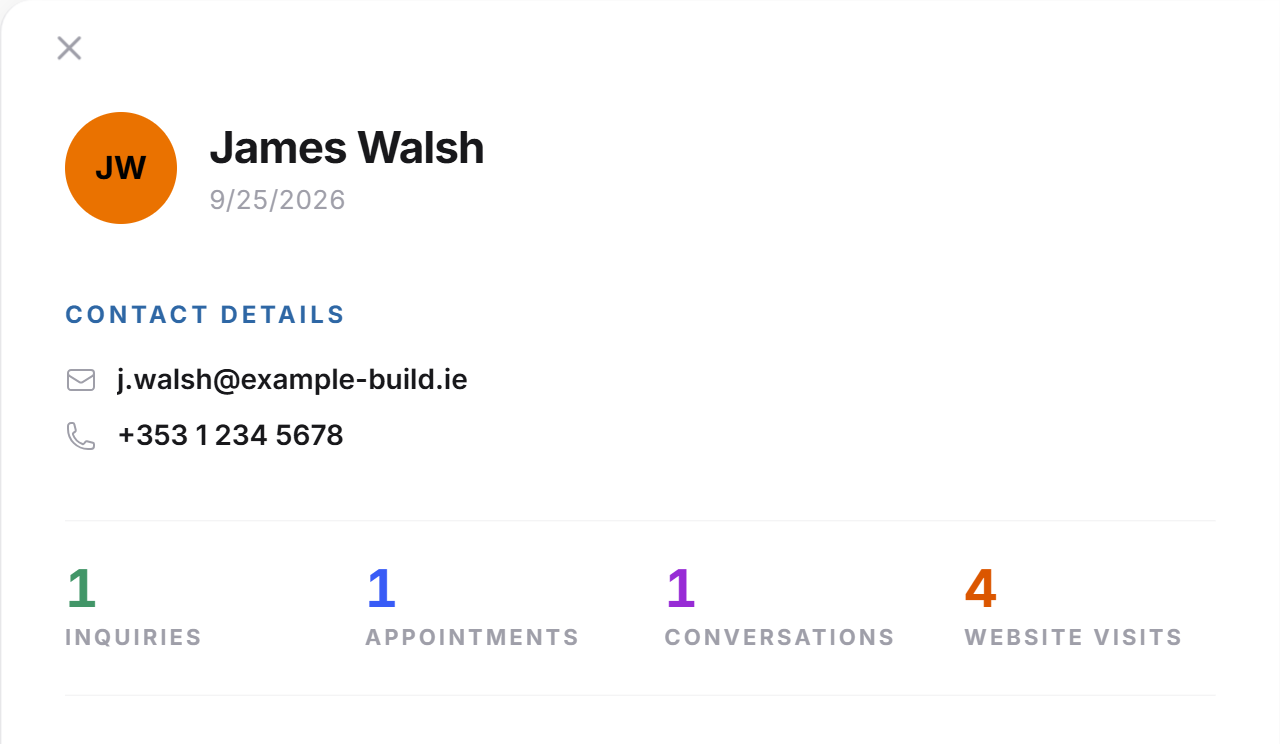
- Click a contact in the list. The contact view slides in from the right.
- At the top are the name and the date of the first contact, below it under Contact details the email address and the phone number as links.
- The row of numbers shows Inquiries, Appointments, Conversations and, with Pro, also Website visits.
- Close the view with the cross at the top.
The same view opens wherever a person appears in the dashboard: in an inquiry, in an appointment row, in the Inbox and for a known visitor under Live visitors. Everywhere, a click on the name is enough.
Use the activity timeline
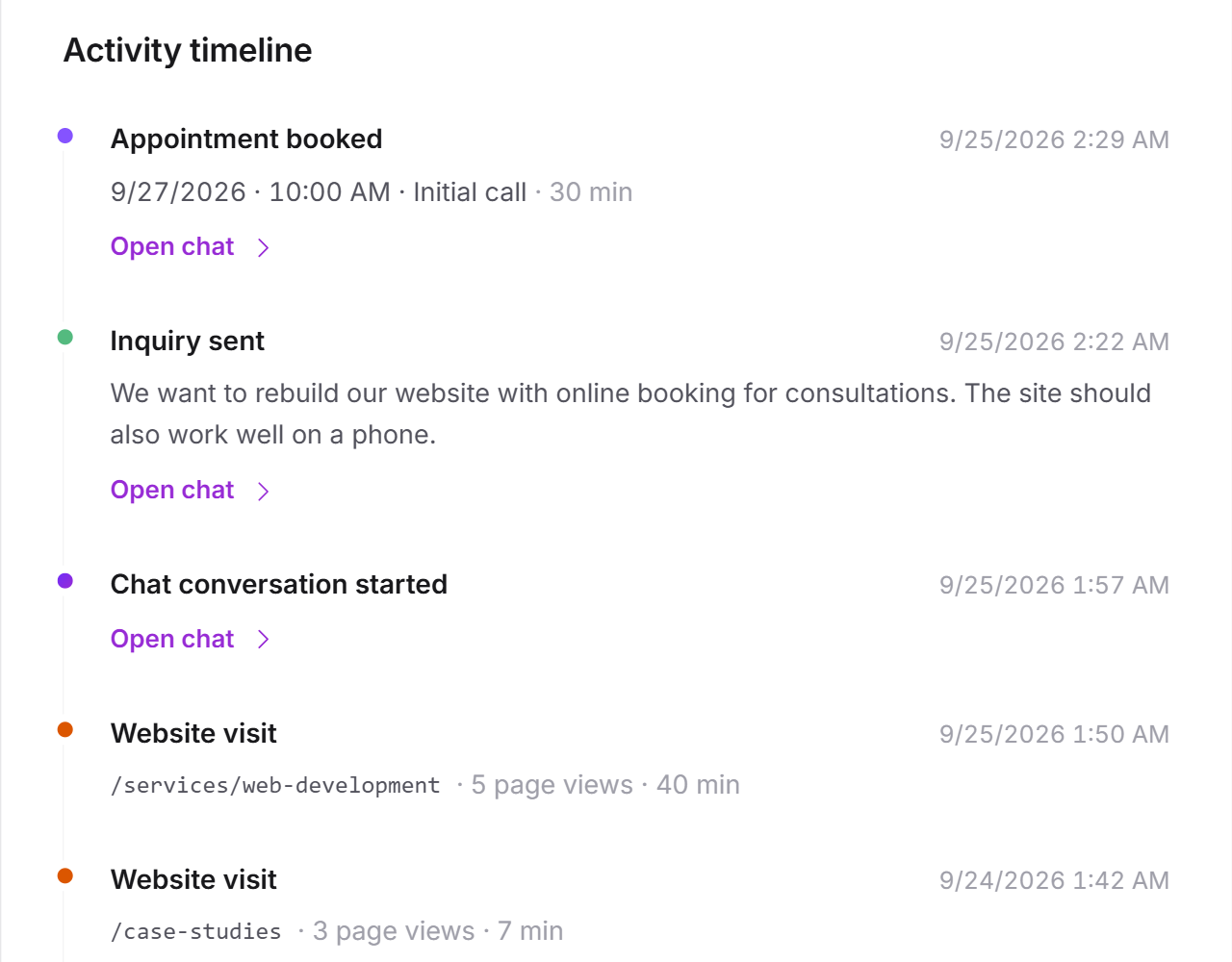
Under Activity timeline is everything this person has done, the newest at the top. Each entry has a colored dot:
- Inquiry sent (green) with the first two lines of the message and, if applicable, the Clarification label.
- Appointment booked (purple) with date, time and duration in minutes. For Calendly, it says Appointment booked via Calendly.
- Chat conversation started (blue).
- Website visit (orange) with the entry page, the number of page views and the duration in minutes.
Entries with a chat carry Open chat. A click closes the contact view and opens the conversation in the Inbox. There you take it over and reply. If there is no entry yet, it says No activity recorded yet.
Tip: Look at the website visits before calling back. If someone has read your page about a particular service three times, you know how to open the conversation.
The visit history from Pro
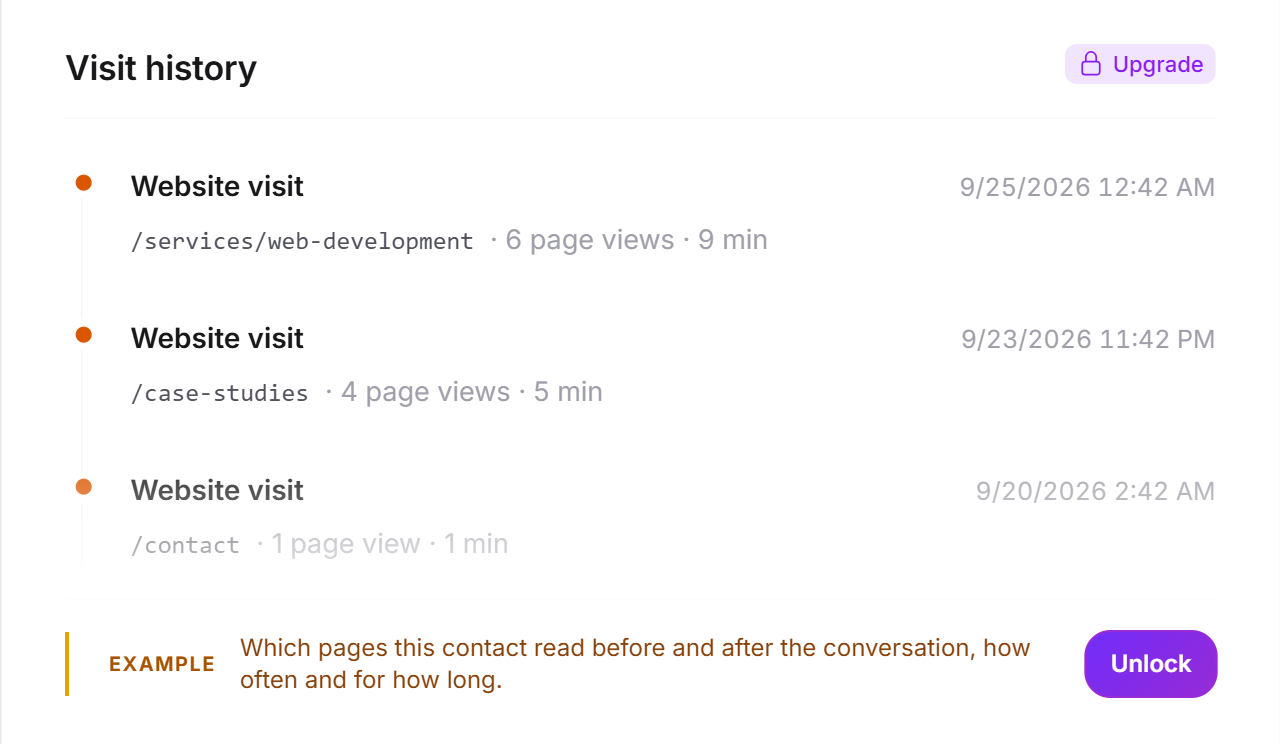
In Free and Basic, the Website visits number and all visit entries are missing. In their place, the contact view shows the Visit history card with three made-up sample visits and the Example label. The Unlock button and the Upgrade label open the LeadWin pricing page. With Feedbax Business they open the Feedbax pricing page instead, because there you get the visit history with Premium.
What your plan includes
| Plan | Contacts with inquiries, appointments and chats | Website visits in the timeline |
|---|---|---|
| Free | yes | no |
| Basic | yes | no |
| Pro and trial | yes | yes, the 50 newest from the last 90 days |
| Scale | yes | yes, the 50 newest from the last 90 days |
Feedbax Business comes with the limits of Basic, Premium with those of Pro and Enterprise with those of Scale. You find more on this in LeadWin in your Feedbax plan, and all limits in Plans compared.
Pro pays off if you want to approach prospects in a targeted way: you see which pages someone read before and after the conversation, how often and for how long. Activity and Visitor analytics show you the same data for all visitors with consent. During the trial, you try this out for 7 days. How to switch is explained in Manage, change and cancel your plan.
Frequently asked questions
Who appears under Contacts?
Anyone who has left an email address through an inquiry or a booking via LeadWin appointment booking. Visitors who only chat do not appear.
The same person booked twice and appears only once. Why?
Contacts are grouped by email address. All inquiries, appointments and chats of one address form one contact.
Why do I not see a contact's website visits?
Either your plan does not include the visit history, which applies to Free and Basic. Or the visitor did not consent to visitor analytics. Or the visits are more than 90 days old.
Can I edit or delete a contact?
No, not in the dashboard. The page only displays contacts.
Why is the phone number missing although the visitor gave it when booking?
The contact only takes the phone number from inquiries. The number from the booking is in the appointment row under Appointments.
How do I get from a contact to the chat?
In the activity timeline, click Open chat next to an entry. The conversation opens in the Inbox.
Can I export my contacts?
No. The contact list has no export. The email addresses are in the list and in every inquiry.