

You book a LeadWin plan in three steps: enter your billing details, review and pay, done. The booking opens in your LeadWin dashboard as soon as you choose a plan on the pricing page. Afterwards, the new plan is available to your LeadWin agent right away.
At a glance
- You start on the pricing page at leadwin.ai/pricing with Book Basic, Book Pro or Book Scale. The plans are compared in Plans compared.
- LeadWin plans are available monthly or yearly. Both renew automatically, and the notice period is 1 day before the end of the term.
- LeadWin is an offer for businesses. In the EU, a VAT ID is required, including in Germany.
- You pay by card via the payment service Stripe.
- If you already have a plan, you do not switch here but in the subscription management.
How it works
The pricing page itself books nothing. When you click a card there while signed in, it passes the plan and billing interval to your LeadWin dashboard, where the booking opens across the whole page. The billing interval is the one the Monthly or Yearly switch on the pricing page currently shows. If you reload the page afterwards, the booking does not open again.
Before the booking asks for any details, it checks whether you can book this plan at all. If you already have it or another plan is running, it shows a short note instead. When you pay, the server checks this again.
With Continue to payment, LeadWin creates the plan at Stripe, still unpaid. If you leave the payment step, whether via Edit billing details or by closing it, this unpaid plan is discarded again. Nothing is booked and nothing is charged.
While you enter billing details and pay, clicking outside the booking or pressing the Escape key does not close it. This way, your entries are not lost by accident. You can only close it via the X in the top right or via Cancel.
Enter your billing details
- On the pricing page, click Book Basic, Book Pro or Book Scale for your plan. If you are not signed in, sign in first.
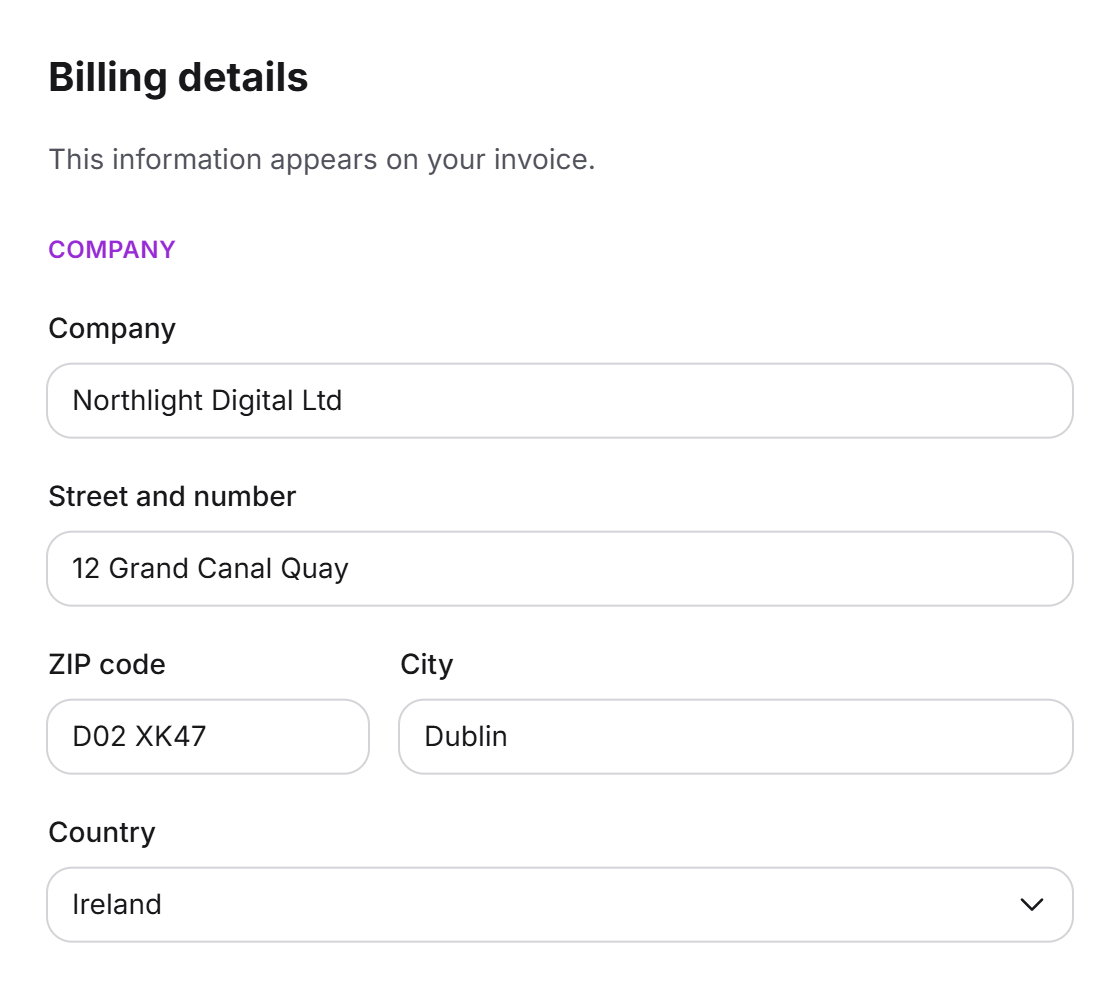
- In the Billing details step, under Company, enter the company name, Street and number, ZIP code, City, Country and the VAT ID. Anything LeadWin already knows about you is prefilled.
- Under Contact person, you enter first name, last name, email address and phone number with country code.
- Click Continue to payment.
All fields are required. These details appear on your invoice. The following rules apply to the VAT ID:
- Businesses in the EU, including in Germany, must enter a VAT ID. It starts with the country code of the selected country, EL for Greece, followed by 2 to 12 characters. If the code does not match the country, Please enter a valid VAT ID. appears. Whether the number is actually registered is checked by Stripe in the European register when you pay.
- Businesses outside the EU do not need a VAT ID.
Review and pay
- In the Review & complete step, you see Your billing details. If something is wrong, go back with Edit billing details. Your entries are kept.
- The Order summary lists the plan with its monthly price, the Subtotal (net), the 19% VAT for a German billing address and the total per month or per year.
- Enter your card details.
- Read the notes on the term and notice period and tick the box for the terms and conditions. The link opens them in a new tab.
- Click Subscribe for 12 months (payment obligation) or, with monthly billing, Subscribe monthly (payment obligation).
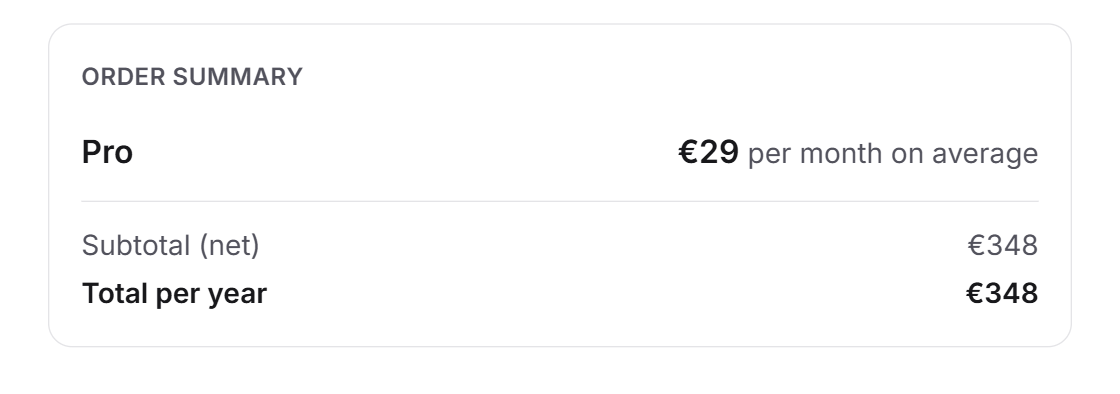
VAT depends on your billing address: with a German address, German VAT is added. With a valid VAT ID from another EU country, we issue the invoice without German VAT, under the reverse charge procedure. Outside the EU, no German VAT is charged.
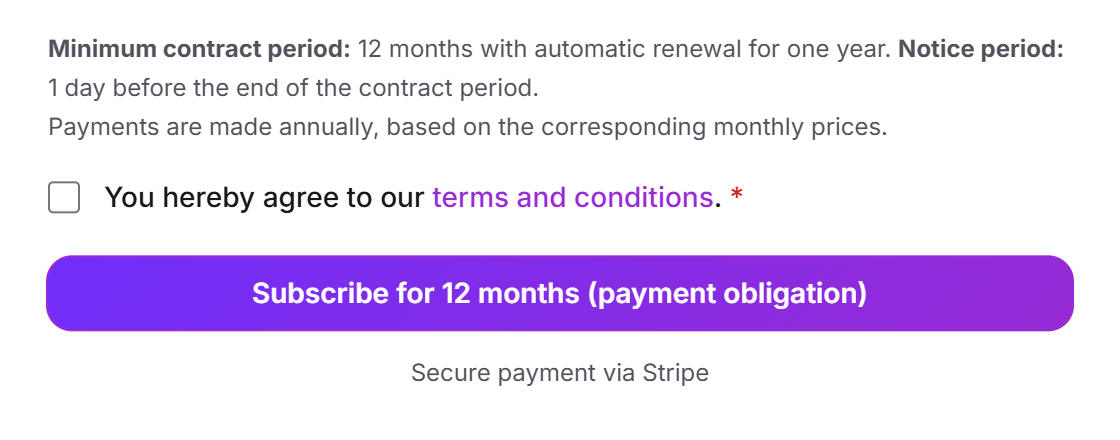
If your bank declines the payment, this is shown directly in the payment step. Check your card details and try again.
If your bank wants the payment confirmed, for example with 3-D Secure, you usually confirm it right in the payment step. If your bank sends you to its own page for this, you come back to your LeadWin dashboard afterwards. The booking does not open a second time. Instead, a message tells you how it ended:
- Your access is active. The payment went through, and your new plan applies right away.
- Your payment is processing. The bank has not confirmed the payment yet. LeadWin activates your plan automatically as soon as the confirmation arrives. Until then, your previous plan applies.
- The booking wasn't completed. The payment was declined or cancelled. Nothing is charged. Start the booking again on the pricing page.
After the booking
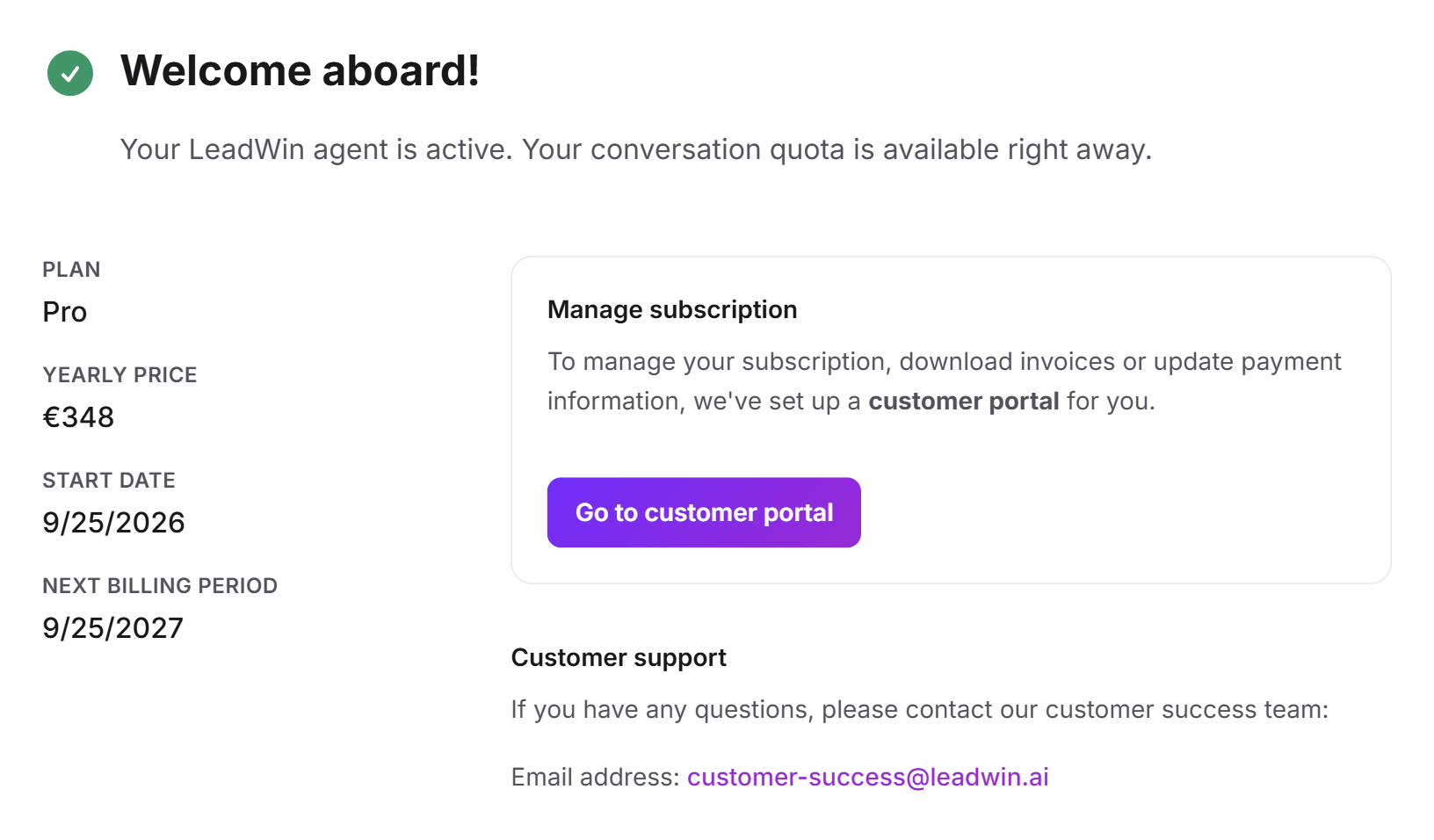
Once the payment is complete, the confirmation Welcome aboard! appears. Your LeadWin agent is active, and the conversation quota of the new plan is available right away. The page shows:
- Subscription: the booked plan.
- Yearly price or Monthly price: the amount of your first invoice.
- Start date: today.
- Next billing period: in one month or in one year.
Go to customer portal opens the subscription management for invoices and payment information in a new tab. Go to the LeadWin dashboard takes you back to work. You also receive the email Your LeadWin agent booking is confirmed with the terms and conditions attached.
If the payment confirmation takes longer, it says Payment is processing. As soon as the payment is confirmed, LeadWin unlocks your plan automatically. If the payment was not completed, it says Booking not completed. Try again takes you back to the billing details, and your entries are kept.
If you book during the trial, the booked plan applies immediately. If you used a LeadWin agent on Free, the limits of the new plan apply from now on. This is how your conversation quota counts from now on: the conversation month begins on your billing day, and even with yearly billing, the quota renews every month. If it is ever not enough, you can buy extra conversations from Basic upwards. Scale includes 3 LeadWin agents. When needed, you book up to 2 more in the Switch agent menu, because an account runs at most 5 agents. More on this in Several LeadWin agents.
When the booking is not possible
Instead of the billing details, the booking shows one of these notes:
| Note | When it appears | What you do |
|---|---|---|
| You already have this plan | You have already booked exactly this LeadWin plan. | You find invoices, payment method and cancellation via Manage subscription. |
| Change your plan in your subscription settings | You have another LeadWin plan, for example Basic, and choose Pro. | Click Manage subscription and choose the new plan there. An upgrade applies immediately, and you only pay the difference. A downgrade applies from your next term. |
| You already have another plan | You have a Feedbax plan and choose a LeadWin plan, or the other way round. | Write to the address in the note. We will switch your plan for you. |
| Only with a Feedbax profile | Your LeadWin account has no provider profile on Feedbax, and you choose a Feedbax plan. | Book a LeadWin plan. Feedbax plans are only available to providers with a profile. |
| Booking is not possible right now. Please try again later. | You are not signed in, or your account could not be read at the moment. | Sign in and try again later. |
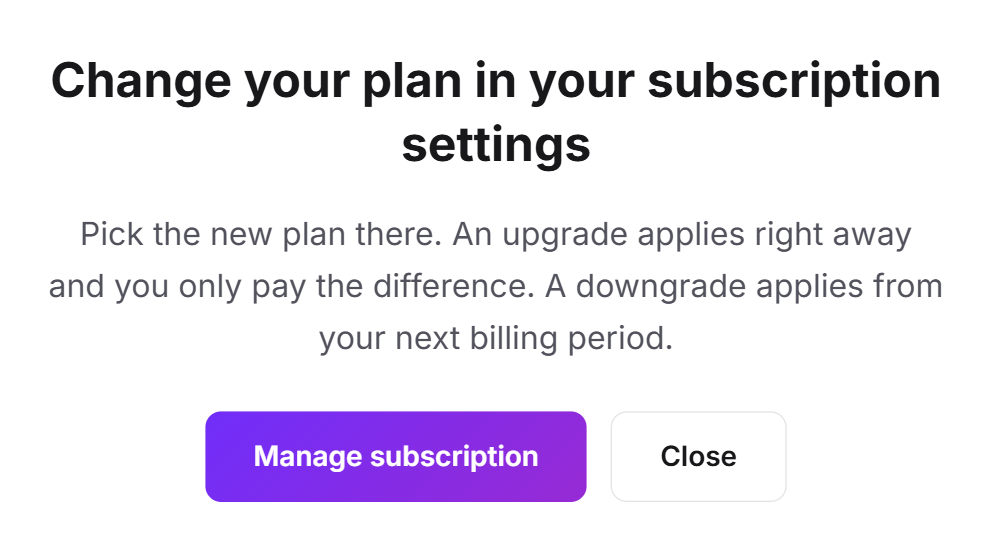
How to change or cancel your plan is explained in Manage, change and cancel your plan. Why a Feedbax plan and a LeadWin plan exclude each other is explained in LeadWin in your Feedbax plan.
What your plan includes
Monthly or yearly: features and limits are the same. Price and term differ.
| Billing interval | Monthly | Yearly |
|---|---|---|
| Term | 1 month, renews automatically by one month at a time | 12 months minimum term, renews automatically by one year |
| Notice period | 1 day before the end of the term | 1 day before the end of the term |
| Payment | monthly | yearly, cheaper per month |
| Conversation quota | renews every month | renews every month |
Here you book the LeadWin plans Basic, Pro and Scale. Providers with a Feedbax profile book Feedbax Business, Premium and Enterprise on the Feedbax pricing page, yearly or quarterly. Business includes Basic, Premium includes Pro and Enterprise includes Scale. Extra agents are only available with LeadWin Scale, Enterprise stays at 3 agents. Yearly billing pays off if you want to use LeadWin long term: the switch on the pricing page shows what percentage you save. If you book now, you also keep your price as long as your plan runs.
Frequently asked questions
Where do I compare the plans?
On the pricing page at leadwin.ai/pricing. Every Upgrade button in the LeadWin dashboard leads there, and the button on the card opens the booking in your LeadWin dashboard. If you have a Feedbax plan, Upgrade leads to the Feedbax pricing page instead, because that is where the next Feedbax plan gives you more.
Why do I have to enter a VAT ID as a German business?
LeadWin is an offer for businesses. The VAT ID is therefore required in every EU country, including Germany.
Do I pay VAT?
With a German billing address, yes: 19% on the net price. With a valid VAT ID from another EU country, the reverse charge procedure applies. Outside the EU, no German VAT is charged.
Can I pay by direct debit?
No. The booking currently only offers payment by card.
What happens if I close the booking in the payment step?
Nothing is booked. The prepared plan is discarded, and you are not charged anything.
The booking says You already have another plan. What now?
You have a Feedbax plan or a LeadWin plan that does not go together with the plan you chose. Write to the address in the note. Between Basic, Pro and Scale, on the other hand, you switch yourself via Manage subscription.
I have a LeadWin account. Why can I not book Feedbax Business?
Feedbax plans are only available to providers with a profile on Feedbax. With a LeadWin-only account, you book Basic, Pro or Scale.
Where do I find my invoice?
In the customer portal. You open it after the booking via Go to customer portal or later in the LeadWin dashboard via Manage subscription.