

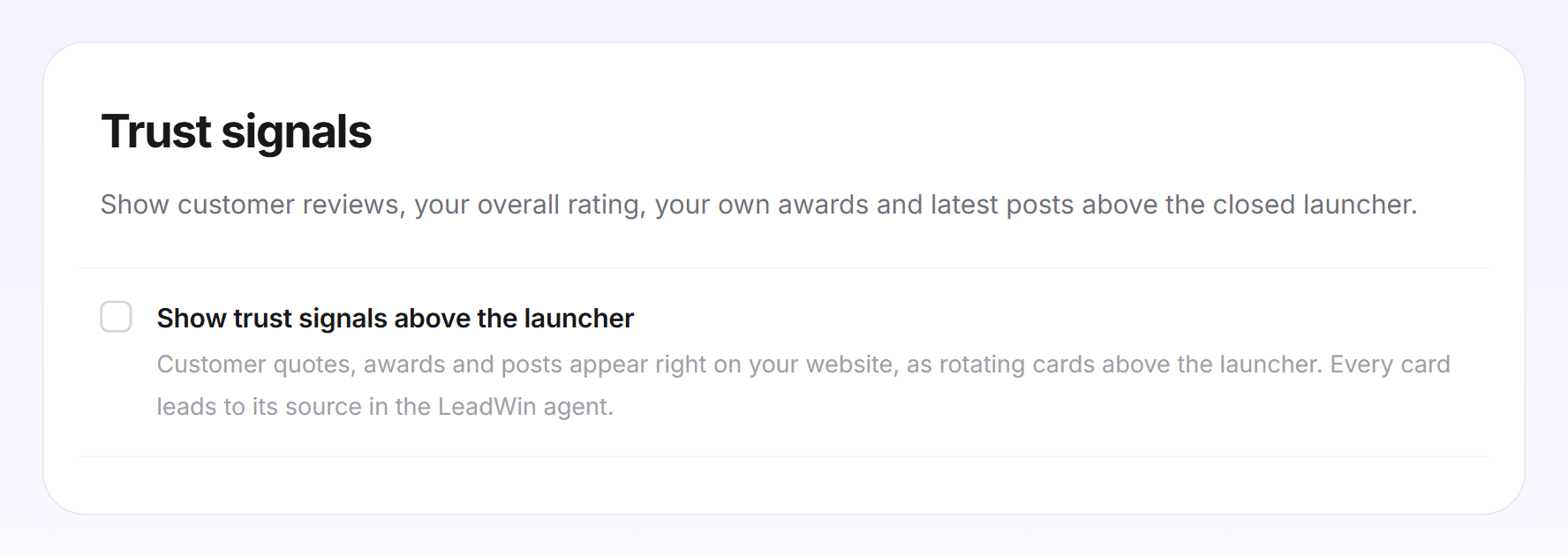
Trust signals show visitors, even before the first click, that other customers trust you. Next to the closed launcher, cards with customer reviews, case studies, awards and your overall rating take turns. Each card leads to the proof in the LeadWin agent with one click, and a visitor who still has doubts becomes one who asks.
At a glance
- You find the page in the LeadWin dashboard under Appearance → Trust signals.
- Trust signals are available from Basic and during the trial, not in Free. You find an overview of all limits in Plans compared.
- There are up to seven forms. You do not write the content here: it comes from your profile, your reviews and your social media channels.
- The cards change every 5 seconds. You can set 3 to 10 seconds.
- Everything on this page is saved when you click it, and there is no Save button.
- Owners and admins can see the page. You decide who has which role under Team.
How it works
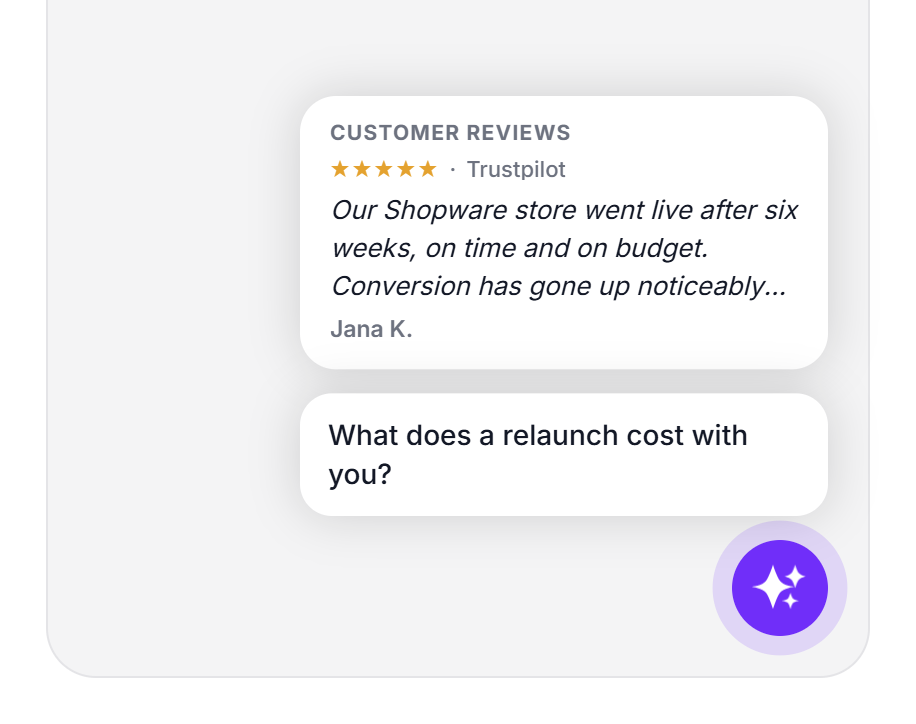
The corner above the launcher always shows exactly one card. It rotates through all cards of the forms you have ticked. Each customer review, each case study and each seal is a card of its own. A click on a card opens the chat at the proof: at the review, the case study, the post or your profile.
Where the content comes from depends on your account:
- With a Feedbax profile: reviews, overall rating, seals, case studies and awards come from your Feedbax profile. You cannot edit them here.
- Without a Feedbax profile: reviews come from your review sources such as Google or Trustpilot. You enter awards and partner status under Knowledge → Company.
- Posts come in both cases from the channels you have connected under Social media.
Each form adds a fixed number of cards to the corner: up to 24 customer reviews, 10 case studies, 10 seals or awards and 5 posts. A quote on a card has at most 180 characters. LeadWin shortens longer reviews at a word boundary. The full text appears in the chat when the visitor clicks the card.
The trust signals sit above the speech bubbles in the same corner, but with their own rules for frequency and pages. You set up the proof in the open chat separately in the Welcome screen. This page has no effect on the answers of your LeadWin agent. It already knows your reviews from its knowledge.
Switch on trust signals
- Open Appearance → Trust signals.
- Tick Show trust signals above the launcher. The settings appear below.
- Under Shown above the launcher, tick one or more forms. Without a selection, the corner stays empty.
- Under What visitors see, click See it in the live preview. The live preview shows the closed launcher with the rotating cards.
Every change on this page is saved right away and confirmed with Saved. If saving fails, you see Your change could not be saved. Please try again later.
The seven forms
You can only tick a form once there is content for it. If you hover over a locked form, it tells you what is missing.
| Form | Requirement | Available |
|---|---|---|
| Top customer reviews | At least one review with 4 or 5 stars and written text | all accounts |
| Case studies | At least one case study with a cover image in the profile | only with a Feedbax profile |
| Latest posts | At least one post read in from social media | all accounts |
| Top provider seal | A seal that Feedbax awards automatically as soon as your reviews in a category qualify for it | only with a Feedbax profile |
| Awards & partner status | Your own awards or a partner status in the profile | all accounts |
| Recommendation seal | At least 10 reviews and an average of 4.5 | only with a Feedbax profile |
| Overall rating | At least one review | all accounts |
Without a Feedbax profile, you therefore see four forms. If a ticked form later loses its content, a red note appears below it. The form then contributes no card until there is content again. You can still untick it.

Set rotation, frequency and pages
- Card rotation: this many seconds a card stays before the next one comes. The default is 5, and 3 to 10 are allowed. The field only appears if there is more than one card. It is saved as soon as you leave it.
- How often visitors see the cards: Once per visit (default) shows the cards on the first page of a visit and not afterwards. A proof works as a first impression. Repeated on every page, it reads like advertising. On every page pays off when visitors enter deep in the site, for example through search results or campaign links. LeadWin only remembers the visit in the browser, so no consent is needed for this.
- On which pages: the rules work as for the speech bubbles, with Only here or Not here and Starts with or Contains. The list is a separate one, though. Up to 20 rules with 200 characters each, and each one is saved when you add or delete it.

Check the preview and figures
The See it in the live preview button shows you the corner as visitors see it. If there are no reviews or awards yet, a note appears there instead of the cards.
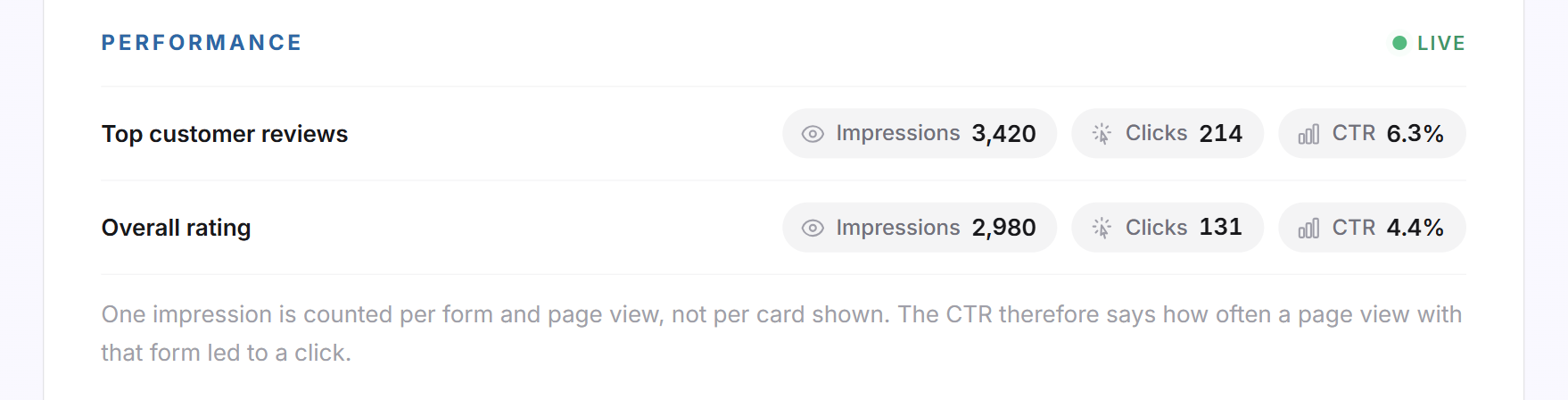
Under Performance, you see Impressions, Clicks and the CTR for each form. LeadWin counts one impression per form and page view, not per card shown. The CTR therefore tells you how often a page view with this form led to a click. The figures count since the start and update every 15 seconds.
What visitors can hide
Visitors can close the corner and hide individual groups: Hide reviews, Hide case studies, Hide seals or Hide posts. This applies on that device. In the open chat, they bring the groups back under Hidden items with Show again or Show all again.
What your plan includes
| Plan | Trust signals at the launcher |
|---|---|
| Free | no |
| Basic | yes, all forms |
| Pro and trial | yes, all forms |
| Scale | yes, all forms |
Feedbax Business comes with the limits of Basic, Premium with those of Pro and Enterprise with those of Scale. You find more on this in LeadWin in your Feedbax plan.
In Free, the card carries the Upgrade label, and the switch is locked. How to change your plan is explained in Manage, change and cancel your plan. Already with Basic, your best reviews appear right on your website, where visitors decide whether to get in touch. If your plan ends, the cards disappear from your website. Your selection stays saved and applies again as soon as a suitable plan applies.
Frequently asked questions
Why can I not tick Case studies?
Your profile does not yet contain a case study with a cover image. Case studies are also only available with a Feedbax profile. Hover over the form to see the reason.
What does the recommendation seal require?
At least 10 reviews and an average of 4.5 or better on Feedbax. The seal is only available for accounts with a Feedbax profile.
Can I change the texts on the cards?
No. They come from your reviews, your profile and your channels. You can only change them where they come from.
The switch is on, but the corner stays empty. Why?
Usually no form is ticked, or the ticked forms have no content yet. A rule may also exclude the page. With Once per visit, the cards only appear on the first page of a visit. And a visitor who has hidden the cards no longer sees them.
How fast do the cards change?
The default is 5 seconds, adjustable between 3 and 10. If there is only one card, nothing changes.
I have no Feedbax profile. Can I still use trust signals?
Yes. Connect your review sources, enter awards under Knowledge → Company or connect social media. You then have Top customer reviews, Overall rating, Awards & partner status and Latest posts at your disposal.
How does LeadWin calculate the CTR?
Clicks divided by impressions. An impression is a page view on which the form appeared in the corner.