

Under Appointments, you see every appointment a visitor has booked through your LeadWin agent, with date, time, type of appointment and contact details. From each row, you jump to the chat the booking came from, open the contact or join the video call. This way, you go into every first meeting well prepared.
At a glance
- You find the page in the LeadWin dashboard under Leads → Appointments. The Leads area opens on this page.
- Visitors book appointments as soon as you have set up appointment booking. It is included from Basic and during the trial, not in Free.
- A visitor can book at most 3 appointments per chat.
- The list only displays bookings. You cancel and reschedule in your calendar.
- Owners, admins and agents can see the page. You decide who has which role under Team.
How it works
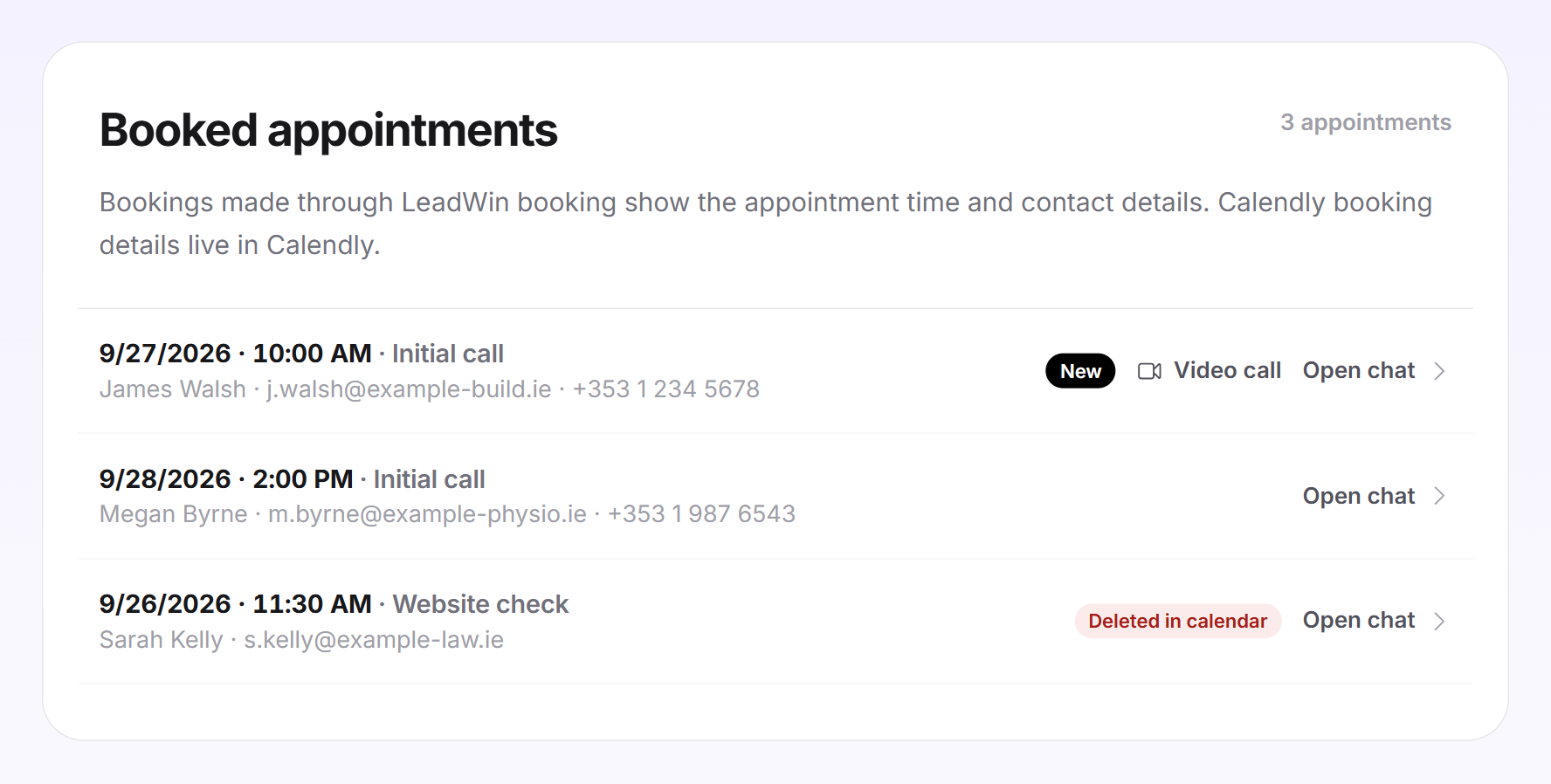
Once you have turned on appointment booking, visitors see a calendar icon in the chat, and your LeadWin agent points it out during the conversation. You offer appointments in one of two ways: through LeadWin appointment booking with your own appointment types and weekly hours, or through your Calendly link. Every booking lands here in the Booked appointments card, with the newest booking at the top. This also applies to bookings made through the public booking page of your LeadWin appointment booking. Because there is no chat behind them, they have no Open chat.
At most 3 appointments are possible per chat, as many as inquiries. Appointments you test in the live preview are never saved. Every appointment from a chat counts in the Visitor analytics in the Booked appointments tile and appears under Activity as Appointment booked. Appointments made through LeadWin appointment booking also create an entry under Contacts, one row per email address.
As soon as you open the page, all appointments count as seen, and the purple number on Appointments in the navigation disappears. The New labels stay until you leave the page. The number on the Leads area in the left sidebar counts new appointments and new inquiries together.
Read an appointment
A row for a LeadWin booking shows:
- In the first line, the date and time of the appointment in your browser's time zone, and the appointment type, for example first meeting. The appointment type appears as it was named at the time of booking. If you rename or delete it later, the entry does not change.
- In the second line, the visitor's name, email address and phone number. A click on the name opens the contact.
- On the right, New if the appointment was still unseen when you opened the page.
- On the right, Video call if an online meeting was created for the appointment. The link opens the meeting in a new tab.
- On the right, Open chat if the booking came from a chat. A click on the row has the same effect and opens the conversation in the Inbox.

The top right shows how many appointments there are in total. The list loads all appointments at once. There is no filter, no search and no pages, and you cannot cancel or reschedule an appointment here.
Cancel or reschedule an appointment
- Open the appointment in your Outlook or Google calendar and delete or move it there.
- Let the visitor know yourself, for example through the email address in the row. LeadWin does not inform them.
If your calendar is connected to LeadWin and you delete the appointment there, the time becomes bookable again. The row then carries the red label Deleted in calendar. When you hover over it, a hint reminds you that the visitor does not know about it.

Appointments through Calendly
If you use Calendly, Calendly passes neither the visitor's name nor the appointment time to LeadWin. A Calendly row therefore only shows when the booking was made, not when the appointment takes place. It has no contact and no Deleted in calendar label. If there is a chat for the appointment, the row shows Open chat. Cancellations in Calendly never reach LeadWin. You find all details in Calendly.

Which emails a booking triggers
Every booking through LeadWin appointment booking sends two emails:
- To the visitor: a confirmation with the appointment attached as a calendar file (ICS), in the form of address you chose for your LeadWin agent.
- To your team: the email New appointment booked with the visitor's name, date, time, contact details, note and location, meaning video call with link or by phone. It also carries the ICS file. The Go to your appointments button opens this page for the LeadWin agent the appointment was booked through. This also applies if you have several LeadWin agents and last had a different one open.
The email to your team goes to the person responsible for the conversation. If there is nobody, it goes to everyone in the team who takes over conversations and receives emails, otherwise to your account address. The checkbox for new visitor messages in the Inbox does not turn this email off. For Calendly bookings, Calendly sends the confirmations itself.
What it looks like in the chat
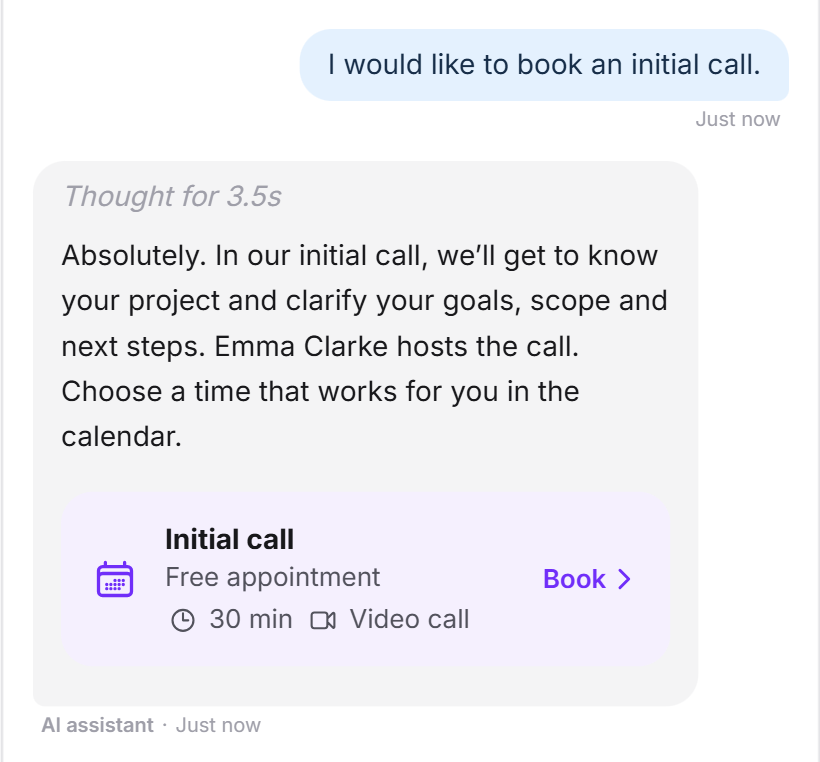
This is how a booking starts: a visitor asks for an initial call. Your LeadWin agent shows the matching event type. One click on it opens the free times.
What your plan includes
Your plan decides whether visitors can book in the chat:
| Plan | Appointment booking in the chat |
|---|---|
| Free | no |
| Trial | yes |
| Basic | yes |
| Pro | yes |
| Scale | yes |
Appointment booking is also included with Feedbax Business, Premium and Enterprise. You find more on this in LeadWin in your Feedbax plan, and all limits in Plans compared. The Basic plan therefore already pays off for anyone who sells first meetings: the visitor books while their interest is there, and you do not have to chase anyone for an appointment. How to switch is explained in Manage, change and cancel your plan.
If you switch to a plan without appointment booking, for example at the end of the trial, the calendar icon disappears from the chat. All previous appointments stay visible in the list, and your appointment booking settings remain saved.
Frequently asked questions
Can I cancel or reschedule an appointment here?
No. The list only displays bookings. Cancel the appointment in your calendar and let the visitor know yourself. With a connected calendar, the row then shows Deleted in calendar.
Why does a Calendly booking show no name and no appointment time?
Calendly does not pass these details on to LeadWin. The row shows when the booking was made. The details are in Calendly.
Does the visitor get a confirmation?
Yes. With LeadWin appointment booking, they get an email with the appointment as an ICS file. With Calendly, Calendly sends the confirmation.
Who gets the New appointment booked email?
The person responsible for the conversation. Otherwise everyone in the team who takes over conversations and receives emails. If there is nobody, it goes to your account address.
Why has the New label disappeared?
Opening the page marks all appointments as seen. The label stays until you leave the page.
I turned off the email notification in the Inbox. Do I still get appointment emails?
Yes. The checkbox in the Inbox only affects visitor messages and requests for a human.
I booked an appointment in the live preview. Why is it not in the list?
Appointments from the live preview are never saved and do not block any time in your calendar.