

The Live preview shows you your real LeadWin agent with all saved settings, right next to the dashboard. This lets you test every change immediately, without switching to your website. Test conversations have no consequences: they do not end up in the inbox and do not count against your conversation quota.
At a glance
- You open it with the Live preview button on the right of the LeadWin dashboard header.
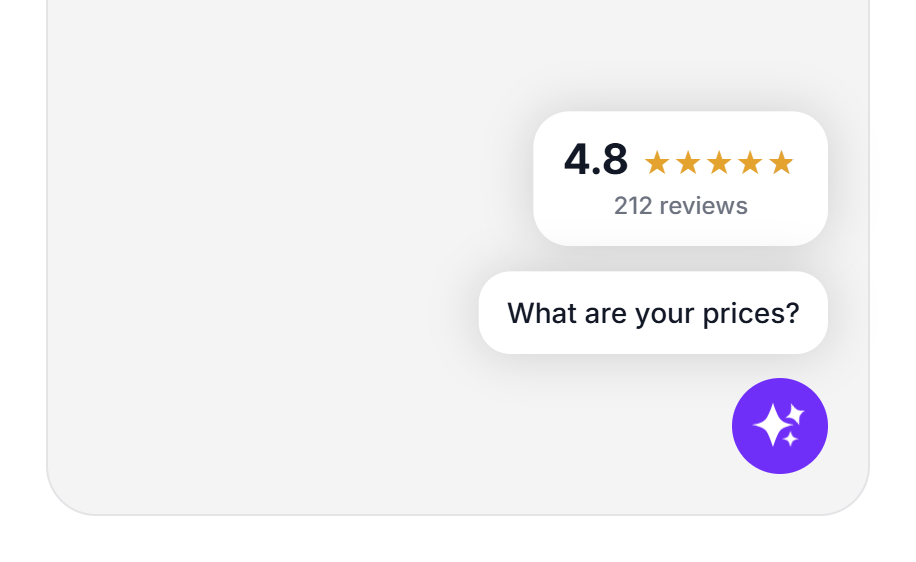
- It shows the closed launcher with speech bubbles and trust signals, or the open chat.
- Test conversations save nothing: no conversations in the inbox, no emails, no inquiries and no appointments.
- Each agent has its own preview budget per month and per day, from 30 messages per month (Free) to 400 (Scale).
- There is no preview for a deactivated agent.
How it works
The live preview is a drawer on the right edge, 480 pixels wide, and as wide as the screen on a phone. From a window width of 1,536 pixels, it sits next to the page and the dashboard moves to the left. In narrower windows, it lies over the page and the background is dimmed. This keeps the page underneath readable instead of squeezing it. In this position, you close the preview with the X, by clicking the dimmed background or with the Escape key. The Escape key does nothing while a dialog is open or while you are typing in the preview chat. When the preview sits next to the page, only the X closes it.
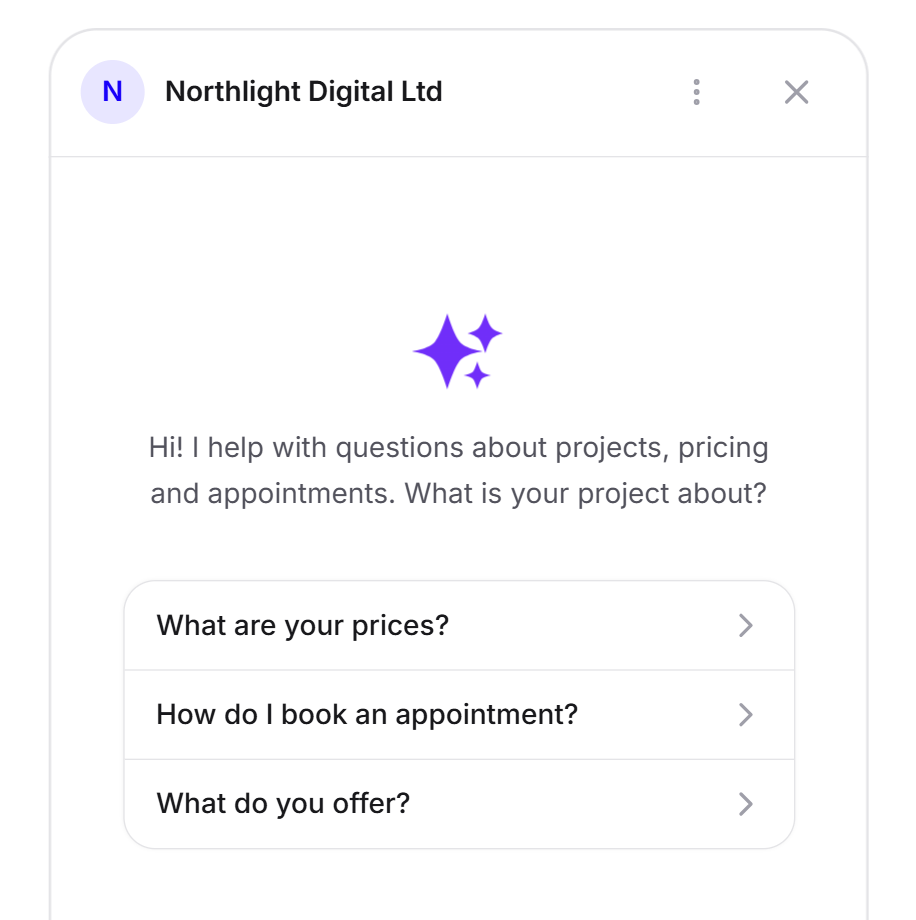
The chat area runs your agent's real chat page, 410 pixels wide and up to 720 pixels high. It always starts with a fresh conversation, meaning with the greeting and conversation starters. It speaks the language you use the dashboard in. As the current page, it reports the dashboard page to your agent, not a page of your website.
The preview stays up to date. When you save a change on any page, the chat reloads and the launcher reads your settings again. You do not need to publish anything. The preview also stays open when you switch between pages.
Views in the preview do not count as an installation on your website. The status under Installation needs a real page view.
When it opens and closes on its own
From a window width of 1,536 pixels, the preview opens on its own in the Knowledge, Appearance and Setup areas and shows what fits the page:
- The closed launcher on the Appearance, Speech bubbles and Trust signals pages.
- The open chat on the Language, Welcome screen and Follow-up questions pages.
- The help center list on the Knowledge base page.
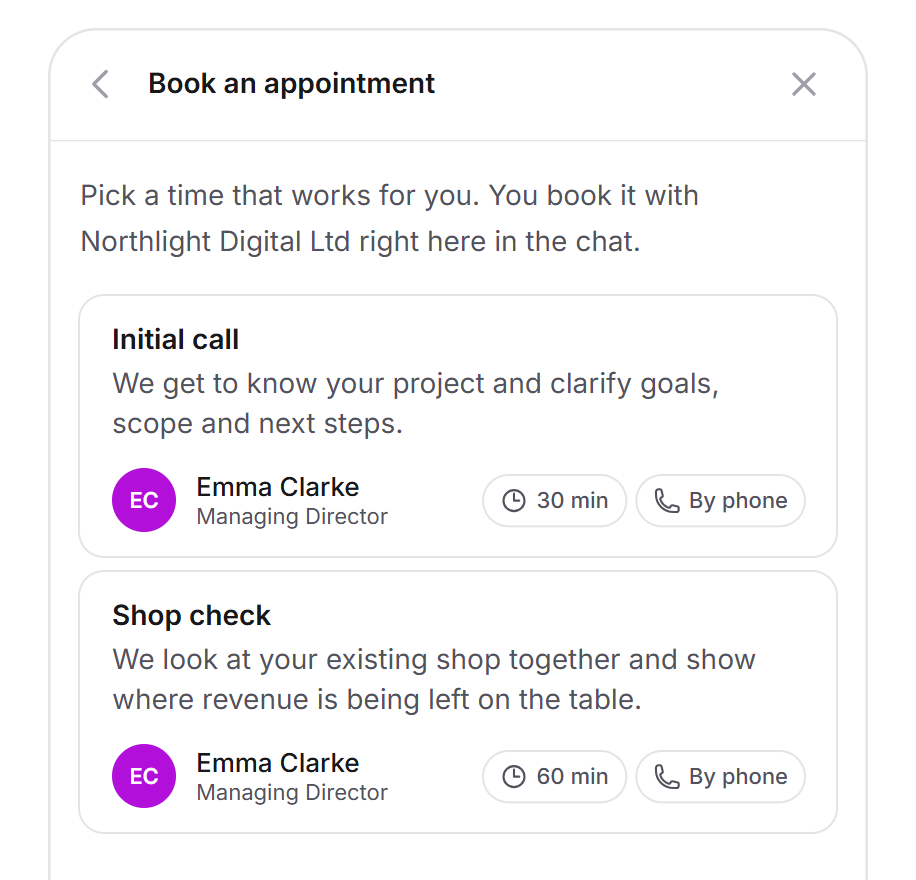
- Appointment booking on the Appointment booking page, as long as booking is active.
On the Getting started, Installation, API, Privacy, Campaigns, Agent and Account pages, it closes, because there is nothing to test there. If you close it yourself, whether with the X, via the background or with the Escape key, it stays closed as long as you stay in the same area. In narrower windows, it never opens on its own, because there it lies over the page. If you opened it there yourself, it still switches to the matching view when you change pages.
It also opens when you click View profile in the account menu for an agent with its own profile, when you click a review or a project on the profile page and when you view a page question in the speech bubbles.
Switch between Launcher and Welcome screen
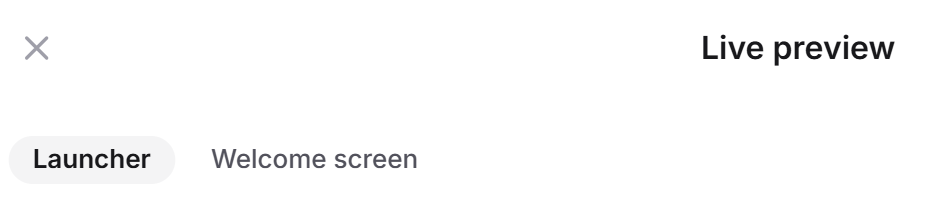
If you have set up speech bubbles or rotating trust signals, the preview shows two views at the top: Launcher and Welcome screen.
- Click Live preview in the header.
- Select Launcher. You see a corner of your website with the launcher in the color, icon and position you set, the speech bubbles above it and the trust signals next to it.
- Click a speech bubble or a trust card. The chat opens at the matching point.
- Select Welcome screen to see the open chat with the greeting and conversation starters.
If you closed the speech bubbles with the X, you bring them back by clicking Launcher.
Have a test conversation
- Open the live preview and select Welcome screen.
- Ask a question that only your own knowledge answers, for example from a document or your instructions.
- Check the answer. If it does not fit, change the source and save.
- The chat reloads. Ask the question again.
Nothing in the preview has real consequences. The conversation does not appear in the inbox, no emails go to you or your team, and neither an inquiry nor an appointment is created. This also applies if you submit the contact form or book an appointment in the preview. This way, you can safely test appointment booking too.
The preview budget
Test messages never count against your conversation quota. They have their own small budget. It applies per agent and counts every message you send in the preview. There are two limits: one per day and one per conversation month.
Once either limit is reached, your agent stops answering in the preview. Instead, at the daily limit you see You have used up the preview for today. Your conversations with real visitors are untouched, and you can carry on testing here tomorrow. At the monthly limit you see You have used up the preview for this month. Your conversations with real visitors are untouched, and you can carry on testing here from the next billing month. The billing month here means your conversation month. The daily limit resets the next day, the monthly limit with the next conversation month. Real visitors on your website keep chatting as normal during this time.
Tip: Test in a targeted way. First change several settings, save them and then check them with a few questions. This way, your daily budget is enough even for larger changes.
What your plan includes
The live preview is available in every plan. Your plan determines how many test messages each agent can send:
| Plan | Test messages per month | Test messages per day |
|---|---|---|
| Free | 30 | 20 |
| Basic | 150 | 100 |
| Pro and trial | 250 | 100 |
| Scale | 400 | 100 |
Feedbax Business comes with the limits of Basic, Premium with those of Pro and Enterprise with those of Scale. You find more on this in LeadWin in your Feedbax plan.
A higher plan pays off if you set up a lot or several people test: Basic already has five times as many test messages per month as Free. The other limits are in Plans compared.
Frequently asked questions
Do test conversations count against my conversations?
No. They have their own preview budget per month and per day, for example 250 per month and 100 per day with Pro.
Why do my test conversations not appear in the inbox?
The preview deliberately saves nothing. There are no conversations, no emails, no inquiries and no appointments.
The preview says it is used up. What now?
You have reached the daily or monthly limit of your plan. Real visitors are not affected. Continue testing the next day or, if the monthly budget is empty, in the next conversation month.
Why does the preview close when I open Installation?
It closes on pages with no visible effect for visitors. In Knowledge, Appearance and Setup, it opens again on its own from a window width of 1,536 pixels.
Why do I not see a Live preview button?
Your agent is deactivated, or your account does not have an agent yet. If the preview is already open, the button is hidden.
How do I see the speech bubbles again after closing them?
Click Launcher at the top of the preview.
Does the preview show exactly what visitors see?
Yes, with your saved settings. Only the current page is the dashboard page instead of a page of your website. How the agent works on your website is described in How visitors experience your LeadWin agent.
The preview lies over my page. How do I close it?
Below a window width of 1,536 pixels, the preview lies over the dashboard. Click the dimmed background, press the Escape key or click the X. In a wider window, it sits next to the page, and you can use both at the same time.