

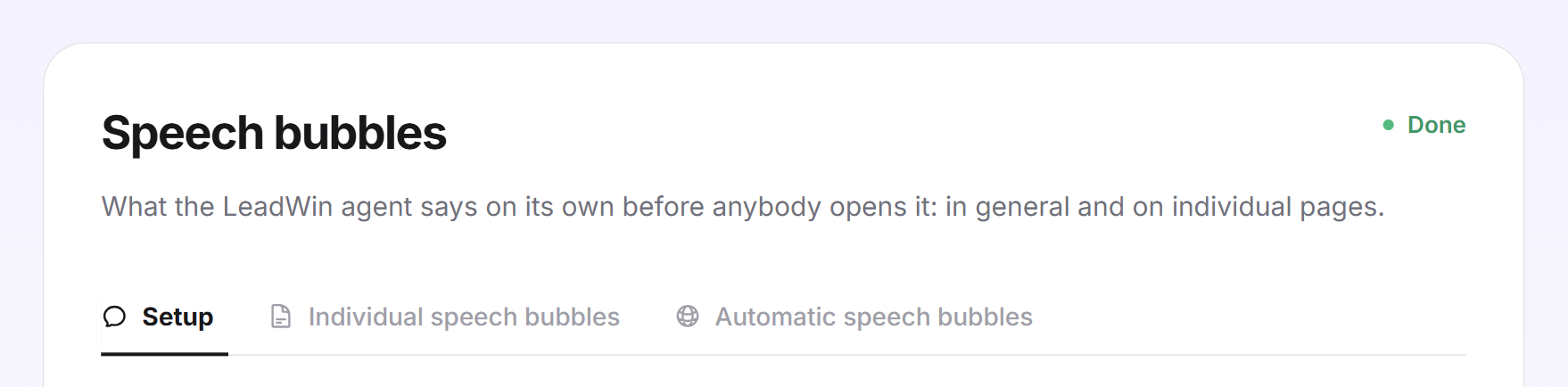
Speech bubbles let your LeadWin agent speak up on its own before a visitor opens it. A short question above the launcher turns a silent button into the start of a conversation. A click on the speech bubble starts the chat right away with exactly this question.
At a glance
- You find the page in the LeadWin dashboard under Appearance → Speech bubbles. It has three tabs: Setup, Individual speech bubbles and Automatic speech bubbles.
- The general speech bubble and the individual speech bubbles are available from Basic. Automatic speech bubbles are available from Pro: up to 150 questions with Pro, up to 500 with Scale, at most 50 new ones per day. You find an overview of all limits in Plans compared.
- Your own speech bubble has up to 60 characters. A question for a single page has up to 160 characters.
- The speech bubble appears after 5 to 120 seconds on the page. With up to 20 rules, you decide on which pages.
- Owners and admins can see the page. You decide who has which role under Team.
How it works
On each page, your LeadWin agent shows at most one speech bubble. This order decides which one it is:
- The individual speech bubble of a deepened page. You set up deepened pages under Knowledge → Website.
- The automatic speech bubble the agent has written for this page.
- Your own bubble for the whole website.
- If you have not written your own, your first suggestion from the Welcome screen. Suggestions from your help center never become a speech bubble.
All speech bubbles only appear as long as the Show a bubble above the launcher switch in the Setup tab is on. Delay, frequency, mobile devices and page rules from this tab apply to all three kinds.
A click on the speech bubble sends its text as the visitor's first message, and your LeadWin agent answers right away. For a question on a single page, there is also an answer to click, for example Yes. The chat then starts with the question and the answer. LeadWin fetches the text from the server, so visitors cannot change it.
Several surfaces share the corner at the launcher. The trust signals sit above the speech bubble and have their own rules. When a campaign is due, it takes priority over the speech bubble. The page rules of the speech bubbles do not apply to campaigns.
LeadWin translates your own speech bubble, all questions for single pages and their answers in the background into every language you have switched on under Language. A change appears on your website on the next page view. You can check it beforehand in the live preview in the Launcher view.
Set up the speech bubble
- Open Appearance → Speech bubbles, tab Setup.
- Tick Show a bubble above the launcher. The settings appear below.
- At Delay, enter how many seconds a visitor should be on the page before the speech bubble appears. 5 to 120 seconds are allowed, the default is 12.
- Under How often, choose between On every page (default) and Once per visit. This choice is saved immediately.
- If needed, tick Hide on mobile devices. No speech bubble then appears on screens up to 640 pixels wide. The launcher stays, and campaigns still appear there. LeadWin checks the width continuously: if the window turns narrow while the bubble is still waiting, it no longer appears.
- Click Save at the bottom. The message Speech bubbles saved. confirms it.
On every page is more noticeable and suits visitors who browse a lot. Once per visit is more reserved: anyone who has seen the speech bubble does not get it again during the same visit. LeadWin only remembers this in the browser for the duration of the visit. No consent is needed for this.
If saving fails anywhere on this page, you see Your change could not be saved. Please try again later.
Write your own speech bubble
- Under Your own bubble, click Add bubble.
- Write a short question from your visitors' point of view, at most 60 characters. The counter shows how many you have used.
- Or click Generate suggestions. From your website and your profile, LeadWin suggests 5 questions of up to 60 characters each, in the form of address from your instructions. A click on a suggestion puts it into the field.
- Click Save. Next to the text, Translating appears first, then All languages.
You have exactly one speech bubble of your own. With the trash icon Remove bubble, you delete it. A new run of Generate suggestions replaces the old suggestions. If LeadWin does not know enough about you yet, you receive no suggestions, only a note to read in your website or complete your profile.
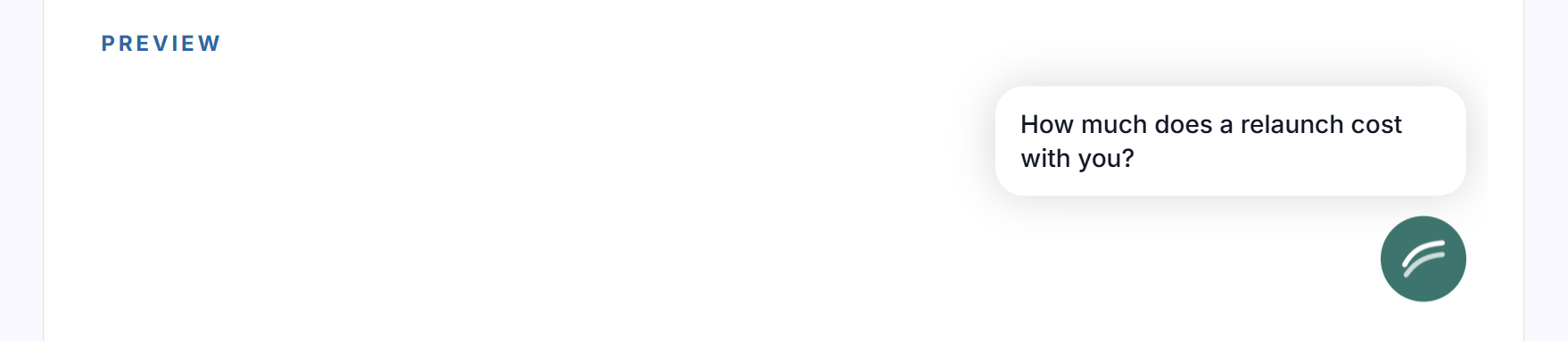
The Preview below shows the real speech bubble above a launcher in your color and with your icon from Appearance. As long as you have no speech bubble of your own, it shows your first suggestion from the Welcome screen. If no speech bubble would appear at all, a red note tells you so.
Choose the pages
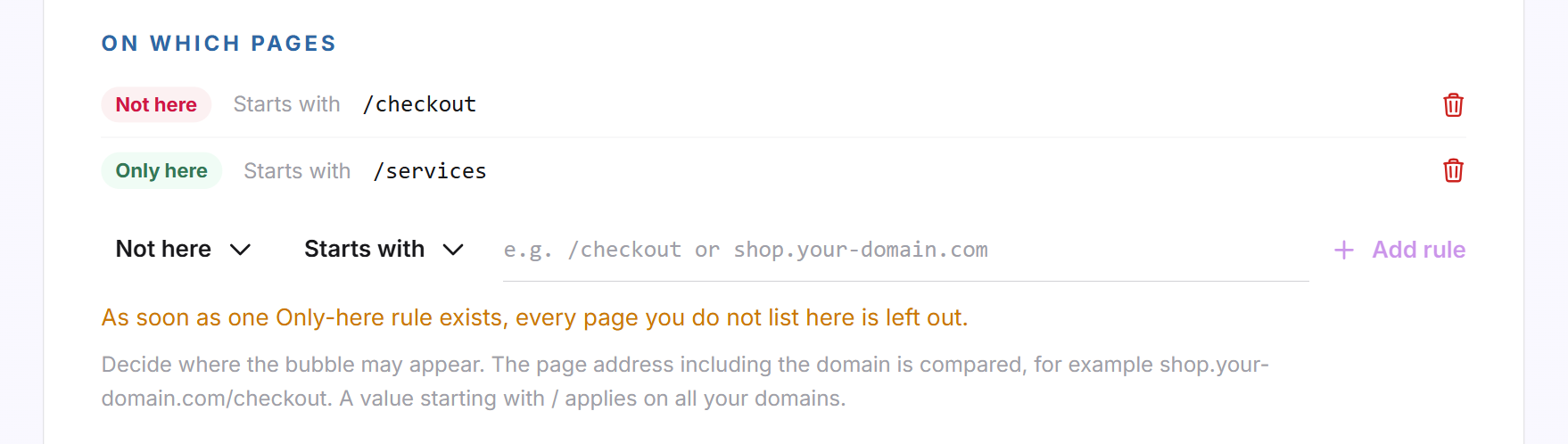
Without a rule, the speech bubble appears on all pages. Under On which pages, you narrow this down:
- At Rule type, choose either Only here or Not here.
- At Comparison, choose either Starts with or Contains.
- Enter the value, for example /checkout or shop.northlight-digital.ie/checkout.
- Click Add rule or press Enter. Then click Save.
This is how LeadWin evaluates the rules:
- LeadWin compares the address of the page, including the domain. A value that starts with / applies on all your domains.
- As soon as an Only here rule exists, the speech bubble only appears on the pages that match such a rule.
- A matching Not here rule always wins.
- You can create up to 20 rules, each with up to 200 characters. LeadWin stores them in lowercase and without https://, parameters, anchor and trailing slash.
- A rule you have typed but not added is still applied by Save.
Edit individual speech bubbles
For each deepened page, your LeadWin agent writes its own question. On exactly this page, it replaces the general speech bubble. Questions that fit exactly the page being read achieve the highest interaction rate.
- Open the Individual speech bubbles tab. Each row shows the address of the page, below it the Proactive question and the One-click answer.
- Click the pencil icon Edit, change the question (up to 160 characters) and click Save. The question then carries the label Manually edited.
- If needed, adjust the one-click answer. The default is Yes, and an answer of your own has up to 60 characters. Reset to default restores Yes.
- Click the eye icon Show in the live preview to check the speech bubble of this page.
With Remove question you delete the question of a page, with Write a question you create a new one. If you have no deepened page yet, the Go to deepened pages button takes you to Knowledge → Website, tab Deepened pages.
Switch on automatic speech bubbles
With automatic speech bubbles, every visited page of your website and your help center gets its own question without you setting up each page. The agent writes it from the text of the page. If the page is in your sitemap under Knowledge → Website, tab Sitemap, it also uses that entry. The agent skips deepened pages. They already have their individual speech bubble. If you want no speech bubbles in one area, for example your help center, exclude it under On which pages with a Not here rule.
- Check that the speech bubble is switched on in the Setup tab. Otherwise the switch here is locked, and a note takes you to the setup.
- Open the Automatic speech bubbles tab and tick Cover pages automatically. This is saved immediately and takes effect without new code on your website. The message Automatic speech bubbles saved. confirms it.
- Under Guidance for the questions, describe your target group and what the questions should lead to, for example a first call. You have up to 2,000 characters.
- If needed, set the Maximum length of the question: 50 to 160 characters. Without a value, the AI writes up to 160 characters.
- Click Save. The message Guidance saved. confirms it.
The guidance only applies to the automatic speech bubbles, not to the answers in the chat. It affects questions written from now on. Questions that have already been written stay as they are.
The list shows each page with its question, sorted by views over the last 30 days. The label Automatic or Edited by you says who wrote the question. Each row has four actions:
- See it in the preview shows the speech bubble in the live preview.
- Have the agent write it again clears the row. On the next visit to the page, the agent writes a new question.
- Edit opens Question (up to 160 characters) and Offered answer (up to 60 characters, empty means Yes).
- Remove question takes the question off the page for good. The agent does not write it again. With Write your own question, you add one yourself again.
With more than 8 rows or several domains, a search field and a domain selection appear.
How the agent writes the automatic questions
- Only on a visit: the question for a page is created when a visitor is on it for the first time, not in advance for your whole website. Above the list, you see how many pages the agent knows from your sitemap. Pages outside the sitemap are not counted there, but they still get their question.
- From the text of the page: the agent writes the question from the first 8,000 characters of the page the visitor sees. Anything further down is not included. The key message of a page therefore belongs at the top.
- Short wait: while the question is being created, the corner at the launcher waits up to about 24 seconds. If the question does not arrive in time, your general speech bubble appears. On the next visit, the new question is ready.
- Limits: with Pro and during the trial, the agent writes up to 150 questions, with Scale up to 500. At most 50 new ones are added per day. Once a limit is reached, further pages wait and show your general speech bubble until then.
- Translation: LeadWin translates automatic questions into the languages you have switched on in which visitors have actually been on your website in the last 90 days.
Read the figures
Under Performance in the Setup tab and in every row of the other two tabs, you see Impressions, Clicks and the CTR, meaning clicks divided by impressions. The figures count since the start, not for a period. As long as the page is open, they update every 15 seconds, as shown by the Live sign.
What visitors can hide
Every speech bubble has an X to close it. After that, LeadWin offers the visitor Hide messages like this for 6 seconds. If they click it, they no longer see speech bubbles or campaign cards on this device. For 5 seconds, they can take this back with Undo. Later they bring them back in the open chat under Hidden items. The choice is stored in the visitor's browser, not in your dashboard.
What your plan includes
| Plan | Speech bubble and individual speech bubbles | Automatic speech bubbles | New automatic questions per day |
|---|---|---|---|
| Free | no | no | 0 |
| Basic | yes | no | 0 |
| Pro and trial | yes | up to 150 questions | 50 |
| Scale | yes | up to 500 questions | 50 |
Feedbax Business comes with the limits of Basic, Premium with those of Pro and Enterprise with those of Scale. You find more on this in LeadWin in your Feedbax plan.
If your plan lacks a feature, it carries the Upgrade label, and Save takes you to the pricing page. If you have a Feedbax plan, the Feedbax pricing page opens instead. How to change your plan is explained in Manage, change and cancel your plan. With Basic, your LeadWin agent addresses visitors across the whole website and on your most important pages. With Pro, every visited page gets its own question without you writing it. If a plan ends, the speech bubbles disappear from your website. Your settings and texts stay saved.
Frequently asked questions
Why does my speech bubble not appear?
It only appears when everything applies: Show a bubble above the launcher is on and saved, your plan includes speech bubbles, the delay has passed, and no rule excludes the page. On phones, Hide on mobile devices hides it. A visitor who has chosen Hide messages like this no longer sees any.
Can I create several speech bubbles of my own?
No, there is one speech bubble of your own with up to 60 characters. For single pages, you use individual or automatic speech bubbles.
What appears if I do not write my own speech bubble?
Your first suggestion from the Welcome screen. If you have switched the suggestions off, no speech bubble appears.
How do I exclude my checkout page?
Under On which pages, create the rule Not here, Starts with, /checkout and save.
Do I need to translate the speech bubble?
No. LeadWin translates it automatically into every language you have switched on under Language.
I changed the guidance, but the questions stay the same. Why?
The guidance only applies to new questions. For a page, click Have the agent write it again. On the next visit, the question is created according to your new guidance.
My pages differ only by an addition such as ?section=prices. Does each one get its own question?
Yes, if you enter the name of the addition under Knowledge → Website in the Domains tab at Several pages under one path. Otherwise LeadWin treats all these pages as one.
Do the figures apply to a period?
No. Impressions and clicks count since the start and update live.