

The Welcome screen is the first thing a visitor sees when they open your LeadWin agent. A greeting, up to three clickable suggestions and your reviews take away the hurdle of typing the first question themselves. This way, opening the chat turns into a conversation faster.
At a glance
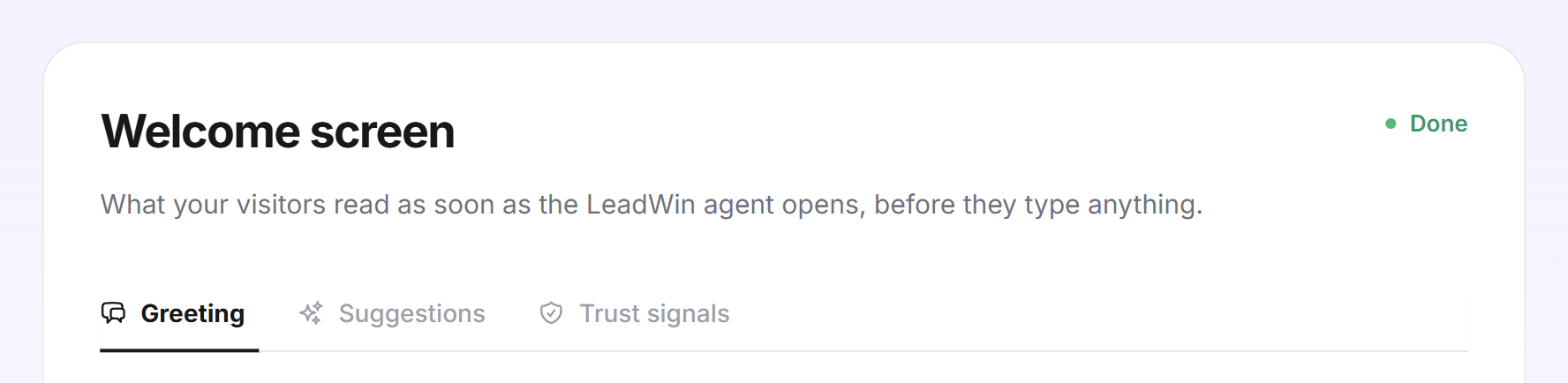
- You find the page in the LeadWin dashboard under Appearance → Welcome screen. It has three tabs: Greeting, Suggestions and Trust signals.
- The greeting is included in every plan. Suggestions and trust signals are available from Basic, articles from the help center as suggestions from Pro. You find an overview of all limits in Plans compared.
- A greeting of your own has up to 300 characters, a suggestion of your own up to 120. At most three suggestions appear in total.
- LeadWin automatically translates your own texts into every language you have switched on under Language.
- Owners and admins can see the page. You decide who has which role under Team.
How it works
When a visitor opens the chat, the greeting appears at the top. Below it follow up to three suggestions and, if you want, a strip with your proof: rating, seals, a link to the reviews and your channels.
A click on a suggestion sends its text as the first message to your LeadWin agent, and it answers as it would any other question. If the suggestions come from your help center, the click opens the article directly in the chat instead. Greeting and suggestions are not instructions to the AI. How your LeadWin agent answers is set in the instructions. There you also choose the informal or formal form of address. It changes the default text of the greeting and the preset suggestions.
Your first suggestion also has a second job: if you do not write a speech bubble of your own, it appears as a speech bubble above the launcher.
Each tab saves on its own. If you switch tabs, unsaved changes in the previous tab are lost. So click Save first. After saving, the Greeting tab shows Greeting saved. and the Suggestions tab Suggestions saved. In the Trust signals tab, Saved confirms every click. If saving fails, you see Your change could not be saved. Please try again later. At the top right of the page, Done appears as soon as you use a greeting of your own, switch the suggestions off, add a suggestion of your own or make a different selection from the preset one. The same step appears in the checklist under Getting started.
You check the result in the live preview in the Welcome screen view. It always shows a fresh conversation with greeting and suggestions.
Set the greeting
- Open Appearance → Welcome screen, tab Greeting.
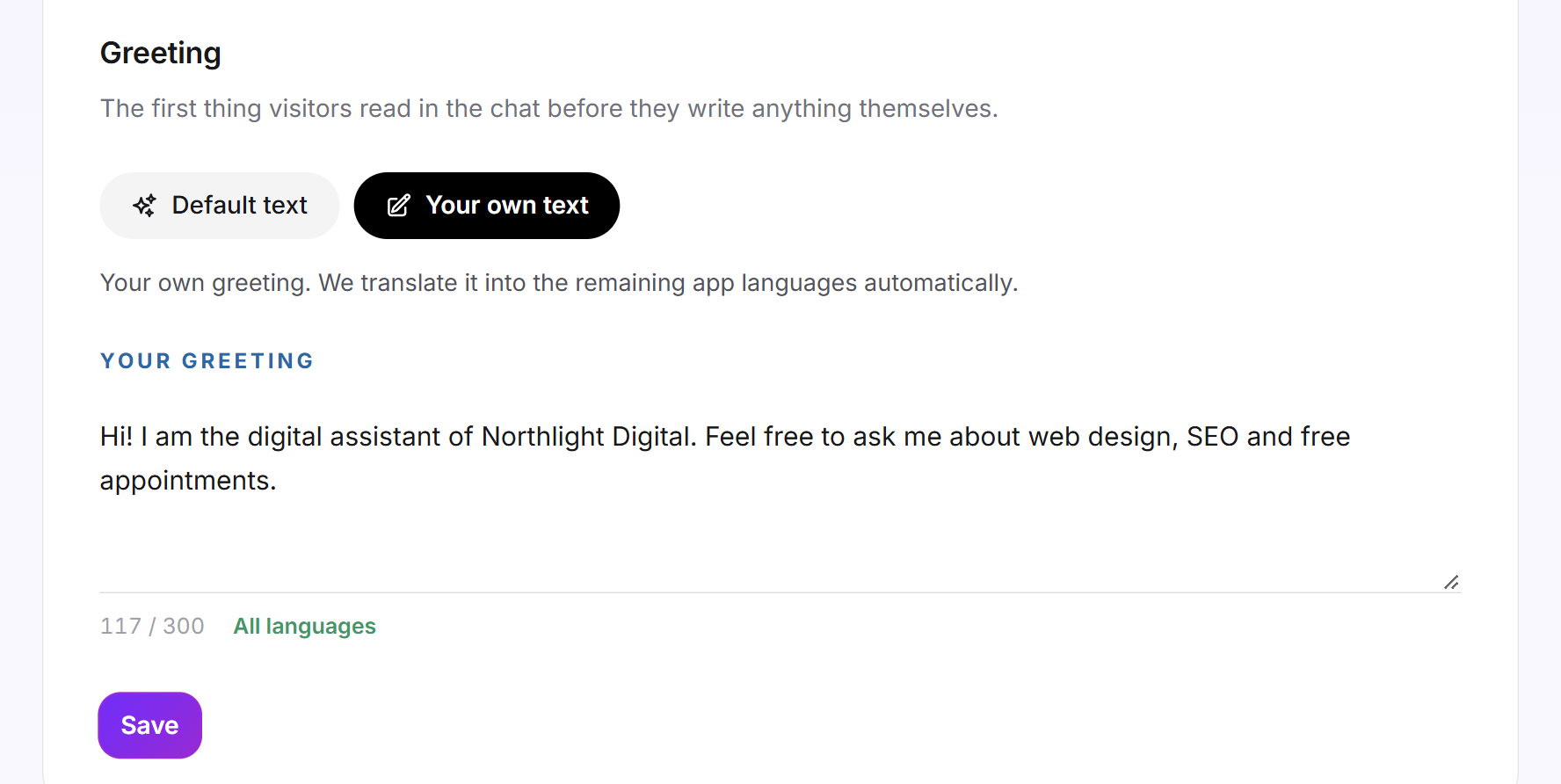
- Choose Default text or Your own text.
- With Your own text, you write up to 300 characters under Your greeting.
- Click Save. Next to the text, Translating appears first, then All languages.
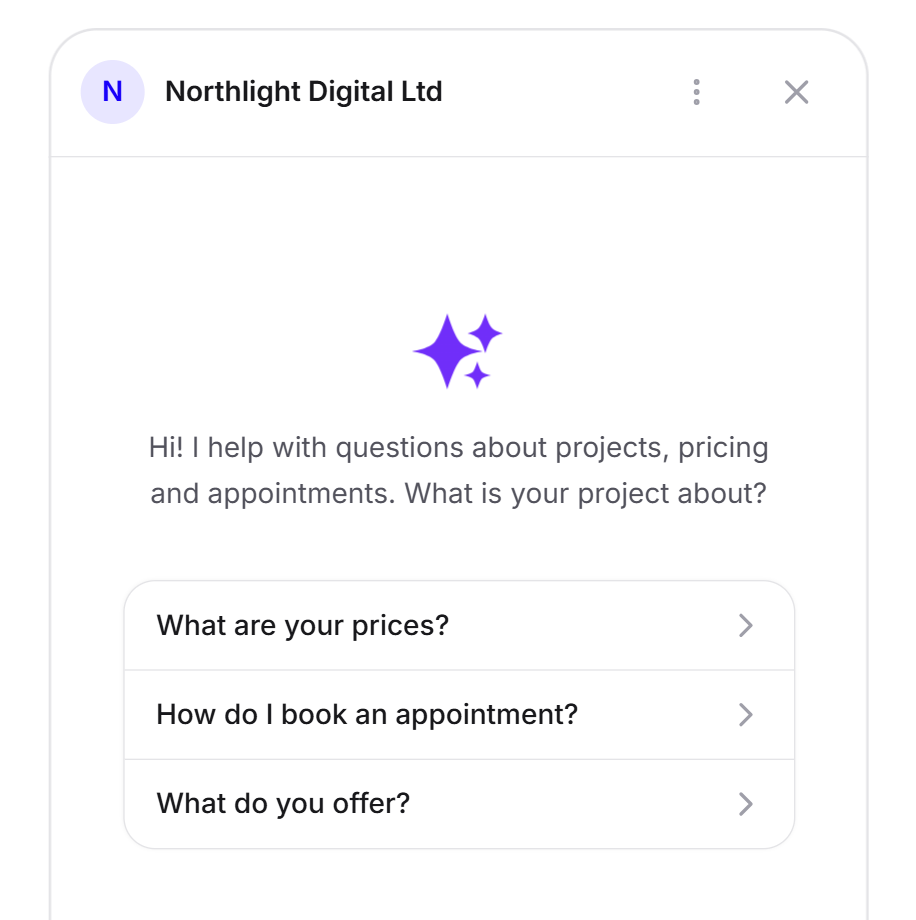
The default text is already translated and follows your form of address. In English it reads: "Hi! I help with questions about projects, pricing and appointments. What is your project about?" If you save Your own text with an empty field, Please write a greeting or pick the default text. appears. If you switch back to the default text, your own text stays saved.
Select suggestions
- Open the Suggestions tab. The Show suggestions box is ticked by default.
- In the list, click the questions visitors should see. A green tick means selected. The order of your clicks is the order in the chat.
- Click Save.
Which questions the list offers depends on your account. Without a Feedbax profile, they are for example "What are your prices?", "How do I book an appointment?" and "What do you offer?". With a Feedbax profile, the questions revolve around projects, such as "What would my project cost?". The first three are preselected in each case. With the formal form of address, the questions appear in the formal form in languages that have one.

Write your own suggestions
- Under Your own starters, click Add your own starter.
- Write a question from your visitors' point of view, at most 120 characters.
- Or click Generate suggestions. From your website and your profile, LeadWin suggests 5 questions of up to 120 characters each. One click takes over a suggestion.
- Click Save.
Three suggestions appear in total: your own first, then the ones selected from the list. If you add one of your own while three are already selected, the last one selected from the list drops out. As soon as you have three of your own, Generate suggestions disappears. With Remove starter, you delete a suggestion of your own.
Suggest articles from the help center
If you have a help center, the suggestions can also be articles instead of questions. This works with your own knowledge base or with a connected Intercom help center, both from Pro.
- In the Suggestions tab, under Where the starters come from, select the Help center tile.
- Choose Most read, and the chat shows the three articles with the most views. Or choose Pick myself and select up to three articles under Pick articles. The order of your clicks is the order in the chat.
- Click Save.
If your help center returns no articles, the chat automatically shows your own suggestions again. This also applies while an Intercom connection is paused. If an article you picked disappears, LeadWin fills up with the most read ones. Both sources stay saved. If you switch back to Conversation starters, your questions are back.
Show trust signals in the chat
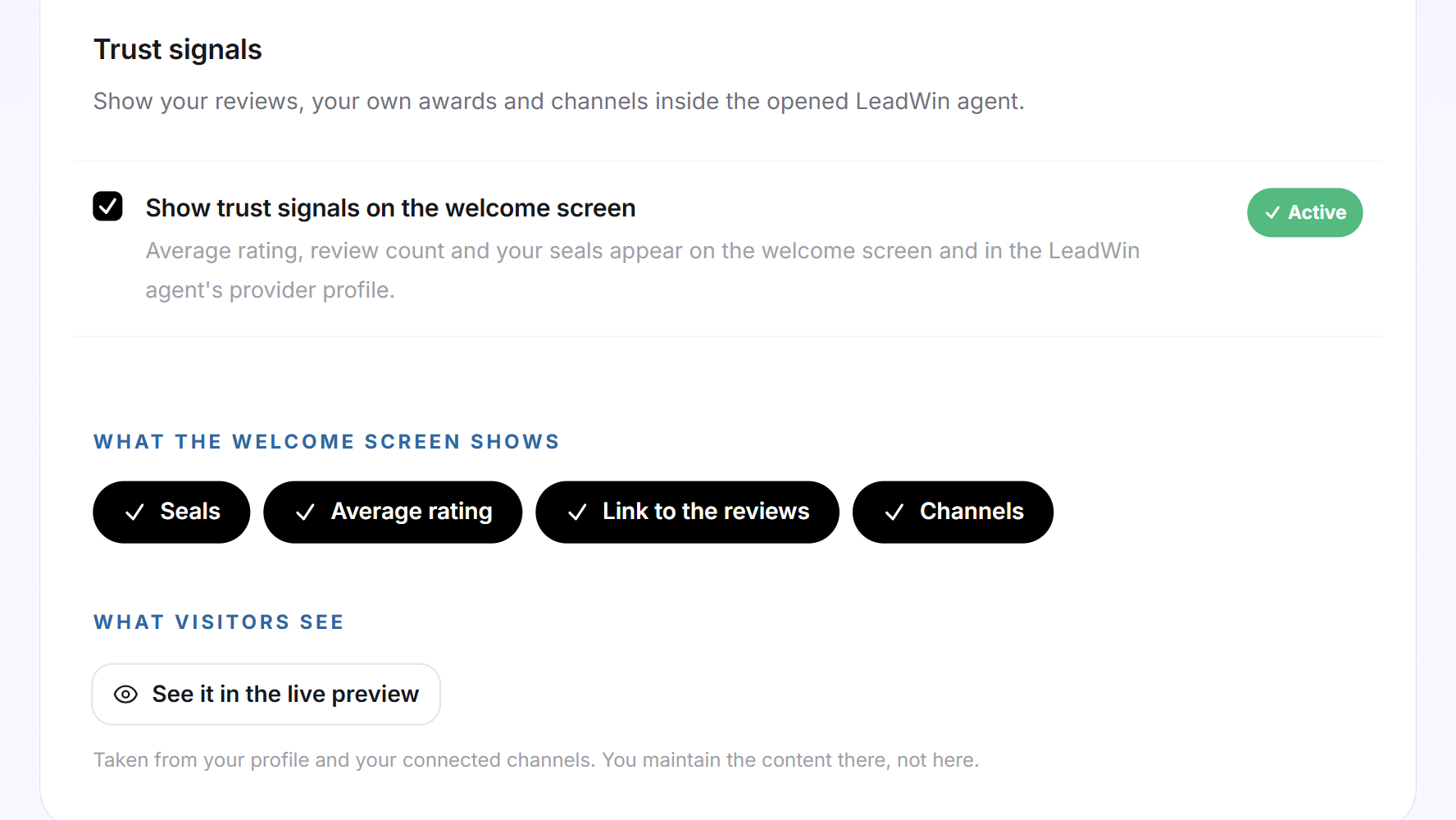
- Open the Trust signals tab. The Show trust signals on the welcome screen box is ticked by default.
- Under What the welcome screen shows, choose: Seals, Rating, Link to the reviews and Channels. By default all four are ticked.
- Click See it in the live preview to check the result.
Everything in this tab is saved when you click it. The content comes from your profile, your review sources and your channels. You cannot edit it here. The chat leaves out anything that has no data. Rating, number of reviews and seals also appear in the profile view of your LeadWin agent. You set up the cards next to the closed launcher separately under Trust signals at the launcher.
What your plan includes
| Plan | Greeting | Suggestions and trust signals | Articles from the help center |
|---|---|---|---|
| Free | yes | no | no |
| Basic | yes | yes | no |
| Pro and trial | yes | yes | yes |
| Scale | yes | yes | yes |
Feedbax Business comes with the limits of Basic, Premium with those of Pro and Enterprise with those of Scale. You find more on this in LeadWin in your Feedbax plan.
In Free, the suggestions and the trust signals carry the Upgrade label, and the switch then opens the pricing page. How to change your plan is explained in Manage, change and cancel your plan. With Basic, visitors get questions to click and see your reviews before they type. With Pro, you can also lead them straight to your help articles. If a plan ends, suggestions and trust signals disappear from the chat. Your settings stay saved.
Frequently asked questions
Can I write my own greeting?
Yes, with the Your own text tile and up to 300 characters. LeadWin automatically translates it into your other languages.
The default texts use the informal form, but my customers expect the formal one. What can I do?
Set the form of address in the instructions to formal. The default greeting and the preset suggestions follow it.
How many suggestions can I show?
Three. Your own come before the ones selected from the list.
Can the suggestions open help articles instead of asking a question?
Yes, from Pro and with a help center. Choose Help center as the source and then Most read or up to three articles of your choice.
Why can I not switch on the suggestions?
Suggestions are available from Basic. In Free, the switch is locked.
What happens if my help center returns no articles?
The chat automatically shows your own suggestions again.
Where do the rating and seals in the chat come from?
From your Feedbax profile or, without a Feedbax profile, from your review sources. Here you only switch them on and off.
My change is gone after switching tabs. Why?
Each tab saves on its own. Click Save before switching.