

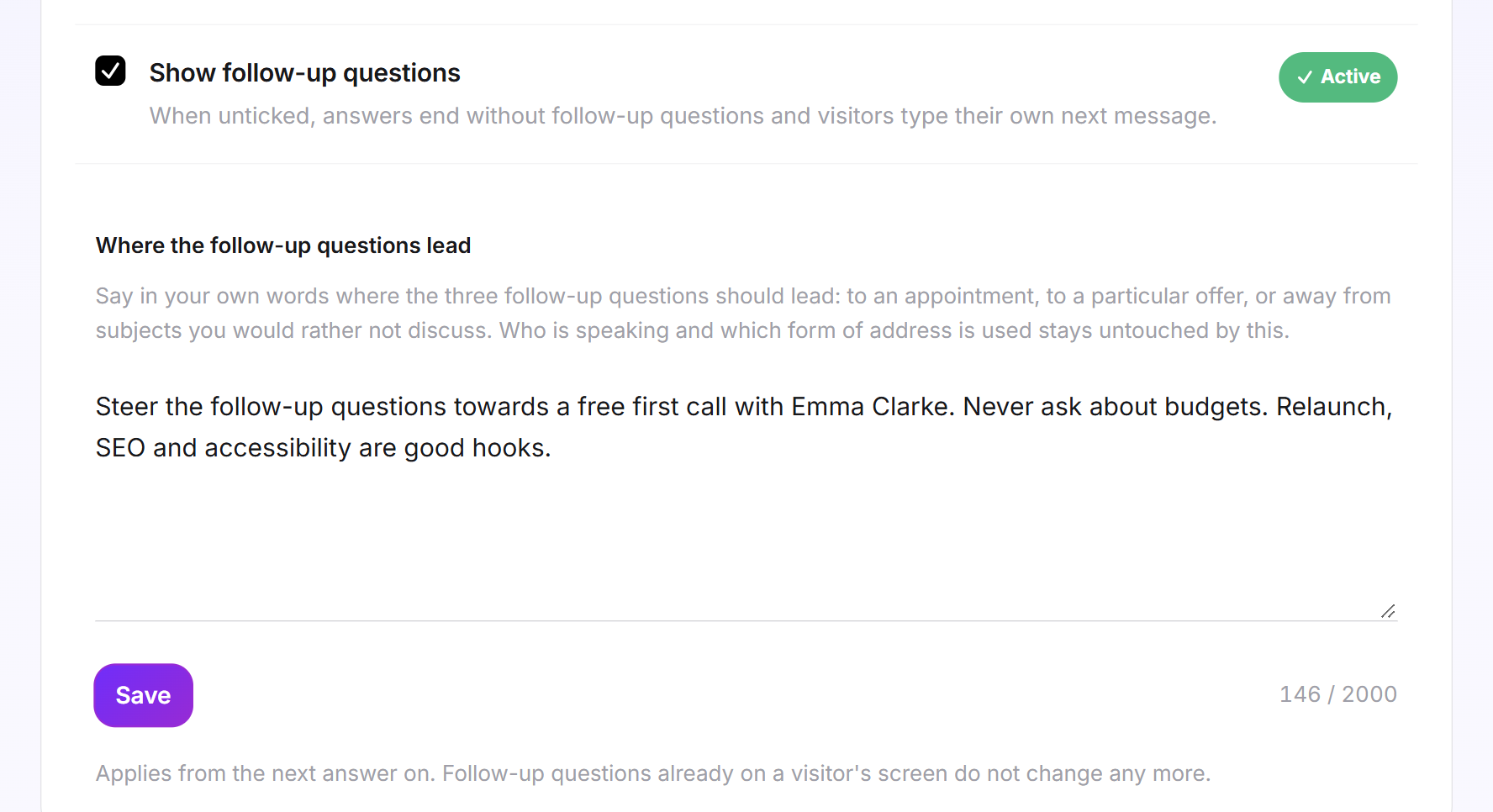
Under every finished answer, your LeadWin agent makes three suggestions a visitor could send next: a question or a short next step. This keeps the conversation going, even when the visitor cannot think of a question. On the Follow-up questions page, you decide whether these suggestions appear and where they steer the conversation, for example towards an appointment.
At a glance
- You find the page in the LeadWin dashboard under Appearance → Follow-up questions.
- Follow-up questions are available from Basic and during the trial, not in Free. You find an overview of all limits in Plans compared.
- They are switched on by default. You describe the direction of the suggestions in up to 2,000 characters.
- Every change applies from the next answer of your LeadWin agent.
- Owners and admins can see the page. You decide who has which role under Team.
How it works
As soon as your LeadWin agent has finished writing an answer, it creates three suggestions and shows them below the answer as clickable buttons under the heading Suggested next steps. Each suggestion is a question or a short next step in the visitor's own words, for example “Discuss my relaunch”. For this it uses the conversation so far, what it knows about the visitor, your informal or formal form of address and your guidance on the direction. A click sends the suggestion as the visitor's next message, and your LeadWin agent answers as it would any typed message.
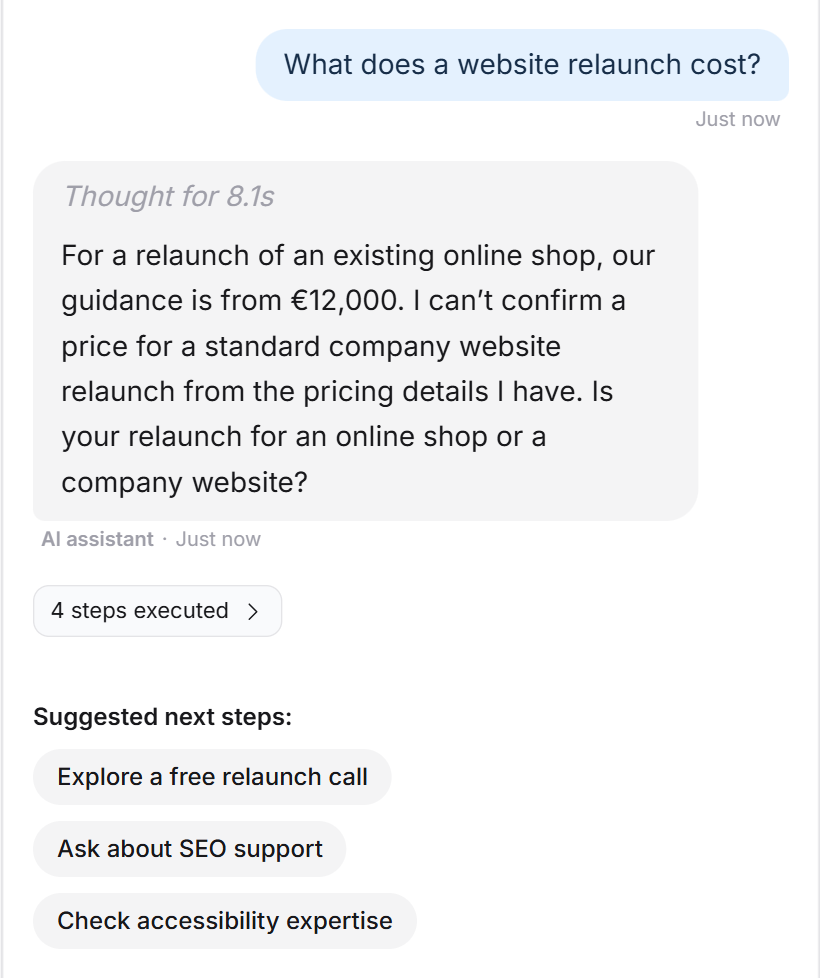
The direction only steers these three suggestions. The answers themselves, who speaks and which form of address is used are set in the instructions. The suggestions before the first message are something else again: they belong to the Welcome screen.
Your LeadWin agent reads the switch, the direction and your plan again with every visitor message. A change therefore takes effect from the next answer, even in conversations that are running right now. Suggestions a visitor already has on screen no longer change.
The setting applies to one LeadWin agent. If you have several LeadWin agents, you set up the follow-up questions for each one separately. The page itself has no preview. Test the suggestions in the live preview: ask a question there and look at the three suggestions below the answer. Test conversations do not count against your conversation quota.
Switch follow-up questions on and off
- Open Appearance → Follow-up questions.
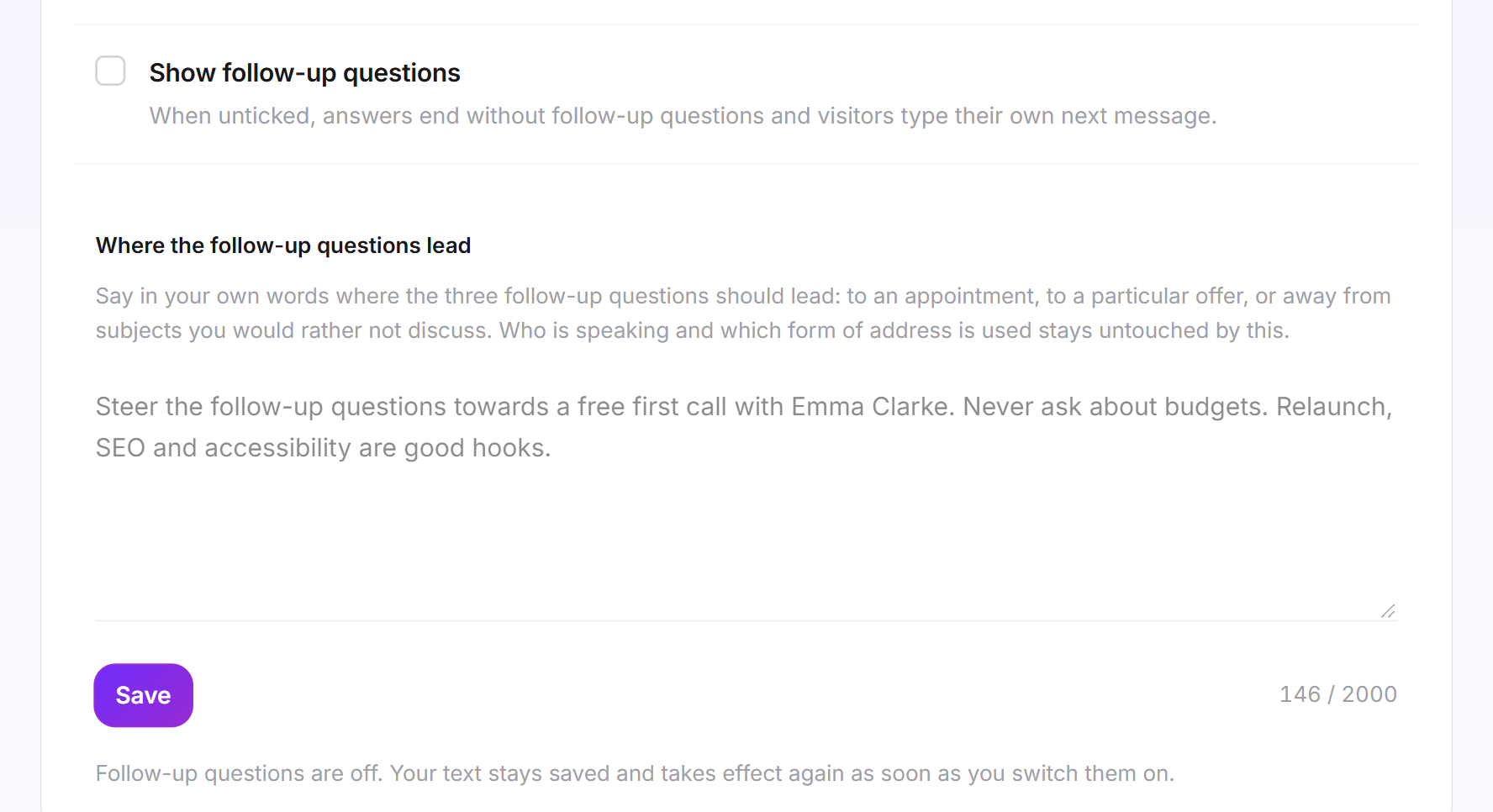
- Tick or untick Show follow-up questions. Without the tick, every answer ends without suggestions, and visitors type on themselves.
- Click Save. You always save the switch and the direction together. The message Follow-up questions saved confirms it. If saving fails, you see Your change could not be saved. Please try again later.
As long as the follow-up questions are off, the field for the direction is greyed out. Your text stays saved and takes effect again as soon as you switch them on.
Set the direction of the suggestions
- Under Where the follow-up questions lead, write in your own words where the three suggestions should lead. You have up to 2,000 characters, and the counter shows how many you have used.
- Click Save.
Good guidance names a goal and a limit. The example in the field shows what this can look like: "Lead the suggestions towards a no-obligation first call. Never ask about budgets. Maintenance and delivery times are good hooks." If you have set up appointment booking, a direction towards an appointment pays off. Name topics your LeadWin agent should not talk about explicitly here.
LeadWin removes HTML tags when saving. A field that contains only spaces counts as empty. Without guidance of your own, your LeadWin agent writes the suggestions based only on the conversation and what it knows about the visitor.
What your plan includes
| Plan | Follow-up questions | Where the follow-up questions lead |
|---|---|---|
| Free | no | no |
| Basic | yes | up to 2,000 characters |
| Pro and trial | yes | up to 2,000 characters |
| Scale | yes | up to 2,000 characters |
Feedbax Business comes with the limits of Basic, Premium with those of Pro and Enterprise with those of Scale. You find more on this in LeadWin in your Feedbax plan.
In Free, the card carries the Upgrade label, and a click on the switch opens the pricing page. How to change your plan is explained in Manage, change and cancel your plan. Already with Basic, your LeadWin agent keeps every conversation going with three fitting suggestions, in the direction you set. If your plan ends, no more follow-up questions appear from the next answer on, even in running conversations and even if the box is still ticked. The switch and the text stay saved.
Frequently asked questions
Can I switch off the three suggestions under every answer?
Yes. Untick Show follow-up questions and click Save.
Can I influence what is suggested?
Yes. In the field Where the follow-up questions lead, describe in up to 2,000 characters where the suggestions should lead and which topics are off limits.
When does my change take effect?
From the next answer, even in running conversations. Suggestions a visitor already sees stay as they are.
Does the direction change how my LeadWin agent answers?
No. It only steers the three suggestions. You steer the answers through the instructions.
I switched off the follow-up questions. Is my text gone?
No. It stays saved and takes effect again as soon as you switch them on.
Which plan do I need?
Basic, Pro or Scale. The follow-up questions are also included during the trial.
Does a click on a suggestion count as a new conversation?
No. The click is the next message in the same chat, and a chat counts once, no matter how many messages follow. Only someone who continues writing in the same chat after a 24 hour break counts again.