

With Appointment booking, visitors book a meeting with you right in the chat, without leaving your website. Your LeadWin agent suggests an appointment on its own during the conversation when it fits. This turns a question on your website into a fixed appointment with name, email address and phone number.
At a glance
- You find the page in the LeadWin dashboard under Setup → Appointment booking. Owners and admins can see it. You decide who has which role under Team.
- You offer appointments in one of two ways: through LeadWin booking with your own event types, or through your existing Calendly link.
- Appointment booking is available from Basic and in the trial. It is locked in the Free plan. You find an overview of all limits in Plans compared.
- With LeadWin booking, each LeadWin agent has up to 5 event types. Visitors book at least 12 hours and at most 28 days in advance.
- All times are in the Europe/Berlin time zone, both in the dashboard and for your visitors.
How it works
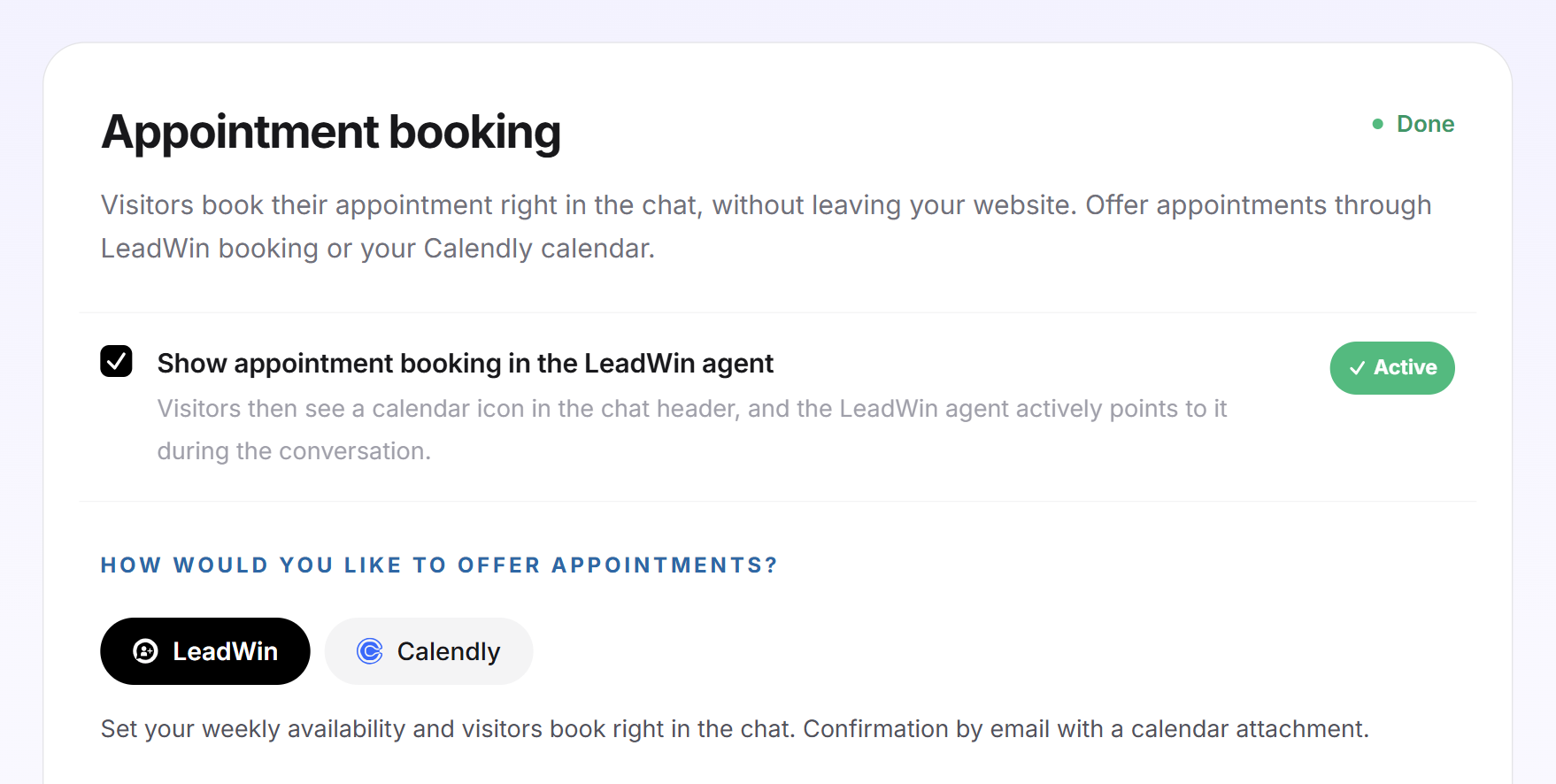
When appointment booking is active, visitors see a calendar icon in the chat header. Your LeadWin agent actively points it out during the conversation. With LeadWin booking, the visitor picks an event type, then a free slot, and finally enters name, email address and phone number. The phone number is required because the appointment takes place by phone if no video call comes about. What this looks like for the visitor is shown in How visitors experience your LeadWin agent.
After a booking through LeadWin booking, the visitor receives a confirmation by email with a calendar file attached. You or your team receive the email New appointment booked, also with a calendar file. Who gets this email is explained in Email notifications. The Go to your appointments button in this email opens the appointments of exactly the LeadWin agent that was booked. Every booking also appears in the dashboard under Leads → Appointments.
Appointment booking only becomes active when everything fits together:
- LeadWin booking: The switch is on, and there is at least one bookable event type with at least one time window.
- Calendly: The switch is on, and a valid Calendly link is saved.
The top right of the card then shows Done, otherwise Still open. The same step appears in the setup checklist. You check whether everything works in the live preview: while the Appointment booking page is open, the preview opens directly on the booking window.
Which times visitors see
With LeadWin booking, LeadWin calculates the free slots from these rules. With Calendly, the settings in Calendly apply.
- 12 hours' notice: Appointments that start sooner are neither offered nor accepted. A visitor who writes in the evening can therefore book the next morning at the earliest.
- 28 days in advance: Nobody can book further ahead. You arrange appointments 6 weeks out yourself.
- Grid based on the appointment length: The start times follow the duration of the event type, counted from the start of each time window. A 30-minute appointment in a window from 9:00 to 12:00 therefore gives the start times 9:00, 9:30 and so on up to 11:30.
- Buffer times and daily limit: They keep time free around booked appointments and limit how many appointments of one type can be booked on a single day.
- Connected calendar: If your calendar is connected, busy times drop out.
All times are in Europe/Berlin. If you work in a different time zone, convert your time windows before entering them.
Turn on appointment booking
- Open Setup → Appointment booking.
- Tick Show appointment booking in the LeadWin agent. The switch saves immediately.
- Under How would you like to offer appointments?, choose the LeadWin or Calendly tile. For a new LeadWin agent, LeadWin is preselected. The saved choice carries the label Active.
- Click Save at the bottom. The bar only appears when there is something to save. With LeadWin booking, every setting saves itself from then on, and the bar disappears.
While the switch is off, everything below it stays visible but cannot be edited.
Create an event type
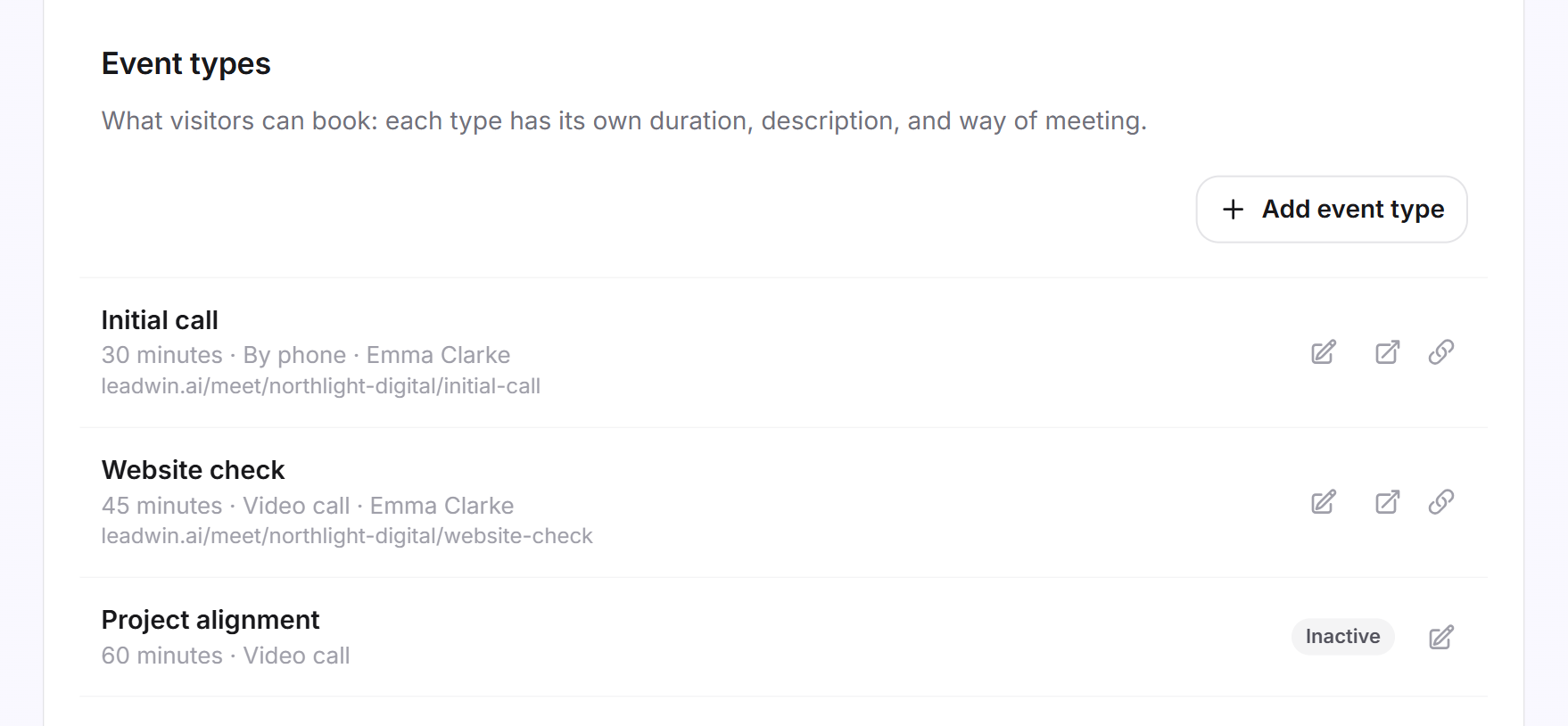
An event type is what visitors can book, for example a 30-minute initial call by phone. Each type has its own duration, description and meeting format. A new LeadWin agent has none yet.
- In the Event types card, click Add event type. A panel opens on the right.
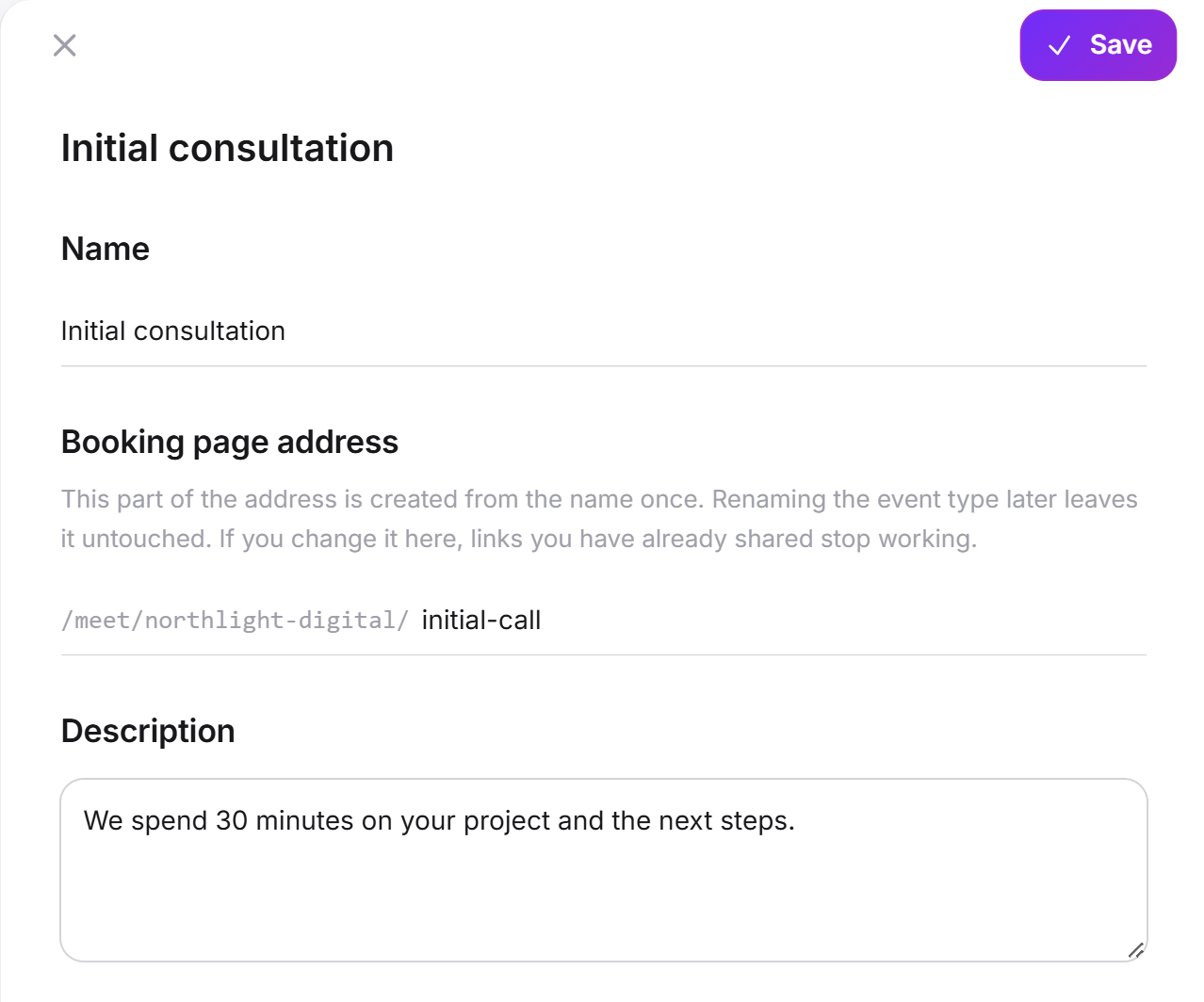
- Enter a Name, up to 60 characters. Visitors see the name when they choose.
- Under Description, briefly describe what the appointment is about, up to 500 characters.
- Choose the Appointment length: 15, 30, 45 or 60 minutes. The default is 30.
- Under How does the appointment take place?, choose the By phone or Video call tile.
- If needed, choose a Contact person. Visitors see this person with photo, name and position next to the event type. This does not change the free times.
- Click Save at the top of the panel.
You set the meeting format per event type. The visitor does not choose it. A video call only works with a connected calendar, with the access Read and write and with Write appointments into my calendar turned on. The appointment then gets a Teams link (Microsoft 365, with a Teams license) or a Google Meet link. If one of these is missing, the appointment is booked as a phone appointment.
Only people from your team for whom The AI may introduce this person to visitors as an expert is turned on can be chosen as contact person. Without such people, the field is not shown.
After saving, LeadWin translates the name and description into the other languages in the background. Until then, the row shows Translating, afterwards All languages. Each row also shows the duration, the meeting format, the contact person and the public address. A type that cannot be booked carries the label Inactive.
Set availability, buffers and daily limit
These settings are further down in the event type's panel. Each type has its own.
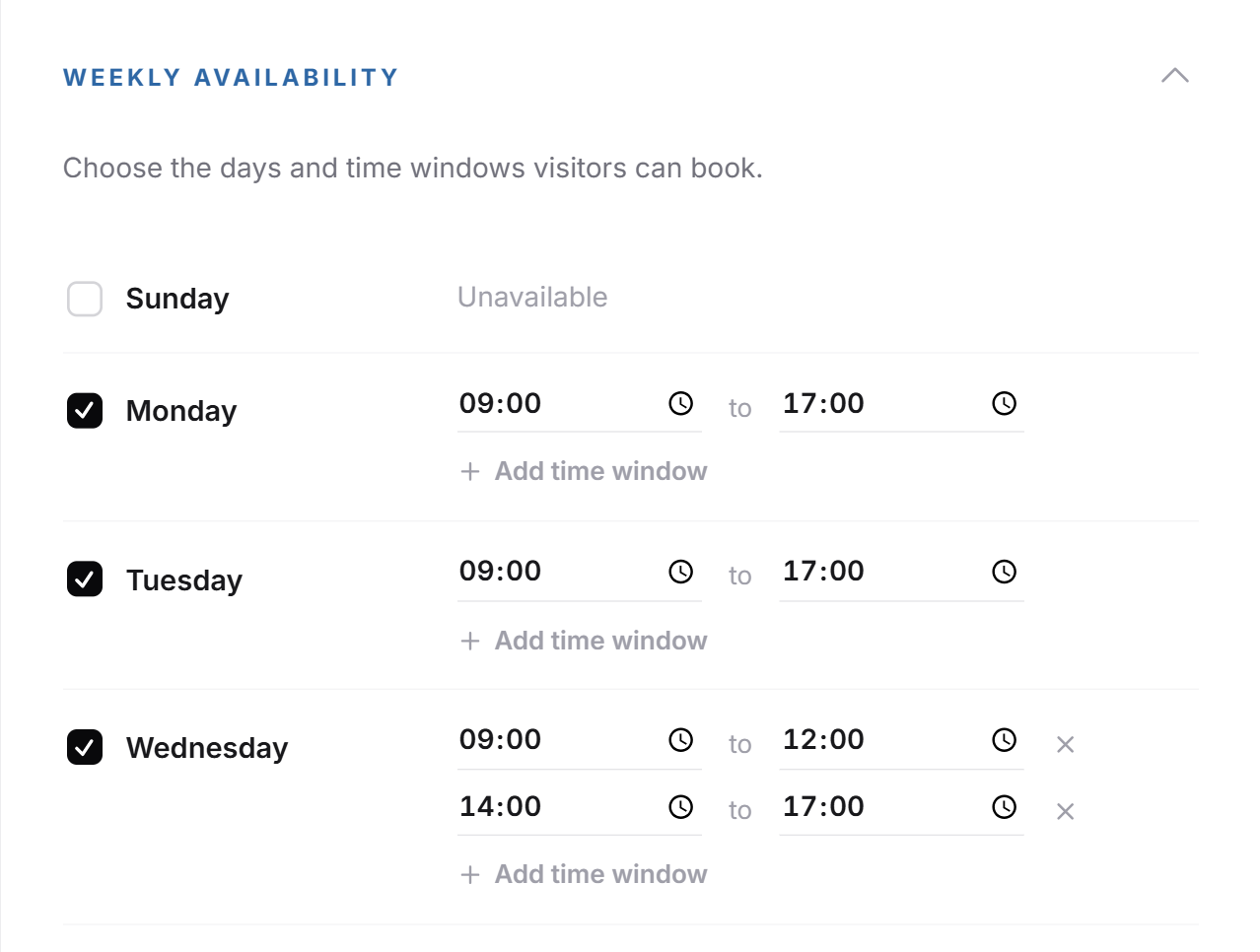
- Expand Weekly availability. The default is Monday to Friday from 9:00 to 17:00, with the weekend free. These times also apply if you never open the section.
- Tick each day on which you offer appointments and enter a time window under From and To. With Add time window, you create up to 6 windows per day, for example one in the morning and one in the afternoon. A day without a tick shows Unavailable.
- Under Buffer times, choose the time Before the appointment and After the appointment: No buffer or 5, 10, 15, 30, 45 or 60 minutes.
- Under Maximum appointments per day, enter a number from 1 to 20. Empty means no limit.
- Leave Event type is bookable turned on. If you turn it off, the type disappears for visitors and its booking link stops working.
- Click Save.
A time window must end after it starts and must be at least one appointment length long. Windows on the same day must not overlap, and at least one day needs a time window. Otherwise, the panel names the error and does not save.
Share the public booking link
Every bookable event type has its own booking page, for example leadwin.ai/meet/northlight-digital/initial-call. At leadwin.ai/meet/northlight-digital, all bookable types are listed together. Visitors book there directly, without the LeadWin agent on your website. Share the link by email, in your signature or on social media. If you come from Feedbax and have not yet accepted the data processing agreement, visitors see only an error page there. You and your admins still see the page, as a preview: a booking made there is not saved.
- Next to the event type, click the Copy link icon. The message Booking link copied confirms it. With Open booking page, you see the page the way visitors see it.
- Alternatively, open the event type. Under Public booking link, you find the address with the Copy link button.
The address consists of two parts. The first is the public name of your LeadWin agent, which you set on the Agent page. The second is the event type's Booking page address. It is created once from the name, with up to 60 characters made of lowercase letters, digits and hyphens. German umlauts are spelled out, so ä becomes ae, and other letters lose their accents. If you rename the type later, the address stays the same. If you change the address yourself, links you have already shared stop working.
The link works as long as the LeadWin agent is switched on, LeadWin booking is active, the type is bookable and your plan includes appointment booking.
Connect your calendar
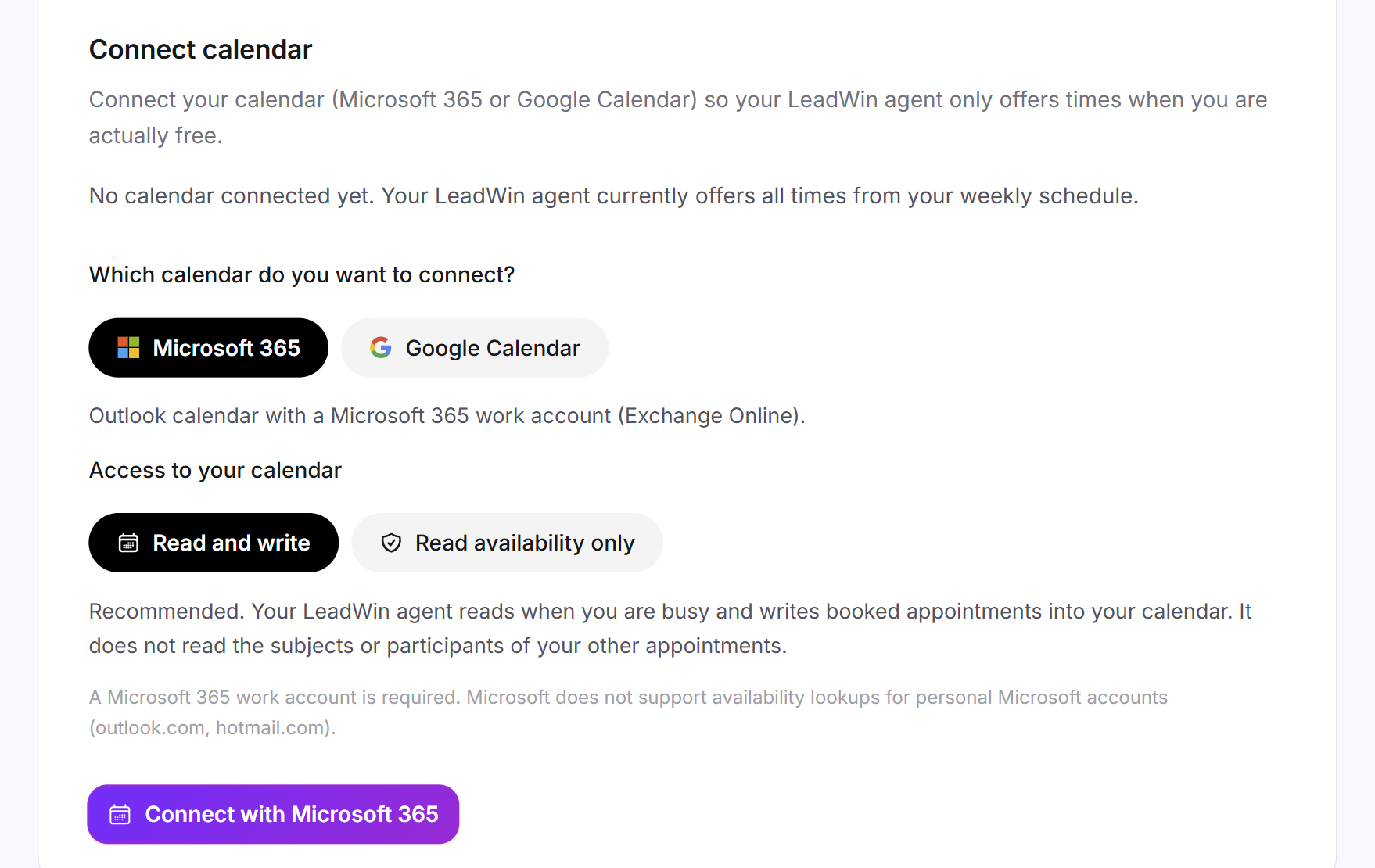
Without a connected calendar, your LeadWin agent offers every time from your weekly schedule, including times when you already have an appointment. If you connect Microsoft 365 or Google Calendar, busy times drop out. The connection applies to one LeadWin agent.
- In the Connect calendar card, under Which calendar do you want to connect?, choose the Microsoft 365 or Google Calendar tile.
- Under Access to your calendar, choose Read and write (recommended) or Read availability only.
- Click Connect with Microsoft 365 or Connect with Google Calendar. Sign in with Microsoft or Google and grant access.
- You return to the dashboard. The card shows Connected. Under Connected account, you see the calendar's address, and below it when it was last synchronized.
After that, you control two switches:
- Hide busy times: Appointments in your calendar are subtracted from the offered times.
- Write appointments into my calendar: Every booking appears as an appointment in your calendar. The visitor does not receive a calendar invitation but the confirmation by email. This switch requires the Read and write access.
LeadWin only reads when you are busy. It does not read the subjects or attendees of your other appointments. With Microsoft, only appointments marked as busy or out of office block time. Tentative appointments remain bookable. Microsoft only supports Microsoft 365 business accounts. Personal accounts such as outlook.com or hotmail.com cannot be connected. With Google, both Google Workspace and personal Google accounts work.
When the calendar is unreachable
If your calendar cannot be reached, the card shows Unreachable and the reason below it. Your LeadWin agent then offers your weekly schedule unchanged. During this time, a double booking is possible. If the connection has expired or access was revoked, for example by your organization's IT, click Renew connection. This is also how you switch the calendar or the access type.
With Disconnect and the confirmation Disconnect calendar?, you remove the connection. After that, all times from the weekly schedule apply again. Appointments that are already booked stay in place.
Use Calendly
If you already use Calendly, your Calendly calendar appears in the chat. Calendly then manages bookings and cancellations. You do not need LeadWin's event types or calendar connection for this.
- Choose the Calendly tile.
- In Calendly, open the event type you want and copy the link under Share.
- Paste it under Calendly link, for example calendly.com/northlight-digital/initial-call. Only links to calendly.com are accepted.
- If needed, enter a Label (optional), up to 60 characters.
- Click Save.
There is exactly one Calendly link per LeadWin agent. If the link is missing, the page shows Add your Calendly link first, before switching appointment booking on. Under Appointments, you see that a booking was made. The details are in Calendly.
Pause or delete an event type
If you only want to stop offering a type for a while, turn off Event type is bookable. The type is kept with all its settings.
- Click the pencil icon next to the event type.
- At the bottom of the panel, click Delete event type.
- The prompt, for example Delete Initial call?, names the consequences. Click Delete event type there once more. Cancel keeps the type.
The type's booking link no longer works after that. Appointments that are already booked stay under Appointments, with the name the type had at the time of booking.
What your plan includes
Appointment booking is available in every paid plan and in the trial:
| Plan | Appointment booking | Event types per LeadWin agent |
|---|---|---|
| Free | not included | none |
| Basic | included | 5 |
| Pro and trial | included | 5 |
| Scale | included | 5 |
Feedbax Business comes with the limits of Basic, Premium with those of Pro and Enterprise with those of Scale. You find more on this in LeadWin in your Feedbax plan.
In the Free plan, you see the whole page but cannot change anything. Upgrade appears at the top right, and the Save button shows a lock and leads to the pricing page. How to change your plan is explained in Manage, change and cancel your plan. From Basic upwards, a conversation on your website can end directly in an appointment instead of an email you still have to answer. If your trial ends or you switch to Free, appointment booking disappears for visitors. Your event types and settings stay saved and are back immediately with a suitable plan.
If you have several LeadWin agents, each one has its own appointment booking and its own calendar connection. When you create another agent, you can copy the appointment settings: whether it books appointments, the booking service and the event types. The calendar connection is never copied.
Frequently asked questions
I turned on appointment booking, but visitors do not see a calendar icon. Why?
With LeadWin booking, you need at least one event type that has Event type is bookable turned on and a time window. With Calendly, you need a valid link to calendly.com.
How far in advance can visitors book?
At least 12 hours and at most 28 days in advance, in the Europe/Berlin time zone.
Can the visitor choose between phone and video call?
No. You set the meeting format per event type. If you want to offer both, create two event types.
Why did my video call turn into a phone appointment?
For a video call, you need a connected calendar with Read and write access and with Write appointments into my calendar turned on. If one of these is missing, the appointment takes place by phone.
My Outlook.com calendar cannot be connected.
Microsoft only answers availability requests for Microsoft 365 business accounts. Use a business account or a Google calendar.
What happens if my calendar is unreachable?
Your LeadWin agent offers your weekly schedule in the meantime. During this time, a double booking is possible. Renew the connection as soon as the card shows an error.
Does the booking link change if I rename the event type?
No. Shared links only stop working if you change the Booking page address or the public name of your LeadWin agent.
Does the visitor get a calendar invitation?
No. The visitor receives a confirmation by email with a calendar file attached and adds it to their own calendar.